
The Alternate Currency feature in QuoteWerks allows businesses to create quotes in their base currency while automatically displaying pricing in a customer’s preferred currency. This is especially helpful for companies that sell internationally or work with clients in multiple countries. QuoteWerks uses stored exchange rates to convert pricing values such as unit prices, totals, and subtotals into an alternate currency, making quotes easier for customers to understand and approve. Users can manage exchange rates, currency symbols, and conversion settings directly within the software, and the feature also integrates with QuoteValet interactive proposals to provide a more localized and professional quoting experience.
QuoteWerks will display the base currencies cost, price, and list, and then the alternate cost, alternate price, and alternate list columns in the Document Items tab.
The prices in the alternate currency columns are automatically calculated by QuoteWerks using an exchange rate value obtained from the Exchange Rate list maintained by selecting Setup -> Options -> Exchange Rate Maintenance. This is useful when presenting quotes to other countries in their native currency.
To print a quote that includes the alternate currencies, modify a print layout, and insert the fields AlternateUnitPrice, AlternateExtendedPrice, etc. from the DocumentItems table. There are also AlternateSubTotal, AlternateGrandTotal fields, etc. in the DocumentHeaders table.
NOTE: The values for Alternate Cost, Price, and List are automatically calculated, but you can override these manually. If you override the AlternateUnitPrice column manually, the cell will have a red background color so you know it is no longer being calculated and has been set manually. You can remove the prompt and the color code by adding the user settings in the Settings Manager: SET:UserSettings:UserConfig:&APP_LoggedInUserName:AlternateCurrencyPriceOverrideDisablePrompt=-1 to disable the prompt for override, use SET:UserSettings:UserConfig:&APP_LoggedInUserName:AlternateCurrencyPriceOverrideDisableColoring=-1 to disable the different field coloring for the Alternate Unit Price field, and use SET:UserSettings:UserConfig:&APP_LoggedInUserName:AlternateCurrencyDefaultSelectedTotals=-1 to set the default selected totals.
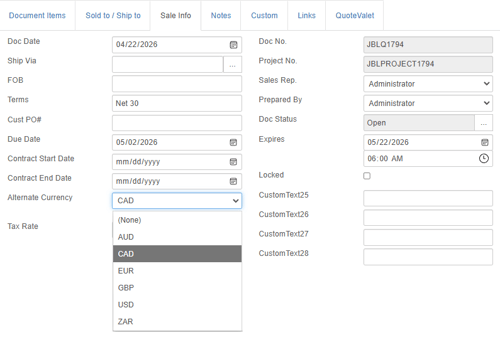
Alternate currency can be set in one of two ways:
Per quote, under the Quote Workbook's Sale Info tab:
Or as a default for all new quotes under the Documents page of the Setup -> Options menu:
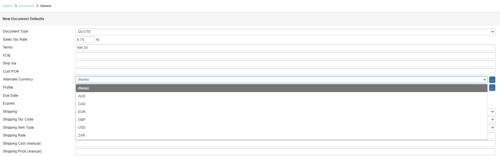
To change the currency rate, click on the  button next to the Alternate Currency field. This will display the Exchange Rate Maintenance window. Alternatively you can navigate to Setup -> Options -> Exchange Rate Maintenance to manage exchange rates.
For more information on Exchange Rates please see the Exchange Rate Maintenance article.