
Before setting up the Xero integration, it is recommended to first create a Discount Product and Charge Product within Xero so QuoteWerks can map defaults to it.
Setting up a Default Discount Product
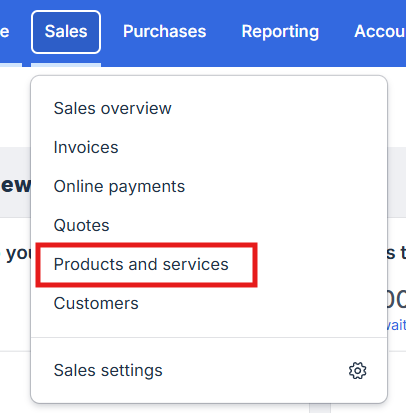
1. Go to the Sales menu and select Products and services.
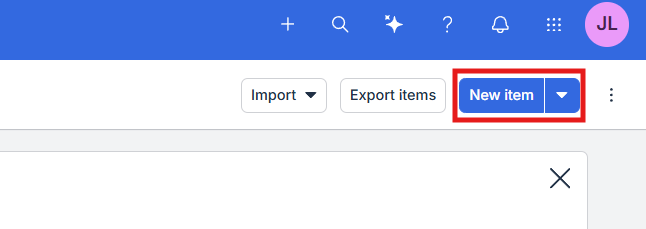
2. Click New item.
3. Fill out the details:
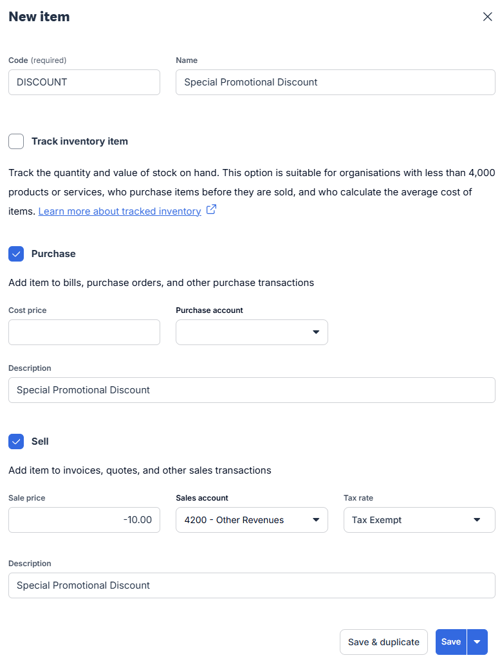
- Code: Enter a clear code (e.g., DISCOUNT).
- Name: Enter a description (e.g., "Special Promotional Discount").
- Unit Price: Enter a negative unit price (e.g., -10.00) or use it as a line item with a reduced rate.
- Account: Link it to your sales or general discount/revenue account.
4. Click Save.
Setting up a Default Charge Product
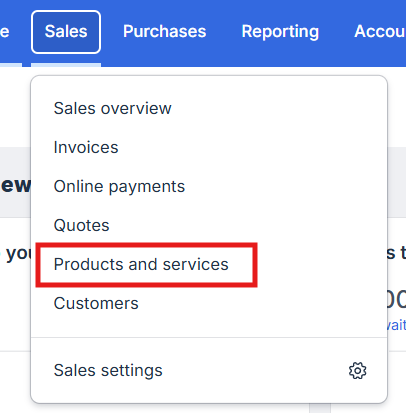
1. Go to the Sales menu and select Products and services.
2. Click New item.
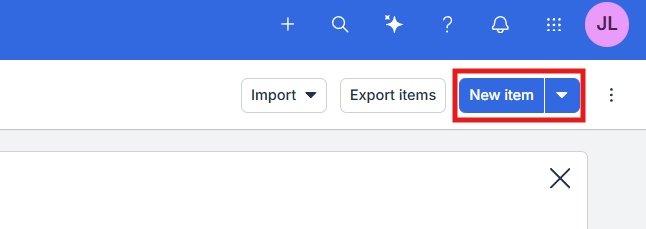
3. Fill out the details:
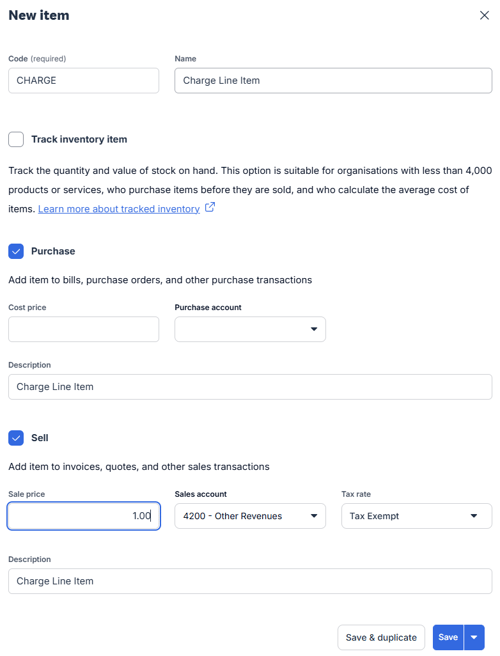
- Code: Enter a clear code (e.g., CHARGE).
- Name: Enter a description (e.g., "5.0% Charge").
- Unit Price: Should just be left as any positive value, e.g. $1.00.
- Account: Link it to your sales or general discount/revenue account.
4. Click Save.