
The Custom tab allows you to store information related to the quote that QuoteWerks does not already have pre-defined fields for.
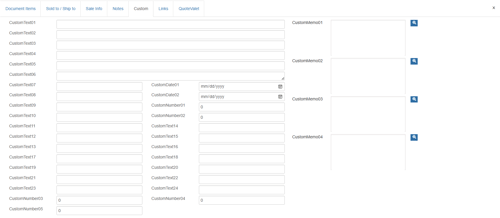
There are 24 CustomText, five CustomNumber, two CustomDate fields and 4 CustomMemo fields.
Custom Fields
QuoteWerks has many fields that allow you to track the details related to a quote. While most of the fields you’ll need are already included in QuoteWerks (Sold to, Ship to, Terms, Sales Rep., Tax Rate, etc.), there will be some information you need to track that is specific to your organization and therefore will not already exist in QuoteWerks.
See Customizing Fields on the Custom Tab, Tab Names, and Field Labels for more information.
TIP: You can change the name of any field by holding down the [Ctrl] key on your keyboard and double-clicking the field name.
The F2 Lookup feature works with these fields, allowing you to create a list of options to choose from when filling them out. Press F2 on your keyboard while your cursor is in one of these fields and an F2 Lookup window will appear, allowing you to click New, Edit, or Delete for an option you’d like to put in the field. For more details on the F2 Lookup feature, see F2 Lookup List Feature.
The CustomText fields under the Custom tab are different than the CustomText columns under the Document Items tab. The CustomText fields under the Custom tab are used to store information applicable to the entire quote, where you’ll use the CustomText columns under the Document Items tab to store information where there’s a value for each line item on the quote.
Using the Custom Fields in Macro Expressions
You can refer to the custom fields by macro expressions in the quote’s introduction and closing text. If, for example you use the CustomText01 field to store the quote’s contract number, in the closing field, you can type:
“Your contract # is &DH_CUSTOMTEXT01.”
When you print the quote, QuoteWerks will replace “&DH_CUSTOMTEXT01” with the value in the contract number field. See Cover Page, Literature, and Microsoft Word Template Document Macros for more details.
Customizing Fields on the Custom Tab, Tab Names, and Field Labels
Users with Master Rights can hold down the CTRL key and double-click on a Custom label to rename it to reflect a value that you would like to track. A Change Label Name window will appear. Type the name you would like to change the Custom label to. For example you may want to track credit card information. There are no credit card information fields in QuoteWerks, so you can rename 1 or more of the Custom fields to store the information in. Now, when you look at this Custom tab, you will see fields for credit-card information, where you can store that information.
Customizing Tab Names and Field Labels
You can customize the names of the tabs in the Quote WorkBook by holding down the CTRL key and double-clicking on the tab name. Please note, you need to have Master Rights to make this change. Once tab names have been customized, you can view the original tab names on the Views tab of the Setup -> My Preferences menu.
Most of the labels for the fields on all the tabs of the Quote Workbook can be customized by renaming them. Hold down the CTRL key and double-click on a label to rename it. This is useful when your company uses different terminology than is used in QuoteWerks. For example, you can change the “Sold To:” on the Sold To / Ship To tab to “Bill To:” as an example. This feature is also very useful for our international customers because it allows them to change all of these labels to their local language.