Document default settings are set on the Documents page. This page can be accessed by navigating to Setup -> Options -> Documents. This is where you will set global document defaults to be applied to all new quotes.
There are 3 subpages on the documents page:
General
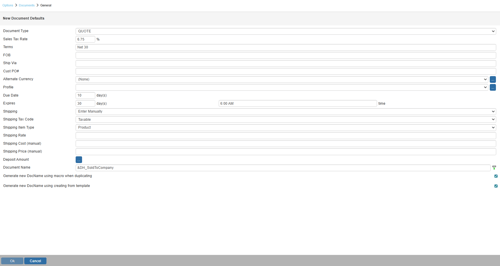
Document Type
This field determines the default document type when creating a new document by clicking on the [New] icon from the icon toolbar.
Sales Tax Rate
Set the default tax rate here. For example, enter 6.75 for a 6.75% sales tax rate.
Terms, FOB, and Ship Via
The values entered here will appear as the default in new quotes.
Cust PO#
The value entered here will be the default setting for all new quotes.
Alternate Currency
Select name of the default currency, or click on the  button to display the Exchange Rate Maintenance window. See Alternate Currency Support for more information on Exchange Rate Maintenance.
Customer Profile
Select the default customer price profile that you would like all new quotes to default to. Clicking on the button will allow you to maintain the list of customer price profiles.
Due Date
When creating a new quote, the Due Date field on the Sale Info tab will be blank if this field is left blank. If set to 0, the default Due Date will be today’s date. If you would like to set it to a day in the future, set the appropriate number of days here.
Expires
When creating a new quote, the expires field on the Sale Info tab will be blank if these fields are left blank. Set the number of days and time here to have quotes automatically display the expiration date of the document to clients. In the time text box if you enter, for example, +5:35 then it will add 5 hrs and 35 minutes to the current time that the quote is created. Without a + symbol the time will be a fixed time.
Shipping Drop Down
There are three default shipping options: Enter Manually, Add up each line item, Based on weight
Enter Manually
The Enter Manually option will default the shipping type so users can manually enter in the shipping price for the document. If you want to set a default cost and price, use the Shipping Cost (manual) and Shipping Price (manual) fields. This will ensure your document has a shipping cost/price on the document.
Add up each line item
This option will calculate the shipping of the individual items if it has been set in the Shipping Amount column on the DocumentItems tab.
Based on weight
This option will calculate the shipping charge of the individual items based on their weight. The weight for items can be set when editing an item in Edit Product Window or by adding it manually to the Unit Weight column on the Document Items tab.
Shipping Tax Code
Set your shipping tax code default on this menu.
Shipping Item Type
If you are sending shipping charges over to your CRM/PSA you can set a default item type for the charge, so it is exported properly.
Shipping Rate
If using the Based on weight option, the Shipping Rate will calculate the shipping charges based on the item's weight. For example, if you set 10 as the default shipping rate and an item's weight was 3 pounds, it would be a shipping charge of $30.00 (10 x 3).
Shipping Cost (manual)
The shipping cost field is the default cost of shipping for the document when the option Enter Manually is selected.
Shipping Price (manual)
The shipping price field is the default price of shipping for the document when the option Enter Manually is selected.
Deposit Amount
If you require a deposit from your customer, you can set an amount by clicking the button next to the Deposit Required display at the bottom of the Quote Workbook. This will bring up the Deposit Required window, allowing you to set the deposit for this quote.
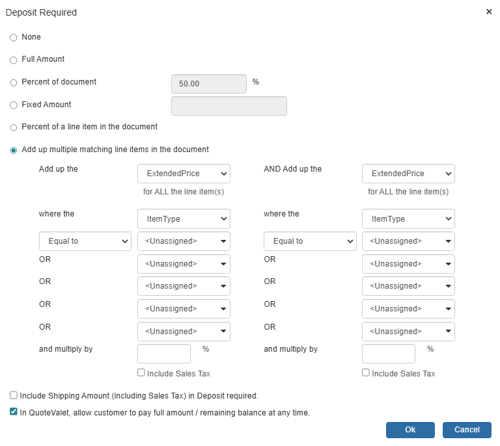
The Deposit Amount for each document will use this default setting. The deposit amount can be set to None, the Full Amount of the document, a Percentage of [the] document total, a Fixed Amount, or based on a line-item amount (like a subtotal or percent of a line item’s extended price). Typing an amount into the Percentage of document field will auto-populate the Fixed Amount field with the actual amount related to the percent you entered. You can still change the Fixed Amount field manually, for rounding purposes or otherwise.
You can also select Percent of a line item in the document which will calculate the deposit based on that single line item. Additionally, by using the Add up multiple matching line items in the document option, you can choose to add up multiple line items where the item type, manufacturer, manufacturer part number, vendor, vendor part number, and custom text fields match the criteria specified. You can add up items that are "Equal to", "Not Equal to", "Contains", or "Begins with". This enables you to set the deposit for only a certain amount of line items. So if the quote contains a few items that require a deposit but others that don’t, you can easily calculate the deposit automatically using this summary filter.
You can also set the deposit to charge a percentage on the item type in order to calculate the deposit for 100% of the products, but only 50% of the labor or installation. This provides a lot of flexibility in using the deposit to collect the exact amount you need to move forward.
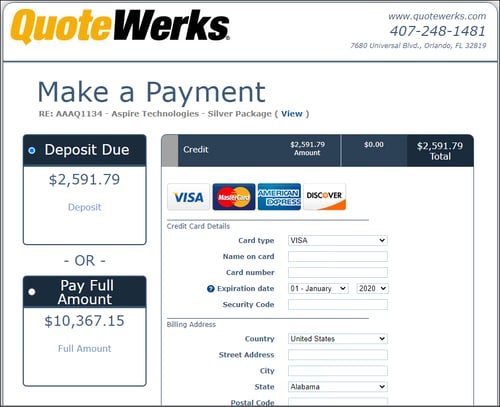
The Deposit Required feature can be used in conjunction with QuoteValet, requiring a customer to put down a deposit when they accept the quote. For more information on payments through QuoteValet and accepting deposits, see QuoteValet.
In QuoteValet, allow customer to pay full amount / remaining balance at any time.
This checkbox will let your customer pay the deposit of the document or choose to pay the full/remaining balance of the document at any time when using QuoteValet. They can still pay the deposit amount first but would also be able to pay the full amount instead. It simply gives them the option. They can also come back to the payment screen to pay off the remaining balance after the initial deposit payment at any time.
Document Name
Here you can set the default name for new documents. You can also click on the  button to select from a list of macro values such as the SoldToCompany or TodaysDate, that way the default quote name for new quotes can be different based on the values in the macros.
Generate new DocName using macro when duplicating
This checkbox option will use the macro(s) set in the Document Name as the new name of any document that is duplicated.
Generate new DocName when creating from template
This checkbox option will use the macro(s) set in the Document Name as the new name of any document that is created from a template.
Custom
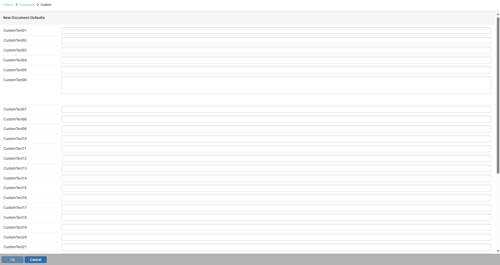
The CustomText fields are named on the Custom tab of the quote workbook. The names used on the Custom tab of the quote workbook will be shown in this window. In the CustomText fields enter the default values that you would like to appear on all new quotes.
TIP: The CustomDate01 and CustomDate02 fields support the macro of {+##} so you can set a default date. For example, if you set the macro as {+14}, this will set the date in that field to today's date, plus 14 days as a default
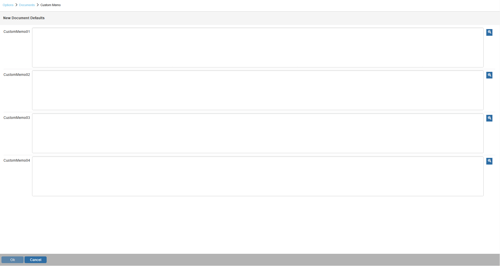
Custom Memo
The CustomMemo fields are named on the Custom tab of the quote workbook. The names used on the Custom tab of the quote workbook will be shown in this window. In the CustomMemo fields enter the default values that you would like to appear on all new quotes. CustomMemo fields can hold up to 32,000 characters and are typically used for longer descriptions that need to be included.