
The Document Items grid is made up of columns that are used to organize information about the line items on a document. They can be sorted, repositioned, and renamed.
Sorting Columns
The Document Items columns can be sorted by by clicking on the column name. This will automatically prompt you to sort the columns by "Ascending". If you wish to sort by "Descending" instead, simply hold the SHIFT key before clicking on the column name. Users can also specify which columns to sort by pre-selecting them. For example, if you select 4 of the 16 line items in a document, only the selected line items will sort. Users can select both contiguous range of lines or single select lines to sort.
Additionally, the sort will only work for Product/Service, Comment, Heading, or Summary Lines. Subtotals, Section Headers, Discounts, and Charge line types will not sort. Your selection will need to omit those line types to use the sorting functionality. This is designed to allow users to keep the Section Headers, Subtotals, etc. in a specific spot in the document and still be able to use the sort functionality.
To sort items, simply highlight the items you would like to sort and then click on the column name. You can use CTRL+A to select all items in the document to sort all items.
Customizing Columns
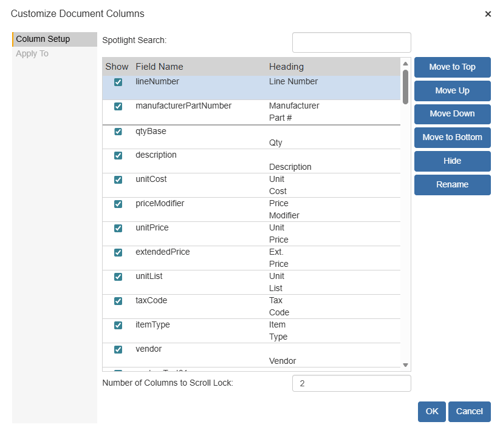
The items that have been added to your quote are displayed on the Document Items tab of the Quote Workbook. The Document Items tab has many columns displayed on it, which can be customized. You can customize which columns are displayed for each user, the title of each column and in which order the columns appear in by selecting the View -> Customize Columns menu. The original field name will be shown in the Field Name column and any changes you make to the field name will be displayed in the Heading Column:
If the Misc Access right of “CannotModifyDocumentItemsColumns” is set for the currently logged in user, the user will not be allowed to customize their columns..
Spotlight Search
The spotlight feature will highlight in bold all matching list entries and will gray out all entries that do not match. You can also press the DOWN arrow key to move the highlight to the next match. You can also press the UP arrow key highlight the previous match.
Change Column Order
To change the order in which the columns appear, you can either click and drag the item to the preferred location or select the item and click the [Move Up] and [Move Down] buttons to shift the item 1 position at a time. You can also use the [Move to Top] button to move a column to the top of the Customize Columns window and the [Move to Bottom] button to move a column to the bottom of the window.
Hide and Show Columns
The items that are checked will be the columns displayed on the Document Items tab of the quote workbook. To hide a column, select that column and click on the [Hide] button. To show a column that is currently hidden, select that item and click on the [Show] button. Note that the [Hide] button becomes a [Show] button when the item selected is currently hidden.
Scroll Lock
The Scroll Lock feature allows you to specify how many columns on the Document Items Tab you wish to lock when scrolling to other columns.
Customizing Column Names
Most likely, you will not need to modify the standard columns like Qty, Manufacturer Part #, etc., but for example, instead of the column title of Unit Price, you may want to name it Rate.
To change a column name select the column name you would like to change and click on the [Rename] button. The Rename window will appear:
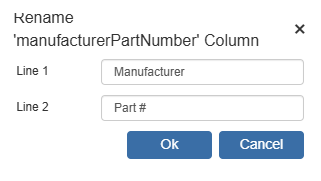
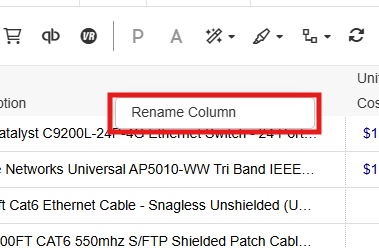
Type in the column title name you would like to appear as the header of that column in the Document Items tab. You can also right click and select Rename Column from the Document Items tab to rename a column.
Applying Customized Columns to Users
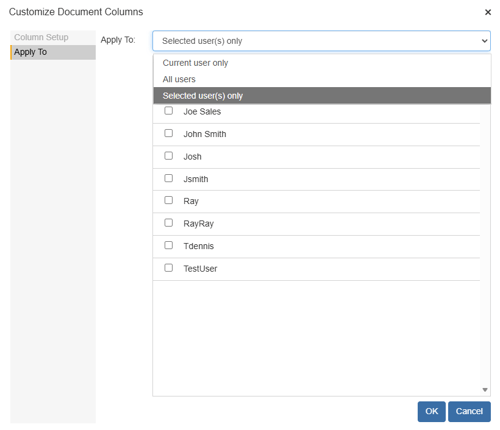
If you have Master Rights, then an Apply to tab will be visible that will give you the option to apply these column changes to all users, or a list of selected users.
Setting Up and Using Custom Columns
QuoteWerks also has many custom columns that can be used to store custom information about each line item in the quote. Using the View -> Customize Columns menu you can also customize these custom columns in the same way that you can customize the other columns on the Document Items tab.
Once you have customized these columns, you can use them in several ways. For example, you can manually type in information into these custom columns. Also, you can set up QuoteWerks so that when you add a product to the quote, QuoteWerks can copy information from custom fields in the product definition into the custom columns in the quote. There are 14 CustomText fields, 5 CustomMemo fields, and 5 CustomNumber Fields, and 2 CustomDate fields available.
To setup QuoteWerks to copy the information from the product definition’s custom fields into the Quote Workbook custom columns, select the Setup -> Options -> Field Links tab and check the checkbox next to the appropriate “Link Custom{Field}XX column to Custom{Field}XX Product field” checkboxes on the Links tab.
NOTE: Since linking the Custom{Field}XX columns to the Custom{Field}XX product fields is optional, renaming a Custom{Field} column does not automatically rename the Custom{Field} product field and vice-versa.