
From the Document Items tab, you can add items to, edit items on, or delete items from your quote. This is where you will spend most of your time when building and managing quotes. The document items tab has a few sections.
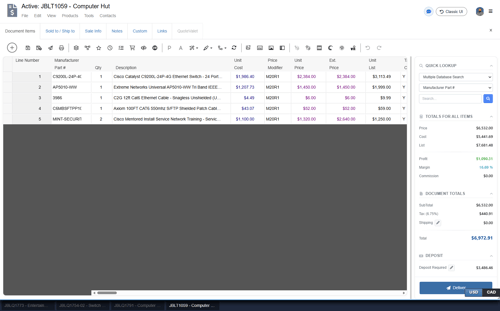
The Grid Toolbar
The Grid Toolbar section contains a number of buttons that can be used to perform a variety of tasks. For information on what these buttons are and what they do please see the Grid Toolbar help article.
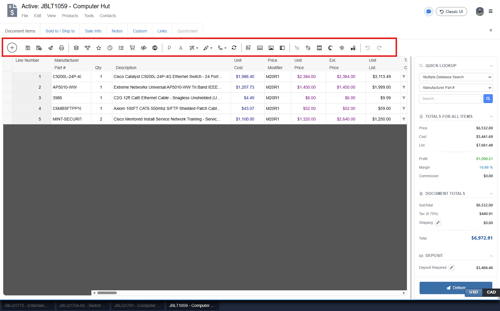
The Document Grid
The Document Grid is where you add products, services, and different line types to your document. This is where you build your quote. There are a number of columns that are used to store information about each line item. These include but are not limited to Description, Manufacturer Part Number, Unit Cost, Unit Price, List Price, and Item Type.
Navigating through the grid is very simple. Simply click on a field and the cursor will appear in the cell at the position you clicked. You can use the HOME button on the selected field to move the cursor to the beginning of the field or the END button to move the cursor to the end of the contents of the field.
Also, when the cell text is selected and you press SHIFT-LEFT or SHIFT-RIGHT it will de-select all the text and position the cursor at the beginning or end of the cell respectively. Separately, when editing in the cell, holding the SHIFT key while using the LEFT or RIGHT arrow key will select the text in the respective direction. Pressing CTRL+RIGHT ARROW will move the cursor to the beginning of the next word and similarly, pressing CTRL+LEFT ARROW will move the cursor to the beginning of the previous word. If the entire contents of the cell is selected, this will not happen.
You can move between fields on the grid using the [Tab] button to move across fields (just like Excel) or use the [Enter] button to move vertically instead.
IMPORTANT: The changes that you type into a cell are not committed until you Tab or Click into a different cell. For example, if you type information into a cell and then Print, the information you just typed will not appear.
Selecting Rows
To select an entire row, click on the selector for the row (the blank space next to the row). This will highlight the entire row so you can edit the line attributes, move the row, etc.
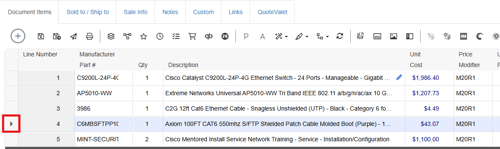
Hold down CTRL when clicking on the row selector to select multiple rows.
For more information on how to work within the Document Grid see the Working with Document Items help article.
Quick Lookup
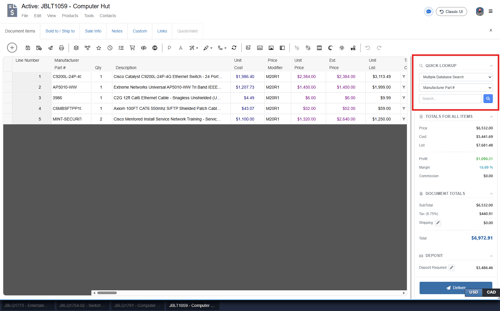
The Quick Lookup Bar is located to the right of the Quote Workbook and is another way to quickly add products to your quote. First, you will need to select which vendor you want to search. Your vendors listed in the Products -> Lookup window will be displayed in the drop-down menu. Next, select your search operator as description, vendor part number, or manufacturer part number. Finally, add your search terms in the search box and click “Enter” on your keyboard or click on the magnifying glass to initiate the search. If the item is found it will automatically be added to your open quote.
If the exact match of the search terms is not found, QuoteWerks will launch the Product Lookup Window, will populate the search field, and show you the items that match the search terms.
If you select the option for Multiple Database Search instead of a specific vendor, QuoteWerks will search across all of your vendors setup in QuoteWerks and will open the Products-> Lookup window with your results.
Totals for All Items
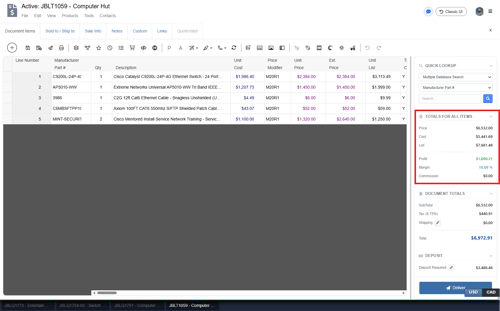
The Totals for All Items area is located to the right of the Quote Workbook and is a quick way to see totals for all or selected items on the quote. When you select line items, QuoteWerks will display the Extended Cost, Extended Price, Extended List, Profit Amount, Gross Margin, and Commission Amount for all the lines selected in this Totals Bar. If no line items are selected, these values will be for all items on the quote. If you have selected one or several line items, these values will be calculated for only the selected line items.
Document Totals
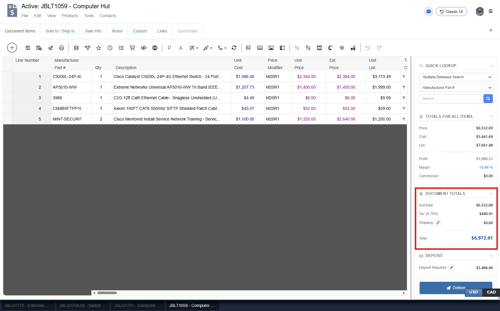
The Document Totals section displays totals for the document including the Subtotal, Tax, Shipping, and Grand Total. These fields are stored in the DocumentHeaders table and are printed on default outputs using macros. Clicking on the pencil icon next to shipping brings up the Shipping Amount window where you can enter your cost/price manually, add up shipping charges in each line item, based on weight, or using FedEX/UPS real-time rate quotes.
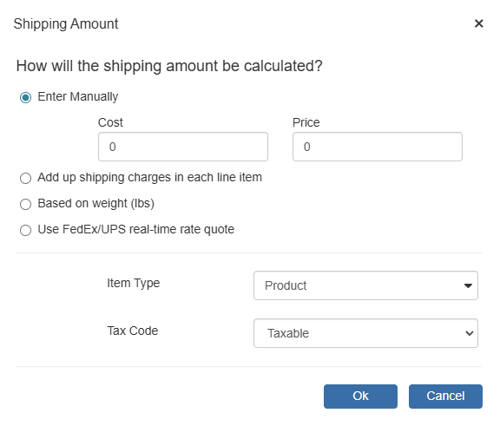
For more information on shipping see the Shipping help article.
Deposit
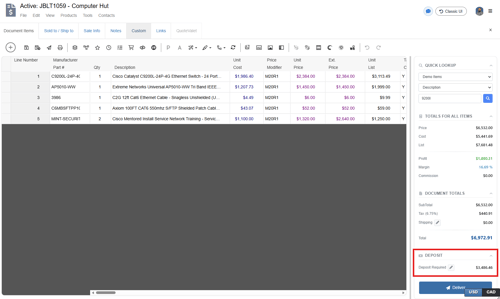
The Deposit section displays the required deposit. This can be set as a default on the Setup -> Options -> Documents tab or per document by clicking on the pencil icon.
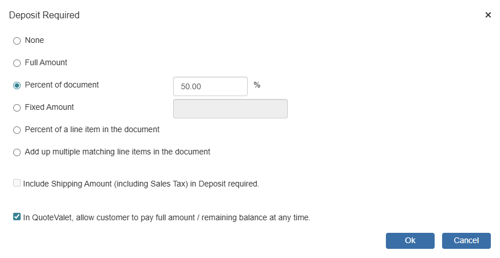
For more information on required deposits see the Required Deposits help article.
See also: