
To add or edit products in a native product database you will first want to select the database you would like to work with. This is done by navigating to the Product Lookup window. This window is accessible by clicking on Products from the Navigation Panel or by going to the Products -> Lookup... menu. Once here you will want to select the database you would like to add or edit products from. In the example below we have selected the "Demo Items' database.
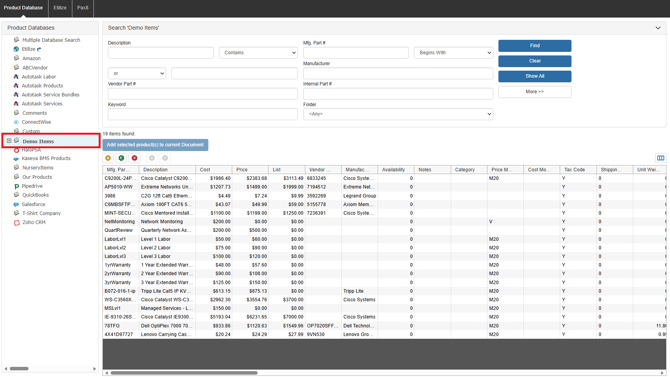
To create a new product or service click on the New  Button. To edit and existing product or service select it and click on the Edit
  Button. Selecting either of these options opens the Edit Product window which contains 11 tabs that all store information associated with the selected product or service.
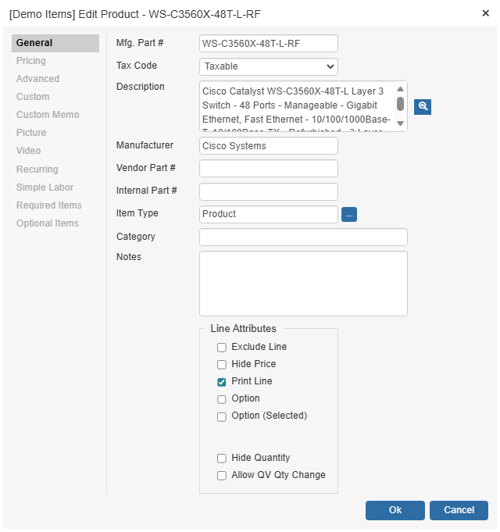
Each of the tabs of the Edit Product window are described below:
General Tab
The following describes the use of the key fields on the General tab.
Mfg. Part # and Vendor Part #
The manufacturer part number is the key field that is necessary for most of QuoteWerks’ more advanced features. It is used in several ways:
-
Comparing products from different vendors that are in different product databases.
-
Used to reference the product when creating bundles and configurations.
-
Used to reference the product when looking for Substitutions.
-
Used to reference the product when looking for Requirements.
-
Used to reference the product when looking for Options.
- Used to retrieve item when using Quick Lookup tool bar.
- Used to print pictures and spec sheets.
Ideally, a manufacturer part number is a short, simple alpha-numeric value that uniquely identifies an item. We recommend that manufacturer part numbers only contain letters and/or numbers. Punctuation in a part number like spaces, commas, apostrophes, quote symbols, etc. are not recommended. The vendor part number is the part number that your vendor uses and that you use to order the product.
NOTE: If you wish to use the advanced product features, you must put a unique part number in the manufacturer part number field. If you do not normally use a manufacturer part number, just use the manufacturer part number field for your part number, or put your part number in both the manufacturer part number field and the vendor part number field.
Tax Code
Certain products are taxable and some are not. Services for example are typically not taxable. On the Edit Product window, you can explicitly set the taxability of the product.
When new products are manually created in the product database by clicking on the [New] button, the tax code will default to the setting that you have specified under the Document Items tab of the Setup -> Options menu.
When new blank line items are added to the quote, the default line item taxable status will be determined by the setting on the Quote Items tab of the Setup -> Options menu.
NOTE: When importing items, you will need to explicitly set the taxability status of the items you are importing. See the Advanced tab instructions of the Import Wizard under Importing Products.
Description
The QuoteWerks product description can be 32,000 characters in length. If your product descriptions have multiple lines, you can double-click in the description box or click the  button to display a window with a large area to edit your description.
Manufacturer
The manufacturer is used to store the name of the manufacturer of the selected item. The manufacturer and vendor can be the same name.
Item Type
Click on the  button or F2 to launch the list of item types for this item. You can Add, Edit or Delete other item types from this option list. The item type is a good field to use for classifying and/or categorizing an item. This item type field is also copied into the quote when the item is added to the quote. Because of this, this is a good field to store item type information in when you know that you will want to create reports based on the item type information in quotes. Examples of items types include; Product, Service, Labor, Warranty, etc..
Category
This field is used to more narrowly identify an item. The Product Lookup window allows you to search on this field. Examples of categories may include; Software, Hardware, Licenses, Annual, Semi-Annual, etc.
Notes
This field allows you to add special notes regarding the product. These notes will be copied into the notes column for the product when it is added to the quote.
Line Attributes
The default line attributes for a product can be set here. These will be the default settings when pulling this item into your quote. When using this product in a bundle, configuration, optional, or required item definition, the attributes defined in those entities will overwrite the product level attributes.
Pricing Tab
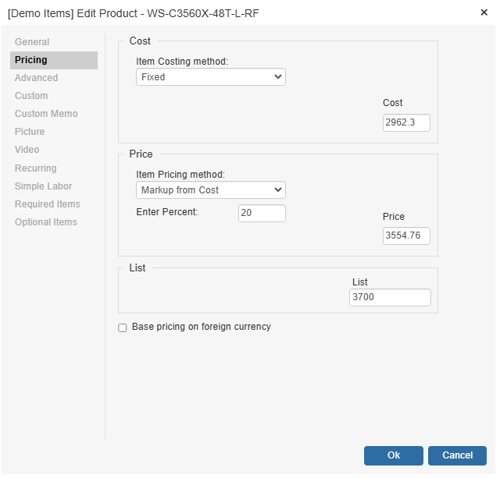
Cost
See Item Costing Method and Related Fields.
Price
See Item Pricing Method and Related Fields.
List
This is the product's list price.
Base pricing on foreign currency
On the pricing tab, there is a “Base pricing on foreign currency" option. This feature allows you to enter the foreign prices of products that you purchase from foreign countries into the product definition in the product database. QuoteWerks then calculates the cost of the product in your local currency using an exchange rate. See International Features for details.
Advanced Tab
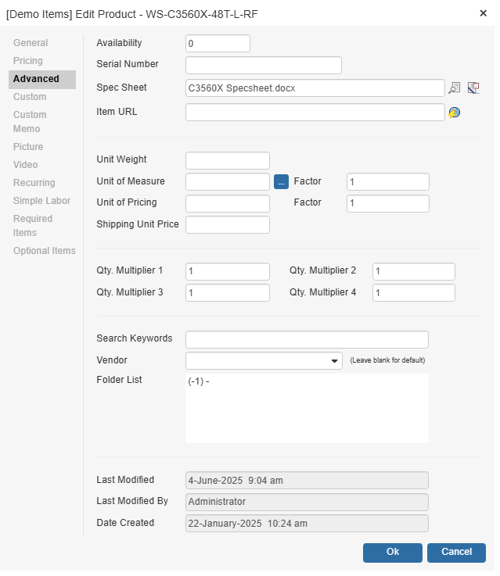
The following describes the use of the key fields on the Advanced tab.
Availability
This field is used to record the quantity of the product that you currently have in inventory. When you convert a document to an order or an invoice you will have an option to reduce the inventory count.
Serial Number
This field is used to record a serial number for the item. Only 1 serial number can be stored.
Spec Sheet
This allows you to associate a product specification (Spec) sheet describing the product with this product. To use this feature, you must enter a unique part number in the manufacturer part number field and the vendor name must match the product database name for this product. This is required so that QuoteWerks can find the spec sheet when the part is being printed. To select a spec sheet for an item, click on the  button. This will launch the “Select Spec Sheet for Product” window. From this window you can select a spec sheet by searching for one on your computer or network. You can also click on the
  button to open the file for modification using whatever program (such as Word or Adobe Acrobat) is associated with this file type.
When printing the quote, on the File -> Print/E-mail/Deliver window there is a tab called “Spec Sheets.” This tab will display all specs sheets associated with items in the current document.
Simply check the box next to the spec sheet(s) you want to include with this quote, and they will be appended to the document when it’s created.
QuoteWerks supports RTF (Rich Text Format) and PDF (Adobe Acrobat format) formatted spec sheets. Microsoft Word for example can create, open and modify RTF files. Adobe Acrobat can create, open and modify PDF files.
Item URL
This field enables you to specify a webpage to associate with the product. When searching for the product in the Product Lookup window, you can right click on the product and choose 'View Item URL'. QuoteWerks will then open the URL in your default browser. You can also click on the  button to open the URL from the Edit Product window.
Unit Weight
This field is used to store the per unit weight of an item. The unit weight is used in conjunction with the Unit of Measure (U/M) and Unit of Measure Factor (U/MF).
Example 1
If the U/M is Per Dozen, and the U/MF is equal to 1. That would mean the Unit Weight is the total weight of 1 dozen. The table below illustrates this example.
| Unit of Measure | Unit of Measure Factor | Unit Weight | Total Weight of 1 Dozen |
| Per Dozen | 1 | 2 pounds (lbs) | 2 pounds (lbs) |
Example 2
If the U/M is Per Dozen, and the U/MF is equal to 12. That would mean the Unit Weight is the weight of each individual item. The table below illustrates this example.
| Unit of Measure | Unit of Measure Factor | Unit Weight | Total Weight of 1 Dozen |
| Per Dozen | 12 | 2 pounds (lbs) | 24 pounds (lbs) |
Based on what you enter as the Unit of Measure Factor will determine what you enter as the Unit Weight. Lastly, the unit weight can be used to calculate shipping costs.
Unit of Measure
This field is used to specify the unit of measure (U/M).
Examples of Unit of Measure:
-
Each
-
Per Dozen
-
Box of 10
Unit of Measure > Factor
This field is used to specify the unit of measure factor (U/MF). The U/MF is based on the unit of measure and will be used to calculate the Total Shipping Weight of an item.
The Formula for Total Shipping Weight:
Total Shipping Weight = (QTY) * (UNIT OF MEASURE FACTOR) * (UNIT WEIGHT).
Example 1
If you sell 5 widgets, the U/M is per dozen, and the U/MF is 12, and the Unit Weight is 2 pounds, then the extended weight of the widgets would be 120 pounds. The table below illustrates this example.
| Qty | Unit of Measure | Unit of Measure Factor | Unit Weight | Total Weight |
| 5 | Per Dozen | 12 | 2 pounds (lbs) | 120 Pounds (lbs) |
Unit of Pricing
This field is used to specify the unit of pricing (U/P).
Examples of Unit of Pricing:
-
Each
-
Per Dozen
- Box of 10
Unit of Pricing > Factor
This field is used to specify the unit of pricing factor (U/PF). The U/PF is based on the unit of pricing and will be used to calculate the EXTENDED PRICE of an item.
The Formula for Extended Price:
Extended Price = (QTY) * (UNIT OF PRICING FACTOR) * (UNIT PRICE)
Example 1
If you sell 5 pens, the pens come in a Box of 10, the Unit Price of a box of 10 pens is $50, and you sell the pens individually, the U/PF is .1, the total price of 5 pens would be $25. The table below illustrates how to configure each of the fields.
| Qty | Unit of Pricing | Unit of Pricing Factor | Unit Price | Extended Price |
| 5 | Per Box of 10 | 1 | $50 | $25 |
Example 2
If you sell pens that come in a box of 10, but you want to display the unit price of $5.00 for each of the 10 pens in the box, you can configure each of the fields as the table below illustrates.
| Qty | Unit of Pricing | Unit of Pricing Factor | Unit Price | Extended Price |
| 1 | Per Pen | 10 | $5 | $50 |
Shipping Unit Price
This value will copy into the Shipping Amount column on the Document Items tab.
Quantity Multipliers
Quantity Multiplier fields allow users to multiply the item's quantity by additional quantity field(s). This allows more flexibility when quoting items. When editing the item, you can set default quantity multipliers to utilize this functionality.
Normally, the extended price of a product is calculated by multiplying the product quantity by the unit price. In certain cases, it may be useful to have more than one quantity value involved in the extended price calculation. Here you can set an item's default quantity multipliers when you need to use this feature.
NOTE: Quantity Multiplier X = QMX.
Example 1
Let's say you're going to quote the rental of five chairs for three days, at a per-day price of $12. You would want to set the quantity multiplier 1 field as 3 for the default amount of days. QuoteWerks will then multiply 5 x 3 x 12, for a total extended price of $180.
| Qty | Unit Price | QM1 | Extended Price |
| 5 chairs | $12 per day | 3 days | $180.00 |
Example 2
Let’s say you're selling tiles per square foot. QuoteWerks can calculate the price based on the total area.
| Qty | Unit Price | QM1 (Length) | QM2 (Width) | Extended Price |
| 1 | $2.50 per square foot | 75 feet | 50 feet | $9,737.00 |
QuoteWerks calls these extra quantity values “Quantity Multipliers”, and there are four quantity-multiplier columns: QtyMultiplier1, QtyMultiplier2, QtyMultiplier3, and QtyMultiplier4. These quantity-multiplier columns allow the extended price calculation to become:
ExtendedPrice = BaseQuantity x QuantityMultiplier1 x QuantityMultiplier2 x QuantityMultiplier3 x QuantityMultiplier4 x UnitPrice
These quantity-multiplier columns are visible if you scroll through the columns to the right.
You'll also see a QtyTotal column next to the QtyMultiplier columns. The total quantity (QtyTotal) is calculated as :
QtyTotal = BaseQuantity x QuantityMultiplier1 x QuantityMultiplier2 x QuantityMultiplier3 x QuantityMultiplier4
Search Keywords
These keywords can be searched on from the Product Lookup window. Separate each keyword by a space.
NOTE: The combined length of all the keywords cannot be greater than 254 characters.
Vendor
When you add a product to a quote from a product database, the Vendor column value in the quote for this item is automatically set to the the name of that product database. Therefore, whenever QuoteWerks needs to get an update price or other information for the product, QuoteWerks will look in the product database you took the product from.
In most cases, you'll leave this Vendor field in the product definition blank. However, sometimes you might want to obtain updated information like pricing from a product database other than the database you selected the product from. When QuoteWerks links to external product databases, it cannot edit these products' descriptions or pricing, or organize these products in folders. Often, the product descriptions in these external databases are technical, short, and cryptic which is not something you can show to the customer; however, product pricing is current in these external databases.
A solution to these limitations is to copy the product from the external database into a native "surrogate" product database and set the Vendor field to be the original external product database. This Vendor field value is your link between your native product database and the external/original database, which will allow you to always access the most up-to-date pricing information from the original external product database.
Once you copy the product into the surrogate database, you can modify the description to be more customer friendly. Then, moving forward, always select the product from the surrogate product database so it will use that description in the quote, but use the pricing information from the original external product database.
For additional information relating to the Vendor field, please see QuoteWerks Native Product Databases.
NOTE: When products from an external database like the Tech Data database are copied into a surrogate native product database, and these products are selected to be added to the quote from the surrogate native product database, the latest cost value will be automatically retrieved from the Tech Data database therefore getting the best of both worlds in that when the product is added to the quote, the item will have both the current cost, and your edited description.
Folder List
This window displays the folders that this item is currently associated with. Products can be associated with more than 1 folder, which allows you to visually manage and find your products. See Organizing Products in Folders for details on how to associate items with folders.
Last Modified
This field will display the last time the item was modified, including the date and the time.
Last Modified By
This field will display the user that last modified this item.
Date Created
This field will display the date the item was originally created in QuoteWerks.
Custom Tab
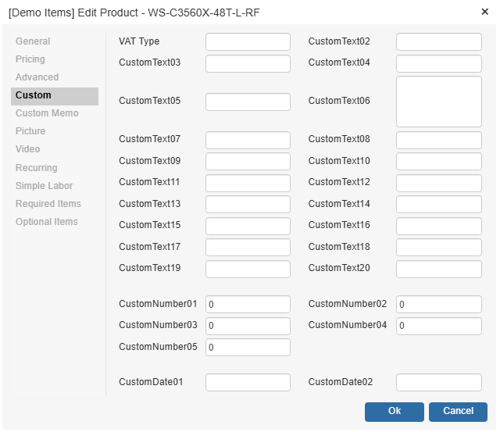
Each product has many data fields, which allow you to store information about the product. Since all businesses sell different products and services, there are 14 custom text, 5 custom number, 2 custom date, and 2 custom memo fields on the Custom tab which allow you to store custom information that there is not already a data field for.
For example you may want to track the “color” of the product. Since there is no color field in the QuoteWerks product database, you can rename one of the CustomText fields to “Color”, and then store the color of your product in that field.
The Custom Memo fields could be used to hold alternate language descriptions. In addition, Custom Memo fields can hold 32,000 characters of text.
To rename the custom fields, hold down the CTRL key and double-click on a Custom label to rename the label to reflect the information that you will be storing in that Custom field. Only users with Master Rights have this ability.
NOTE: Renaming a Custom field affects all of the products in the product database. Each product cannot have its own unique Custom Field labels.
NOTE: The information stored in these Custom fields can be searched for from the Product Lookup window by clicking on the [More] button
Custom Memo Tab
The Custom Memo fields could be used to hold alternate language descriptions. In addition, Custom Memo fields can hold 32,000 characters of text. The Custom Memo fields allow for extended descriptions of items including marketing summaries or more technical information that you would like to include.
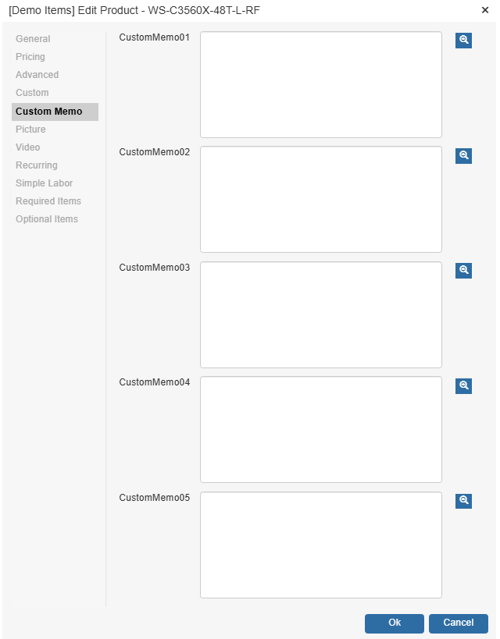
NOTE: The information stored in these Custom fields can be searched for from the Product Lookup window by clicking on the [More] button
Picture Tab
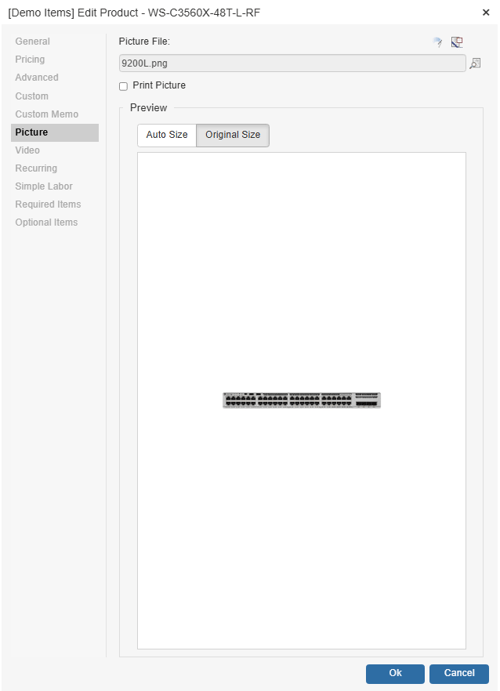
The following describes the use of the key fields on the Picture tab.
Picture File
You can associate a picture file with each product. This picture is used for reference purposes when viewing the item from the Edit Product window. In addition, this picture can also be printed in the quote with the rest of the line item information for this product. The picture can be formatted in any of the following formats: BMP, GIF, JPG, WMF, and ICO.
When using pictures, it is strongly recommended that you have your computer’s display adapter colors set to “High Color (16-bit)” or higher. This color setting is typically required to correctly display the colors in the pictures when previewing and printing the quote.
Use the  button to select the picture file, and use the
  to remove the picture. The
  button will open the picture file for modification using whatever program (such as PaintBrush, etc) is associated with this file type.
Print Picture
You can associate a picture with each product (as described above), and when you include the product in a quote, that picture will be included in the quote. In some cases, you may want to print the picture of the product in the quote, and in some cases you may not want to print the picture of the product in the quote. Checking the “Print Picture” checkbox will tell QuoteWerks that you want to print this picture when this product is used in a quote. Once the product has been added to the quote, you still have control over whether or not this picture prints with the quote. You can select the line item in the quote and then select the Edit -> Line Attributes menu and change the “Print Picture” attribute. Lastly, in order for this feature to work, the manufacturer part number must be unique in the database and the vendor name on the document must match the product database name.
Auto Size / Original Size
The Auto Size option resizes the image to fit to the display area while respecting the original aspect ratio of the picture. The Original Size option displays the picture in its original size, regardless of the display area, which may result in only a portion of the picture being visible inside the display area.
Selecting Pictures for Items Manually
For information on adding a picture to an item manually, please see the Selecting Pictures for Items Manually topic.
Video Tab
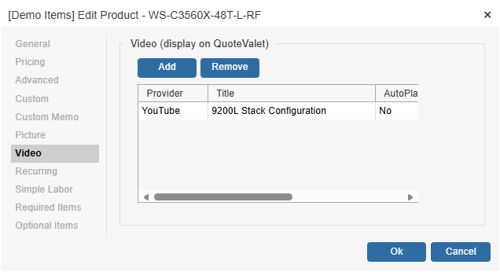
The Video Tab enables users to set a default line item video for use in QuoteValet. Anytime this item is quoted, the video associated here will be available for the customer to view from the QuoteValet quote.
NOTE: This tab will only be available if you have the Pinnacle Edition of QuoteWerks, which includes QuoteValet.
Recurring Tab
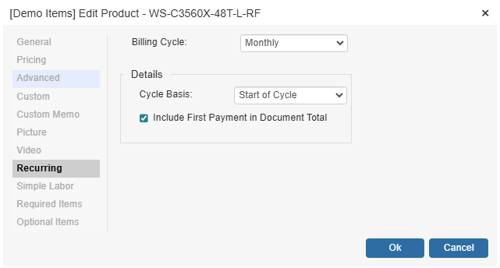
The following describes the use of the key fields on the Recurring tab. These options correspond to the "Is Recurring" Line Attribute used in the quote workbook.
Billing Cycle
Here you can set whether this product recurs Weekly, Monthly, Quarterly or Annual.
Cycle Basis
Here you can determine how the billing due date is determined. As an example, if the Start Date of the recurring item is March 22nd and this option is set to Start of Cycle, the billing date will begin on April 1st and be billed on the first of every month following. If the cycle is set to be a Specific Date, the billing cycle will begin on April 22nd and be billed on the 22nd of every month following.
Include First Payment in Document Total
Often when selling something that has a monthly fee, you would require the first month’s payment upfront. Choosing this “Include First Payment in Document Total” option will do that. If you do not choose this option, then the monthly fee will not be included in the quote subtotal.
Simple Labor Tab
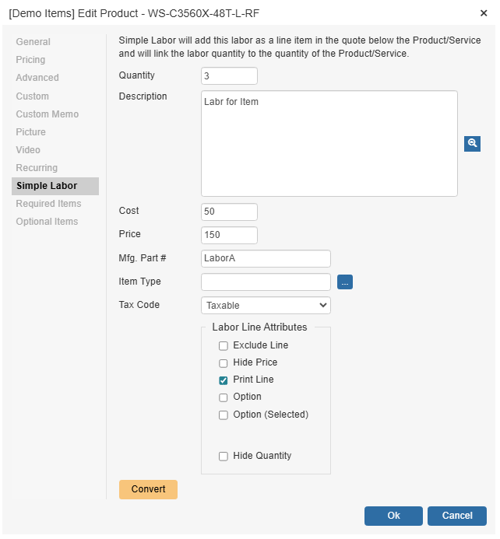
The Simple Labor tab adds basic labor information for the item being edited. Users can include quantity (e.g. number of hours of labor for this item), description of the item, cost, price, part number, and item type. Users can also set the tax code as well as various line attributes.
When the Simple Labor is used, it will utilize the Dependent Quantity feature for the item and the labor item. So, if the quantity of labor is set as 3, it will be a 1:3 ratio of the item to the simple labor item. For example, if you quote out 3 of the items, the labor quantity associated with it will automatically be set to a quantity of 9.
Mfg. Part #
The manufacturer part number is not required for Simple Labor but but is recommended. This way when labor is exported to your CRM, PSA, or Accounting software, there is a part number associated with it.
Ideally, this labor manufacturer part number is a short, simple alpha-numeric value that uniquely identifies this labor item. We recommend only using letters and/or numbers. Punctuation in a part number like spaces, commas, apostrophes, quote symbols, etc. are not recommended.
Description
The Labor Description field can be 32,000 characters in length. If your labor description has multiple lines, you can double-click in the description box or click the  button to display a window with a large area to edit your description.
Item Type
Click on the  button or F2 to launch the list of item types for this item. You can Add, Edit or Delete other item types from this option list. The item type is a good field to use for classifying and/or categorizing an item. This item type field is also copied into the quote when the item is added to the quote. Because of this, this is a good field to store item type information in when you know that you will want to create reports based on the item type information in quotes. Examples of items types include Labor, Services, etc..
Tax Code
The drop-down menu will let you set the proper tax code for your labor item. Most labor items will be non-taxable.
Line Attributes
The default line attributes for your labor item can be set here. These will be the default settings when this labor item into your quote.
IMPORTANT: When clicking OK to save the changes on the Simple Labor tab this does not create an item in the QuoteWerks database. It creates a phantom item that will be added but will not be searchable. If you want to create a new labor item that can be searched, reported on, and more, use the [Convert] button
Convert
The [Convert] button will convert the simple labor item into a full product item in the QuoteWerks database. The advantage for converting the simple labor item to a new item is that you have the ability to take advantage of the advanced pricing features, attach a picture and/or video, and all the other tabs available when you create an item as well as search and run reports on the item. When converted, the new labor item will automatically be attached under the Required Items tab for your item.
Required Items Tab
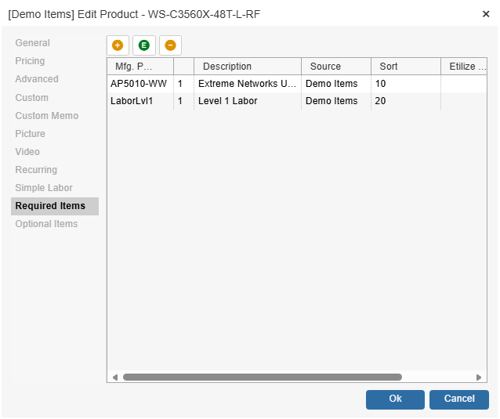
The Required Items tab enables users to assign single or multiple items to the "master" item. This will allow users to select the master item and any items listed on the Required Items Tab will automatically be added to the quote when the item is selected.
Additionally, if a Simple Labor item that has been converted to a required item, it will automatically be attached to the Required Items tab for the master item. Also, on this tab it will display if the Required Items list is shared with the same part number in other product databases.
Add Item
The  [Add Item] button will open the Product Lookup window. This will let you select a single or multiple items to attach as required items on the Required Items tab. Users will be able to pull items from any of their existing databases in QuoteWerks and Etilize (including My Favorites folder) if using that integration.
TIP: Items from Etilize can be used in Required Items by searching for the items in Etilize or selecting them from the Etilize Folders under the Etilize Product Source. When adding items to a Required Item from Etilize, it is important to select the vendor first before adding the item to the Required Item. If the vendor is not selected, QuoteWerks will automatically use the first vendor available for that item when it's added to the document from the Required Item. Additionally, the Real-time pricing and availability will be updated for the item when it is added to the document.
Edit
The  [Edit] button will open the Edit Required Item window. This will let you make adjustments to the selected required item.
Remove
The  [Remove] button will remove the selected required item from the Required Items tab. This will not delete the item from the database.
NOTE: If you remove the last Required Item, you will be asked if you want to remove the Required Item Header record.
Required Item Properties
Once the required item has been selected using the [Add Item] button or edited using the [Edit] button the Required Items Properties window will appear.
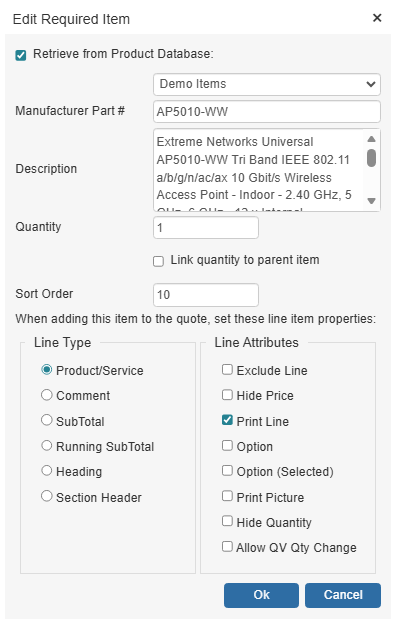
The Required Item Properties window will provide various options and settings for the user to select before it is attached to the Required Items tab.
Retrieve from Product Database
This checkbox will load the information for the selected item from the database where it is stored. De-selecting this option will remove the ability to use this item as a Product/Service under the LineType option. This should only be unchecked if you want to convert this item to a Comment, Subtotal, Running Subtotal, or Heading line to take advantage of those line types unique attributes. If you wish for your item to remain as a product/service, leave this box checked.
The drop-down menu will display a list of item databases that have been setup in QuoteWerks. Here you can choose where to source this item from the available databases.
Manufacturer Part #
The Manufacturer Part # field is the unique part number for this item. This field is required if the required item is going to be a Product/Service type item. If it is going to be a Comment, Subtotal, Running SubTotal, or Heading line, it is not required.
Description
The Description field is the customer facing description for this item.
Quantity
The Quantity field will be the quantity of the item when it is added to the document.
Link Quantity to Parent Item
This option will link this required item's quantity to the master item's using the Dependent Quantity feature. This means the quantity set here will automatically change when the master item's quantity is adjusted.
Sort Order
The Sort Order field determines the order in which items will be added after the master item to the quote. Set a low number (1, 5, 10) for the item to be added to the quote first or higher to be added later or last.
Line Type
The Line Type section lets users choose the line type for this item. Each Line Type has their own unique set of attributes and functions as users can select from Product/Service, Comment, Subtotal, Running Subtotal, and Heading.
Line Attributes
The Line Attributes options will enable users to set the default line attributes for the required item. These will simply be the default settings and can be edited once the item has been added to the quote.
Optional Items Tab
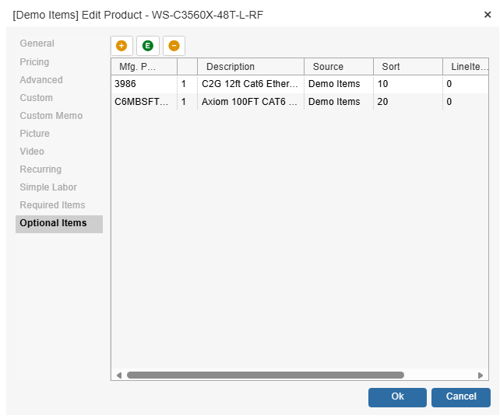
The Optional Items tab enables users to assign single or multiple optional items to the "master" item. This will allow users to select the master item and any items listed on the Optional Items Tab will have a checkbox next to them for the user to select whether or not to include them in the quote. Users can pick and choose which optional items to add to the quote.
Add Item
The [Add Item] button will open the Product Lookup window. This will let you select a single or multiple items to attach as optional items on the Optional Items tab. Users will be able to pull items from any of the existing databases in QuoteWerks and Etilize (including My Favorites folder) if using that integration.
TIP: Items from Etilize can be used in Required Items by searching for the items in Etilize or selecting them from the Etilize folders under the Etilize Product Source. When adding items to a Required Item from Etilize, it is important to select the vendor first before adding the item to the Required Item. If the vendor is not selected, QuoteWerks will automatically use the first vendor available for that item when it's added to the document from the Required Item. Additionally, the Real-time pricing and availability will be updated for the item when it is added to the document.
Edit
The [Edit] button will open the Edit Optional Item window. This will let you make adjustments to the selected optional item.
Remove
The  [Remove] button will remove the selected required item from the Optional Items tab. This will not delete the item from the database.
Optional Item Properties
Once an optional item has been created from the [New Item] button, selected from the [Add Item] button, or edited from the [Edit] button the Optional Items Properties window will appear.
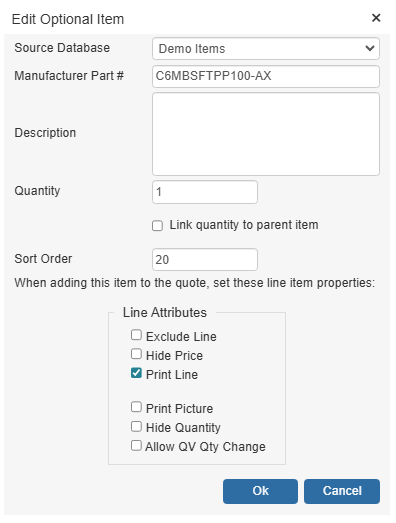
The Optional Item Properties window will provide various options and settings for the user to select before it is attached to the Optional Items tab.
Source Database
The drop-down menu will display a list of item databases that have been setup in QuoteWerks. Here you can choose where to source this item from the available databases.
Manufacturer Part #
The Manufacturer Part # field is the unique part number for this item. This field is required.
Description
The Description field is the customer facing description for this item.
Quantity
The Quantity field will be the quantity of the item when it is added to the document.
Link Quantity to Parent Item
This option will link this optional item's quantity to the master item's using the Dependent Quantity feature. This means the quantity set here will automatically change when the master item's quantity is adjusted.
Sort Order
The Sort Order field determines the order in which items will be added after the master item to the quote. Set a low number (1, 5, 10) for the item to be added to the quote first or higher to be added later or last.
Line Attributes
The Line Attributes options will enable users to set the default line attributes for the optional item(s). These will simply be the default settings and can be edited once the optional item has been added to the quote.