
When sending emails from the QuoteWerks system you have the ability to customize what those emails look like by adjusting the email templates. This is done in the Email Template Manager. The Email Template Manager is accessed by navigating to Setup -> Email Template Manager.
There are two main System templates that are used when delivering quotes:
Changing the Template Used When Delivering a PDF Quote
1. Open the Email Template Manager by navigating to Setup -> Email Template Manager.
2. Ensure you are on the Email Templates tab and use the Owner dropdown menu to select System.
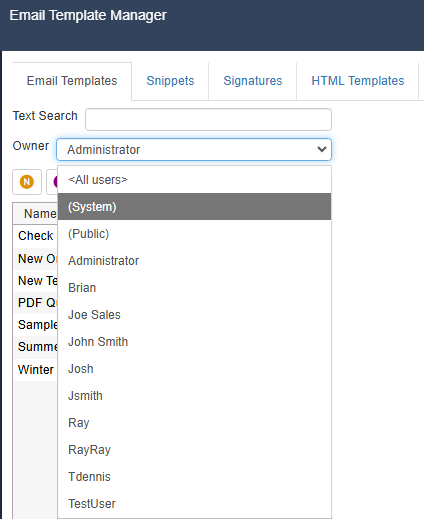
3. From the list of System templates select EmailQuote. This will open the EmailQuote template and this is the template used when emailing a PDF quote from the Print, Share, Publish, Deliver Document window.
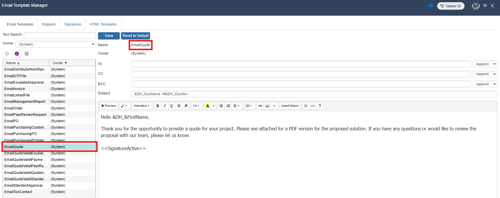
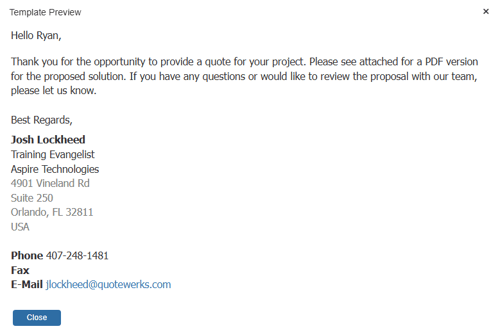
4. You can use the editor to customize the email template. Here you can free type, insert macros using the Insert Macro button and format the text using the rich text options at the top of the editor window. To preview what the email will look like with macros replaced with values from the QuoteWerks system click on the Preview button.
Changing the Template Used When Delivering a QuoteValet Quote
1. Open the Email Template Manager by navigating to Setup -> Email Template Manager.
2. Ensure you are on the Email Templates tab and use the Owner dropdown menu to select System.
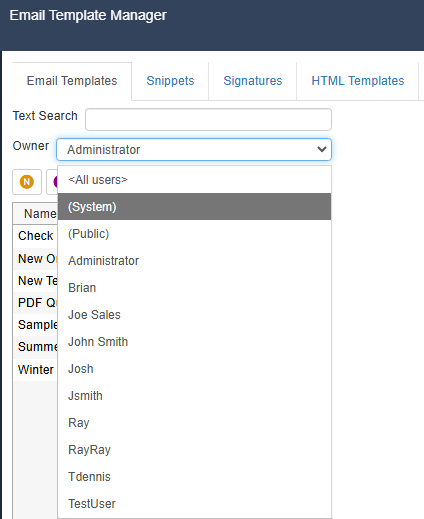
3. From the list of System templates select EmailQuoteValetQuoteIsReady. This will open the EmailQuoteValetQuoteIsReady template and this is the template used when emailing a QuoteValet quote from the QuoteValet window.
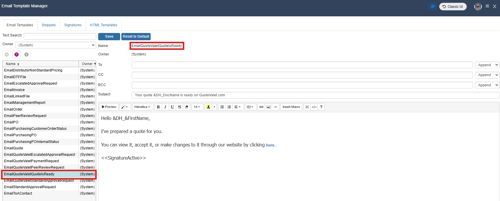
4. You can use the editor to customize the email template. Here you can free type, insert macros using the Insert Macro button and format the text using the rich text options at the top of the editor window. To preview what the email will look like with macros replaced with values from the QuoteWerks system click on the Preview button.
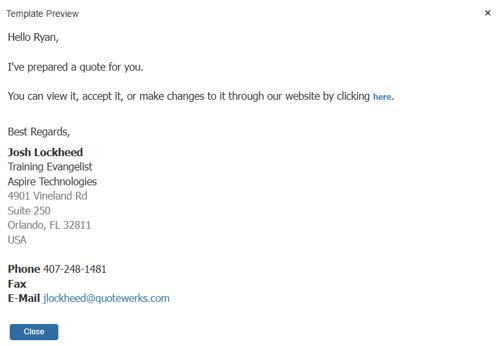
NOTE: In the default template 'here' is a link to the QuoteValet quote. This links to the macro &DH_&QuoteValetCustomerFacingURL. You should use this macro in the template if you would like to include a link to the QuoteValet quote.