IMPORTANT: Before you can begin connecting Zapier as a contact data source you must first connect to the QuoteWerks App in Zapier. This can be done by following the instructions listed in the How Do I Connect Zapier to QuoteWerks? help article.
To set up QuoteWerks as a contact data source and be able to pull in companies and contacts from your connected CRM you should follow the instructions outlined in this article. In this example we are using HubSpot as our connected contact source, but it can be any CRM within the Zapier ecosystem and the same outcomes can be accomplished following similar actions.
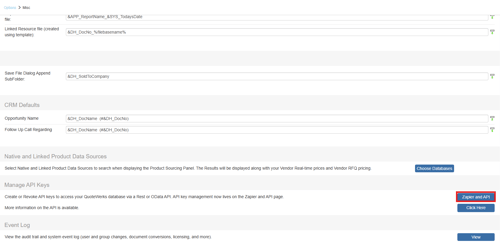
Before you can configure Zapier as a data source you will first want to toggle on this option. This is done by navigating to Setup -> Options -> Misc, scrolling down to the Manage API Keys section and clicking on Zapier and API.
This opens the Zapier and API page. Scroll down to the Zapier integration section and under Product Data Source and use the Use as data source dropdown to select Yes.

With this selection made you can continue to create your Zap as outlined below.
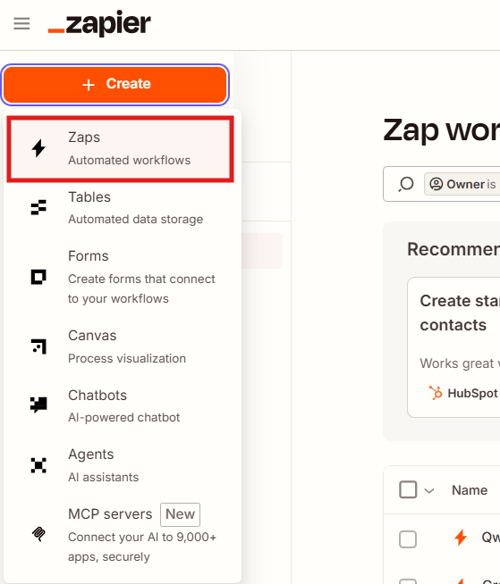
1. Log in to Zapier and click on the + Create button and select Zaps.
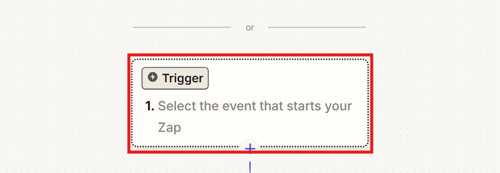
2. Click on the Trigger box to configure your Trigger Event.
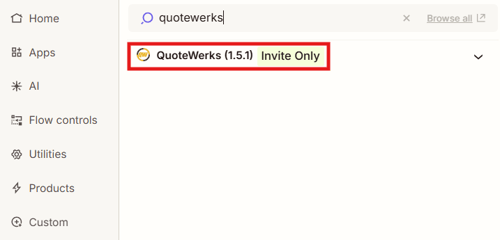
3. Search for and select "QuoteWerks."
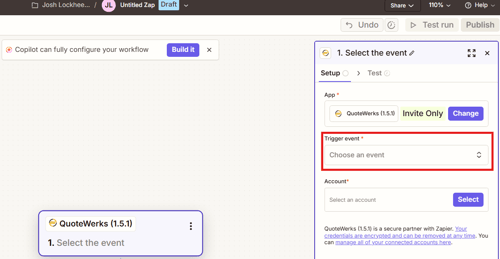
4. In the Select the event area of the Zapier window, click on the Choose an event box under the Trigger event heading.
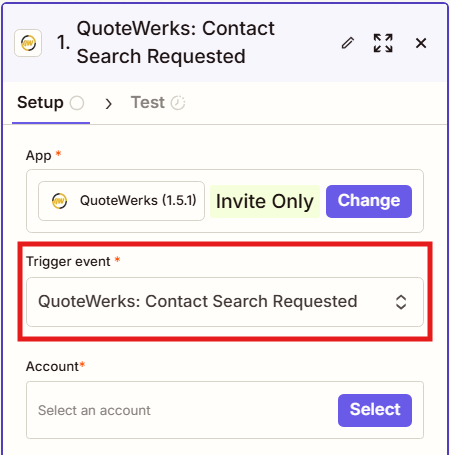
5. In this example where we ae connecting a contact data source you should select "QuoteWerks: Contact Search Requested."
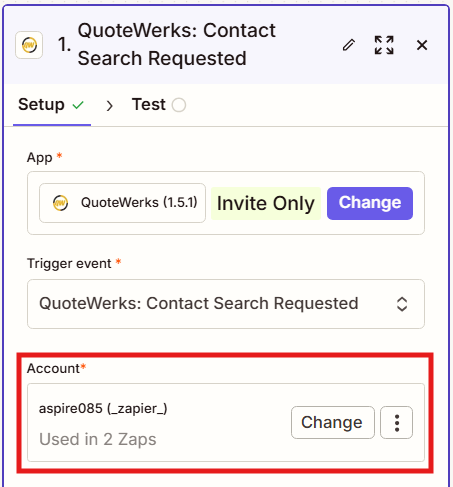
6. Select the account you would like to connect to. This should be your QuoteWerks Tenant ID.
7. Click Continue.
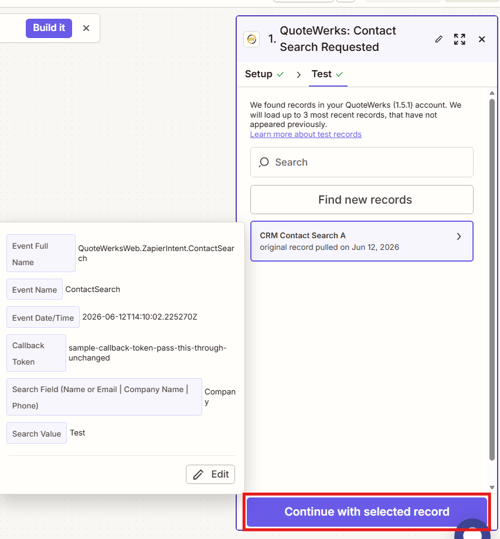
8. Click on Test Trigger.
9. The records should appear. Click on Continue with selected record.
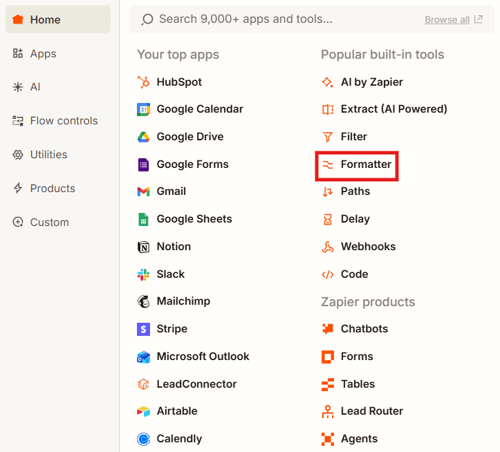
10. Next, add a step using the Formatter Zapier built in tool.
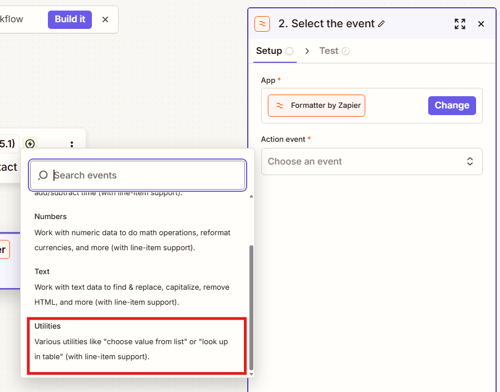
11. Select Choose an Event under the Action event heading. Select Utilities.
12. Click Conitnue.
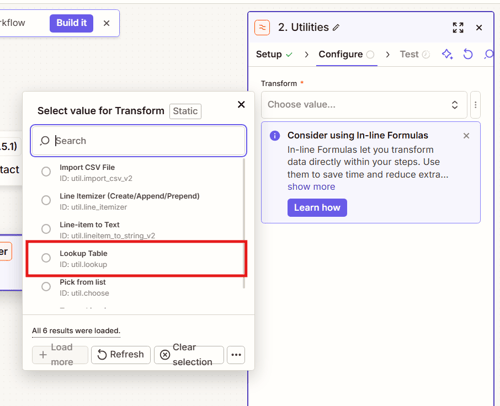
13. Under Transform click on Choose value... and select Lookup Table.
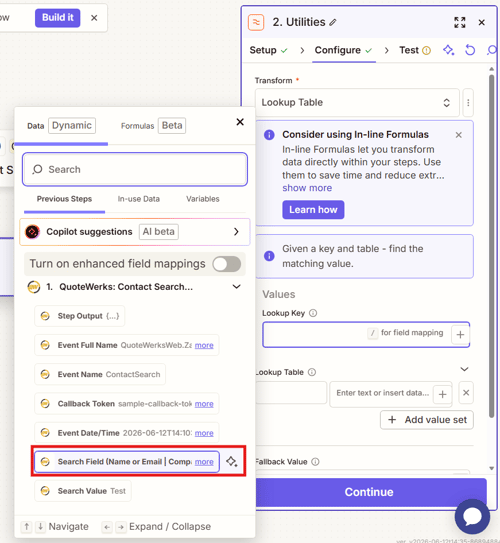
14. Under Values in the Lookup Key field select "Search Field" from QuoteWerks.
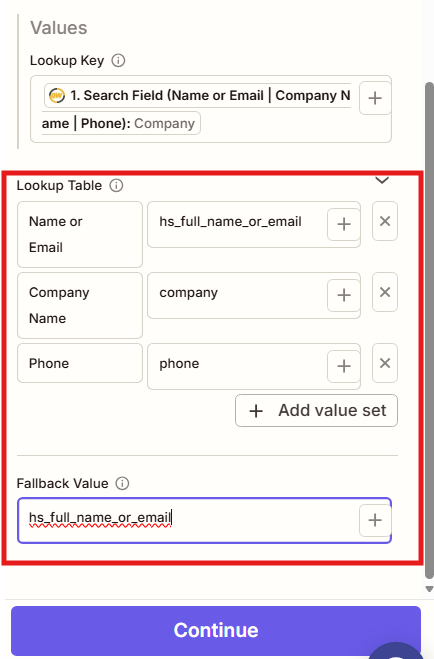
15. Configure the Lookup Table and Fallback Values a seen below. Click Continue.
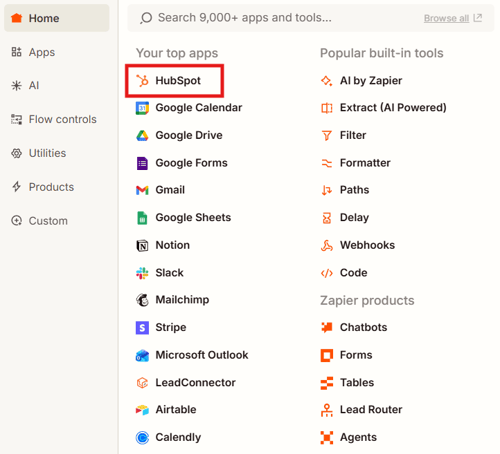
16. Click Add Step to add a new step to the Zap and select HubSpot.
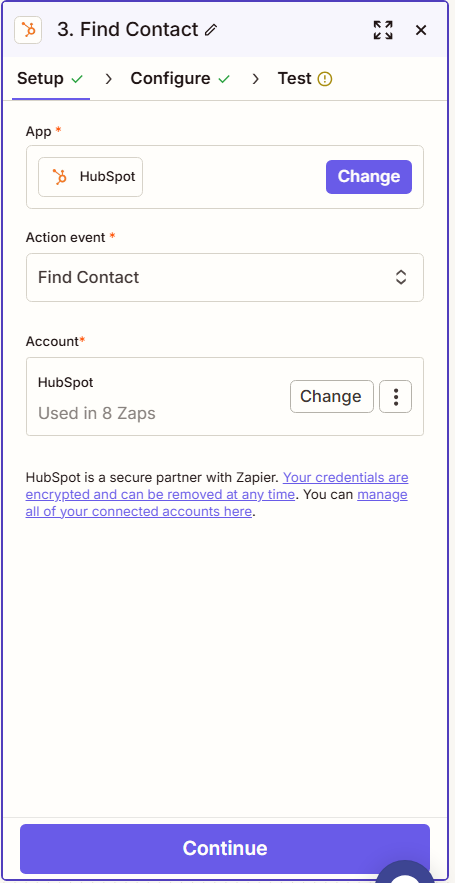
17. Under the Action event heading click on Choose an event. Search for and select "Find Contact." Click Continue.
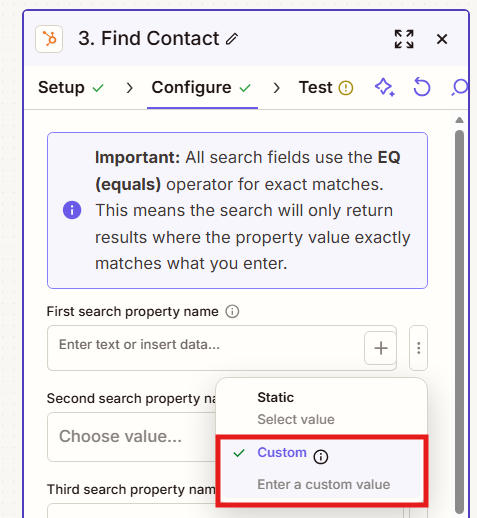
18. Click the three dots next to the First search property name field and select Custom.
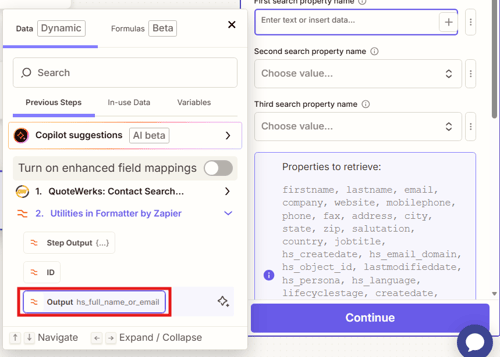
19. Select the Output from the formatter step.
20. In the First search property value field search for and select Search Value.
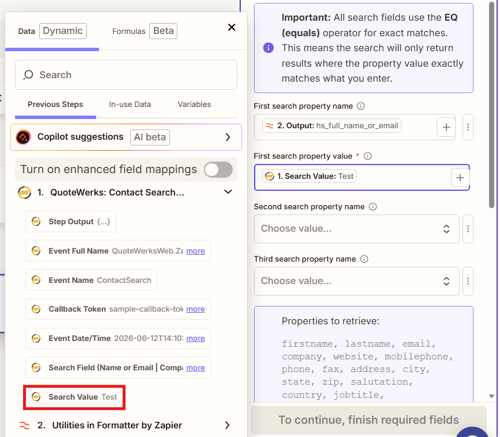
21. Insert and asterisk before and after the Search Value field as seen below.

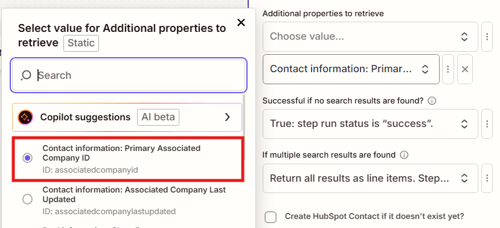
22. Under additional properties to retrieve select "Contact information: Primary Associated Company ID."
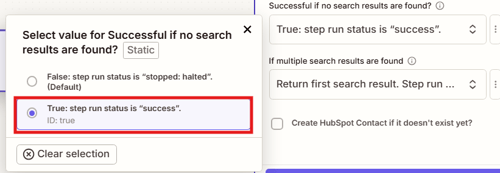
23. In the "Successful if no search results are found?" field select True.
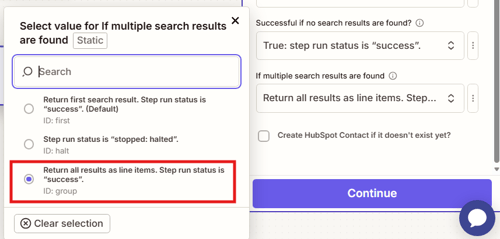
24. In the "If Multiple search results are found" field select Return all results as line items.
25. Click Continue.
26. Add a new Step.
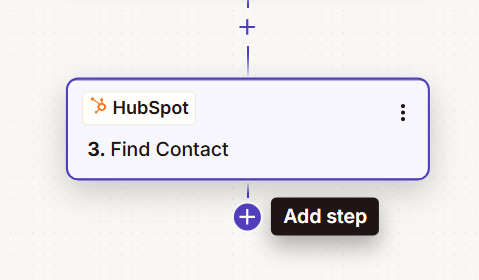
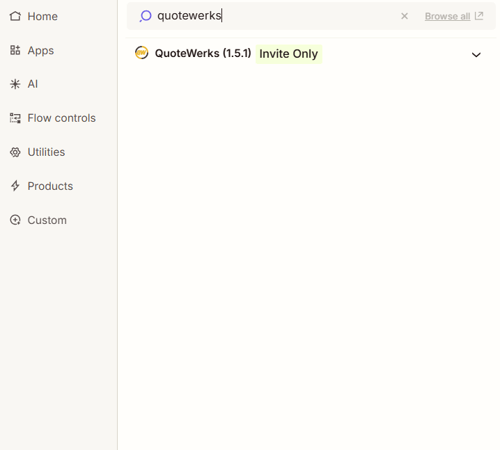
27. Search for and select "QuoteWerks."
28. Under the Action event heading click on Choose and event and select Respond to a QuoteWerks Contact Search.
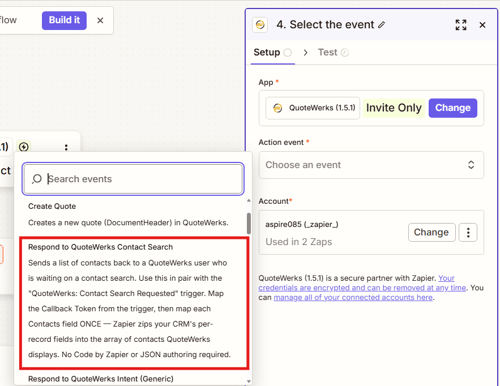
29. Click Continue.
30. In the Contact Token field search for and select the Callback Token from QuoteWerks.
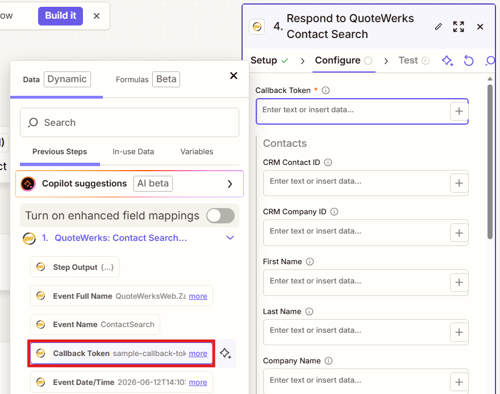
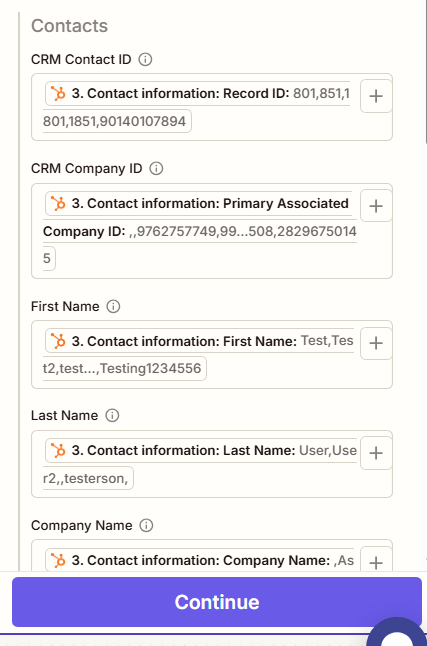
31. Map the contact fields that you would like to pull in from your CRM into QuoteWerks. Make sure to map the CRM Contact ID to the Record ID and the CRM Company ID to the Primary Associated Company ID. Click Continue.
31. Click Skip test, then Publish.
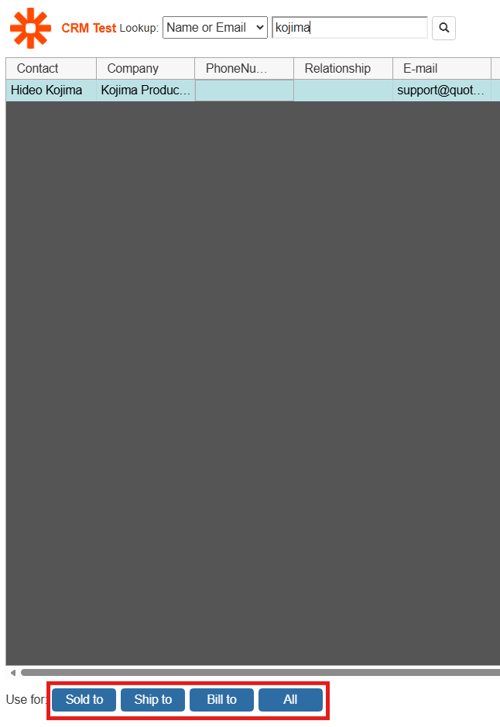
32. Navigate to the Contact Lookup window, enter a search term and click the magnifying glass icon. This will return records from your CRM that match your search criteria along with the fields you mapped in previous steps.
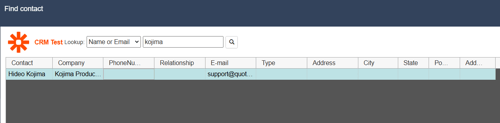
33. Select the contact and add them to the Sold to, Ship to, Bill to, or All fields using the buttons at the bottom of the window.
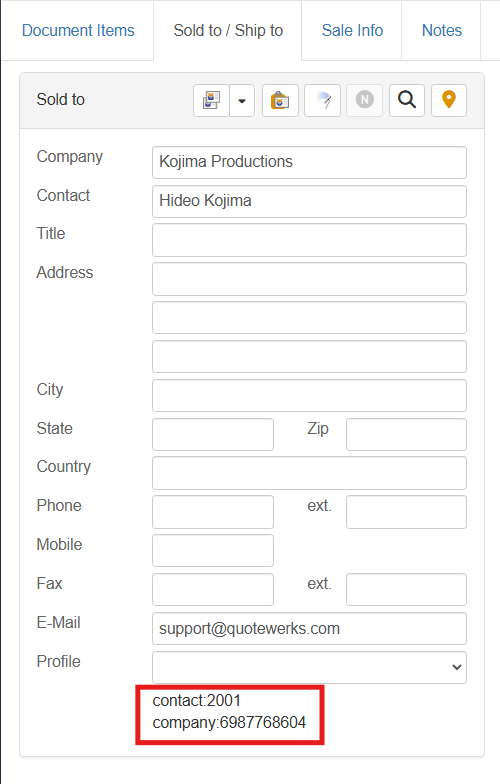
You will know that your contact has been successfully pulled in and linked to your CRM because the company and contact ID will now be listed at the bottom of the field you pulled them into in QuoteWerks.