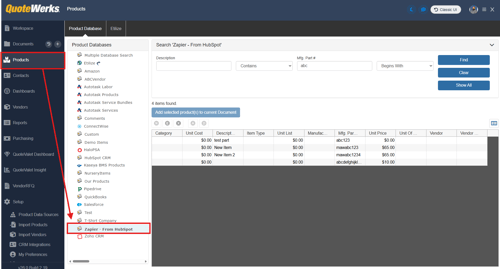
Zapier can be used to connect to external product data sources to pull in product information into quotes. To connect a Zapier app to QuoteWerks as a product data source, please follow the instructions outlined below.
IMPORTANT: Before you can begin connecting Zapier as a product data source you must first connect to the QuoteWerks App in Zapier. This can be done by following the instructions listed in the How Do I Connect Zapier to QuoteWerks? help article.
Setup
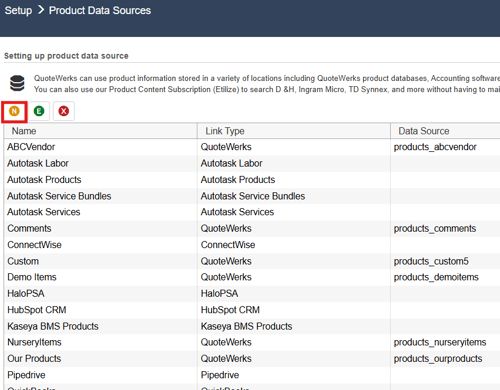
1. Navigate to Setup -> Product Data Sources from within QuoteWerks and click on the  New button to create a new product data source.
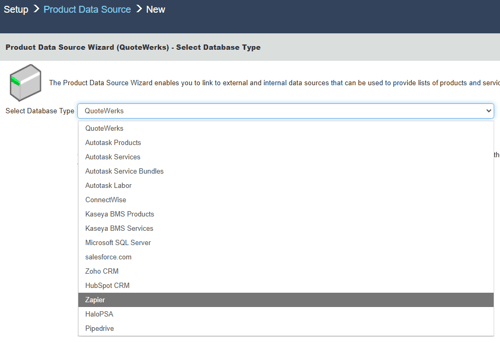
2. Select Zapier from the Select Database Type dropdown menu and click Next.
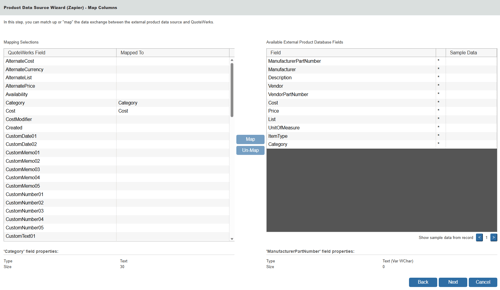
3. This brings up the Map Columns window where all availablebe external product database fields should be mapped allready. Click Next one more time.
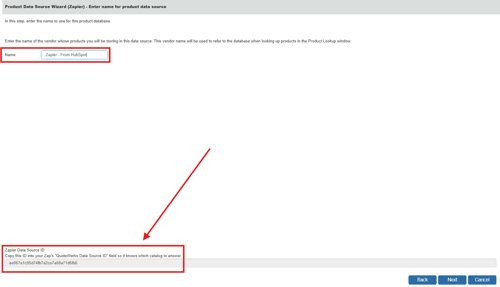
4. On the next screen you will want to give your data source a name. There is also a Zapier Data Source ID displayed at the bottom of the page. Highlight this ID and copy it to your clipboard. Click Next.
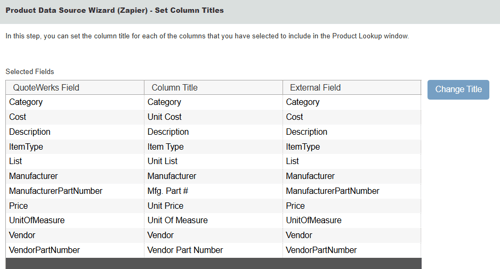
5. On the next screen you can see what the different column names are. Click Next.
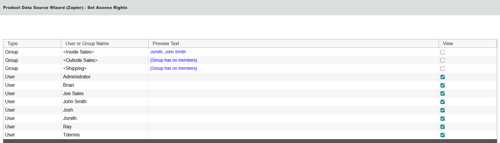
6. If Individual Data Source Security has been enabled you can select who you would like to have access to this data source. Click Next.
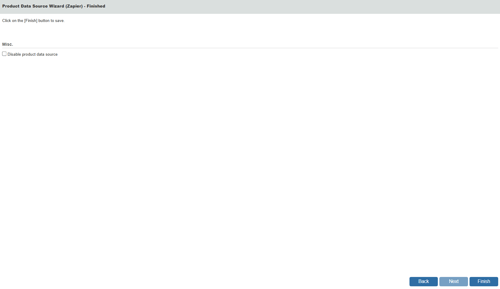
7. Click Finish to complete the data source creation process.
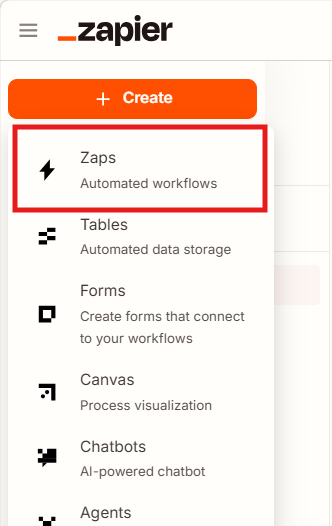
8. Now that the data source has been created in QuoteWerks login to Zapier and create a new Zap by clicking on the +Create button and selecting Zaps.
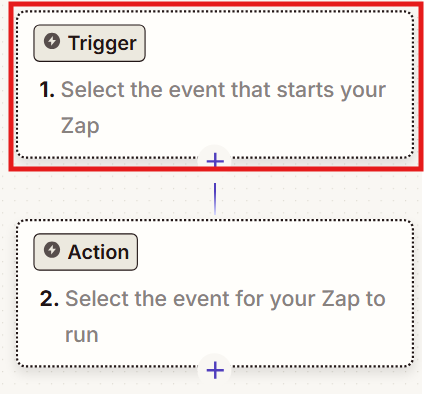
9. Click on Trigger to configure your Event Trigger.
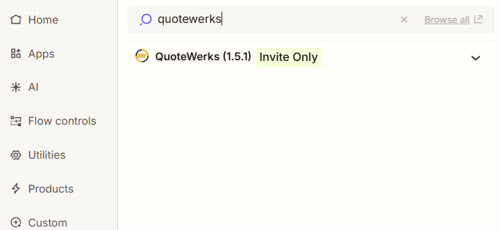
10. Search for and select "QuoteWerks."
11. Under the Trigger event heading click on Choose an event and select "QuoteWerks: Product Search Requested."
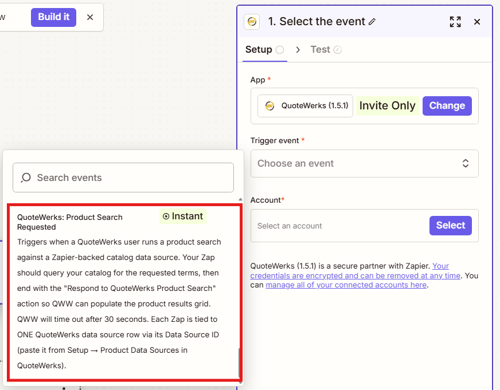
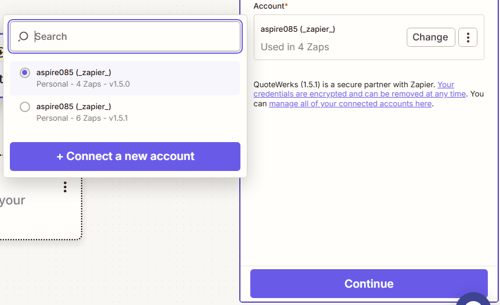
12. Under the Account heading click Select, choose your Tenant Account ID and click Continue.
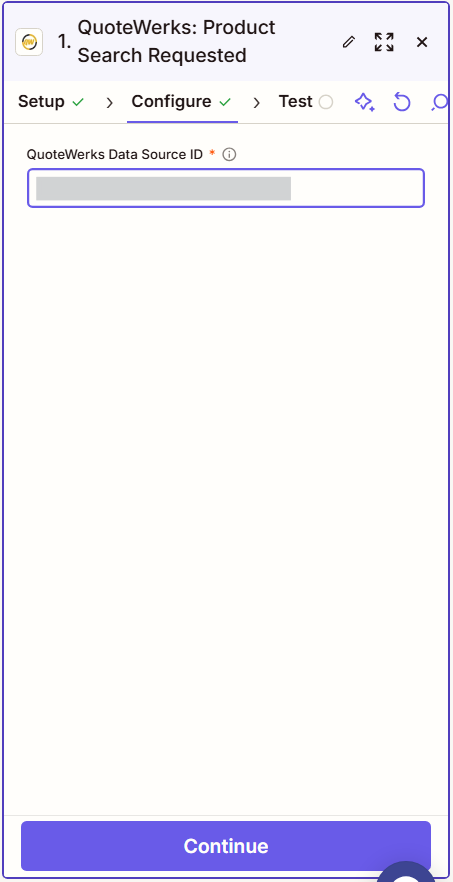
13. Paste your Product Data Source ID that you got from the QuoteWerks data source setup step above into the "QuoteWerks Data Source ID" field. Click Continue.
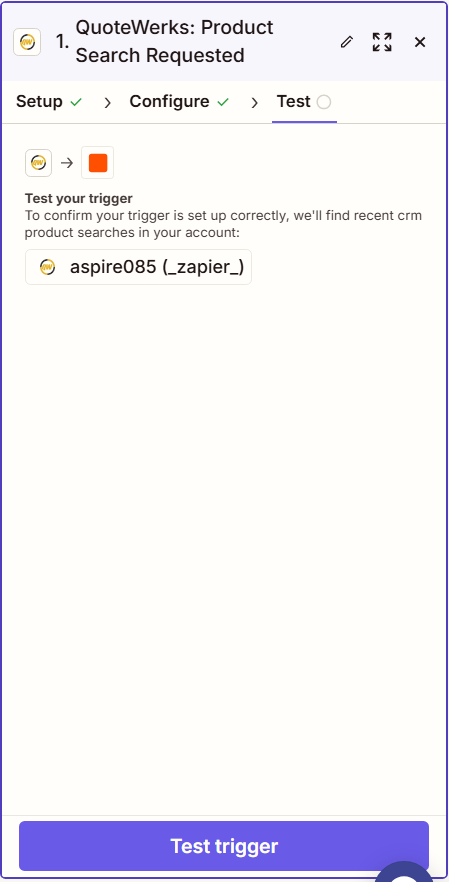
14. Click on Test Trigger.
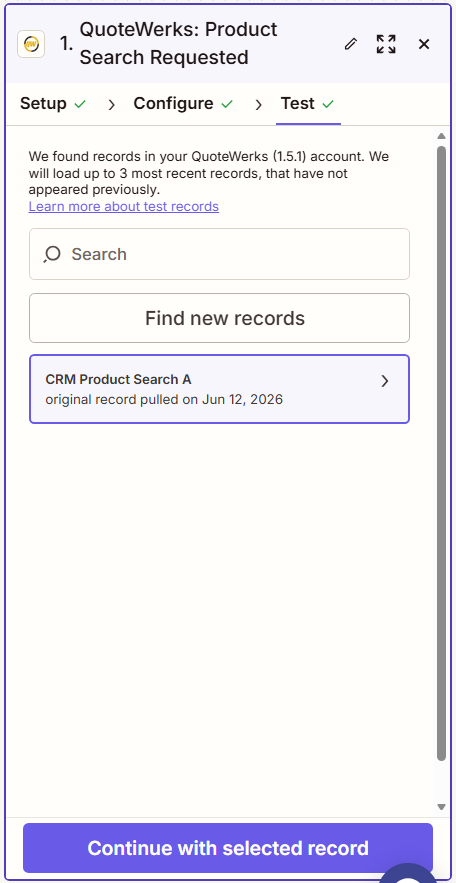
15. Click on Continue with selected record.
16. Select the App you would like to use as a product data source from the list. In this example we are going to select HubSpot.
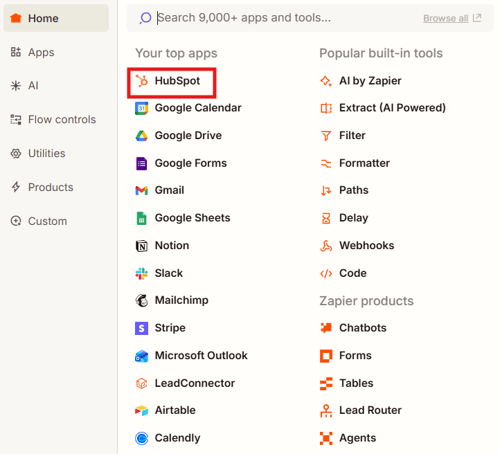
17. Under the Action event heading click on Choose an event. Select "Find Product." Click Continue.
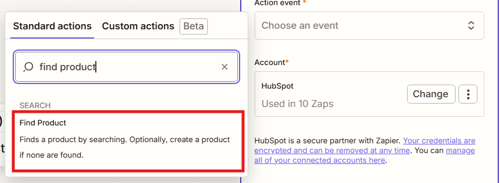
18. Click on the text box below "First search property name" and search for and select "Product information: Name."
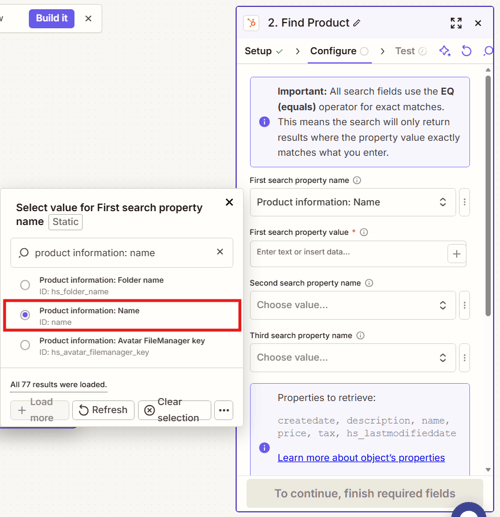
19. Click the + button under the "First search property value" heading and search for and select "Manufacturer Part Number."
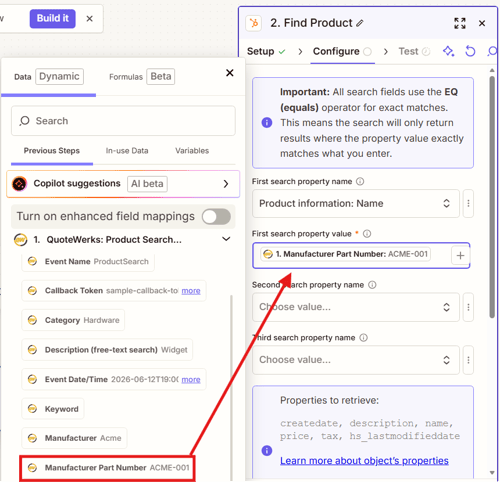
20. Once the field has been populated encapsulate Manufacturer Part Number in asterisks as seen below.

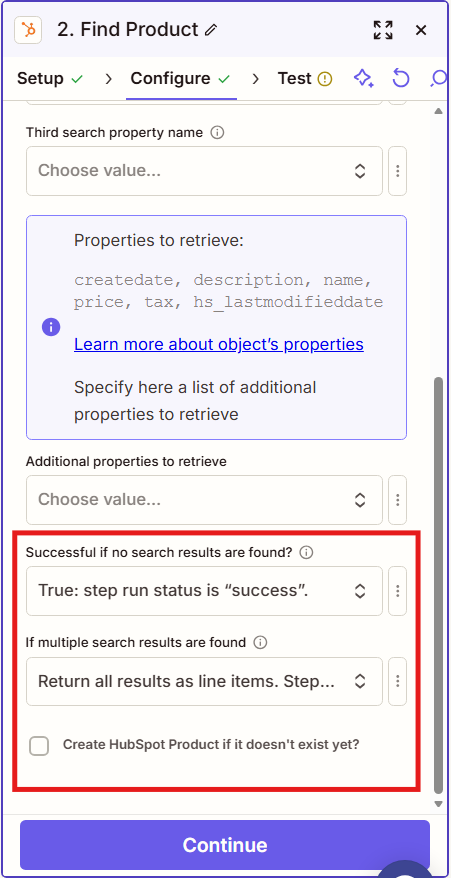
21. Scroll down and set "Successful if no search results are found?" to "True" and "If multiple search results are found" to "Return all results as line items." Click Continue.
22. Click Test Step.
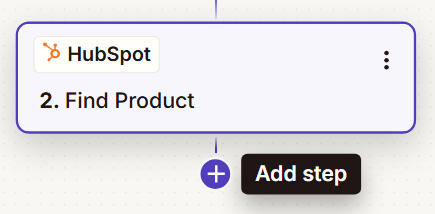
23. Click Add Step to add a new step to the Zap.
24. Search for and select "QuoteWerks."

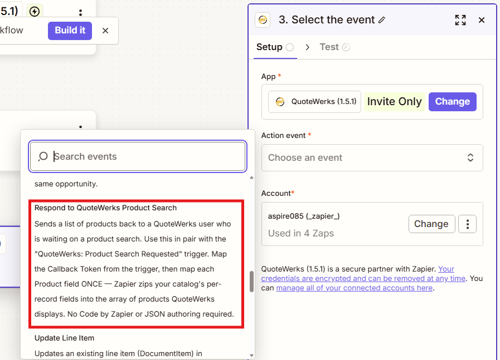
25. Under the Action event heading click on Choose an event and select "Respond to QuoteWerks Product Search." Click Continue.
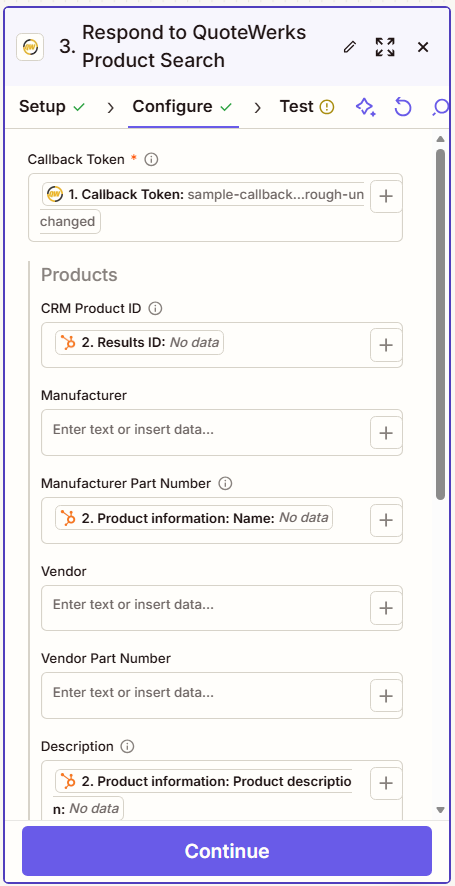
26. Map the Callback Token field to the QuoteWerks Callback Token field and under products map as many field as you would like to your connected CRM. Make sure to include standard product fields like Manufacturer Part Number, Description, Cost, etc. Once mapping is complete click Continue.
27. Click Skip Test then Publish.
Testing
With your Zap published you can now test the connection by navigating to Products on the navigation panel in QuoteWerks, selecting your new data source from the Product Databases menu, and searching for a part you know exists in your product data source. The results will then be displayed for you to begin adding them to quotes.