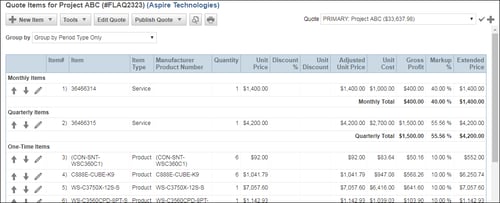
You can create grouped items on the fly. Select one or more items in the document, then either click on the Edit -> Convert to Group menu or right clicking and selecting Convert to Group.
NOTE: See the Bundles help article for information on creating bundles and grouped bundles.
This will create a group of items with an automatically calculated subtotal as the Group Header line.
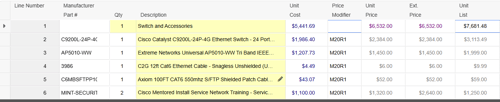
Items in the group will automatically be set to hide the individual prices. This can be adjusted through the line attributes. Groups provide a lot of flexibility for choosing which items to show, which prices to hide, and exactly how you want these items to display on the quote.
TIP: The Group Header Unit Price can be manually set. For example, if you change the Unit Price of the group to $3500.00, all of the items in the group will recalculate to come out to the new total. This provides a lot of flexibility to charge exactly what you want for a group instead of the calculated total. The difference in the calculated price and the manually set price will be evenly distributed among all the items in the group by percentage. Please note, using this feature will remove any price modifiers set.
Recurring Groups
When items are converted to a group, you also have the option to convert them to a recurring amount. QuoteWerks supports recurring groups to provide a monthly price for a group of items (products and/or services).
IMPORTANT: If you are selling recurring items as a group, you would set the items as recurring, not the header.
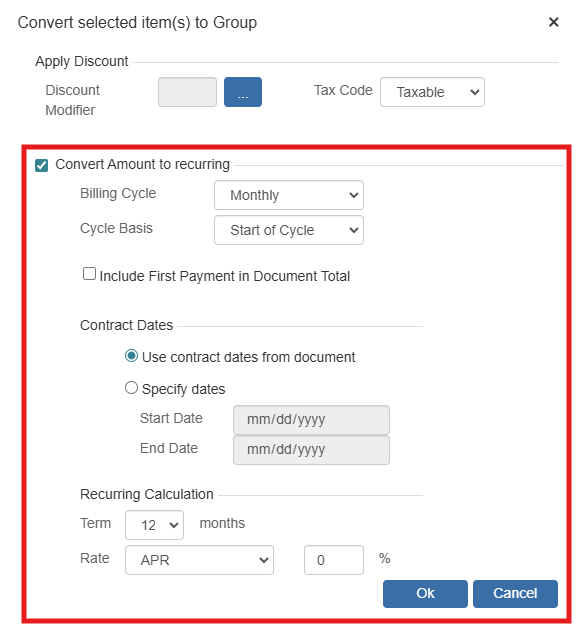
When you convert line items to a group, you'll have the option to set the group as recurring. This will calculate a monthly payment based on the APR or Lease Factor and term set on the properties of this group:
The Unit Price column under the Document Items tab will display the monthly calculation.
TIP: When you edit column/cell information under the Document Items tab, you need to move away from the cell you're editing for QuoteWerks to accept the change. Pressing the [Tab] key on your keyboard to move among cells is an easy way to do this.
You can also add grouped bundles to Configurations.
For ConnectWise Integration
In some cases, your ConnectWise Opportunity may include items that have recurring revenue associated with them. You can set items in QuoteWerks to be recurring by right-clicking on the product or service line item on the Document Items tab and clicking Edit Line Attributes.
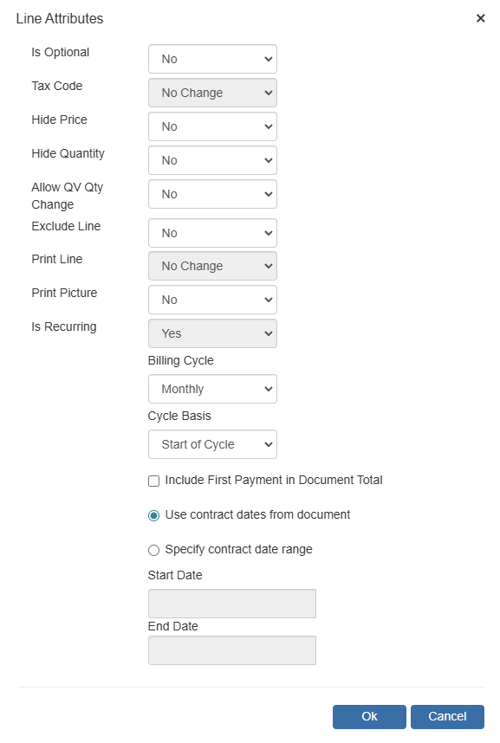
NOTE: The options on this window are explained in more detail under the Line Attributes help article.
In ConnectWise, recurring-revenue forecast lines cannot represent a group of individual line items under the Opportunity’s Products tab.
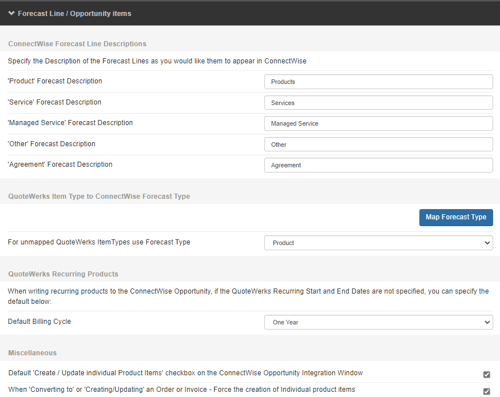
If you use recurring revenue lines in QuoteWerks, under the ConnectWise Setup window > Opportunities tab > Forecast Lines, you'll need to check the Default ‘Create / Update individual Product items’ checkbox on ConnectWise Opportunity Integration Window box. If you don’t, the recurring items won’t be written over until your opportunity has been converted to an order or invoice.
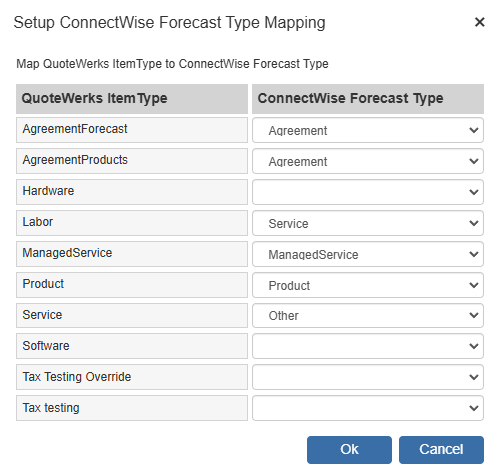
If you need the individual products and services to be listed, you'll need to map the QuoteWerks ItemType (used for recurring items) to the ConnectWise Forecast type of “Other” or “Managed Service”:
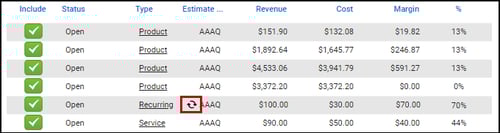
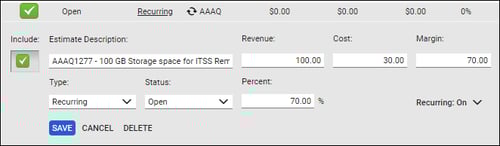
Once you've set the recurring-line-item defaults, when an Opportunity is created in ConnectWise, you'll be able to view which items are recurring revenue when the  icon is present next to the forecast line:
Recurring Revenue for Autotask Integration
In some cases, your Autotask Opportunity may include items that have recurring revenue associated with them. You can set items in QuoteWerks to be recurring by right-clicking on the product or service line item on the Document Items tab and clicking Edit Line Attributes.
NOTE: The options on this window are explained in more detail under the Line Attributes help article.
Once you've set the recurring-line-item defaults, you'll be able to view any recurring revenue by opening the newly created quote in Autotask: