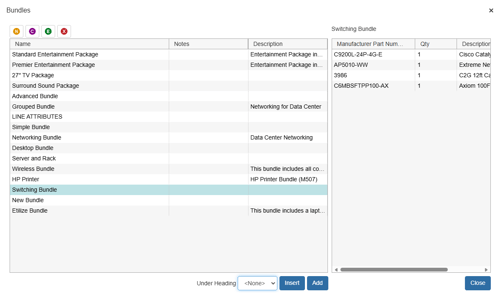
When you create quotes, many times you may quote the same group of products over and over. If you do, you should take advantage of QuoteWerks’ bundling feature. Creating bundles allows you to specify a group of products to be added to your quote all at once without having to manually remember to add each product.
See below for an interactive demo that shows you how to create and add a bundle to a quote:
Creating Bundles
To setup a bundle, select the Products -> Bundles menu or the  icon from the Grid Toolbar.
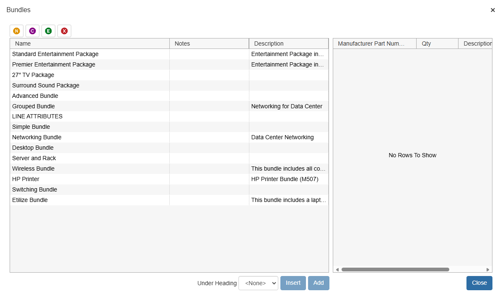
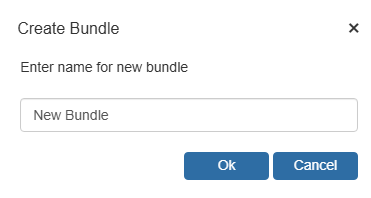
To create a new bundle, click on the new  button, and enter a name for the bundle:
Settings Tab
On the Settings tab, select whether you would like to create a Simple or Grouped Bundle:

-
Simple Bundle - When a simple bundle is added to the quote, all the line items will be added to the quote with no relation to each other.
- Grouped Bundle - When a grouped bundle is added to the quote, all the line items that are added will be logically grouped together. However, Grouped Bundles have a few more options available compared to the Simple Bundles.
Simple Bundle
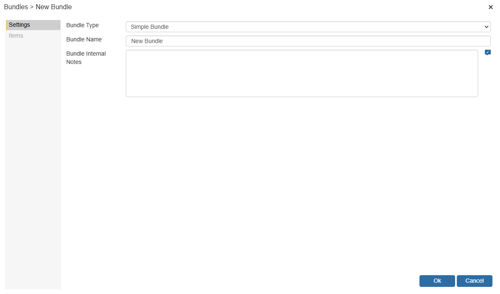
When a simple bundle is added to the quote, all the line items will be added to the quote with no relation to each other.
Bundle Name
The Bundle Name is the name of the Bundle. You should name it something that relates to the items that make up the bundle so it is easier to identify. This is an internal name only and will not be displayed to the customer.
Bundle Internal Notes
The Bundle Internal Notes are internal notes about the bundle. This could be additional insight for the sales rep before they add the bundle to the document. These are not displayed to the customer.
Grouped Bundle
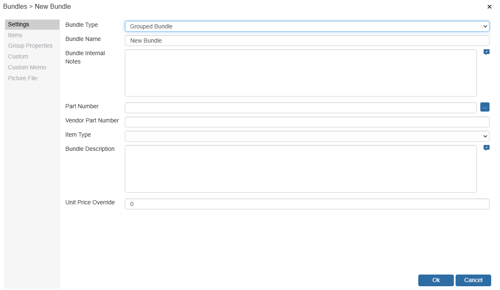
When a grouped bundle is added to the quote, all the line items that are added will be logically grouped together. However, Grouped Bundles have a few more options available compared to the Simple Bundles.
TIP: You can create a grouped bundle on-the-fly from the Document Items tab by selecting 1 or more items in the document, and then selecting the Edit -> Convert to Group menu.
Bundle Name
The Bundle Name is the name of the Bundle. You should name it something that relates to the items that make up the bundle so it is easier to identify. This is an internal name only and will not be displayed to the customer.
Bundle Internal Notes
The Bundle Internal Notes are internal notes about the bundle. This could be additional insight for the sales rep before they add the bundle to the document. These are not displayed to the customer.
Part Number
Set a part number for the bundle for reporting and integration purposes. It can be a custom number that is defined by you.
Vendor Part Number
Specify a Vendor Part Number for the Bundle for reporting and integration purposes. It can be a custom number that is defined by you.
Item Type
The Item Type of the Bundle can be set to any of the item types you have set in QuoteWerks.
Bundle Description
The Bundle Description is the customer facing description for the bundle header line. You will want to make sure this is something that is relevant to the customer.
Unit Price Override
The Unit Price Override allows users to specify a specific amount for the Grouped Bundle. Typically, QuoteWerks takes the total of the line items in the Bundle and calculates that as the Bundle Header total. However, in some instances you may want to round the total number. Here you can specify the exact number you wish to charge for this Grouped Bundle by typing in the amount.
NOTE: When you use this feature, the individual items that make up the Grouped Bundle's Unit Prices are adjusted to total up to the amount set here.
Group Properties (Grouped Bundles)
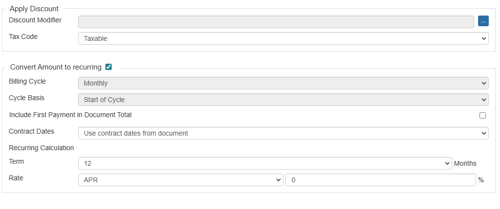
The Group Properties option enables users to set the Grouped Bundle to a single recurring monthly revenue amount (Recurring Groups). All the individual items in the bundle are totaled and an Annual Percentage Rate (APR) and a term (e.g. 12, 24, 36 months) can be set. This feature is useful for Haas quoting also.
This option calculates the monthly payment amount which will display in the group header’s Unit Price field when the bundle is added to the QuoteWerks document. Users can see the total recurring amount by viewing the “Group Ext. Price w. Tax Price” and “Group Ext. Price Pre-recurring” fields on the DocumentItems tab in the Quote WorkBook.
NOTE: If you are planning on using the reporting features in QuoteWerks to report on the sales amounts of particular products sold, keep in mind that when a discount modifier is used in a bundle, the prices of the individual line items in the bundle are not individually discounted. The discount is instead subtracted from the bundle total.
See Line Types and Attributes Used for Grouping for details on the logical grouping of items.
Items Tab (adding items to a bundle)
The Items tab displays a list of the products that are included in this bundle and allows you to add, edit or delete items from a bundle.
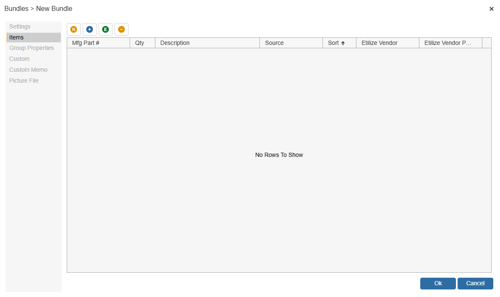
New Line
The  [New Line] button will enable users to add static items to bundles. These can be used for comments, subtotals, running subtotals, or heading lines that do not currently exist in a product database. This makes it easy to add these various line types to the bundles without having to first create them in a product database.
Adding an Item from a Product Database
From this tab you can add items to the bundle. Click on the  [Add] button, the Product Lookup menu will automatically appear. From there you can search for the products associated with this bundle. Once you have found the product(s) you are looking for, select them, and click on the [Select/Add] button from the Product Lookup window to add it to the bundle.
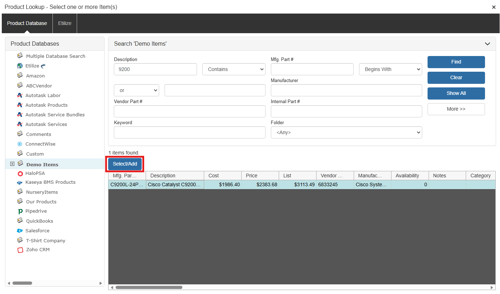
NOTE: Items used in Bundles must have a unique manufacturer part number.
Adding Items from Etilize
Items from Etilize can be used in Bundles by searching for the items in Etilize or selecting them from the "My Favorites" folder underneath the Etilize Search. When adding items to a Bundle from Etilize, it is important to select the vendor first before adding the item to the bundle. If the vendor is not selected, QuoteWerks will automatically use the first vendor available for that item when it's added from the bundle. Additionally, the Real-time pricing and availability will be updated for the item when it is added to the document.
Adding/Editing an Item
When an item is added to the bundle, the New/Edit Bundle Item window will open enabling users to make changes to the item before adding it. To edit an existing product in the bundle, select the item and click on the edit  button:
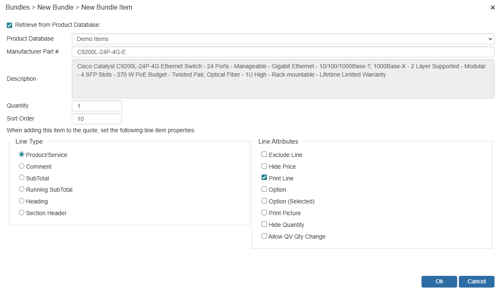
The "Retrieve from Product Database" checkbox will load the information for the item from the selected database. Un-checking this option will remove the ability to display this item as a product or service. It can instead be changed to a Comment, Subtotal, Running Subtotal, or Heading.
The "Product Database" will pre-fill with the vendor information from which the item was originally selected. You can change the Source Database by clicking on the drop-down menu and selecting another vendor source database.
The “Manufacturer Part #” is the part number of the selected item.
The “Description” is retrieved from the part number definition in the product database.
The "Quantity" field allows you to set a quantity other than the default quantity of 1.
The "Sort Order" allows you to define the order in which the bundle items appear when they are added to your quote.
Line Type and Line Attributes
The Line Type and Line Attributes settings allow you to further specify the properties of the item when it is added to the quote. See Working with Document Items for details on line types.
Deleting an Item
To delete a product in the bundle, select the item to be deleted and click on the  [Remove] button.
Custom and Custom Memo Tabs (Grouped Bundles)
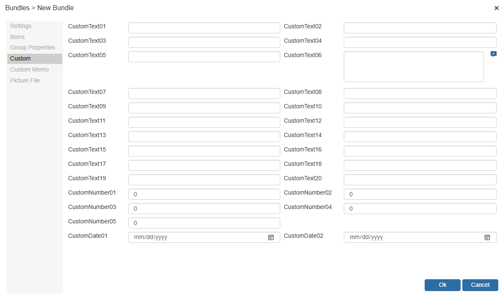
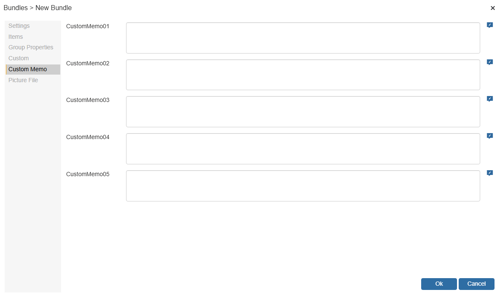
The Custom and Custom Memo Tabs for the Bundles provide an easy way to add additional information about the bundle or items on the bundle. This lets you provide more details about what you are quoting out to the customer and is included on the header line of the bundle.
There are twenty CustomText fields, five CustomNumber fields, two CustomDate and five CustomMemo fields that can be used.
For example, you may want to track the “color” of the product. Since there is no color field by default, you can utilize a custom field for that.
Picture File Tab (Grouped Bundles)
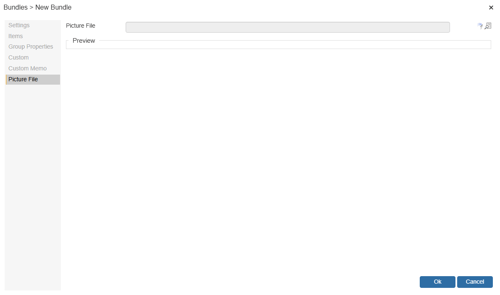
You can add a picture for grouped bundles from the Picture File Tab. To do so simply click on the  button, navigate to the location of your picture, and click Open. A preview of the selected picture will appear on the screen and can be printed with the bundle on PDF and QuoteValet outputs.
Adding Bundles to a Quote
To add a bundle to a quote simply select the bundle you would like to add and click on [Insert] or [Add]. You can choose to add the bundle under an existing heading by selecting the Under Heading button and selecting a heading name from the quote.