
In QuoteWerks you have the ability to create manual and electronic purchase orders. Manual purchase orders are for any types of orders that you don't submit to Amazon, Dell, D&H, Ingram Micro, or TD SYNNEX. This feature allows you to create purchase orders in QuoteWerks, e-mail them directly to your vendor and optionally export the purchase orders to your selected accounting package or supported CRM/PSA.
Manual purchase orders are created under the Purchasing tab of the Purchasing window. To access the Purchasing tab click on the  icon on the grid toolbar or Purchasing on the Navigation Panel.
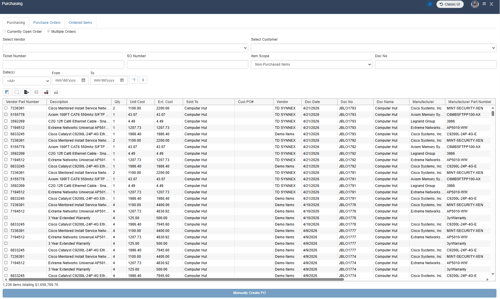
You can build a filter to select which items you want to create a purchase order for. The available fields include vendor, customer, document number, item scope, dates, sales order number and ticket number. This makes it very easy to drill-down and locate the items you need to purchase. You can also filter items by Order date.
Currently Open Order
Selecting this option will list any items on the current open order.
Multiple Orders
Selecting this option will list any items on multiple orders, which you can also filter based on vendor, customer, item scope (non-purchased or purchased items), and date(s).
Creating a Manual Purchase Order
To create a manual PO begin by selecting your vendor from the Select Vendor dropdown list.
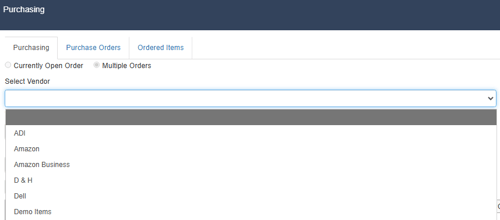
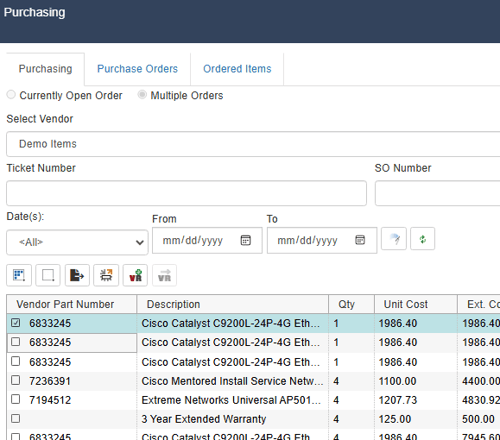
This will filter the list of items to only ones that have the selected vendor in the vendor column for that item on the originating quote/order.
Select the item(s) you would like to include on the purchase order by clicking the checkbox next to the item.
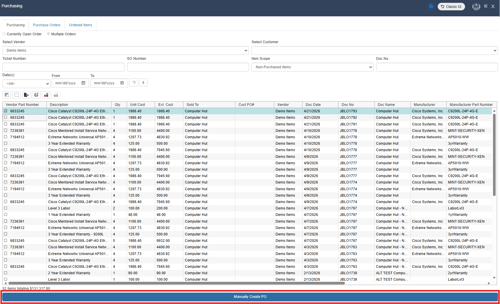
Once you have made your selections the Manually Create PO button will become selectable at the bottom of the window. Click on this button to begin the manual PO creation process.
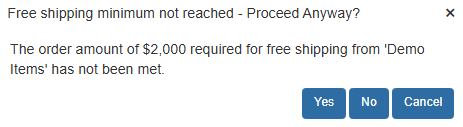
If you have specified a vendor minimum amount required for free shipping on the Vendor Maintenance window in QuoteWerks, a window will ask if you'd like to proceed anyway or add more items to the PO before creating it.
The Create Purchase Order window will open.
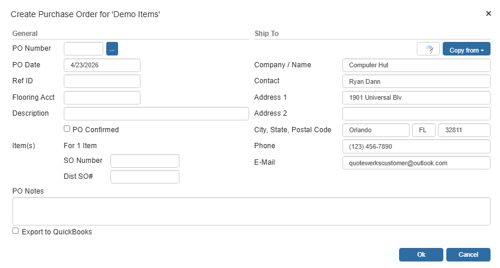
Here, you can enter your PO Number, PO Date, Ref ID, Flooring Acct, Description, and use the PO Notes field to include any purchasing notes for the distributor. These fields are described below:
PO Number
You'll use this value when creating a purchase order. If you're linking to QuickBooks Online, Autotask, or ConnectWise, the same PO Number will be used when exporting to that application. You can set this number manually or, if you've set a default numbering sequence under Setup -> Options menu -> Installation tab, you can click the ellipses button next to the Next PO number sequence field to select the next numerical value. Additionally, if you've set a PO Prefix/Postfix value under Vendor Maintenance menu, then this value will display with the PO number. For example, if you'd set the postfix to "TD" (for Tech Data), the PO number would read, "26-1001TD," where "26" indicates the year 2026 and 1001 represents the unique numeric sequence.
NOTE: If you enter in a PO Number that has already been used, a message will appear notifying you that the current PO number is already in use and to choose a new PO number. We do not recommend using the same PO number for multiple purchase orders.
PO Date
This is the date of the purchase order. This will default to the day you're creating the purchase order, but you can manually change it. This date will also apply to any purchase order created in QuickBooks Online, Autotask, or ConnectWise.
Ref ID
In this field, you can enter a job or ticket number to group purchase orders. For example, you might create five purchase orders to purchase all the products required for the job, and by entering the same job number for each PO, you can easily group and display them together under the Purchase Orders tab. Filtering by RefID while under the Purchase Orders tab will show you the purchase orders linked by job number. Filtering by RefID while under the Ordered Items tab will show you a complete list of all the items ordered within all purchase orders.
Flooring Acct
You can use this field to specify a flooring account when placing orders with Ingram Micro, D&H, and/or TD SYNNEX.
Description
Here you can enter a description of the purchase order.
PO Confirmed
Often buyers email a purchase order to a vendor but have not yet received a confirmation of the receipt of the purchase order. You can check the PO Confirmed box if the vendor has confirmed this PO. You can edit this value later on the Purchase Orders tab by right-clicking and selecting Edit PO. There is also a "Non-Confirmed POs" filter on the Purchase Orders tab so you can easily see which Purchase Orders have not been confirmed yet.
SO Number
Enter in the Sales Order number you would like to reference for all the items created in the PO.
Dist SO#
Enter in the Distributor Sales Order number you would like to reference for all the items created in the PO.
Ship To
Users can also copy over the contact information from the Sold to, Ship to, Bill to fields or the Sales Rep location or Company location information.
Export to
If you have a purchase order integration configured on the Setup -> Options -> Accounting window a button will display that you can check to export the PO to your selected integrated application (Quickbooks Online, Autotask, or ConnectWise.)
PO Created Window
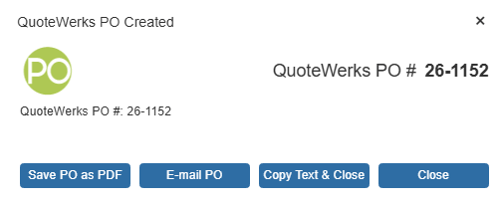
After the PO has been created in QuoteWerks, a dialog box will appear allowing you to Save it as PDF, email the PO, or copy the PO number and close the dialog box.
Save PO as PDF
The [Save PO as PDF] button will let users save the PDF version of the PO instead of having to go to the Purchase Orders tab and save it from there. This helps users access the PDF version of the PO more quickly if it needs to be shared internally or with other users.
Email PO
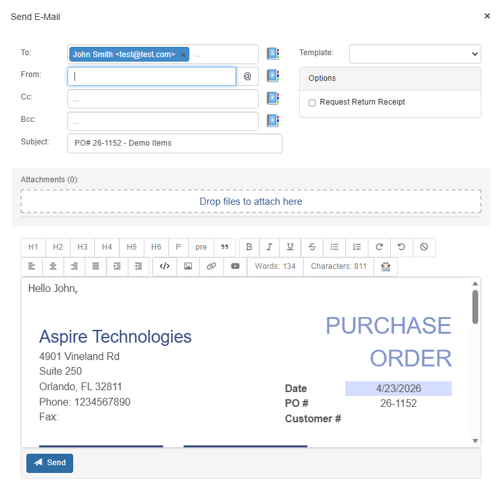
If you would like to email this PO to your vendor, you can click on the [Email PO] button to open the email window so it can be sent to your selected vendor. The To field will default to the contact that you have selected to receiveve PO emails from the Vendor Maintenance window.
Copy Text and Close
The [Copy Text and Close] button will copy the PO# into your Windows Clipboard so you can easily reference it.
Once you submit a purchase order, you can view the purchase order and ordered items under the Purchase Orders and Ordered Items tab.
Submitting a Manual Purchase Order
If you're using one of the supported purchase order integration applications (Quickbooks Online, Autotask, or ConnectWise) QuoteWerks will then prompt you to export the purchase order to the selected application and provide a confirmation once the purchase order has been created.