This article includes the following topics:
Creating a New User
1. Navigate to Setup -> Users

2. Click on the  (new) button. This opens the Create New User page and places you on the Login tab.
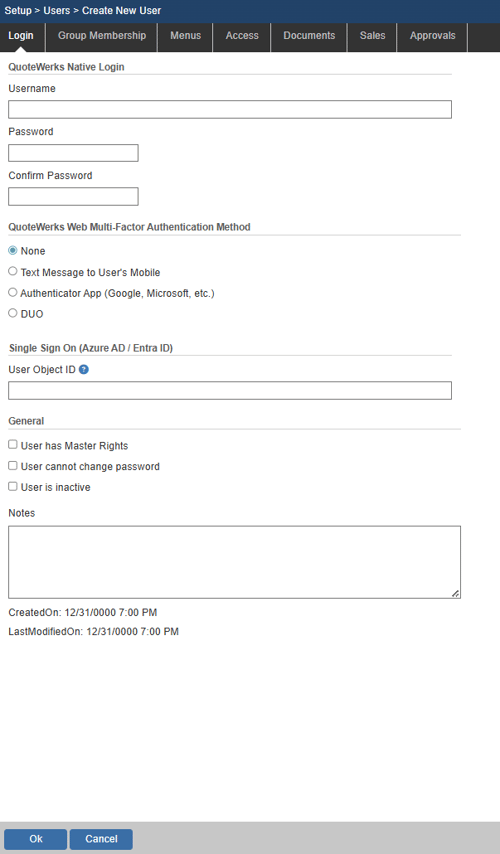
3. Input the user information including their Username and Password.
WARNING: The username cannot be changed once set.
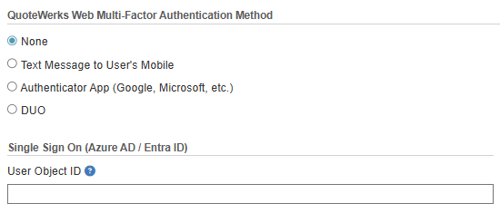
4. If you will be using a Multi-Factor Authentication Method make your selection and follow the prompts to set it up.
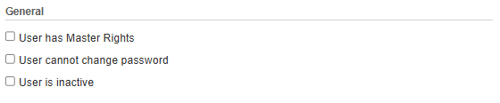
5. Set the general settings for the user including whether or not they have Master Rights, if they can change their password, or if you would like to set the user to inactive.
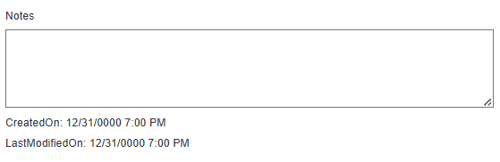
6. Input any notes about the user that you would like to store for future reference:
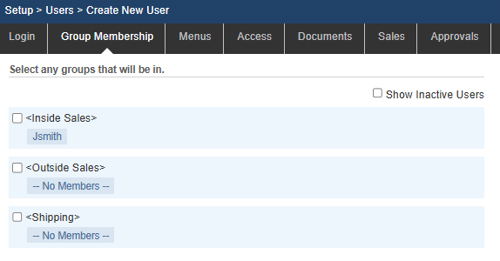
Group Membership
Here you can set which user group(s) the user is a part of.
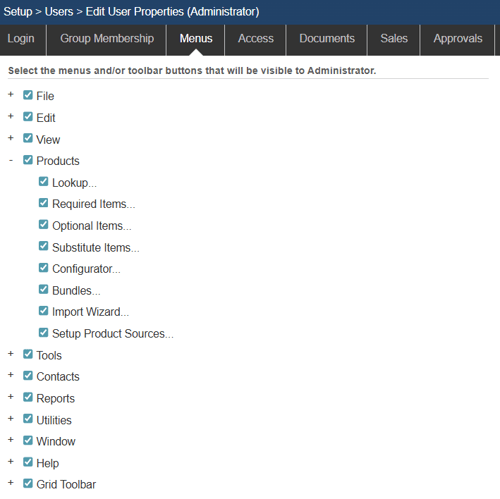
Menus
On the Menus tab you can select the menus that will be visible to the user. Click on the menu heading to expand the list of menu options. Simply put a check mark next to the menu option the user will be allowed to access.
Grid Toolbar Menu
The Grid Toolbar Menu enables users to show/hide the individual toolbar buttons from the Grid Toolbar on the Document Items tab as seen below.

Individual icon visibility can be controlled by selecting or deselecting the options listed.
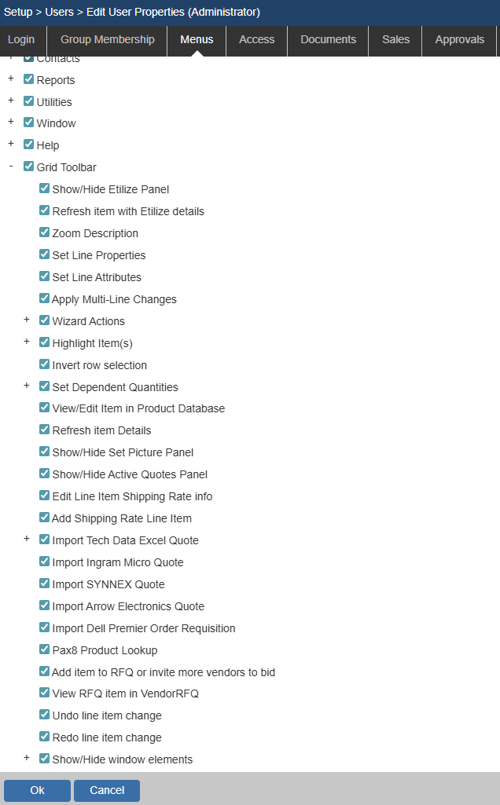
This is a great way for users to show/hide specific features that do not need or use. By un-checking the checkbox next to one of the features, the corresponding Grid toolbar icon will no longer appear on that specific users Gird Toolbar on the Document Items tab.
NOTE: Some of the Grid Toolbar features are also available under other menus. You will need to hide that menu option for the change to take effect in both places. For example, the Apply Multi-Line changes feature is available under the Edit menu. You will need to un-check that option under both the Edit menu and the Gird toolbar menu.
The other features that are in other menus include: Edit-> Edit Product/Service Properties, Edit-> Edit Line Attributes, Edit-> Apply Multi-line Changes, and Tools-> Refresh Item Details.
Access
On the Access tab, you can select the tasks the user is or is not allowed to perform.
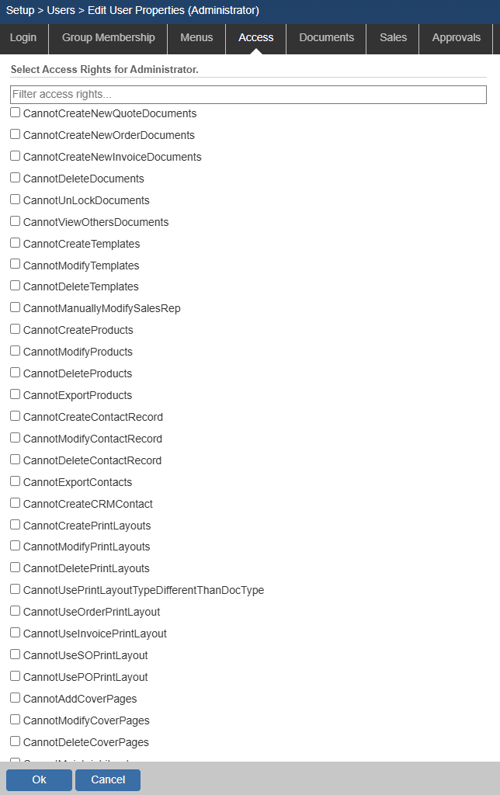
The Spotlight search is the space at the top of the window. Typing a specific keyword will bold that access right in the list for you making it easier to view those searched for security settings.
Any access right that begins with “CanSee” needs to be checked in order to be active even if the user has Master Rights. Master Rights users can apply these settings to themselves.
A full list of access rights can be found in the Access Rights knowledge base article.
Documents
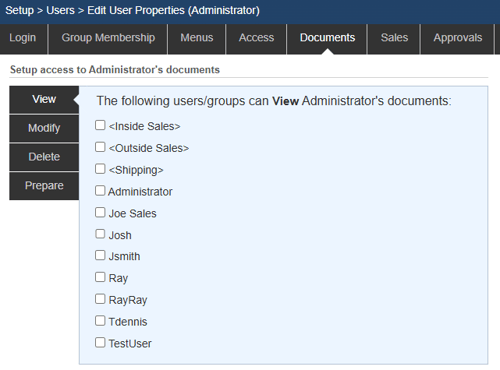
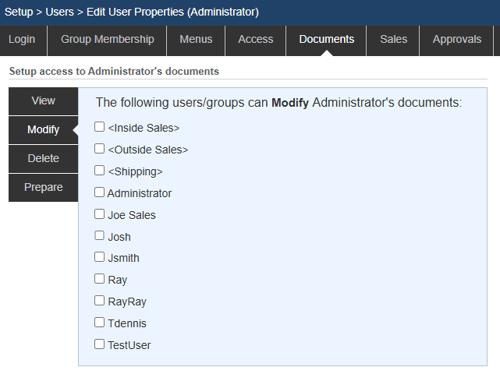
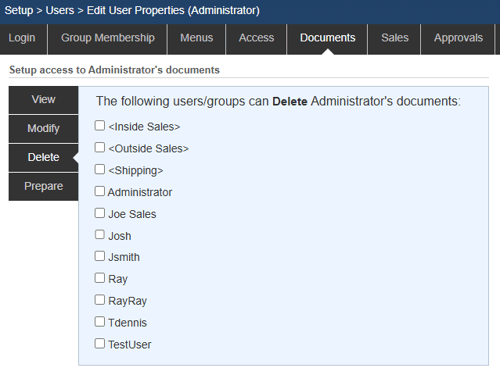
On the Documents tab, you can specify which users can view, modify, delete, or prepare quotes for this user’s documents. To toggle a user's access simply select or deselect the radio button next to the User or Group.
Click on the View tab to designate which users can view the selected user's documents.
Click on the Modify tab to designate which users can modify the selected user's documents.
Click on the Delete tab to designate which users can delete the selected user's documents.
Click on the Prepare tab to designate which users can prepare the selected user's documents.
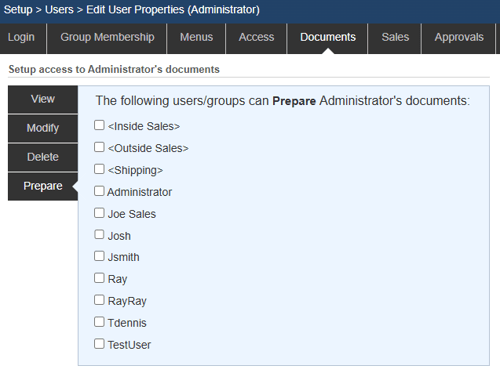
In QuoteWerks, by default users do not have the rights to view, modify, delete, or prepare other user’s quotes. If you want certain users to be able to have these rights to other user’s quotes, you will need to edit the security settings for each user to specify who is allowed to view their quotes. Take for example two users John and Rachel. If you want Rachel to be able to view John’s documents, Select the Setup -> Users, select John’s user id, and click on the Edit button. Then click on the Documents then View tab and click on the radio button next to Rachel's user name. Now Rachel will be able to view John’s documents.
Taking this example a step further, you can save some time by creating a security group called everyone, and then add all the users to this security group. Then, when you click on the “View” list for John’s user id, you can just select the security group “Everyone”.
Users can also have other QuoteWerks users prepare documents on their behalf. This enables specified users to actually create a document under the user’s name so the quote will be assigned to that user. To enable this feature users will need to be added to the “prepare” documents section of these security settings.
Sales
Commissions
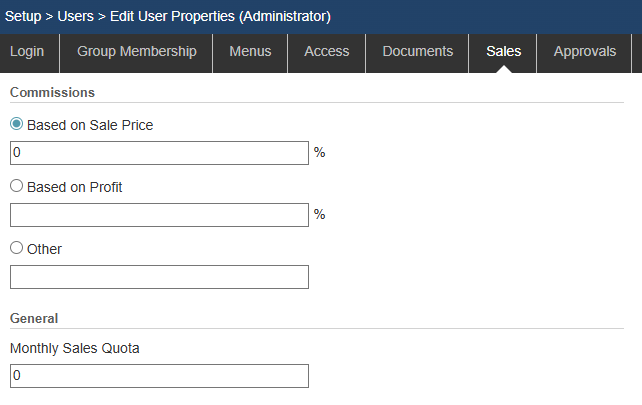
Commission can be calculated in one of 3 ways. It can be based on a percentage of the total sale, based on a percentage of the total profit, or using the “Other” option. This option was designed to be very flexible to allow us to create new commissions in the future for your use.
The “Other” commission option currently supports a commission structure known as “STRUCTURE3” and “STRUCTURE4”. Commission STRUCTURE3 is a sliding scale commission. Depending upon the PROFIT MARGIN on the sale, the sales rep gets a PERCENT of the total sale. Commission STRUCTURE4 is a sliding scale commission. Depending upon the PROFIT MARGIN on the sale, the sales rep gets a PERCENT of the profit amount.
If you type in the following STRUCTURE3 information:
STRUCTURE3|1|1|10|2.5|15|5|20|8|25|10.5|30|13|35|15|40|17.5
The commission will be calculated as follows:
For the profit margin >= 1 % the sales rep gets 1% commission on sale amount.
For the profit margin >= 10% the sales rep gets 2.5% commission on sale amount.
For the profit margin >= 15% the sales rep gets 5% commission on sale amount.
For the profit margin >= 20% the sales rep gets 8% commission on sale amount.
For the profit margin >= 25% the sales rep gets 10.5% commission on sale amount.
For the profit margin >= 30% the sales rep gets 13% commission on sale amount.
For the profit margin >= 35% the sales rep gets 15% commission on sale amount.
For the profit margin >= 40% the sales rep gets 17.5% commission on sale amount.
If you type in the following STRUCTURE4 information:
STRUCTURE4|1|1|10|2.5|15|5|20|8|25|10.5|30|13|35|15|40|17.5
The commission will be calculated as follows:
For the profit margin >= 1% the sales rep gets 1% commission on profit amount.
For the profit margin >= 10% the sales rep gets 2.5% commission on profit amount.
For the profit margin >= 15% the sales rep gets 5% commission on profit amount.
For the profit margin >= 20% the sales rep gets 8% commission on profit amount.
For the profit margin >= 25% the sales rep gets 10.5% commission on profit amount.
For the profit margin >= 30% the sales rep gets 13% commission on profit amount.
For the profit margin >= 35% the sales rep gets 15% commission on profit amount.
For the profit margin >= 40% the sales rep gets 17.5% commission on profit amount.
IMPORTANT: Newly set up or changed commissions will only be effective on NEW documents created after the setup/change. If you want to reflect the commission on older documents, you will need to open the document and toggle the SalesRep field.
This is because a Sales Rep's commission may change over time so you may not want to automatically update historical documents.
General
Monthly Sales Quotas can be set under this tab as a dollar amount. This quota is used in the My Summary and Opportunities Dashboards. Quotas can only be set on a monthly rate. If your quota is a quarterly or an annual rate, simply divide your quota by 12 to find the monthly quota rate.
Approvals
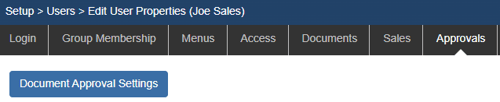
The Approvals tab is where you can set document approval and peer review settings. For more information, please see the Document Approval knowledge base article.