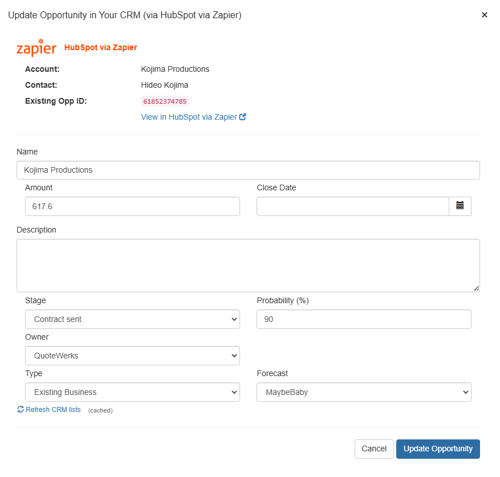
You can create or update opportunities in your connected CRM system using Zapier. In order to do this you need to create a Zap that uses the appropriate Trigger Event and Response steps. This article shows you how to do this using HubSpot as an example, but the process is very similar if configuring any CRM that is a part of the Zapier ecosystem.
IMPORTANT: Before you can begin creating or updating opportunties in your configured CRM system you must first connect to the CRM as a contact data source and pull in a contact to the quote. For instructions on how to do this please see the How Do I Connect Zapier as a Contact Data Source? help article.
Setup
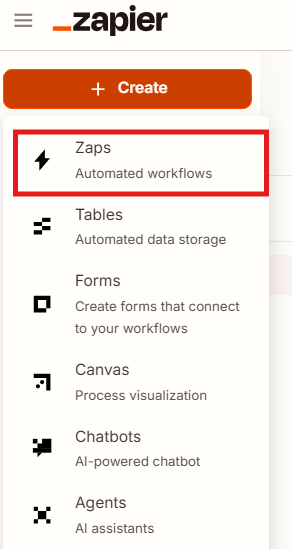
1. Log into Zapier, click on +Create and select Zaps.
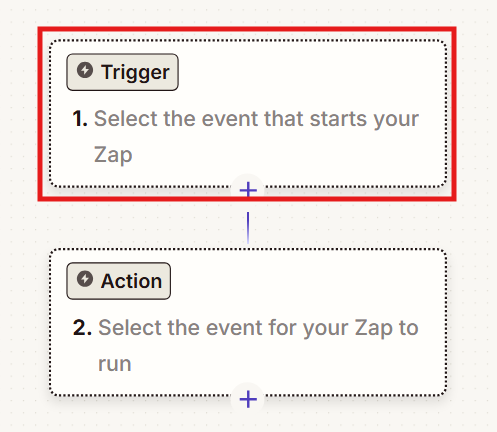
2. Click on Trigger to select your Trigger Event.
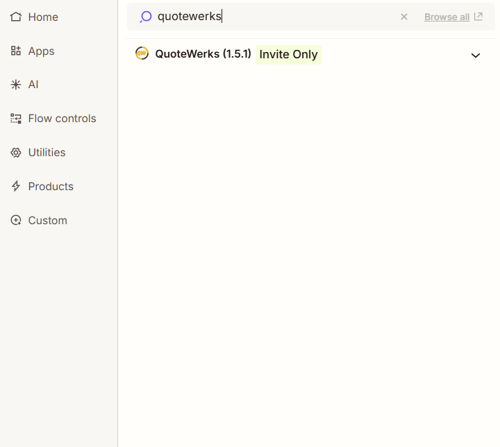
3. Search for and select "QuoteWerks."
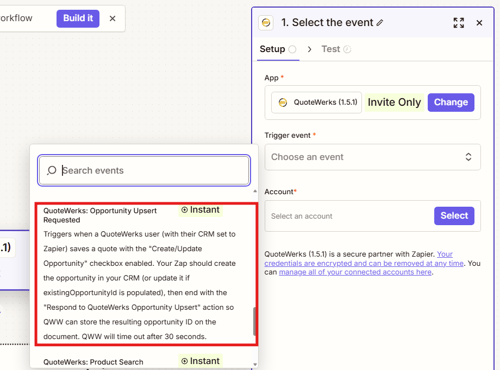
4. Under the Trigger event heading click on Choose an event. Select "QuoteWerks: Opportunity Upsert Requested."
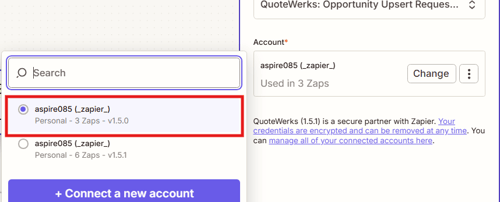
5. Click Select and choose your tenant account ID.
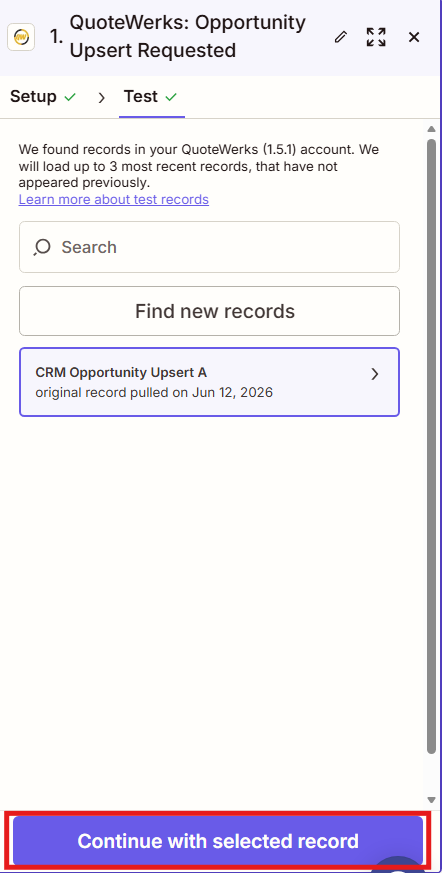
6. Click Continue then Test Trigger.
7. Click on Continue with Selected Record.
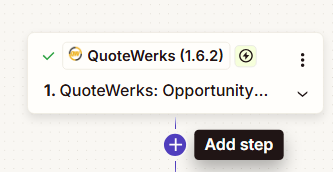
8. Click on Add Step.
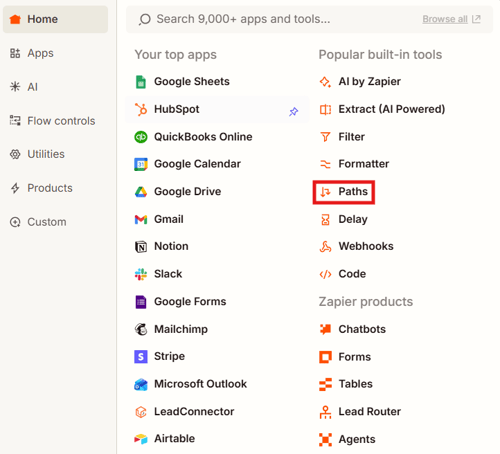
9. Select Paths from the list of popular built-in tools.
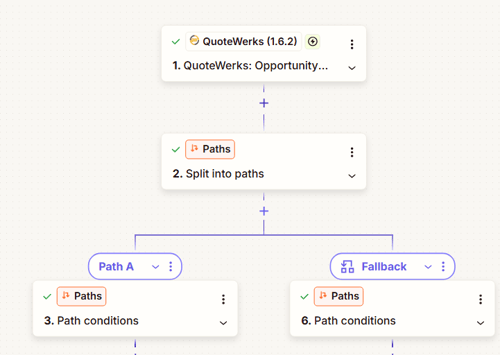
This adds 2 paths to the Zap as seen below.
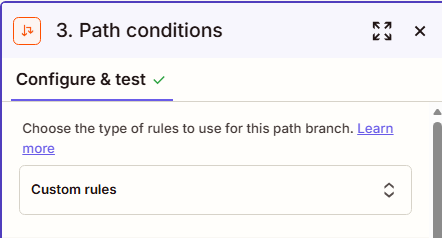
10. In step 2, Path conditions, set it to "Custom rules".
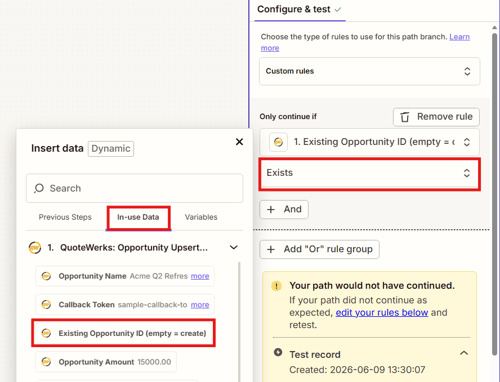
11. Under the "Only continue if" heading use the arrows to select "Existing Opportunity ID," click on the arrows again and navigate to in-use data and select "Existing Opportunity ID (empty = create)" and remove the existing "Existing Opportunity ID" entry. Set this to "Exists." Click Continue.
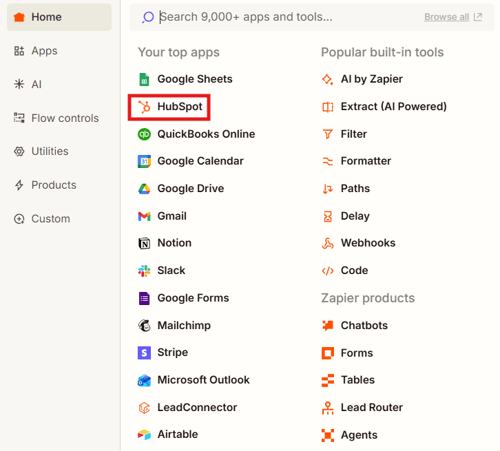
12. Add a new step to Path A and select HubSpot from the list of connected apps.
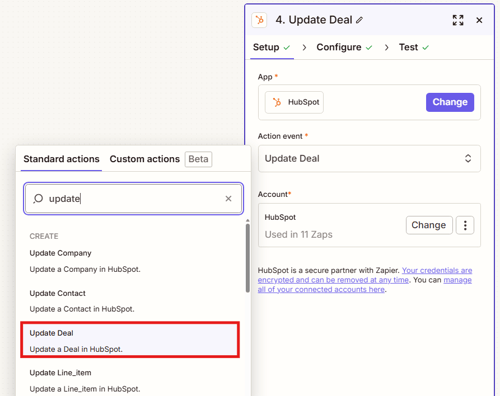
13. Under the heading "Action Event" select Update Deal.
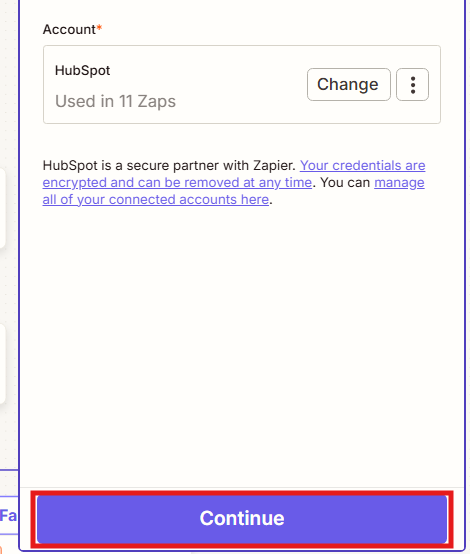
14. Connect to your HubSpot account and click Continue.
15. On the configure step you will need to map the different fields from QuoteWerks to the listed fields from Hubspot.
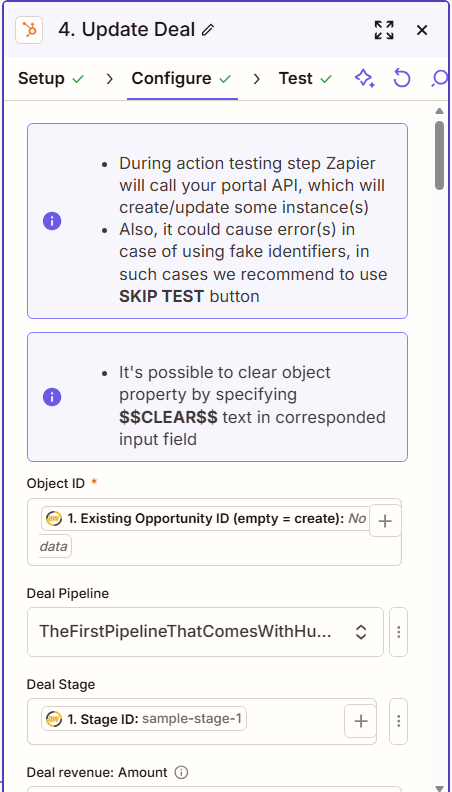
Fo HubSpot the mappings are as follows, but you can map any additional fields you may like:
-
Object ID -> Existing Opportunity (create = empty)
-
Deal Pipeline -> Your desired Pipeline
-
Deal Stage -> Stage ID
- For this field you will want to click on the three dots and select Custom, then search for Stage ID
-
Deal revenue: Amount -> Opportunity Amount
-
Deal information: Close Date -> Opportunity Close Date
-
Deal information: Create Date -> Doc Date
-
Deal information: Deal Name -> Doc Name
-
Deal information: Deal Type -> Deal Type ID
- For this field you will want to click on the three dots and select Custom, then search for Deal Type ID
-
Deal information: Deal Description -> Opportunity Description
-
Deal Information: Deal Probability -> Opportunity Probability
-
Deal information: Forecast Category -> Forecast ID
- For this field you will want to click on the three dots and select Custom, then search for Forecast ID
-
Deal information: Priority -> Your desired Priority
- Deal information: Deal Owner -> Owner ID
- For this field you will want to click on the three dots and select Custom, then search for Owner ID
Once all your mappings are complete, click Continue.
16. Click Skip Test, then Continue.
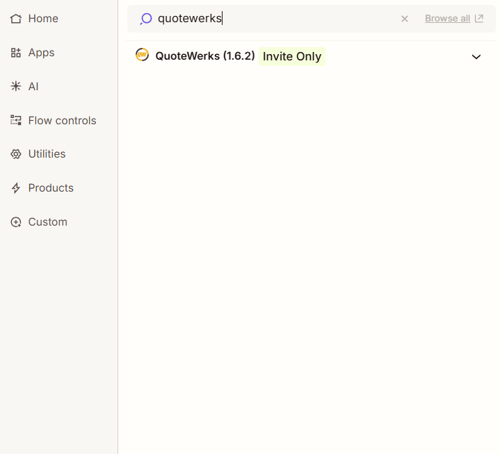
17. Add another Step and search for and select "QuoteWerks."
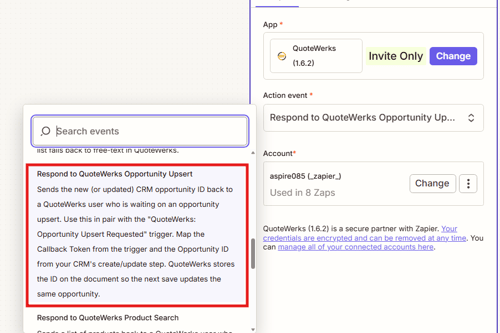
18. Under the heading "Action event" select Respond to QuoteWerks Opportunity Upsert.
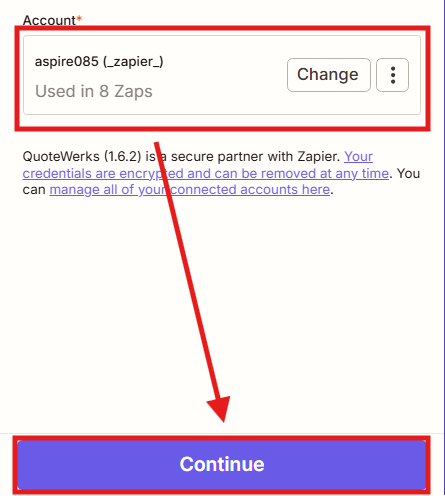
19. Connect to your QuoteWerks account and click Continue.
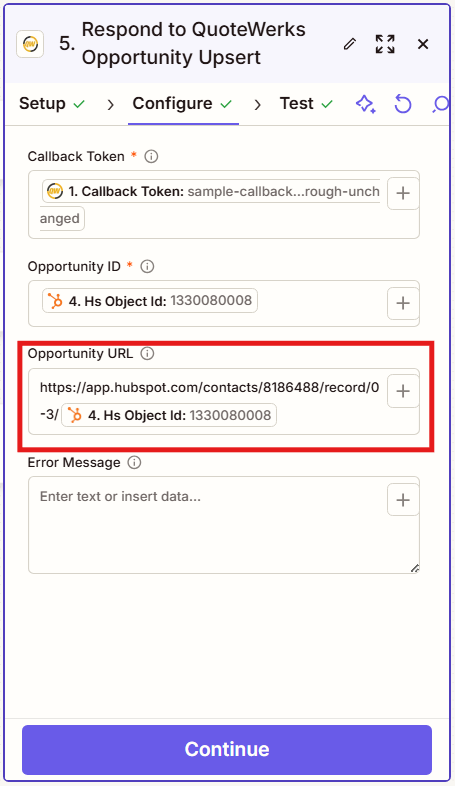
20. On the Configure step map the Callback Token to the Callback Token from QuoteWerks and the Opportunity ID to the HS Object id from HubSpot. For Opportunity URL you will want to open an existing deal in HubSpot and copy the URL up until the Deal ID. It will look something like this: https://app.hubspot.com/contacts/8186488/record/0-3/
Copy that URL into the Opportunity URL field then click the + Plus button. Search for and select 4. Hs Object Id so that it looks like the link highlighted below.
Click Continue.
21. Click Test Step.
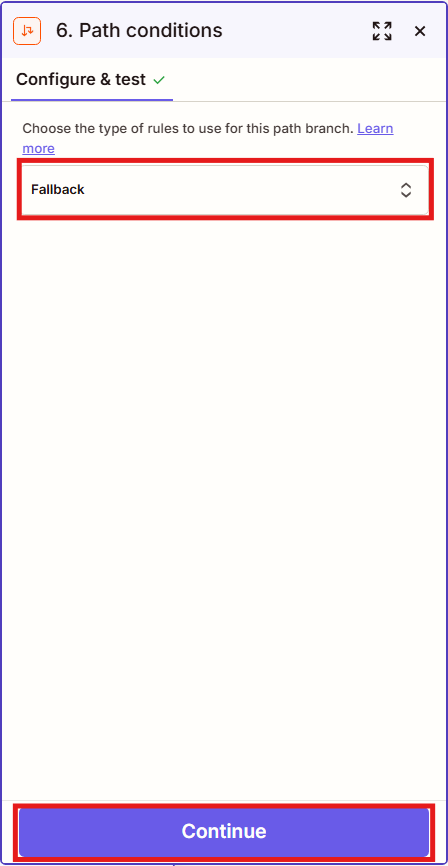
22. Click into Step 6 - Path conditions and under the heading "Choose the type of rules to use form this path branch" select Fallback. Click Continue.
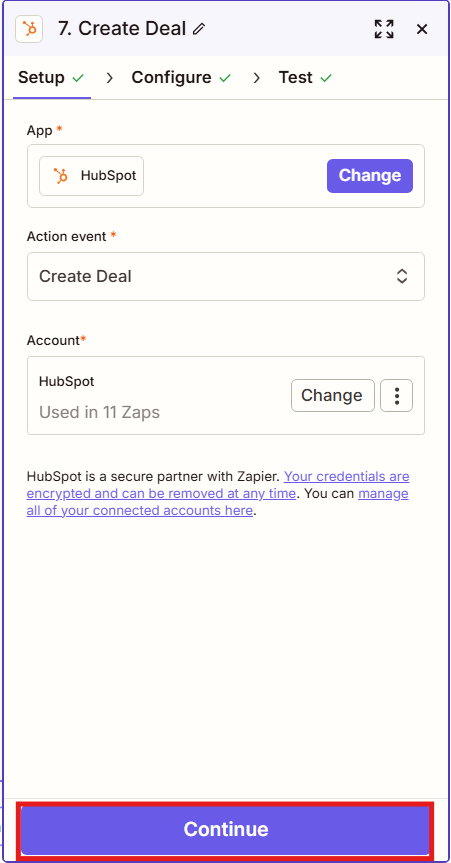
23. Add a step to the Fallback path (step 7), choose HubSpot as your app, under "Action event" select Create Deal and connect to your HubSpot account. Click Continue.
24. Map all of the same fields as you did in step 15 with the exception of including Name as Opportunity Name. Click Continue.
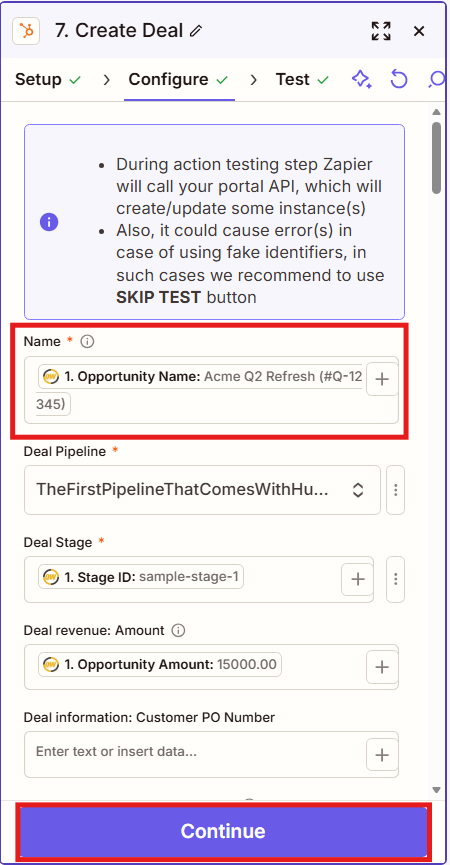
The mappings are as follows:
-
Name -> Opportunity Name
-
Deal Pipeline -> Your desired Pipeline
-
Deal Stage -> Stage ID
- For this field you will want to click on the three dots and select Custom, then search for Stage ID
-
Deal revenue: Amount -> Opportunity Amount
-
Deal information: Close Date -> Opportunity Close Date
-
Deal information: Create Date -> Doc Date
-
Deal information: Deal Type -> Opportunity Type ID
- For this field you will want to click on the three dots and select Custom, then search for Opporunity Type ID
- Deal information: Deal Description -> Opportunity Description
- Deal Information: Forecast Probability -> Opportunity Probability
- Deal Information: Forecast category -> Forecast ID
- For this field you will want to click on the three dots and select Custom, then search for Forecast ID
- Deal information: Priority -> Your desired Priority
- Deal information: Deal Owner -> Owner ID
- For this field you will want to click on the three dots and select Custom, then search for Owner ID
25. Click Skip Test.
26. Add another Step to the Fallback path (step 8.) Connect to the QuoteWerks app, under Action event select Respond to QuoteWerks Opportunity Upsert, connect your QuoteWerks account, and click Continue.
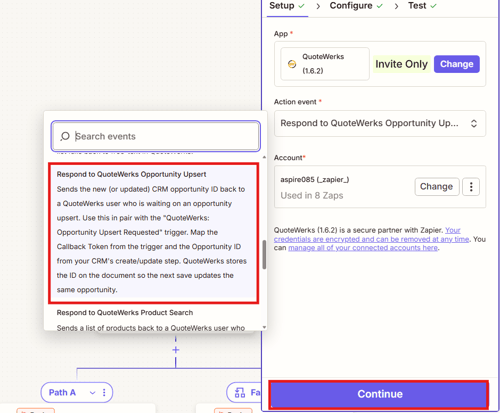
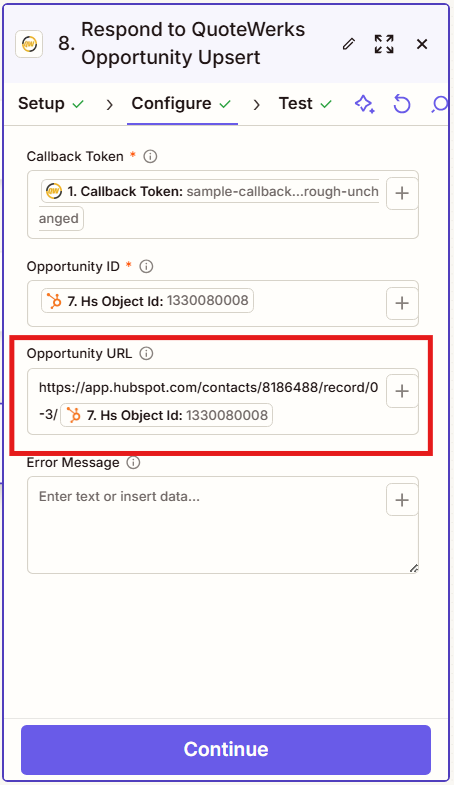
27. Map Callback Token to the QuoteWerks Callback token and Opportunity ID to Hs Object ID from HubSpot. For Opportunity URL you will want to open an existing deal in HubSpot and copy the URL up until the Deal ID. It will look something like this: https://app.hubspot.com/contacts/8186488/record/0-3/
Copy that URL into the Opportunity URL field then click the + Plus button. Search for and select 4. Hs Object Id so that it looks like the link highlighted below.
Click Continue.
28. Click Test Step, then Publish.
The Zap is now fully configured and ready to be used in QuoteWerks. To create or update a deal in HubSpot simply create a quote and hit save. On the save screen you will be presented with the option to create/update a deal. If you are online, when you click Save the Create/Update Opportunity window will open where you can input information about your deal that will be sent over to HubSpot.