
To create a new purchase order in QuickBooks Online from QuoteWerks click on Purchasing on the Navigation Panel or the Tools menu, or the Purchasing icon  on the Grid Tool bar. These options will open the Purchasing window and the Purchasing tab.
IMPORTANT: Only items in orders will be available to be sent over to QuickBooks Online in a purchase order. So, if you started with a quote, ensure you convert it to an order by choosing the File -> Convert to Order menu.
When opening the Purchasing window there will be two options at the top of the window. The first option will let you select items for the currently open order in QuoteWerks. If you do not have an open order in QuoteWerks, this option will be grayed out. The second option is to view the items across “Multiple Orders”.
Items that have not yet been purchased will be available under the “Non-Purchased Items” drop-down box.
Sselect the vendor from the Select Vendor dropdown list that you would like to create a purchase order for.
After making your selections you will see a list of all the items that are available. Depending on the vendor you selected you will see options to manually create a PO and/or to Place Online Order.
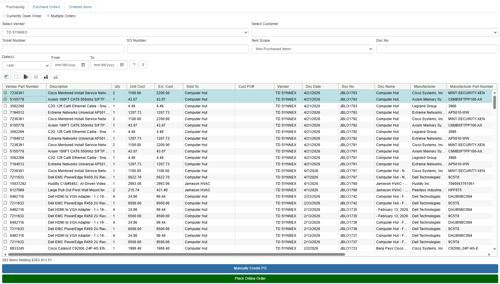
Clicking either of those options will open a window where you can generate the PO. Users are able to generate a PO Number. If users do not set a PO number one will be auto-assigned in QuickBooks.
If you would like to generate the purchase order in QuickBooks ensure that the Export to QuickBooks option is selected at the bottom left of the window.
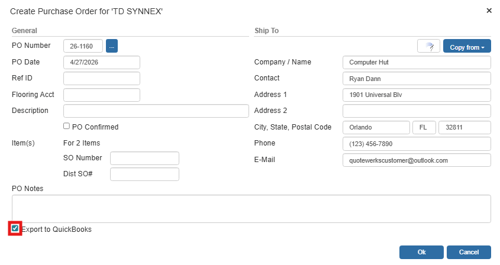
NOTE: When creating a Purchase Order in QuickBooks, the Customer:Job that each item is being purchased for is populated in the QuickBooks Purchase Order using the QuoteWerks customer information from the Orders.
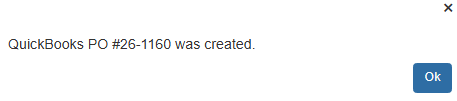
If the parts do not exist in QuickBooks you will be prompted to create them and assign the proper accounts. After adding all the products to QuickBooks that do not exist, QuoteWerks will create the PO for you in QuickBooks and tell you the number for that document.
NOTE: If the item is not setup to be purchased and sold in QuickBooks Online, you will not be able to create the PO for those items until you have adjusted that setting in QuickBooks Online. You'll need to go to the Product and Service setup in QuickBooks and enable that setting.