
When this option is enabled, you can specify which users can view and modify individual cover pages, print layouts, and literature.
IMPORTANT: When the "Enable Individual Resource Security" option is activated, all Covers, Print Layouts, and Literature files will be automatically hidden. You will need to start applying security rights for these to be visible. With this in mind, do not start applying security rights until everyone is out of QuoteWerks so you have time to make the necessary changes
The enable individual resource security navigate to Setup -> Options -> Security. Check the Enable individual Resource security checkbox as seen below.

Setting File Access Rights
To set File Access Rights, click on the  [Deliver] icon or the File-> Print / Email / Deliver menu option to open the Print, Share, Publish, Deliver Document window.
1. Click on the Administration Mode checkbox to display all of your layout files.
NOTE: You must have Master Rights or the Access right of "NonMasterRightsUser_CanAdministerDeliverables to set access rights for the cover pages, layouts, and literature files.
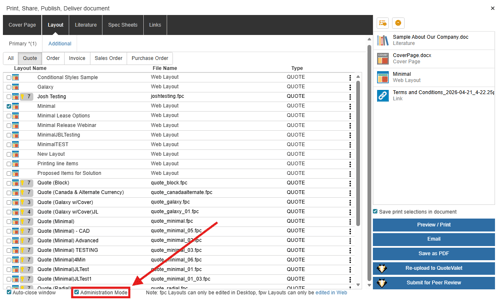
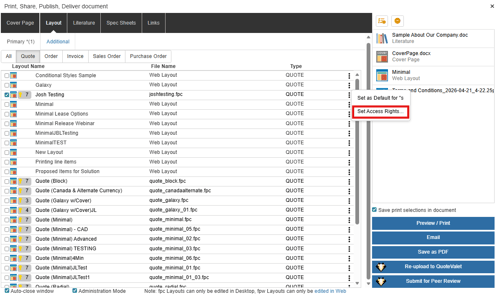
2. Any files in RED are files that DO NOT have any users setup to view or modify them. This means that until you add access rights to these RED files, they will not be visible to your other users when not in administration mode. To edit the access rights, click the three dots icon to the right of a Print Layout or Literature file and choose Set Access Rights.
3. This will open the Set File Access Rights Window. Here you can select which of your users and groups are able to view and/or modify each layout or literature file you selected.
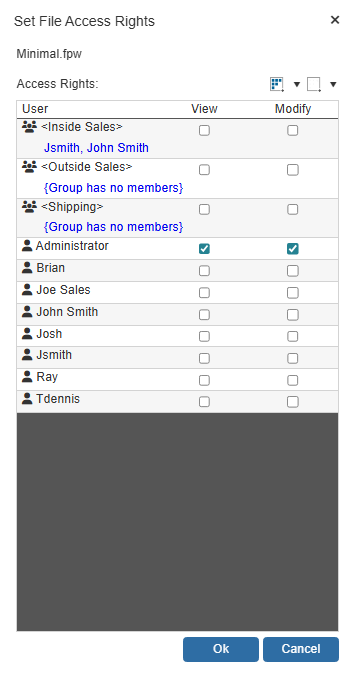
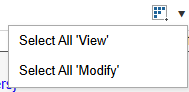
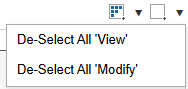
Utilizing groups in the access rights window is a great way to save time if you have a large number of users who need to access the file. You can also use the select all icon ( ) to select all the users and groups to be able to view the selected file(s). If you click on the drop-down menu next to select all, you can specify if you want to provide view or modify access for all. Alternatively, the deselect all button (
 ) will deselect the view access right if all the users at one time. Similarly, if you click on the drop-down menu next to de-select all, you can specify if you want to de-select the view or the modify access for all.
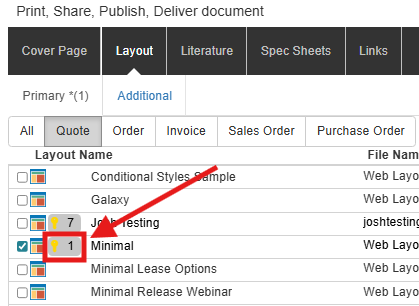
4. Once you have made the appropriate changes, click [Ok] to save those changes. You will now see the number of users and/or groups who have access to that particular file in the brackets next to the layout name (you may need to refresh the layout by clicking F5 on your keyboard to see that change).
5. Repeat these steps for each cover page, layout, and literature document that need to be visible to your users.
Individual Resource Security
Individual File Access Rights
The following information covers access rights for layouts and literature files.
‘View’ Rights
Granting the user/group this right will enable the user to view the files on the Layouts and Literature tabs.
‘Modify’ Rights
Granting the user/group this right will enable the user to modify the existing layouts and literature files.
Tips on Assigning Rights
When cloning layouts, the rights set will carry over to the cloned layout. If you create a new layout, you will need to assign access rights to that new layout.
Security Hierarchy for File Access Rights
NOTE: The Access Rights set under Setup -> Users -> Access tab will overwrite the File Access Rights set from the Deliver Window. So, if you set an access right of "CannotModifyPrintLayout" for a user and then give them access to modify a layout under the Deliver window, that user will NOT be able to modify that or any other layout until that Access Right is removed. Additionally, users with Master Rights are able to view and modify any files, at any time no matter what security settings are set for them.
|
‘View’ Right hierarchy Individual File Access Security is ENABLED |
Result |
| Default status is | NOT GRANTED |
| If User belongs to a group that has View rights assigned then | GRANTED |
| If User has View rights specifically assigned to User then | GRANTED |
| If User has Master Rights then | GRANTED |
|
‘View’ Right hierarchy Individual File Access is NOT ENABLED |
Result |
| Defaults status is | GRANTED |
| If User has Master Rights then | GRANTED |
|
‘Modify’ Right hierarchy Individual File Access is ENABLED |
Result |
| Default status is | GRANTED |
| If User belongs to a group that has Modify rights assigned then | GRANTED |
| If User has Modify rights specifically assigned to User then | GRANTED |
| If User has Misc Access right “CannotModifyPrintLayouts”, and/or "CannotModifyLiterature", and/or "CannotModifyCoverPages". | REVOKED |
| If User has Master Rights then | GRANTED |
|
‘Modify’ Right hierarchy Individual File Access is NOT ENABLED |
Result |
| Default status is | GRANTED |
| If User has Misc Access right “CannotModifyPrintLayouts”, and/or "CannotModifyLiterature", and/or "CannotModifyCoverPages". | REVOKED |
| If user has Master Rights then | GRANTED |