
Reports can be exported to CSV and Text files which makes it easier to pull the data into Excel or Google Sheets.
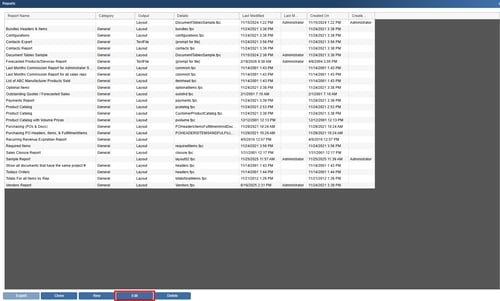
To export a report as a CSV (comma separated) or Text file (tab delimited), users will need to edit the report to export. To do this, highlight the report and click on the [Edit] button. Click on the Output tab.
NOTE: There are also two Misc Access rights of CannotModifyManagementreportExportSettings that will prevent a user from being able to change the export settings including which fields are exported and the format of the exported file. The Misc Access Right of CannotExportManagementReportDocumentData can be used to stop a user from exporting quote/order/invoice type information from the management report.
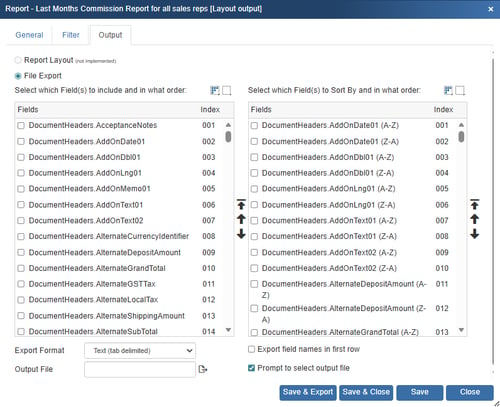
File Export
Select which Field(s) to include and in what order:
In this section select which fields to include in the export document and the order in which they should print. The order in which the fields are selected will be the print order of the columns on the exported file (left to right in the document). Use the 
 arrows to move the selected fields up or down to set the print order on the exported report or use the
  icon to move a field to the top.
Select which Field(s) to Sort By and in what order:
The fields selected here will determine how the data is sorted in the export file. These selections allow users to sort the data by ascending to descending or descending to ascending order by selecting the field with the suffix of A-Z or Z-A. These options work similar to Excel in the way the data is sorted. For example, if a user selected to sort the data by Grand Total Z-A, the data would list the grand totals in descending order.
Use the arrows to move the selected fields up or down to reorder or use the icon to move the field to the top.
Export Format
The Export Format supports two file types, Text (tab delimited) and CSV (comma delimited). CSV is the most common output as it can be easily opened by Excel or Google Sheets.
Output File
The Output File will display the default file name and location of the export file. If this is not changed, when this report is exported this is the name of the file that will be exported. If the report has not yet been exported, it will be blank and you will be prompted to set a file name and location.
Export Field Names in First Row
With this option selected, the field names will be exported into the first row of the export document.
Prompt to Select Output File
This setting will prompt the user to select a file name and location for the current report each time the report is exported. This allows users to change the location and name of the file before it is exported. If you want to use the same file name and path each time an export is started, leave this setting unchecked.
Save & Export
This option will save the changes, and then export the report to the set file type.
Save & Close
This setting will save and close the report window, but will not run the export function.
Save
This setting will save the changes made to the output settings.
Close
This setting will close the report window. If you have not yet saved the changes, it will prompt you to save at this point.
How to Export a Report
1) Highlight the report you would like to export to a CSV or Text file and click on the [Edit] button.
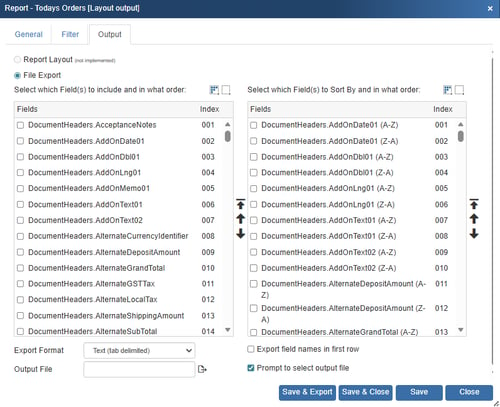
2) Click on the Output tab and select the File Export radial button.
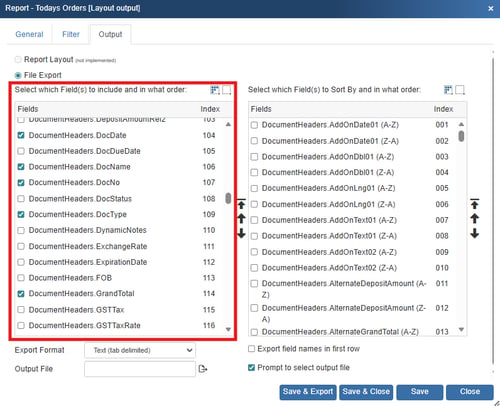
3) Next, start selecting the fields you want exported to CSV or Text file on the left hand side. On the right hand side, select the sorting fields (these are optional). The sorting field selections will let you sort based on the field data to order the information alphabetically or numerically. For example, if you wanted to sort by the Grand Total field from highest grand total to lowest grand total, you would select the field called DocumentHeaders.GrandTotal (Z-A).
4) Once you have made those selections choose:
- The Export Format (CSV or Text)
- The Output File Name (optional, can change this later)
- Whether to export field names in the first row of the file
-
Prompt to select output file (with this option selected it will prompt for the exported file name each time this report is exported)
5) Choose, Save, Close and Export to export the report, Save and Close to just save the settings, Save to just save the changes, and Close to close the window without saving.