
QuoteWerks Management Reports can be exported to your clipboard so that you can paste data directly into the third-party party app of your choosing. To do so, follow the simple steps below.
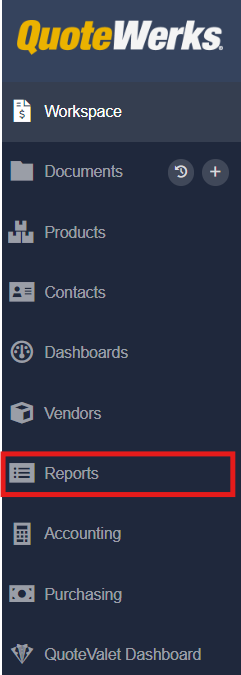
1. Navigate to Management Reports by clicking on Reports on the navigation panel.
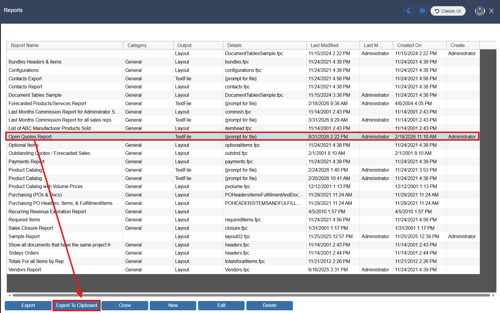
2. There are two ways to export report data to the clipboard. The first is to select the report you wish to export from the reports window and click on Export to Clipboard.
The second option is to select the report, click Edit, then select Save & Export To Clipboard.
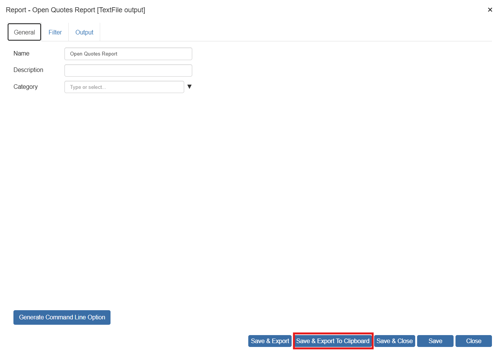
Both options will export the report data to your clipboard.
3. Paste the data into the third-party tool of your choice, like Excel.
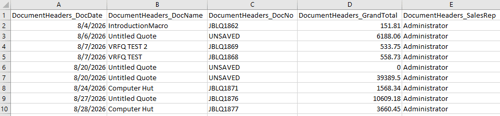
Some older versions of excel may not paste the data into individual columns as seen above and additional steps may be required. If you paste the report into excel and the and all of the data is contained in one column, as seen below, you will need to perform a text to columns operation to separate the data into the appropriate columns with headers.
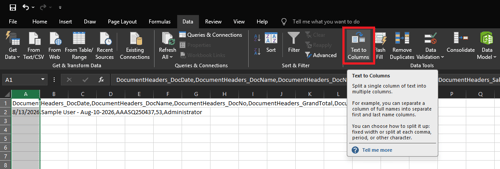
1. To do so, highlight the column in which the data is contained, navigate to the Data tab, and select Text to Columns.
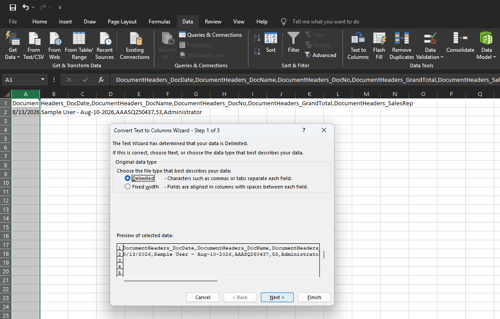
2. In the Convert Text to Columns Wizard, select Delimited.
3. Select Comma as your delimiter and click Finish.
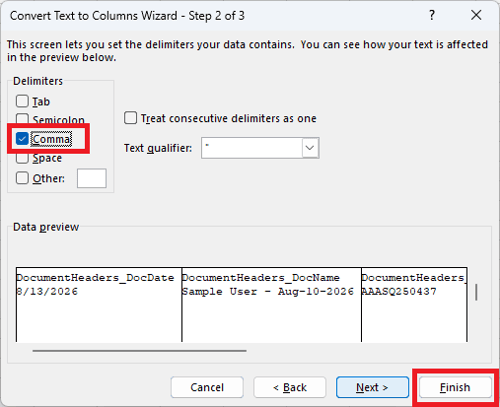
4. This will display the columns with their headers and the data from the report will be listed in the rows below.