You can search for and open documents by selecting the File -> Open menu or by clicking on Documents on the Navigation Panel. On the Open window, there are many different ways to look-up documents.
NOTE: The results of the search will be limited based on the document rights that have been assigned to the logged-in user.
Searching
This is the simplest way to find a document such as a quote, order, or invoice. By default, when you open the search window all the quotes for the installation will appear in the results window. This default setting can be changed under the Misc tab of the Setup-> My Preferences Menu. The field is called Document Search Default (drop-down menu).
To search for a specific document, just type in a part of the quote’s name and click on the [Search] button to search for that quote. You can also click on the drop-down arrow in the Document Name field, and this will display a list of the last 15 documents opened.
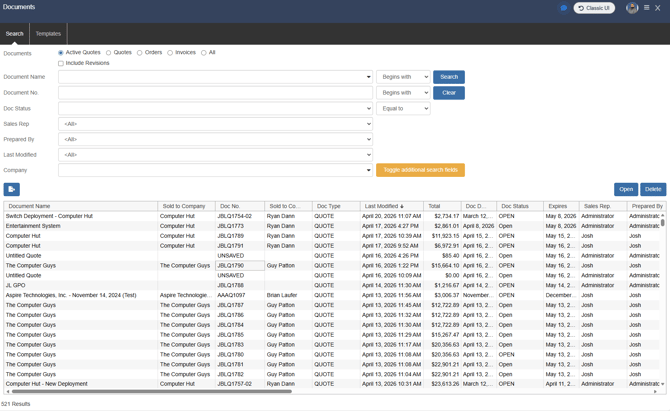
Additionally, you can search documents by any field that is on this tab. Simply use the drop-down box or type in some or all of the information you are looking for and click on the [Search] button to search the database for the document or documents that match the search criteria. If you would like to clear any information you have entered to start another search, click on the [Clear] button. Select the quote that you were searching for and click on the [Open] button to open the quote. If your access rights allow it you will also see a [Delete] button that can be used to remove documents from the database. This function should be used with caution.
Once the results of your search are displayed you can sort the search results by clicking on the column names such as Document Name, Sold to Company, Ship to Company, Bill to Company, Document Number, CustomText, CustomNumber, Last Modified, Document Type, DocDate, etc.
By default, they will be sorted by the Last Modified date. You can see if a document has been uploaded to QuoteValet by looking at the QuoteValet Document ID column and seeing if it is blank or not. If it is blank, that document has not been uploaded to QuoteValet.
You can also use the Toggle additional search fields button to search by one of the many DocumentItem or DocumentHeader fields from the database.
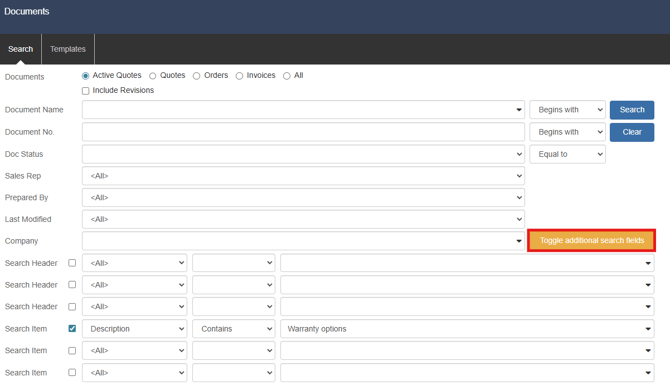
The DocumentHeader Field search can be used to search for documents on other fields in the document such as Sold to, Ship to, or Bill to fields, last modified, shipping, and much more. This gives the search window flexibility to help find documents faster based on fields that are not commonly used.
The DocumentItem Fields can be used to search a list of documents for a specific item. The search can include any DocumentItem field including the description, manufacturer, vendor, and internal part numbers, custom fields, PO numbers, and more.
TIP: When using the Search Query operator, use double quotes [ " " ] around a phrase to search for that phrase. If you type a minus [ - ] character after the phrase, the search results will omit anything typed after the minus sign. For example, if you wanted to search for any quotes that contained "Microsoft Office" in the phrase but didn't want it to include results that have "2026" in them it would look like this: "Microsoft Office" - 2026. If you typed "Microsoft Office" -Basic - OEM this would omit any results that contain the word "Basic" and/or "OEM" after Microsoft Office.
NOTE: Advanced users can customize the columns on the Open Document window by using the Settings Manager to create or set UserSettings\OpenWindowGridSettings\ColumnData per each user. In this data you can include the additional DocumentHeader fields.
Exporting Search Result Data
The  button allows you to export the results to the Windows Clipboard. This can be used to perform reporting on your documents using Microsoft Excel or Google Sheets. Once exported this data can be manipulated to provide valuable insights into your documents including totals over a given period, which manufacturers or vendors are top performers, and performance by sales rep to name a few. Since you have the ability to filter your search by any of the fields in the DocumentItems and DocumentHeaders tables the insights you can glean are only limited by your imagination.
Right-Click Menu
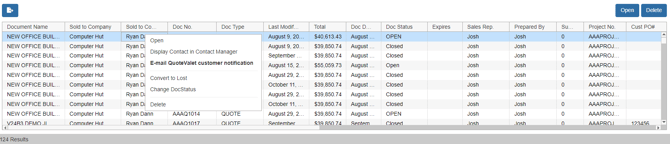
Right-clicking on a document will open a menu where users can either open a document, display the contact in contact manager, email the QuoteValet customer notification, convert it to lost, change the DocStatus, or Delete it (security rights required). If you highlight multiple documents you can update the status of the documents or convert a batch of documents to lost simultaneously.
Display Contact in CRM
Right-clicking on a document will open the right-click menu and allow you to select the "Display Contact in Contact Manager" menu option. This will show you the contact for that selected document in your CRM without you having to open the document first. This option will only be available if you are using an integrated CRM/PSA and also pulled the contact from the CRM/PSA into QuoteWerks.

Email QuoteValet Customer Notifications
The right-click menu on a document in the Open Document window will allow you to re-email the customer notification email again. This is a great shortcut to resend the email without having to open it first. This option will only be available if the document has been uploaded to QuoteValet.
Convert to Lost
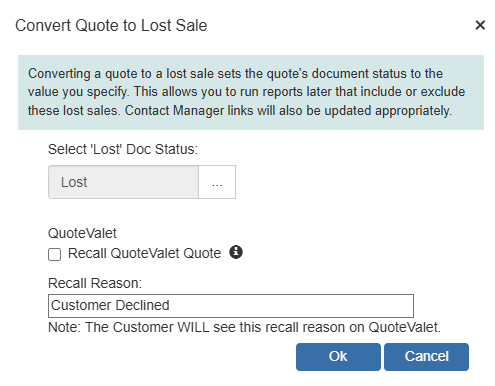
Choosing to convert single or multiple documents to lost will open the Convert to Lost menu where users will be prompted to confirm the change and if the document has been uploaded to QuoteValet, be prompted with the option to recall it.
Change DocStatus
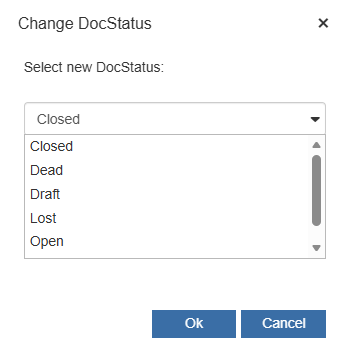
Selecting the Change DocStatus will allow users to update single or multiple quotes at one time with a new DocumentStatus. This is very useful if there are documents that were not updated properly during the normal sales process. Instead of having to update each one manually, you can update a batch of the documents.
Opening Documents
To open a document simply click on a document and click on the [Open] button or double-click on the document.
When attempting to open a document that is already in use by another user, you will have the option to open the document in Read-Only mode. This will enable you to open the document so that you can review the information contained within the document, but you will not be able to save changes to it. In a situation where a colleague has the document open, has locked their workstation, and is out of the office, other users can still open it (subject to normal rights restrictions) so they can view it. When a customer calls in and asks for information about their quote, other users need to be able to view the contents of the quote, instead of being locked out from it. A document opened in Read-Only mode will have "(Read-Only)" displayed in the title bar of the document.
NOTE: When you do a search, and open a document from the list of results, you can go back to the File -> Open menu, and select another document to open from the search results list. This feature is useful when you need to open quotes one by one to examine them closer without having to re-run your search each time. Selecting the [Close] button will close this window, and unload the search results.
NOTE: By default you can have up to 5 documents open at the same time in QuoteWerks. Advanced users can use the Settings Manager to create or set SystemSettings\System\MaxNumOpenDocs. You can change this maximum number to a value between 1 and 10.
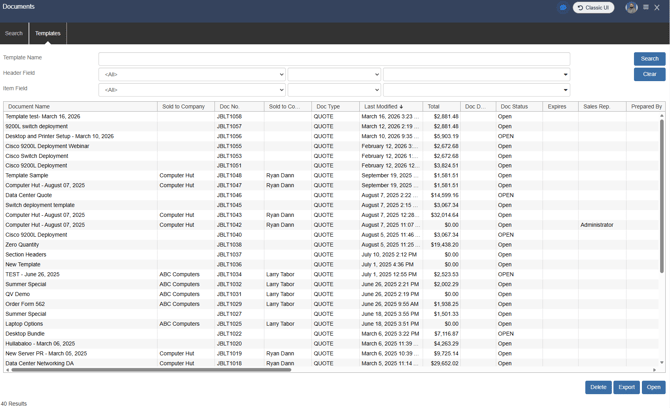
Searching for Templates
Click the Templates tab and hit search to view all templates. This selection will show you all the templates created in QuoteWerks. These templates will be sorted by the Last Modified date by default but can be sorted by clicking on any of the other available columns. This is where users can make changes or delete any existing templates. For example, if a service is no longer being sold and it still exists on a template, you would come here to edit that template and remove or replace that service.
You can search by template name as well as fields from the DocumentHeaders and DocumentItems tables. You can open and begin modifying a template by clicking the [Open] button. You can delete a template by clicking on [Delete] button. And you can export your template search results by clicking on the [Export] button.