User management is administered on the User Maintenance window. To access the User Maintenance window navigate to Setup -> Users from the Navigation Panel. This page allows you to create, edit, and remove users from your QuoteWerks user database. The users listed in this window will appear in the Sales Rep drop-down box on the Sale Info tab of the Quote Workbook.
Users

Clicking on the  button will allow you to create a new user.
Clicking on the  button will clone the selected user and create a new user profile based on that users' settings. When creating new users, the advantage of cloning an existing user is that all the security rights, group membership, user preferences, email templates, email snippets, email signatures, etc. will be copied into the new user. If a user is cloned, that user will be automatically selected in the user list.
Clicking on the  button will open the Edit User Properties window for the selected user.
Clicking on the  button will completely remove the user and all settings associated with that user's profile.
Clicking on the  button will open the selected user's preferences. This button is useful because with it, administrators can centrally access and change the preferences of individual users.
The M next to a user's name signals that the user has master rights in QuoteWerks.
The * next to a user's name means this user does not have a password set for them.
The *M next to a user's name means this user has master rights and does not have a password set for them.
The OS Login displays the user's Windows login to let the QuoteWerks admin know that user is setup for logging in via Windows Authentication.
The Reference column will display the notes from the Login Tab.
NOTE: Master Rights are required to gain access to user maintenance. The default login name of “Administrator” has Master Rights. When first setting up users, you will need to login using the “Administrator” login name in order to create your own login name that you can assign Master Rights to. Once you have setup at least one user and assigned Master Rights to that user, you can delete the default “Administrator” login name. Or, in the very least, assign a password to the “Administrator” login name.
NOTE: When you create the login name for the person that will be the QuoteWerks administrator, make sure to give that person Master Rights.
Group Maintenance
On the Groups tab, you can create group names. Once you have created a group name you can assign users as being members of that group when editing the individual users and specifying on the Group Membership tab that the user is a member of that Group.
To view a list of the group members for a specific group, simply highlight the group. The list of group members will appear on the right of the window:

Why use Groups? When editing a user to specify which users can modify this user’s documents, you can specify individual users, like Joe and Suzy for example. Joe and Suzy are in accounting, so you may want them to have modify rights to everyone’s documents. As such, you would need to then individually modify each user’s record to specify that Joe and Suzy should have modify rights to each of these users’ documents.
Now, what happens if Joe leaves the company and is replaced by John? You will need to individually modify each user’s record to specify that Joe no longer has access to modify the user’s documents, and that John now should have this right. That is a lot of work.
This is where Groups come in. If initially, you modified each user’s record to specify that the <Accounting> Group can modify this user’s documents, then when Joe leaves and John comes on board, all you have to do is remove Joe from the group, mark his user as inactive, then create John’s user record and assign John to the <Accounting> group. You do not need to go through and modify each user’s record to reflect this change. Big time saver!
Using Groups is also beneficial for more than just specifying which users can modify specific users’ documents. They can also be used to apply changes to a group of users like when customizing columns and applying those changes to a group of users, etc.
Profiles
On the Profiles tab, you can create custom profiles to use in conjunction with the Document Approval Settings.
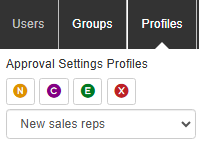
The profiles enable users to create a customized Document Approval Profile for multiple users in QuoteWerks. Using the profiles feature enables administrators to set document approval settings on many users with one-click rather than having to individually apply settings if users will have the same settings.
User Properties
Select a user from the Users list and click on the [Edit] button to open the User Properties window.
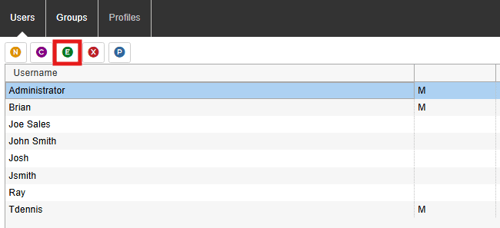
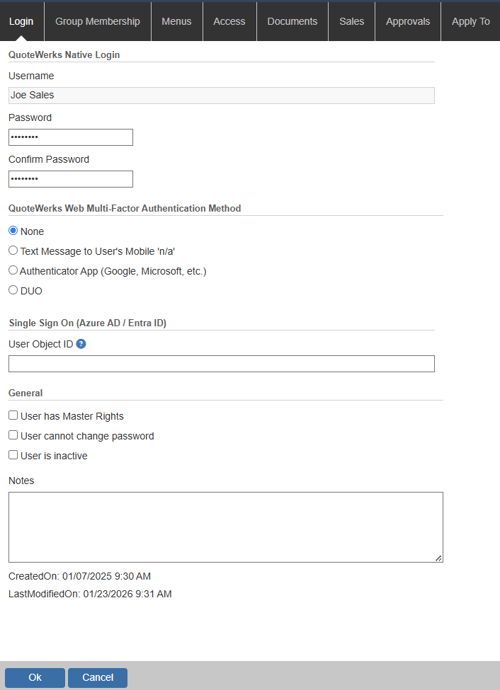
From this window you will be able to define a user’s security settings under the following tabs:
Login Tab
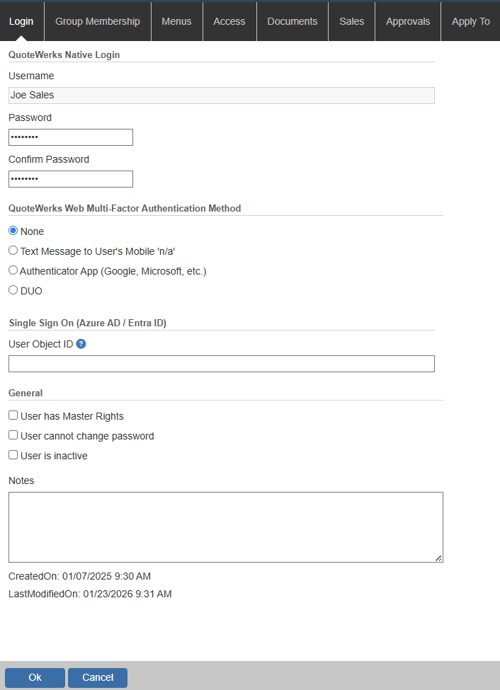
QuoteWerks Native Login
Here you can specify the user login name and password. At a later time, the user can change their own password if you give them the rights to do so under the Setup -> My Preferences menu.
NOTE: Usernames cannot contain hyphens characters.
IMPORTANT: User Names can NOT be changed once saved.
For more information on your sign on options, see the Sign On Options page.
QuoteWerks Web Multi-Factor Authentication Method
Here you can set the option to use multi-factor authentication for QuoteWerks Web. When enabled, this will send a text message to the user. The text will be sent to the mobile number specified under the Personal tab of the My Preferences window.
For more information on how to setup Multi-factor authentication see the How Do I Setup Multi-Factor Authentication? help article.
Single Sign On (Azure AD/Entra ID)
To automatically log into QuoteWerks using your Windows login, provide your Windows user name and domain. QuoteWerks will validate both to ensure they are correct. If you cannot validate these, contact your network administrator for the correct information. Additionally, once these credentials have been added, the login screen will display the Windows Authentication confirming which user is being logged into QuoteWerks.
NOTE: For Windows Authentication to work you must first follow the instructions in the How Do I Setup Microsoft Single Sign On? help article.
If you need to log into another user, hold the SHIFT key while starting QuoteWerks and it will bypass the Windows Authentication login and bring up the QuoteWerks Native login screen.
General Settings
Master Rights: Typically, only the system administrator should be assigned Master Rights, as Master Rights override all other restrictions on the Menus, Access and Documents tabs.
User cannot change password: The user can change their own password if you give them the rights to do so.
User is Inactive: This checkbox will remove the user from the account list. However, they will still be in the system. This is important because if a user leaves the company, marking them as inactive will remove the ability for them to log into QuoteWerks, yet still allow all document view/edit/etc rights to still apply unaffected to any of their existing documents as well as give the company time to assign any existing documents to a different sales rep and adjust activity notifications in QuoteValet. It is important not to delete a user as this can cause data access issues as well as problems with activity notifications.
The inactive user feature is also useful for administrators to temporarily assign a user as inactive in order to run maintenance on an existing user or for creating a template user to clone their menu and security settings.
Notes
The Notes field enables users to add notes for users in the system such as specific settings for this user or why a user is setup a certain way.
Group Membership Tab
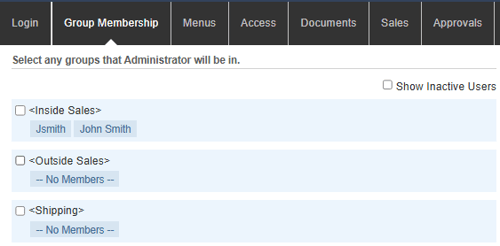
On the Group Membership tab, select which groups the user should be a member of. To assign a user to a group simply click the radio button next to the group you would like to add them to.
Menus Tab
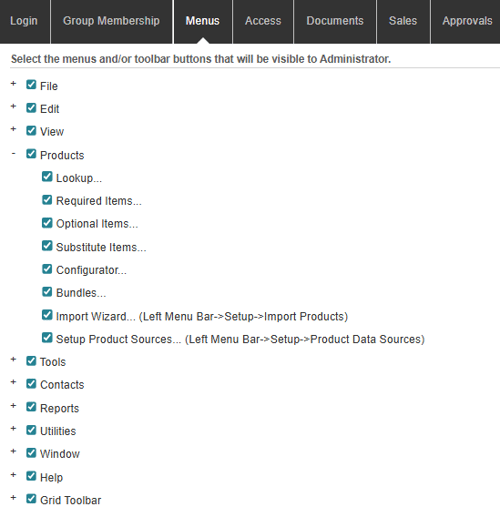
On this tab you can select the menus that will be visible to the user, click on the menu heading to expand the list of menu command. Simply put a check mark next to the menu option the user will be allowed to access.
Grid Toolbar
The Grid Toolbar Menu enables users to show/hide the individual toolbar buttons from the Grid Toolbar on the Document Items tab as seen below.

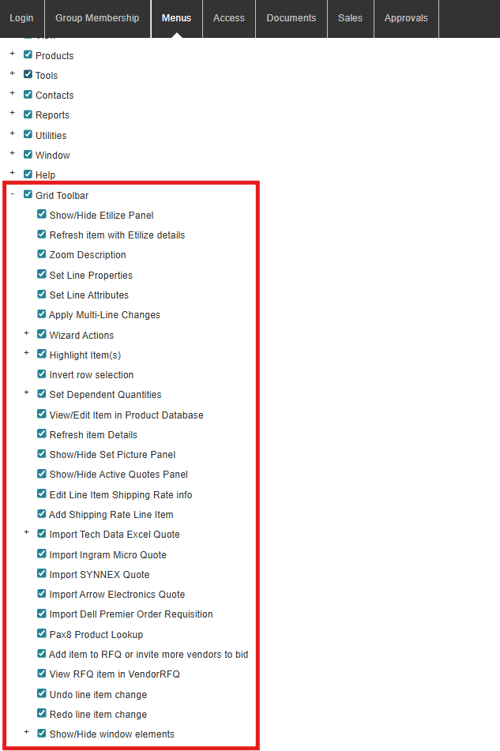
This is a great way for users to show/hide specific features that do not need or use. By un-checking the checkbox next to one of the features, the corresponding Grid toolbar icon will no longer appear on that specific users Gird Toolbar on the Document Items tab.
NOTE: Some of the Grid Toolbar features are also available under other menus. You will need to hide that menu option for the change to take effect in both places. For example, the Apply Multi-Line changes feature is available under the Edit menu. You will need to un-check that option under both the Edit menu and the Gird toolbar menu.
The other features that are in other menus include: Edit-> Edit Product/Service Properties, Edit-> Edit Line Attributes, Edit-> Apply Multi-line Changes, and Tools-> Refresh Item Details.
Access Tab
On the Access tab, you can select the tasks the user is or is not allowed to perform.
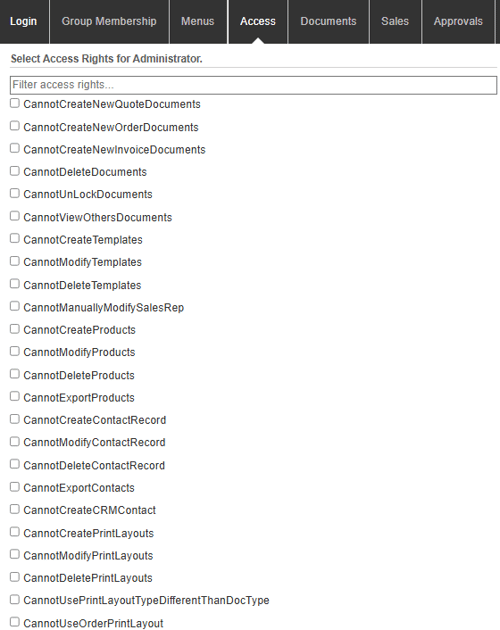
The Spotlight search is at the top of the window. Typing a specific keyword will only show access rights that match your search in the list for you making it easier to view those searched for security settings.
Any access right that begins with “CanSee” needs to be checked in order to be active even if the user has Master Rights. Master Rights users can apply these settings to themselves.
A full list of Access Rights that can be assigned can be found here.
Documents Tab
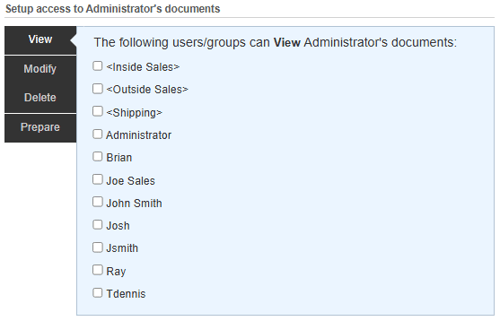
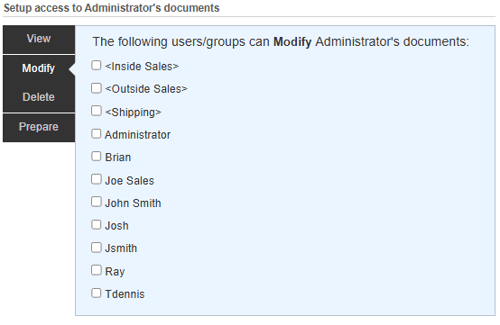
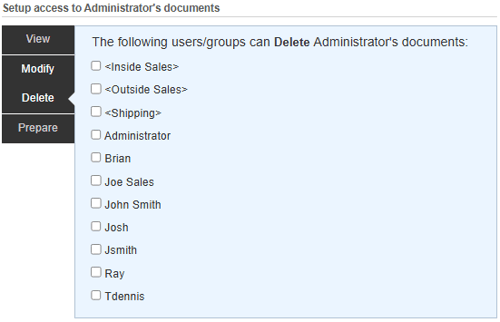
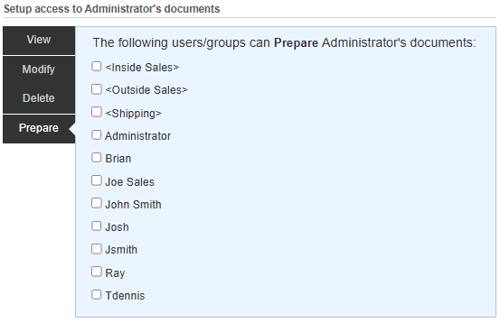
On the Documents tab, you can specify which users can view, modify, delete, or prepare quotes for this user’s documents. To toggle a user's access simply select or deselect the radio button next to the User or Group.
In QuoteWerks, by default users do not have the rights to view, modify, delete, or prepare other user’s quotes. If you want certain users to be able to have these rights to other user’s quotes, you will need to edit the security settings for each user to specify who is allowed to view their quotes. Take for example two users John and Rachel. If you want Rachel to be able to view John’s documents, Select Setup -> Users, select John’s user id, and click on the Edit button. Then click on the Documents then View tab and click on the radio button next to Rachel's username. Now Rachel will be able to view John’s documents.
Taking this example a step further, you can save some time by creating a security group called everyone and then add all the users to this security group. Then, when you click on the “View” list for John’s user id, you can just select the security group “Everyone”.
Users can also have other QuoteWerks users prepare documents on their behalf. This enables specified users to actually create a document under the user’s name so the quote will be assigned to that user. To enable this feature users’ will need to be added to the “prepare” documents section of these security settings.
Click on the View tab to designate which users can view the selected user's documents.
Click on the Modify tab to designate which users can modify the selected user's documents.
Click on the Delete tab to designate which users can delete the selected user's documents.
Click on the Prepare tab to designate which users can prepare the selected user's documents.
Sales Tab
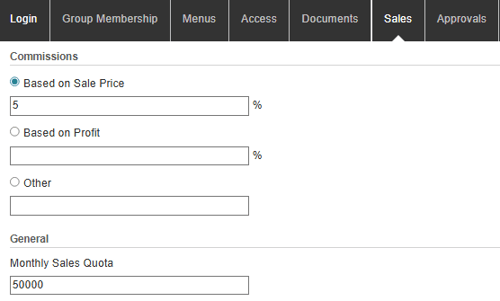
The Sales tab is where you can set basic commission and quote settings for the selected user.
Commissions
Commission can be calculated in one of 3 ways. It can be based on a percentage of the total sale, based on a percentage of the total profit, or using the “Other” option. This option was designed to be very flexible to allow us to create new commissions in the future for your use.
The “Other” commission option currently supports a commission structure known as “STRUCTURE3” and “STRUCTURE4”. Commission STRUCTURE3 is a sliding scale commission. Depending upon the PROFIT MARGIN on the sale, the sales rep gets a PERCENT of the total sale. Commission STRUCTURE4 is a sliding scale commission. Depending upon the PROFIT MARGIN on the sale, the sales rep gets a PERCENT of the profit amount.
If you type in the following STRUCTURE3 information:
STRUCTURE3|1|1|10|2.5|15|5|20|8|25|10.5|30|13|35|15|40|17.5
The commission will be calculated as follows:
For the profit margin >= 1 % the sales rep gets 1% commission on sale amount.
For the profit margin >= 10% the sales rep gets 2.5% commission on sale amount.
For the profit margin >= 15% the sales rep gets 5% commission on sale amount.
For the profit margin >= 20% the sales rep gets 8% commission on sale amount.
For the profit margin >= 25% the sales rep gets 10.5% commission on sale amount.
For the profit margin >= 30% the sales rep gets 13% commission on sale amount.
For the profit margin >= 35% the sales rep gets 15% commission on sale amount.
For the profit margin >= 40% the sales rep gets 17.5% commission on sale amount.
If you type in the following STRUCTURE4 information:
STRUCTURE4|1|1|10|2.5|15|5|20|8|25|10.5|30|13|35|15|40|17.5
The commission will be calculated as follows:
For the profit margin >= 1% the sales rep gets 1% commission on profit amount.
For the profit margin >= 10% the sales rep gets 2.5% commission on profit amount.
For the profit margin >= 15% the sales rep gets 5% commission on profit amount.
For the profit margin >= 20% the sales rep gets 8% commission on profit amount.
For the profit margin >= 25% the sales rep gets 10.5% commission on profit amount.
For the profit margin >= 30% the sales rep gets 13% commission on profit amount.
For the profit margin >= 35% the sales rep gets 15% commission on profit amount.
For the profit margin >= 40% the sales rep gets 17.5% commission on profit amount.
IMPORTANT: Newly set up or changed commissions will only be effective on NEW documents created after the setup/change. If you want to reflect the commission on older documents, you will need to open the document and toggle the SalesRep field.
This is because a Sales Rep's commission may change over time so you may not want to automatically update historical documents.
Approvals Tab
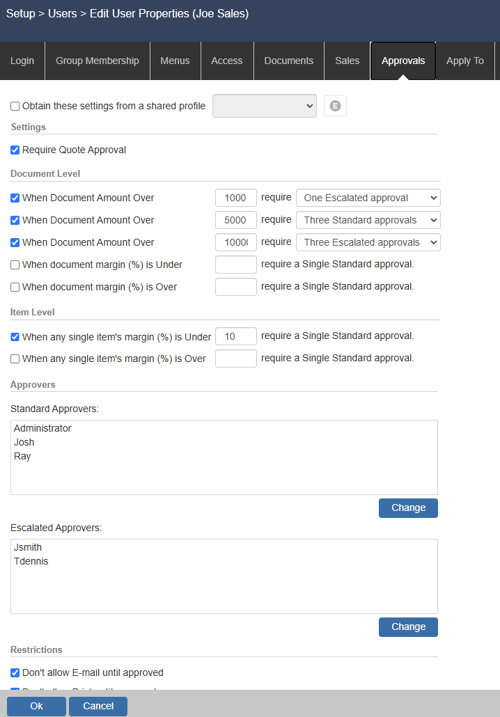
The Approvals tab is where you can set document approval and peer review settings. For more information please see the Document Approval help file.
Apply To Tab
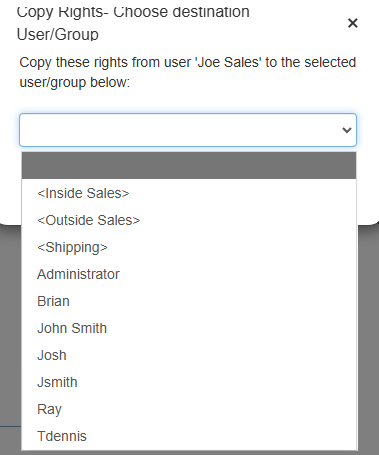
You can use the Apply To tab to apply settings from Edit User Properties to other users or groups in the QuoteWerks system. Simply select the setting you would like to copy and click on Select User/Group and Copy.
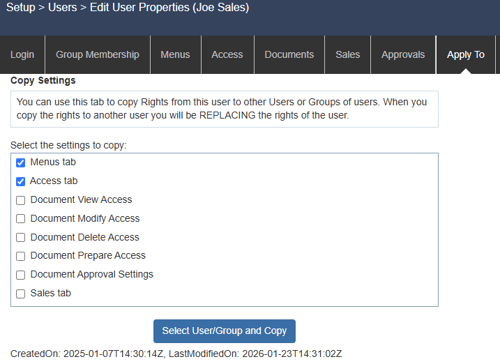
Select the user or group you would like to copy the settings to and click OK.