
Placing Amazon Business Orders (USA Only)
IMPORTANT: Users will only be able to place orders through Amazon by sourcing the items from the Amazon Product Source integration. This feature requires the Pinnacle Edition of QuoteWerks.
IMPORTANT: In addition to sourcing the items from Amazon, users need to have an Amazon Business account and have integrated the account with QuoteWerks. Click here to view the instructions on setting up the integration.
Placing the Order
1.First, you will need to convert your QuoteWerks quote with the Amazon items to an order (File-> Convert to Order).
2. Click on [Purchasing] from the left navigation panel to launch the Purchasing window.
NOTE: Amazon Business Online Ordering is only available in the USA.
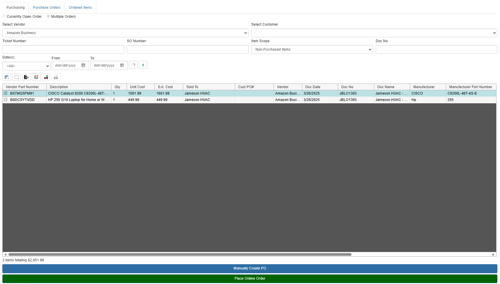
3. From the "Select Vendor" drop-down menu, set Amazon Business as the vendor. Failure to set Amazon as the vendor will disable the option to place the online order.
4. Click on [Place Online Order] button which will open the Amazon Online Order Form window.
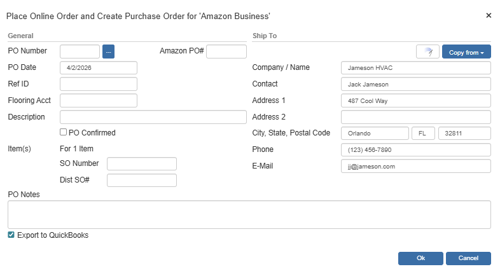
5. From this screen users can set the PO Number, PO date, the PO Description and PO Ref ID (the last two fields will be referenced in QuoteWerks only).
6. The payment method you have set when you setup the Amazon Business Online Ordering integration will be used when submitting this order.
7. Set the Ship to Location by clicking on the drop-down menu under the Ship to section. Users can select the Sold to, Ship to, Bill to contact information from any item on the online ordering form. Additionally, users can set the Sales Rep or Our Location as the ship to and/or bill to fields as well. 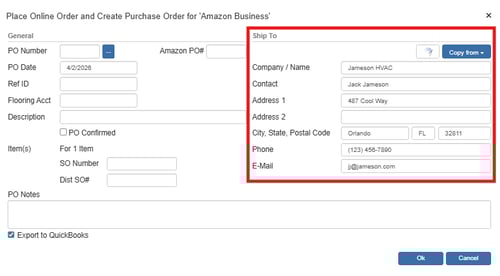
8. After setting the Ship To location, you can also choose to have QuoteWerks export the order as a Purchase Order to any of the supported Purchasing Orders integrations. In this example, we are using QuickBooks Online.
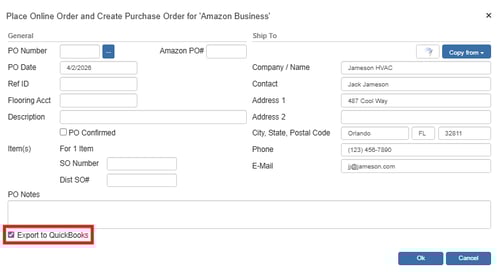
NOTE: Exporting POs to QuickBooks from QuoteWerks has the option to retrieve the next QuickBooks PO number. To use this feature you can leave the QuoteWerks PO Number blank but you will need to fill in the Amazon PO# field.
9. Once you have completed the Ship to fields, click on the [Ok] button to place the order and you should receive a confirmation message that the order has been placed.
10. If you are exporting the document to QuickBooks Online, Autotask, or ConnectWise, you will see the normal integration windows.
11. After the order has been completed, Amazon Business will send you a confirmation email within 60 minutes of the order being placed. You can also log into your Amazon Business account to check the status of the order.
12. You can click on the Purchase Orders tab to view the PO in QuoteWerks.
Viewing Purchase Orders
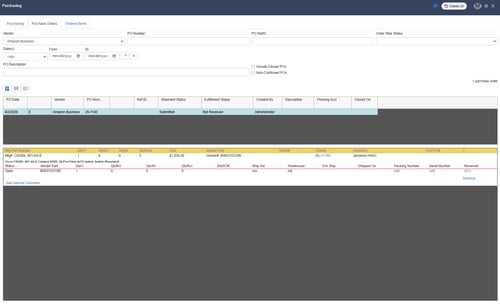
To view purchase orders that have been placed with Amazon Business navigate to the Purchase Order tab of the Purchasing window by clicking on Purchasing from the Navigation Panel and clicking on the Purchase Order tab. Use the Vendor dropdown to select Amazon Business. This will list any POs that have been placed to Amazon Business.
Manually Add Tracking and Serial Numbers
For information on using the other features available on the Purchase Orders tab, view the Purchase Orders tab help article.
Amazon Business Online Ordering FAQ
Q: How will I know if the order placed via QuoteWerks was accepted by Amazon Business?
You will receive an email confirmation from Amazon Business to the email address you entered into the Amazon Business setup in QuoteWerks. This may take up to 60 minutes to receive. You can also log into your Amazon Business account in your browser and hover over your Account on the top right and click on “Business Analytics.” In the Amazon Business Analytics, select Orders under Reports. You will be able to see all orders placed in the selected time period and also filter by PO number. This is the same PO number that you used in QuoteWerks when submitting the Order to Amazon Business.
Q: Amazon Business sent an email saying “Items will not be shipped” and also contained the following text “Your order was canceled because your group changed from shared to individual payment after the order was placed and we don’t have a payment method for you on file. Enter a valid payment method in Your Account and try again, or talk to your admin.”
This typically happens when your Group / Account configured in Amazon Business is configured to use Individual Payment Methods. Change your Account to use Shared Payment methods. See Steps 3 through 6 in the How Do I Setup the Amazon Business Integration? help article.
Q: I placed an Order with Amazon Business via QuoteWerks and did not receive an email confirmation from Amazon Business and do not see a record of the order on the Website. What do I do?
Make sure that your Amazon Business Account or Group is set to “Shared payment Methods and Addresses”, Ensure that the user that created the Punchout Credentials on the Amazon Business Website has the “Punchout User” Role (Members -> People -> Edit User), and confirm the Credentials and URL entered into QuoteWerks match Amazon Business. If those all have been verified, please contact QuoteWerks Technical Support.