
QuoteWerks offers seamless integration with Ingram Micro, one of the largest global distributors of IT products, enabling businesses to easily place orders, check product availability, and retrieve real-time pricing directly from within the software. This integration helps streamline the purchasing process, reduces manual data entry, and ensures that you are always working with the most accurate and up-to-date product information.
Here’s how Ingram Micro Online Ordering works in QuoteWerks:
- Real-Time Pricing and Product Availability: When creating a quote or purchase order, QuoteWerks allows you to pull live pricing and availability data from Ingram Micro’s catalog. This ensures that the pricing you provide to your customers is always accurate and that you’re quoting based on real-time inventory levels, reducing the risk of delays due to out-of-stock items.
- Effortless Order Placement: After creating your quote or sales order, you can easily place the order directly with Ingram Micro without leaving QuoteWerks. Once you’ve finalized your product selections and confirmed pricing, submitting the order to Ingram Micro happens with just a few clicks, saving you time and avoiding errors that could occur with manual data entry.
- Order Status and Tracking: Once an order is placed with Ingram Micro, QuoteWerks enables you to track the status of the order. This includes shipping updates, delivery estimates, and any backorder notifications, giving you full visibility into the status of your purchases and helping you keep customers informed about their expected delivery dates.
- Automatic Syncing of Product Information: If product details change—such as pricing or availability—QuoteWerks automatically updates these changes from Ingram Micro’s live catalog. This ensures that you’re always working with the most current and accurate product data, which is crucial for providing timely and accurate quotes to your customers.
- Streamlined Purchasing Workflow: The integration with Ingram Micro reduces the need for repetitive manual tasks. From placing the order to tracking it and managing invoices, QuoteWerks handles all the heavy lifting, allowing you to focus on what matters most: serving your customers and growing your business.
- Order Adjustments: Should there be any changes to your order—whether a quantity update or a product substitution—QuoteWerks automatically syncs these changes with Ingram Micro’s system. This ensures your records are kept accurate and consistent, reducing the chances of miscommunication or errors during fulfillment.
Incorporating Ingram Micro Online Ordering into your QuoteWerks workflow streamlines the procurement process, saving you time and reducing manual entry errors. Whether you're placing a single order or handling larger, recurring purchases, this integration ensures that your purchasing process is efficient, accurate, and fully integrated with your QuoteWerks setup.
Ordering from Ingram Micro
To place an online order, select Purchasing from the navigation panel.
The online ordering module reads all the item information from the database and updates the item(s) in the database with the order results. If any of the items that were updated were in an open order at the time, those changes may accidentally be overwritten. For this reason, QuoteWerks closes all open documents before proceeding.
Users can select documents based on a specific date or a range of dates by adjusting the date filter at the top of the Purchasing Window. Additionally, users can filter by the customer by clicking on the drop-down of the “Select Customer” menu. Only customers and vendors within the filter date range are displayed.
This article contains the following sections:
Selecting Items to Order
Under this Purchase Order tab of the Purchasing window, choose Ingram Micro as the vendor you would like to order from and then choose which line items you would like to order.
IMPORTANT: Only items from QuoteWerks ORDER documents (DocType = "ORDER") will appear under the Purchase Order tab. So, if you started with a quote, ensure you convert it to an order by choosing the File -> Convert to Order menu.
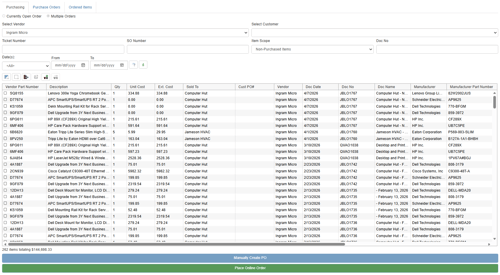
There is a status bar that shows the total number and dollar amount of the selected items. This is very useful for meeting minimum purchase amounts for free shipping from vendors.
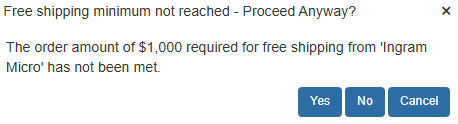
If you have specified a vendor minimum amount required for free shipping on the Vendor Maintenance menu in QuoteWerks, a window will ask if you'd like to proceed anyway or add more items to the PO before creating it.
NOTE: When you choose to display Ingram Micro items ready for ordering, only items that have a vendor of exactly “Ingram Micro” will be displayed
Under this Purchasing tab, you can choose to order items from only the currently open order, or order items from multiple orders.
Currently Open Order
This option will display all the qualified line items from the order that you had open when you opened the Purchasing window.
NOTE: Since QuoteWerks needs to close all open documents, you will notice that QuoteWerks does close your currently open order, but on this window for the Currently Open Order option, it does remember which document was currently open
Multiple Orders
This option will display all the qualified line items, from any order, that have not yet been ordered.
After placing checkmarks next to each line item that you want to order click Place Online Order to proceed to the Online Order Form.
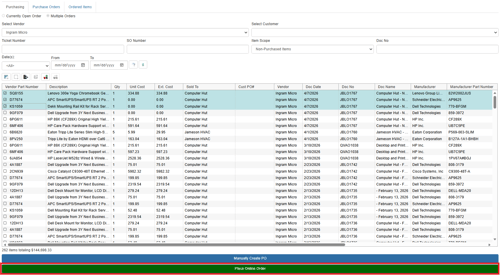
NOTE: To the right of the selected vendor and Export to Windows clipboard icon  is available. This will let you export the selected items to the Windows clipboard if you need this information outside of QuoteWerks.
On the Purchasing window, there is also a right click menu option of "Manually enter PO Number". This is useful when you have already created the PO for the item elsewhere, as setting the PO number removes it from the list of items that need to be ordered. Optionally you can also specify the PO date that will be written into the Order Date column for each line item selected.
Additionally, users can right-click and choose “Copy DocNo” which copies the document number to the clipboard. This feature enables users to click on the File-> Open menu option and paste the document number to quickly locate the document they need to review.
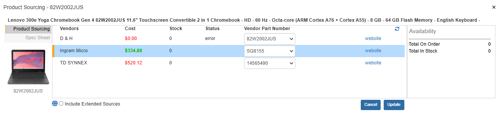
Clicking on the  icon will load the Product Sourcing Panel so users can update prices and check stock before ordering to make sure they are sourcing it from the best vendor.
Completing the Online Order Form
The Ingram Micro Online Order Form has four tabs:
Purchase Order Info Tab
To begin the ordering process, enter information into the below described fields as needed.
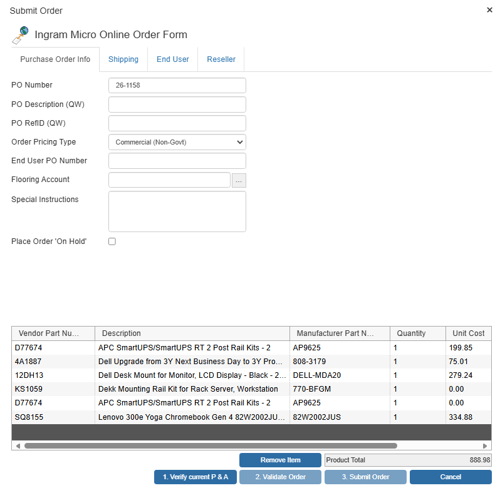
PO Number
You'll use this value when creating a purchase order. If you're linking to QuickBooks, Autotask, or ConnectWise, the same PO Number will be used when exporting to that application.
PO Description (QW)
The "PO Description" field allows you to store the description of the purchase order in the QuoteWerks database and is displayed on the Purchasing Window when viewing Purchase Orders. This description is not transmitted to the distributor.
PO RefID (QW)
In this field, you can enter a job or ticket number to group purchase orders. For example, you might create five purchase orders to purchase all the products required for the job, and by entering the same job number for each PO, you can easily group and display them together under the Purchase Orders tab.
Filtering by PO RefID while under the Purchase Orders tab will show you the purchase orders linked by job number, and you can get an overall view of whether most of the items have been shipped and received. Filtering by PO RefID while under the Ordered Items tab will show you a complete list of all the items ordered within all purchase orders. It will also show their statuses in terms of whether they've shipped and been received, as well as their serial numbers. Once you see you've received all the items under this tab, you can schedule the job to deliver them to the customer.
Order Pricing Type
Here you can choose the Ingram Micro pricing market. Typically the market used will be Commercial (Non-Govt), but for government and educational orders, there are options for these. If you choose either Education or Government pricing, the screen will change to display the following additional fields:
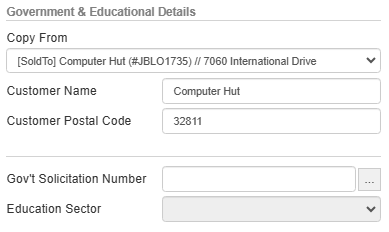
Customer Name / Postal Code
If you selected to order items from the currently open order, when you click the [Copy from] menu button you will have the option to pull from the ‘Ship To’, ‘Sold To’, or ‘Bill To’ areas in QuoteWerks. This option is not available if you are ordering items from multiple orders.
Gov’t Solicitation Number
If you need to include a Government Solicitation Number with your order, you can enter it here. You can also create a list of solicitation numbers by clicking on the  button to launch an F2 Lookup window.
Education Sector
Here you can choose whether the education sector is Public or Private.
End User PO Number
This field may be used if the end user would like their PO number displayed in the packing slip of a drop ship order.
Flooring Account
If you have an Ingram Micro flooring account (floor plan number) for alternate financing, you may enter your account number here. The field is limited to three characters. You can also predefine a list of flooring accounts by clicking on the button to launch an F2 Lookup window.
Special Instructions
Enter any special instructions intended for review by the Ingram Micro sales rep. The Special instructions field also holds 175 characters and will appear as Ingram Micro sales reps internal comment lines at the top of the order.
Place Order ‘On Hold’
Checking this option will cause the order to be placed on hold, requiring the sales rep to manually review it before it will be released for processing. QuoteWerks will then automatically send the Ingram Micro sales rep an email letting the rep know to look for this order and to process it. QuoteWerks will pass the reason specified for the non-standard pricing as comment lines below each of the line items so the Ingram Micro sales rep knows the reason for the non-standard price. The benefit is that users can send over standard and specially negotiated price orders and even though it will flag the order to be manually reviewed, all the information will already be in the order without anyone having to re-type information.
Shipping Tab
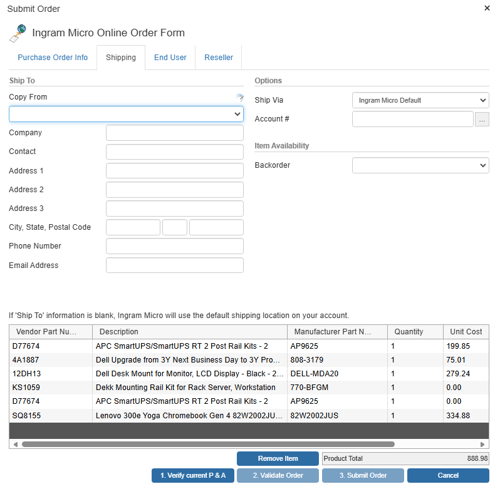
Ship To
If you selected to order items from the currently open order, when you click the [Copy from] menu button you will have the option to pull from the ‘Ship To’, ‘Sold To’, ‘Bill To’, ‘Sales Rep Location’ and ‘Our Location’ areas in QuoteWerks.
If you selected to place an online order with items from multiple orders in QuoteWerks, any of the the 'Ship To’, ‘Sold To’, ‘Bill To’, ‘Sales Rep Location’ options from those orders will be available in addition to the ‘Our Location’ option. The windshield wiper icon to the left of the [Copy from] menu button clears all the fields.
If all of the items are from the same order the Ship to fields will default to the Ship to fields from the quote.
NOTE: When you submit the Ingram Micro electronic order, the Ship To information entered into the online order will be saved in the QuoteWerks purchase order
Options
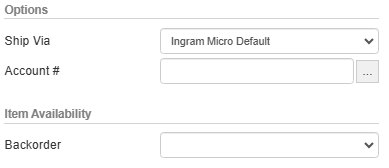
Ship Via
Here you can select your preferred shipping carrier. The available options will vary depending on your country but include Fedex, UPS, and Purolator (Canada).
Account#
If you would like Ingram Micro to provide your shipping carrier account # to your carrier for shipping rather than charging the shipping to your Ingram Micro account, you can specify your shipping carrier account # here.
End User Tab
The End User Tab is where you insert information about the end user on the order, if required.
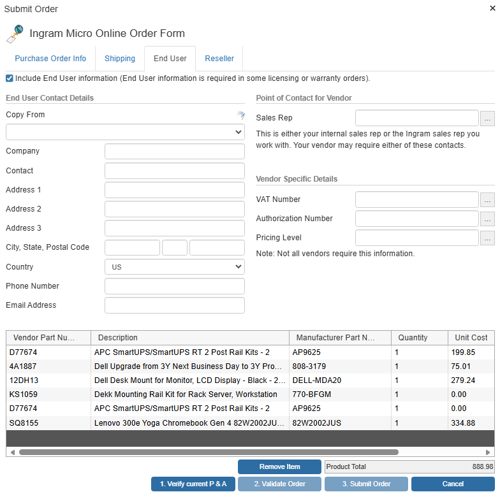
IMPORTANT: Checking the 'Include End User information (End User information is required in some licensing or warranty orders)' box changes the order submission type to a DType order. DType orders are for warranty and licensing items only and cannot be placed in conjunction with physical items. This checkbox must be enabled when placing a DType
NOTE: It is possible Ingram Micro may request End User information when submitting a Standard order type. If this is the case, the End User contact details can be added to the Special Instructions field under the Purchase Order Info tab. Do not enter them in the End User fields as it will change the order type as explained in the "Important" note in above in yellow.
Ingram Micro supports two different types of online orders, Standard and DType.
DType orders are the orders associated with software licensing or warranty orders and requires that the end user information be supplied and hence users must check this checkbox. DType orders also have a few requirements including:
- Only items that are license or warranty items can be DType orders
- DType orders can only contain items from the same manufacturer on the same order (e.g. all items would have to come from Microsoft, or all Cisco, or all Symantec, etc.)
- End user information MUST be submitted with this order
- Items must be for same end client/customer/end user
-
Warranty/software items cannot be placed with physical items (e.g. on a single order, users could not order a laptop AND the warranty or software licensing. The warranty and or licensing would need to be placed on it's own separate order.)
If an item requires End User information and it is not provided on this tab, you will receive an error when you attempt to submit the order.
You will then be provided the opportunity to enter the End User Contact Details and resubmit. If all the items selected for ordering come from the same order, the SoldTo/ShipTo/BillTo address from that order will be available for selection when ordering.
Items that do require End User information also cannot be mixed with items that do not require it – each type of product must be submitted as independent orders or you will receive an error when you attempt to submit the order.
When QuoteWerks submits a DType order it does NOT set:
-
The "AutoRelease" tag
-
The "ThirdPartyFreightAccount" tag
- The "SplitShipmentFlag" tag
When QuoteWerks submits a DType order it DOES set:
-
The "ShipFromBranches" to be a list of all warehouses
-
The "EndUserInformation" tag information including all the fields for the end user information
-
The "ResellerInformation" tag information
-
The "CarrierCode" to "OT" (in v5.1 Build 4.24 or higher) previous versions you need to select "Other" as the shipping method on the Shipping tab
End User Contact Details
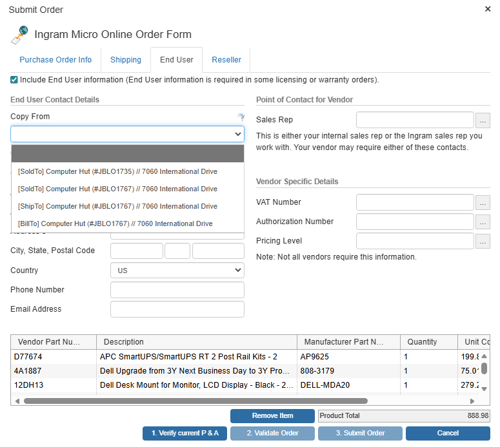
The "Copy from" field enables you to pull the Sold to, Ship to, or Bill to contact information from any order that is currently in the online ordering form. he windshield wiper icon to the left of the [Copy from] menu button clears all the fields.
Point of Contact for Vendor
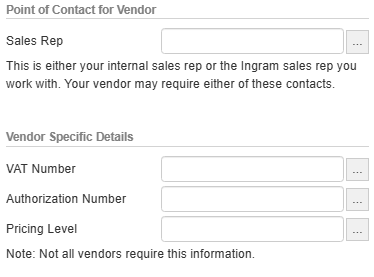
Sales Rep
The vendor that you are ordering items from may require Sales Rep contact information. This field will either be your internal sales rep or the Ingram Micro sales rep you work with. You can also predefine a list of sales reps by clicking on the  button to launch an F2 Lookup window.
Vendor-Specific Details
VAT Number
If you need to include a VAT Number with your order, you can enter it here. You can also predefine a list of VAT Numbers by clicking on the button to launch an F2 Lookup window.
Authorization Number
If you need to include an Authorization Number with your order, you can enter it here. You can also predefine a list of sales reps by clicking on the button to launch an F2 Lookup window.
Pricing Level
If you need to include a Price Level assignment with your order, you can enter it here. You can also predefine a list of sales reps by clicking on the button to launch an F2 Lookup window.
Reseller Tab
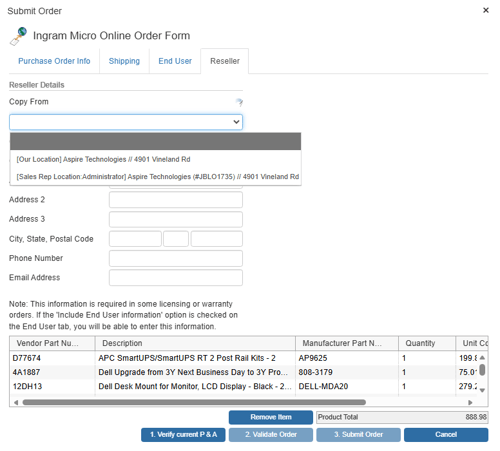
This tab provides fields to supply Reseller contact details for the order. These are typically only necessary in situations where the product being ordered is a software license or warranty that requires the Reseller’s details. The Reseller for an order will typically be your company.
Reseller Details
The "Copy from" field enables you to pull any sales rep's location (if there's more than one) contact information from any order that is currently in the online ordering form. The windshield wiper icon to the left of the [Copy from] menu button clears all the fields.
Line Item Information
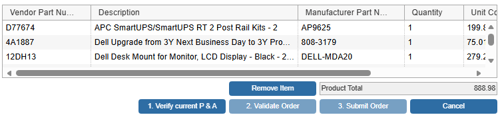
This section of the Online Order Form displays the line items that you have selected to order. You may remove an item from the list by selecting it and clicking the [Remove Item] button.
Placing the Order
Step 1: Verify Current P & A
Initially, only six columns will display in the Line-Item Information box – vendor part number, description, manufacturer part number, quantity, unit cost, and the Ingram line number.
Click on the [1. Verify Current P & A] button (P & A stands for Pricing & Availability). This step accesses the Ingram Micro website in the same way the Real-Time Data module does and returns the current pricing and availability of the line items.
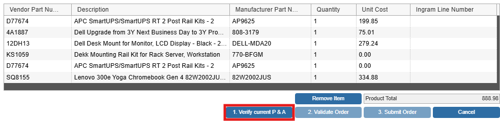
NOTE: The Product Total label displays the extended total of all the items on the order. Before real-time pricing is retrieved, it totals the offline prices from the QuoteWerks line items. After real-time pricing is retrieved, it totals the real-time prices. After the order has been placed, it totals the ordered prices
Once the P & A request is complete, additional columns of real-time information will display.
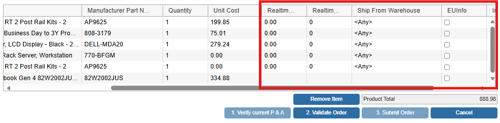
Realtime Unit Price
This is the current real-time price.
NOTE: When placing online orders, the QuoteWerks PO Item records the Standard Unit Cost which is populated from the real time pricing. It also records the Unit Cost from the QuoteWerks order or the negotiated price override that you enter when placing the electronic order. If the Unit Cost does not match the Standard Unit Cost, there will be an additional display in the Cost column on the Purchase Orders and Ordered Items tabs of the Purchasing window displaying the differences in cost.
For example, if you placed an order for Item A at $179.83, when the PO is created in QuoteWerks, the item's cost would be listed as "$179.83 ($539.49)" on the first line, and "$199.95 ($599.85) STD" on the second line. The number in the parenthesis is the extended Cost, and the second line that has the "STD" postfix indicates this is the standard price. If the Unit Cost and the Standard Cost are the same, the 2nd line is not needed and will not be displayed.
Realtime Physical Qty in Stock
This is the current total quantity in stock at all of the physical warehouses combined.
Ship From Warehouse
For each line item, this column will contain a list of Ingram Micro physical warehouses and the quantity in stock of this item in each of the physical warehouses. You cannot, however, select a specific warehouse to ship from when submitting orders to Ingram Micro.
Step 2: Validate the Order
Once the P & A Request is completed, the [2. Validate Order] button will become available. Validating the order will validate all the information entered on the order form and then will validate all the items on the order form.
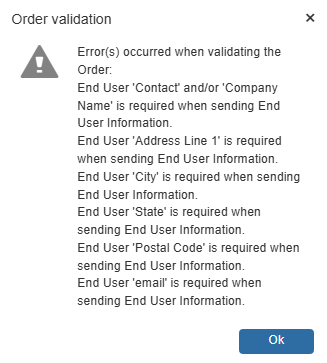
Header Validation
You will be notified if there are any validation issues with the order. If there are any issues, you can make the changes and then click on the [2. Validate Order] button again to verify that your changes have satisfied the validation.
Item Validation
If Ingram Micro does not have sufficient stock of the item to place your order, QuoteWerks will notify you of this and will ask if you want to remove the item from the order.
You may also receive warning notifications indicating there are pricing differences between the price on the QuoteWerks order and the real-time price. This can occur often since real-time prices change often. You are notified of this so that you are aware of this price difference. With this knowledge you can make a determination as to whether or not this is simply a small price variance or a significant price difference which would require your verification before proceeding.
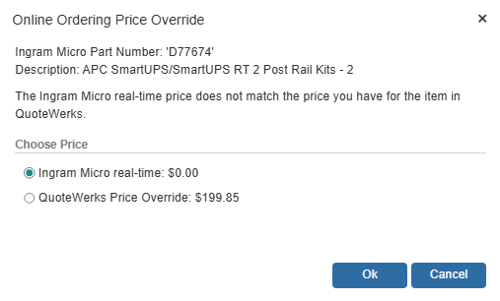
NOTE: There is a good chance that the Unit Price for the items in the QuoteWerks order may be different than the real-time Unit Price. When this happens, you will receive a series of warning messages alerting you to this discrepancy. As a procedural control you could update the QuoteWerks order with real-time pricing and availability (using the Tools -> Refresh with latest pricing menu) before beginning the online ordering process, which would ensure that the Unit Price in the QuoteWerks ORDER would be the same as the real-time Unit Price retrieved from Ingram Micro during the ordering process.
Step 3: Submit the Order
Once you have successfully validated the order, you may now submit it using the [3. Submit Order] button.

This step submits the order to Ingram Micro and receives an order confirmation if the order is successful.
Once the Ingram Micro Online Order form has been closed, if you ordered items only from the current open document, this document will automatically re-open for you to review. If you ordered items from multiple documents, you will need to open them individually to review them.
When you open a document that contains items you just ordered, you will note that the SO Number (Sales Order Number), PO Number, and Order Date columns have been updated with the Ingram Micro sales order number, PO Number, and the date of the order respectively. Also, QuoteWerks will update the QuoteWerks document Unit Cost field with the Ingram Micro ordered unit price. When this happens, the Cost Modifier value (if any) will be cleared. If the item being updated has a Price Modifier that is based on Unit Cost, the Price Modifier will also be cleared.
NOTE: The Distributor SO Number column may not be visible by default. If you do not see this column, select the View -> Customize columns menu and make it visible.
Since the Distributor SO Number, PO Number, and OrderDate column will be populated with the Ingram Micro order information, it is a good idea to make sure these columns are visible and it might be helpful if they were located next to each other. These columns can be customized under the View -> Customize Columns menu
When you first start using the Online Ordering Module to place online orders with Ingram Micro, we recommend that you verify through the Ingram Micro website that the order has been received by Ingram Micro and the order details such as price and shipping carrier selection are as you expect them to be.
To find your Ingram Micro order on the Ingram Micro website, log into the Ingram Micro website and then click on the “Order Status” link along the top of the page. Here you can search for a specific order or browse a list of them based on your filter criteria.