
The Online Ordering module works with both the USA and Canadian divisions of TD SYNNEX. Before you can start setting up the online ordering feature in QuoteWerks, you first need to setup the TD SYNNEX Real-Time Module. For instructions on how to do this, please see Real-time Module.
The Online Ordering Module will use the same user id and password that is used for the Real-time Pricing & Availability. You may already have a User ID and Password with TD SYNNEX. The real-time pricing and availability credentials are the same that you use to log into the TD SYNNEX website to search for products and pricing. In regards to online ordering, however, you will also want to make sure your TD SYNNEX customer number has the appropriate billing account associated with it. You will also need to supply TD SYNNEX with a registered static ip address. TD SYNNEX recently started requiring this for security reasons.
If you do not have a User ID and Password to log into the TD SYNNEX website you will need to contact TD SYNNEX to request it. You can contact your TD SYNNEX representative to request your EC Express Website Login Id & Password, or call TD SYNNEX EC Support at 1-416-240-2900 M-F (7:30AM – 9:00PM ET).
Ordering from TD SYNNEX
To place an online order, select the Purchasing option from the left navigation panel. This opens the Purchasing window and the Purchasing tab.
The online ordering module reads all the item information from the database and updates the item(s) in the database with the order results. If any of the items that were updated were in an open order at the time, those changes may accidentally be overwritten.
Users can select documents based on a specific date or a range of dates by adjusting the date filter at the top of the Purchasing Window. Additionally, users can filter by the customer by clicking on the drop-down of the “Select Customer” menu. Only customers and vendors within the filter date range are displayed.
This article contains the following sections:
Selecting Items to Order
Under this Purchasing tab of the Purchasing window, choose TD SYNNEX as the vendor you would like to order from and then choose which line items you would like to order.
IMPORTANT: Only items from QuoteWerks ORDER documents (DocType = "ORDER") will appear under the Purchasing window. So, if you started with a quote, ensure you convert it to an order by choosing the File -> Convert to Order menu.
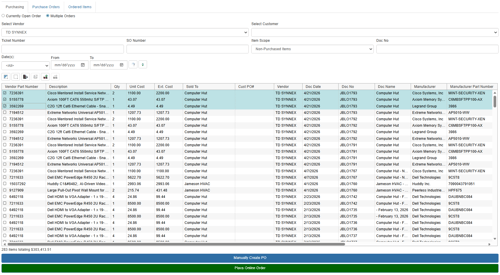
There is a status bar that shows the total number and dollar amount of the selected items. This is very useful for meeting minimum purchase amounts for free shipping from vendors.
NOTE: When you choose to display TD SYNNEX items ready for ordering, only items that have a vendor of exactly “TD SYNNEX” will be displayed. You can choose up to 50 line items for a single order.
If you have specified a vendor minimum amount required for free shipping on the Vendor Maintenance menu in QuoteWerks, a window will ask if you'd like to proceed anyway or add more items to the PO before creating it.
On this window, you can choose to order items from only the currently open order, or order items from multiple orders.
Currently Open Order
This option will display all the qualified line items from the order that you had open when you selected Purchasing.
Multiple Orders
This option will display all the qualified line items, from any order, that have not yet been ordered.
After placing checkmarks next to each line item that you want to order, and then click Place Online Order to proceed to the Online Order Form.
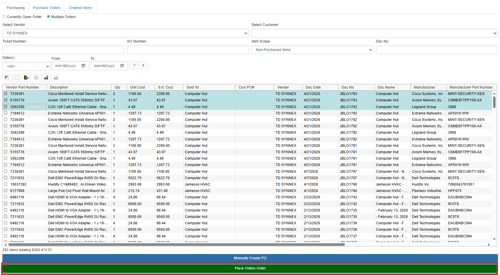
NOTE: To the right of the selected vendor and Export to Windows clipboard icon  is available. This will let you export the selected items to the Windows clipboard if you need this information outside of QuoteWerks.
On the Purchasing window, there is also a right click menu "Manually update items with a PO Number". This is useful when you have already created the PO for the item elsewhere, as setting the PO number removes it from the list of items that need to be ordered. Optionally you can also specify the PO date that will be written into the Order Date column for each line item selected.
Additionally, users can right-click and choose “Copy DocNo” which copies the document number to the clipboard. This feature enables users to click on the File-> Open menu option and paste the document number to quickly locate the document they need to review.
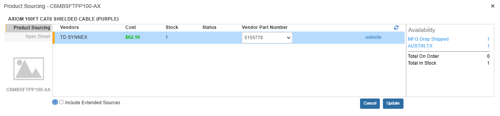
Clicking on the  icon will load the Product Sourcing Panel so users can update prices and check stock before ordering to make sure they are sourcing it from the best vendor.
Completing the Online Order Form
The TD SYNNEX online order form has 4 tabs:
Purchase Order Info Tab
To begin the ordering process, enter information into the below described fields as needed.
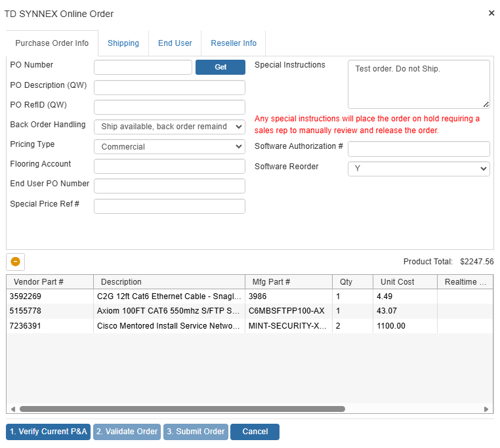
PO Number
You'll use this value when creating a purchase order. If you're linking to QuickBooks, Autotask, or ConnectWise, the same PO Number will be used when exporting to that application. You can set this number manually or, if you've set a default numbering sequence under Setup -> Options menu -> Installation tab, you can click the  button next to the Next PO number sequence field to select the next numerical value. Additionally, if you've set a PO Prefix/Postfix value under the Vendors menu, then this value will display with the PO number. For example, if you'd set the postfix to "TD" (for TD SYNNEX), the PO number would read, "26-1001TD," where "26" indicates the year 2026 and 1001 represents the unique numeric sequence.
PO Description (QW)
The "PO Description" field allows you to store the description of the purchase order in the QuoteWerks database and is displayed on the Purchasing Window when viewing Purchase Orders. This description is not transmitted to the distributor.
PO RefID (QW)
In this field, you can enter a job or ticket number to group purchase orders. For example, you might create five purchase orders to purchase all the products required for the job, and by entering the same job number for each PO, you can easily group and display them together under the Purchase Orders tab.
Filtering by PO RefID while under the Purchase Orders tab will show you the purchase orders linked by job number, and you can get an overall view of whether most of the items have been shipped and received. Filtering by PO RefID while under the Ordered Items tab will show you a complete list of all the items ordered within all purchase orders. It will also show their statuses in terms of whether they've shipped and been received, as well as their serial numbers. Once you see you've received all the items under this tab, you can schedule the job to deliver them to the customer.
Back Order Handling
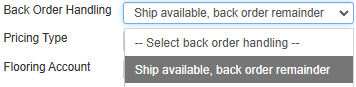
You can select from two options, either to have each backordered item shipped as they become available or wait until all items are available and then ship the complete order.
Pricing Type
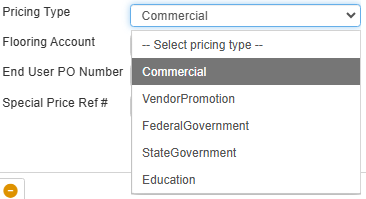
Here you can choose the TD SYNNEX pricing market. Typically, the market used will be Commercial (Non-Govt), but for government and educational orders, there are options for these.
End User PO Number
This field may be used if the end user would like their PO number displayed on the packing slip of a drop ship order.
Special Price Reference Number
This field enables you to enter in an additional pricing reference number, such as a promo code that needs to be referenced when using the Vendor Promotion order pricing type.
Special Instructions
Enter any special instructions intended for review by the TD SYNNEX sales rep. Entering anything into this field will cause the order to be placed on hold, requiring the sales rep to manually review it before it will be released for processing.
The Special Instructions field holds up to 300 characters. By using the Special Instructions field, users can choose to submit online orders to TD SYNNEX overriding the TD SYNNEX real-time price with your own TD SYNNEX sales rep negotiated price. When submitting an overridden price, you can enter a reason such as a TD SYNNEX quotation # in the Special Instructions field. Upon receipt of an order where prices don’t match the TD SYNNEX real-time pricing, the TD SYNNEX order is automatically flagged, and the TD SYNNEX sales rep will review the order manually.
NOTE: The input boxes for the following fields have max length limits preventing the entering of data longer than the TD SYNNEX order will allow. This will avoid getting messages telling you that the data is too long and then requiring you to manually change it. The fields are ShipToName, ShipToContact, ShipToAddress1, ShipToAddress2, ShipToCity, ShipToState, ShipToPostalCode, ShipToPhoneNumber, ThirdPartyFreightAccount, EndUserCompany, EndUserContact, EndUserAddress1, EndUserAddress2, EndUserCity, EndUserState, EndUserPostalCode, EndUserPhoneNumber, EndUserFaxNumber, EndUserEmail, SoftwareAuthorizationNumber, ResellerCompany, ResellerContact, ResellerAddress1, ResellerAddress2, ResellerCity, ResellerState, ResellerPostalCode, ResellerPhone, ResellerFaxNumber, ResellerEmailAddress
Shipping Tab
Once you have entered information on the Purchase Order Info tab you will next want to input shipping information for the order.
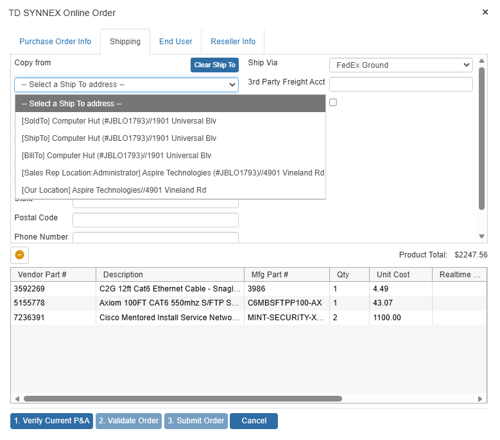
Ship to
If you selected to order items from the currently open order, when you click the [Copy from] menu button you will have the option to pull from the ‘Ship To’, ‘Sold To’, ‘Bill To’, ‘Sales Rep Location’ and ‘Our Location’ areas in QuoteWerks.
If you selected to place an online order with items from multiple orders in QuoteWerks, any of the the 'Ship To’, ‘Sold To’, ‘Bill To’, ‘Sales Rep Location’ options from those orders will be available in addition to the ‘Our Location’ option. The Clear Ship To button to the right of the [Copy from] menu clears all the fields.
If all of the items are from the same order the Ship to fields will default to the Ship to fields from the quote.
NOTE: When you submit the TD SYNNEX electronic order, the Ship To information entered into the online order will be saved in the QuoteWerks purchase order.
Ship Via
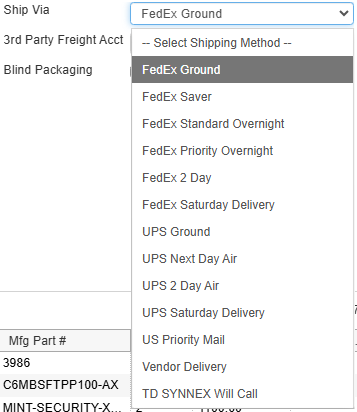
Here you can select your preferred shipping carrier. The available options will vary depending on your country and are defined by TD SYNNEX.
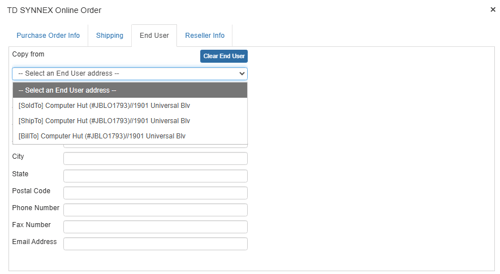
End User Tab
This tab provides fields to supply End User contact details for the order. These are typically only necessary in situations where the product being ordered is a software license or warranty that requires the End User’s details.
Reseller Tab
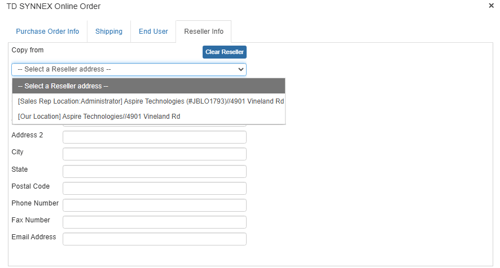
This tab provides fields to supply Reseller contact details for the order. These are typically only necessary in situations where the product being ordered is a software license or warranty that requires the Reseller’s details. The Reseller for an order will typically be your company.
Reseller Details
The "Copy from" field enables you to pull any sales rep's location (if there's more than one) contact information from any order that is currently in the online ordering form. The windshield wiper icon to the left of the [Copy from] menu button clears all the fields.
Line-Item Information
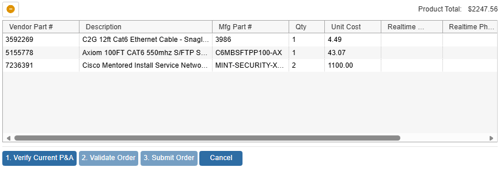
This section of the Online Order Form displays the line items that you have selected to order. You may remove an item from the list by selecting it and clicking the  button.
Placing the Order
Step 1: Verify Current P & A
Click on the [1. Verify Current P & A] button (P & A stands for Pricing & Availability). This step accesses the D&H website in the same way the Real-Time Data module does and returns the current pricing and availability of the line items.
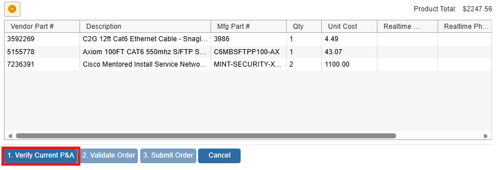
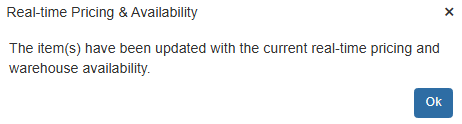
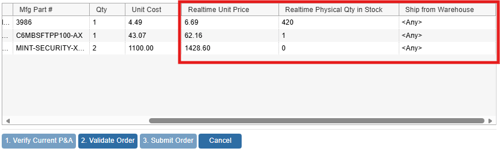
Once the P & A request is complete, additional columns of real-time information will display.
NOTE: The Product Total label displays the extended total of all the items on the order. Before real-time pricing is retrieved, it totals the offline prices from the QuoteWerks line items. After real-time pricing is retrieved, it totals the real-time prices. After the order has been placed, it totals the ordered prices.
Realtime Unit Price
This is the current real-time price.
NOTE: When placing online orders, the QuoteWerks PO Item records the Standard Unit Cost which is populated from the real time pricing. It also records the Unit Cost from the QuoteWerks order or the negotiated price override that you enter when placing the electronic order. If the Unit Cost does not match the Standard Unit Cost, there will be an additional display in the Cost column on the Purchase Orders and Ordered Items tabs of the Purchasing window displaying the differences in cost.
For example, if you placed an order for Item A at $179.83, when the PO is created in QuoteWerks, the item's cost would be listed as "$179.83 ($539.49)" on the first line, and "$199.95 ($599.85) STD" on the second line. The number in the parenthesis is the extended Cost, and the second line that has the "STD" postfix indicates this is the standard price. If the Unit Cost and the Standard Cost are the same, the 2nd line is not needed and will not be displayed.
Realtime Physical Qty in Stock
This is the current total quantity in stock at all of the physical warehouses combined.
Ship from Warehouse
This column for each line item will contain a list of all the TD SYNNEX physical warehouses and the quantity in stock of this item in each of the physical warehouses. If you would like the item to ship from a specific warehouse, then you can choose warehouse from here, otherwise by default TD SYNNEX will choose which warehouse to ship it from.
NOTE: If you have specified a preferred warehouse in the real-time module setup, the preferred warehouse will automatically be selected as long as the preferred warehouse has the item in stock.
Step 2: Validate the Order
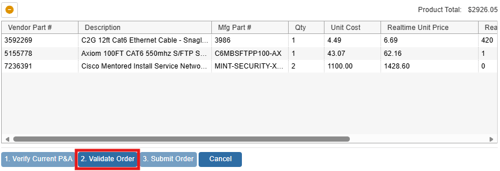
Once the P & A Request is completed, the [2. Validate Order] button will become available. Validating the order will validate all the information entered on the order form and then will validate all the items on the order form.
Header Validation
You will be notified if there are any validation issues with the order:
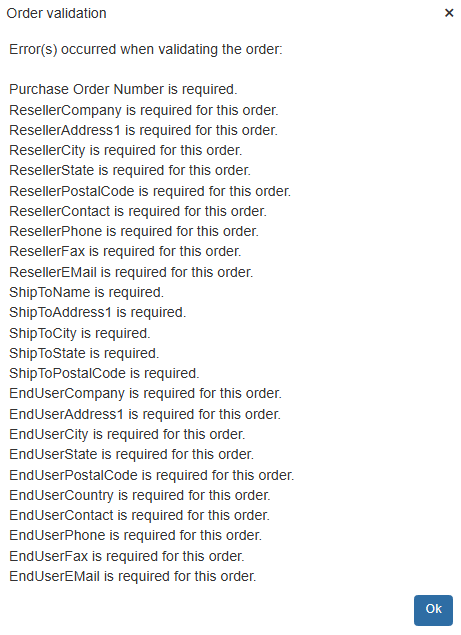
If there are any issues, you can make the changes and then click on the [2. Validate Order] button again to verify that your changes have satisfied the validation.
Item Validation
If TD SYNNEX does not have sufficient stock of the item to place your order, QuoteWerks will notify you of this and will ask if you want to remove the item from the order.
Pricing Validation
You may also receive warning notifications indicating there are pricing differences between the price on the QuoteWerks order and the real-time price. This can occur often since real-time prices change often. You are notified of this so that you are aware of this price difference. With this knowledge you can make a determination as to whether or not this is simply a small price variance or a significant price difference which would require your verification before proceeding.
NOTE: There is a good chance that the Unit Price for the items in the QuoteWerks order may be different than the real-time Unit Price. When this happens, you will receive a series of warning messages alerting you to this discrepancy. As a procedural control you could update the QuoteWerks order with real-time pricing and availability (using the Refresh with latest pricing option) before beginning the online ordering process, which would ensure that the Unit Price in the QuoteWerks ORDER would be the same as the real-time Unit Price retrieved from TD SYNNEX during the ordering process.
Step 3: Submit the Order
Once you have successfully validated the order, you may now submit it using the [3. Submit Order] button.
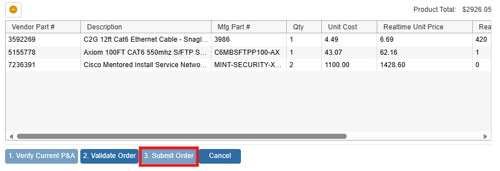
This step submits the order to TD SYNNEX and and receives an order confirmation if the order is successful.
NOTE: When some orders are placed, TD SYNNEX will split the single order into multiple orders. Typically this happens when items that are ordered are shipped from different warehouses or when an item that TD SYNNEX does not have in physical stock is ordered from the vendor and drop shipped to you. In these cases, the line items will not have the same sales order number.
Once the order submission is complete, additional columns with order specific information will be displayed.
Ordered Unit Price
This is the final and actual price that TD SYNNEX is charging you for the item.
Ordered Quantity
Since items can be backordered, the total quantity that you ordered may be split between ordered and backordered quantities.
Ordered Backordered Quantity
This is the quantity of this item that was backordered.
Ordered Warehouse
The item will be shipped from the warehouse listed in this column.
Ordered Sales Order #
This is the sale order number associated with the item.
NOTE: Since the SO Number, PO Number, and OrderDate column will be populated with the SYNNEX order information, it is a good idea to make sure these columns are visible and it might be helpful if they were located next to each other.
Once the TD SYNNEX Online Order form has been closed, if you ordered items only from the current open document, this document will automatically re-open for you to review. If you ordered items from multiple documents, you will need to open them individually to review them.
When you open a document that contains items you just ordered, you will note that the SO Number (Sales Order Number), PO Number, and Order Date columns have been updated with the TD SYNNEX sales order number, PO Number, and the date of the order respectively. Also, QuoteWerks will update the QuoteWerks document Unit Cost field with the TD SYNNEX ordered unit price. When this happens, the Cost Modifier value (if any) will be cleared. If the item being updated has a Price Modifier that is based on Unit Cost, the Price Modifier will also be cleared.
NOTE: The Distributor SO Number column may not be visible by default. If you do not see this column, select the View -> Customize columns menu and make it visible.
Since the Distributor SO Number column will be populated with the D&H order information, it is a good idea to make sure these columns are visible and it might be helpful if they were located next to each other. This column can be customized under the View -> Customize Columns menu.
When you first start using the Online Ordering Module to place online orders with TD SYNNEX we recommend that you verify through the TD SYNNEX website that the order has been received by TD SYNNEX and the order details such as price, warehouse selections, and shipping carrier selection are as you expect them to be.
To find your TD SYNNEX order on the TD SYNNEX website, log into the TD SYNNEX website and then under the Express Tools toolbar on the left hand side, you can enter a specific PO#, Order#/, Invoice# (which would be the SONumber in QuoteWerks) or the End User PO # to find the order that was just placed.