
The QuoteWerks Zapier integration enables you to create/update opportunities in your connected CRM. In addition to being able to create/update opportunities you can also create a Zap that will populate the dropdown menus on the create/update window with values from your connected CRM. This is useful as it removed ambiguity and you can ensure the values being entered are valid. This article shows you how to do this using HubSpot as an example, but the process is very similar if configuring any CRM that is a part of the Zapier ecosystem.
IMPORTANT: Before you can follow the steps in this article and populate the values on the create/update opportunity window, you will first need to follow the steps in the How Do I Create Opportunities Using the Zapier Integration? article so that this window becomes available when you save a quote.
1. Log in to Zapier and create a new Zap by pressing the Create + button and selecting Zaps.

2. Click the Trigger button to select the event that starts your Zap.

3. Search for and select "QuoteWerks" as your connected app.

4. Under the "Trigger event" heading click on Choose an event and select "QuoteWerks Opportunity Form Init Requested."

5. Select your QuoteWerks account and click on Continue.

6. Click on Test Trigger.
7. With the test complete click on Continue with selected record.
8. Select HubSpot as your connected app.

9. Under the "Action event" heading search for and select API Request (Beta).

10. Connect your HubSpot account and click on Contniue.

11. Set "Stop on error" to No, set HTTP Method to GET, and paste the following URL into the URL field: https://api.hubapi.com/crm/v3/pipelines/deals/default/stages. Click Continue.

12. Click on Test Step.
13. Add a new Step by clicking on the Add step button.

14. Select HubSpot as your connected app.
15. Under the "Action event" heading click on Choose an event, search for and select API Request (Beta), make sure your HubSpot account is connected and click Continue.

16. Set "Stop on error" to No, set HTTP Method to GET, and paste the following URL into the URL field: https://api.hubapi.com/crm/v3/owners. Click Continue.
17. Click on Test Step.
18. Add a new Step by clicking on the Add step button.
19. Select HubSpot as your connected app.
20. Under the "Action event" heading click on Choose an event, search for and select API Request (Beta), make sure your HubSpot account is connected and click Continue.

21. Set "Stop on error" to No, set HTTP Method to GET, and paste the following URL into the URL field: https://api.hubapi.com/crm/v3/properties/deals/dealtype. Click Continue.
22. Click on Test Step.
23. Add a new Step by clicking on the Add step button.
24. Select HubSpot as your connected app.
25. Under the "Action event" heading click on Choose an event, search for and select API Request (Beta), make sure your HubSpot account is connected and click Continue.

26. Set "Stop on error" to No, set HTTP Method to GET, and paste the following URL into the URL field: https://api.hubapi.com/crm/v3/properties/deals/hs_manual_forecast_category. Click Continue.
27. Click on Test Step.
28. Add a new Step by clicking on the Add step button.
29. Search for and select "QuoteWerks" as your connected app.
30. Under the "Action event" heading click on Choose an event, search for and select Respond to QuoteWerks Opportunity Init, make sure your QuoteWerks account is connected and click Continue.

31. Map the Callback Token to the Callback Token from QuoteWerks.
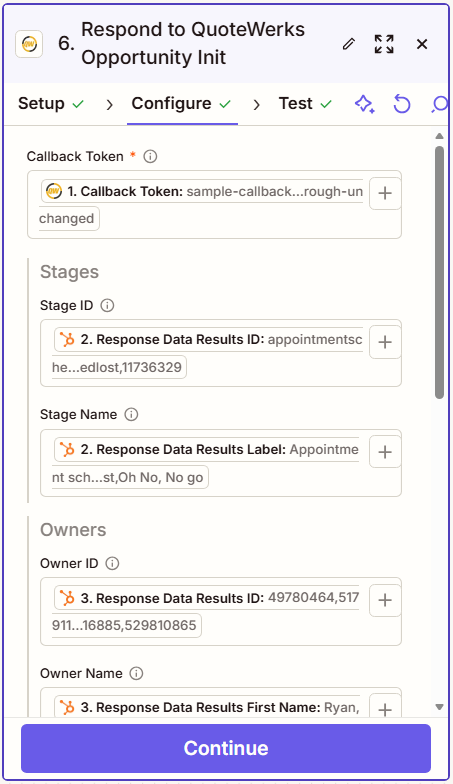
32. For Stage ID click on the plus (+) button and search for Response and select 2. Response. Click on the X to close the window. Click back on the plus (+) button and select In-use Data. Click on Response Data Results ID. Remove the 2. Response {...} entry from the Stage ID field leaving only 2. Response Data Results ID.

33. For Stage Name click on the plus (+) button and search for Response and select 2. Response. Click on the X to close the window. Click back on the plus (+) button and select In-use Data. Click on Response Data Results Label. Remove the 2. Response {...} entry from the Stage Name field leaving only 2. Response Data Results Label.

34. For Owner ID click on the plus (+) button and search for Response and select 3. Response. Click on the X to close the window. Click back on the plus (+) button and select In-use Data. Click on 3. Response Data Results ID. Remove the 3. Response {...} entry from the Owner ID field leaving only 3. Response Data Results ID.

35. For Owner Name click on the plus (+) button and search for Response and select 3. Response. Click on the X to close the window. Click back on the plus (+) button and select In-use Data. Click on 3. Response Data Results First Name. Remove the 3. Response {...} entry from the Owner Name field leaving only 3. Response Data Results First Name.

36. For Owner Email click on the plus (+) button and search for Response and select 3. Response. Click on the X to close the window. Click back on the plus (+) button and select In-use Data. Click on 3. Response Data Results Email. Remove the 3. Response {...} entry from the Owner Email field leaving only 3. Response Data Results Email.

37. For Type ID click on the plus (+) button and search for Response and select 4. Response. Click on the X to close the window. Click back on the plus (+) button and select In-use Data. Click on 4. Response Data Options Value. Remove the 4. Response {...} entry from the Type ID field leaving only 4. Response Data Options Value.

38. For Type Name click on the plus (+) button and search for Response and select 4. Response. Click on the X to close the window. Click back on the plus (+) button and select In-use Data. Click on 4. Response Data Options Label. Remove the 4. Response {...} entry from the Type Name field leaving only 4. Response Data Options Label.

39. For Forecast ID click on the plus (+) button and search for Response and select 5. Response. Click on the X to close the window. Click back on the plus (+) button and select In-use Data. Click on 5. Response Data Options Value. Remove the 5. Response {...} entry from the Forecast ID field leaving only 5. Response Data Options Value.

40. For Forecast Name click on the plus (+) button and search for Response and select 5. Response. Click on the X to close the window. Click back on the plus (+) button and select In-use Data. Click on 5. Response Data Options Label. Remove the 5. Response {...} entry from the Forecast Name field leaving only 5. Response Data Options Label.

41. Click Continue.
42. Click on Test Step, then Publish.
Your Zap is now live and you should now see dropdown menus for the fields mapped above on the Create/Update Opportunity window in QuoteWerks as seen below.
