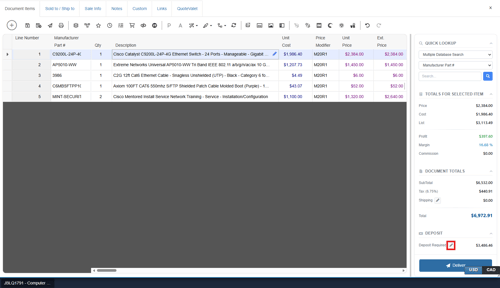
If you require a deposit from your customer, you can set an amount by clicking  next to Deposit Required displayed at the bottom right of the Quote Workbook. This will bring up the Deposit Required window, allowing you to set the deposit for this quote.
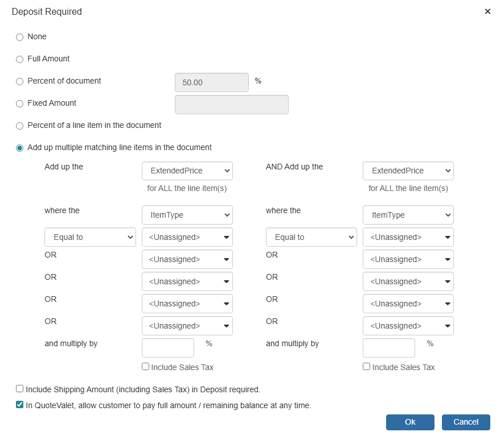
The Deposit Amount for each document will use this default setting. The deposit amount can be set to None, the Full Amount of the document, a Percentage of [the] document total, a Fixed Amount, or based on a line-item amount (like a subtotal or percent of a line item’s extended price). Typing an amount into the Percentage of document field will auto-populate the Fixed Amount field with the actual amount related to the percent you entered. You can still change the Fixed Amount field manually, for rounding purposes or otherwise.
You can also select Percent of a line item in the document which will calculate the deposit based on that single line item. Additionally, by using the Add up multiple matching line items in the document option, you can choose to add up multiple line items where the item type, manufacturer, manufacturer part number, vendor, vendor part number, and custom text fields match the criteria specified. You can add up items that are "Equal to", "Not Equal to", "Contains", or "Begins with". This enables you to set the deposit for only a certain amount of line items. So if the quote contains a few items that require a deposit but others that don’t, you can easily calculate the deposit automatically using this summary filter.
You can also set the deposit to charge a percentage on the item type in order to calculate the deposit for 100% of the products, but only 50% of the labor or installation. This provides a lot of flexibility in using the deposit to collect the exact amount you need to move forward.
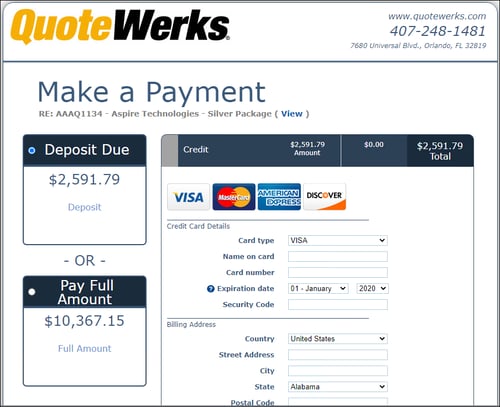
The Deposit Required feature can be used in conjunction with QuoteValet, allowing a customer to put down a deposit when they accept the quote. For more information on payments through QuoteValet and accepting deposits, see QuoteValet.
NOTE: You can set a default Deposit Required under Setup -> Options -> Documents.
In QuoteValet, allow customer to pay full amount / remaining balance at any time.
This checkbox will let your customer pay the deposit of the document or choose to pay the full/remaining balance of the document at any time when using QuoteValet. They can still pay the deposit amount first, but would also be able to pay the full amount instead. It simply gives them the option. They can also come back to the payment screen to pay off the remaining balance after the initial deposit payment at any time.