
IMPORTANT: Before you can send e-mails from QuoteWerks you must first configure the settings as outlined in the How Do I Setup E-Mail Features? help article.
You can send emails from several places within QuoteWerks such as the File -> Print/E-mail/Deliver window, the Print Preview window, and the File -> Export to Document Transport file window. For example, select the File -> Print/E-mail/Deliver menu, and click on the [Email] button to display the Send E-Mail window.
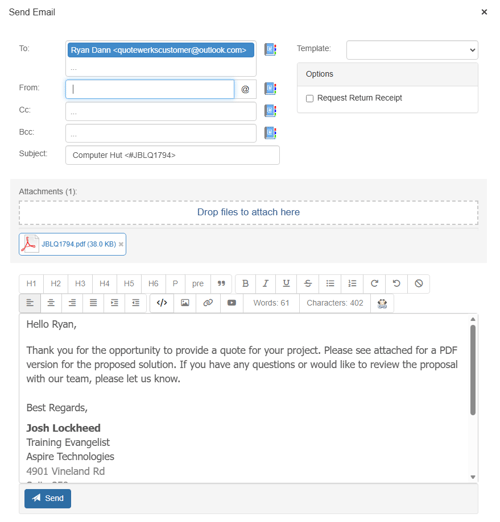
Send E-Mail Window
The To line pre-fills with the customer name and e-mail address from the Sold To tab of the quote workbook. If you would like to send this email to more than 1 recipient, you can separate each recipient with a comma. The total number of users receiving this email will be reflected with a number near the To, CC, or BCC label. So when two email addresses are present in the To field a (2) will appear next to it.
When sending an email to a Vendor, you can select from a list of Vendor email addresses on the quote or from all available Vendor email addresses in QuoteWerks by selecting the  icon.
icon.
From
The From line pre-fills with the currently logged in user’s email address. This is setup under the E-mail tab of the Setup -> My Preferences menu.
CC
The CC line allows you to enter the e-mail addresses of anyone that you would like to carbon copy the e-mail message to. If you would like to send a CC to more than 1 recipient, you can separate each recipient with a comma. If you select multiple e-mail addresses from the list, QuoteWerks will automatically separate them with commas.
BCC
The BCC line allows you to enter the email addresses of anyone that you would like to send a blind carbon copy email message to. If you would like to send a BCC to more than 1 recipient, you can separate each recipient with a comma. If you select multiple e-mail addresses from the list, QuoteWerks will automatically separate them with commas.
Subject
The Subject line pre-fills with the title of the quote and the document number.
Attachments
The Attachment line pre-fills with the quote formatted as a PDF file. You can attach other files to this e-mail by dragging and dropping them into the 'Drop files to attach here' area.
Template
In the email window the drop-down list for "Templates" allows users to select and use various email templates set up in QuoteWerks. For more information, view the Using Email Templates section of the help file.
Message
In the body of the e-mail, you can type in your message to the recipient.Click on the [Send] button to send the e-mail.
Request Return Receipt
If the request return receipt checkbox is checked, a receipt is sent when the message recipient’s server has received your message. This is useful when you are sending time-critical information, or any time you want confirmation that your message has been received.
NOTE: Some mail servers do not have this functionality and thus a return receipt will not be sent back to you even if the email has been received.
Selecting E-mail Addresses
Clicking on the address book button  to the right of the To, From, Cc, and Bcc fields, you can choose one or more email addresses from several of the email address lists including QuoteWerks users and QuoteWerks Groups.
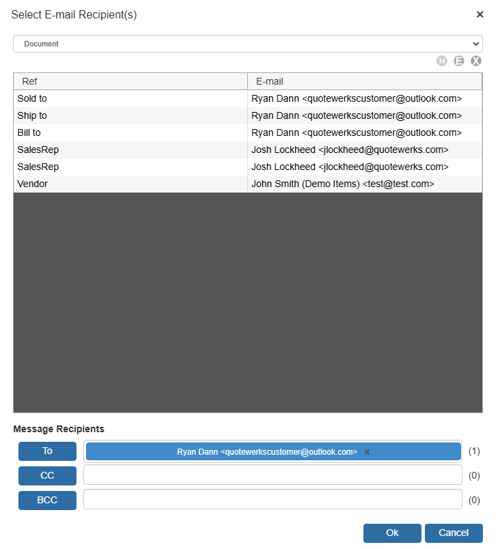
You can sort the grid columns on the address book lists by clicking on the column headings.
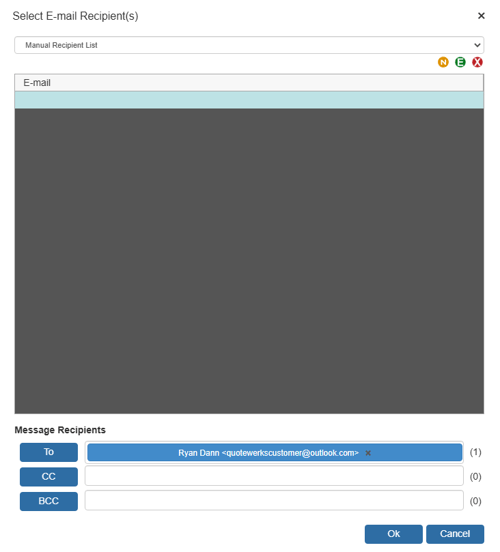
Manual Recipient List
There is a manual recipient email list which is just a static list of email addresses that you can manually enter, that will be remembered next time. You can add, edit, or remove entries from this list using the  buttons.
On the E-mail address selection window there is also a right click menu option for "Add to TO", "Add to CC", "Add to BCC".
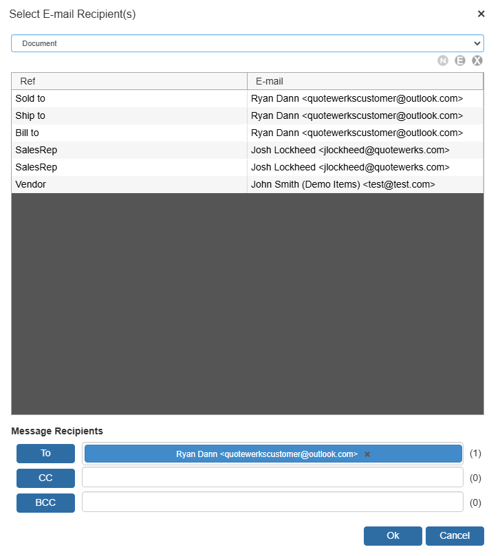
Document Option
This selection displays a single list of all the email addresses related to the current open document. This includes the QuoteWerks users (on document), QuoteWerks Vendors (on document), Sold to (on document), Ship to (on document), Bill to (on document), and Sales Rep and Prepared by email addresses.
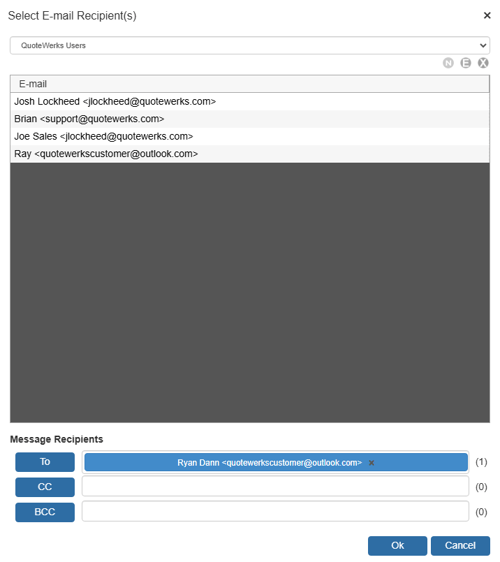
QuoteWerks Users
This selection displays a list of all the QuoteWerks Users that have email addresses set up in their preferences.
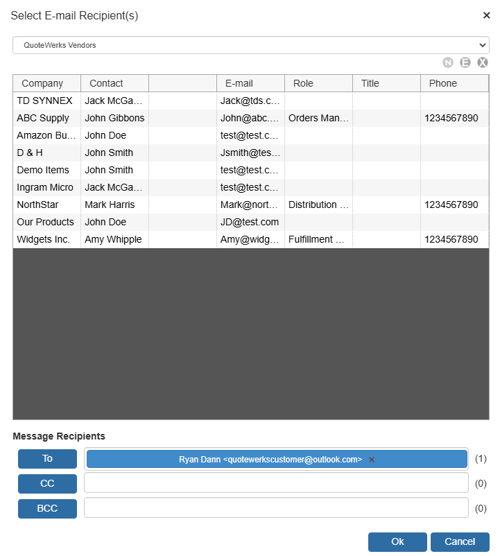
QuoteWerks Vendors
This selection displays a list of all the Vendors set up in QuoteWerks that have contacts with email addresses set up.
ConnectWise E-Mail Lists
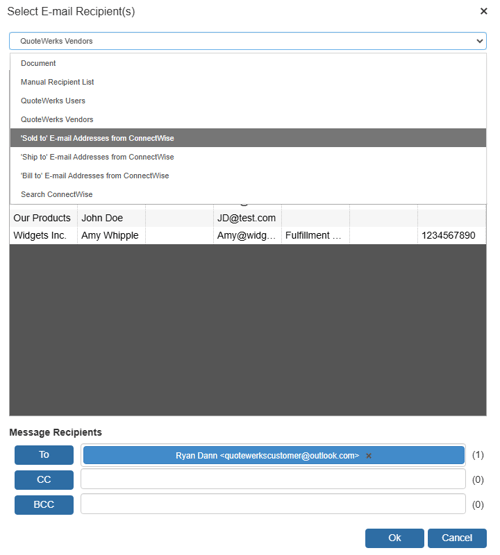
For ConnectWise users there will be 4 additional email lists to choose from:
"‘Sold to’ E-mail Addresses from ConnectWise"
This will be a list of all email addresses associated with the ConnectWise contact record that is linked to the Sold To fields in QuoteWerks.
"‘Ship to’ E-mail Addresses from ConnectWise"
This will be a list of all email addresses associated with the ConnectWise contact record that is linked to the Ship To fields in QuoteWerks.
"‘Billing Company’ E-mail Addresses from ConnectWise"
This will be a list of all email addresses associated with the ConnectWise contact record that is linked to the Bill To fields in QuoteWerks.
"Search ConnectWise"
With this “list” you can search your entire ConnectWise database by company, contact, last name, or phone for an e-mail address to use.
NOTE: Similar lists are available if you are using Act! for Web or MS CRM.