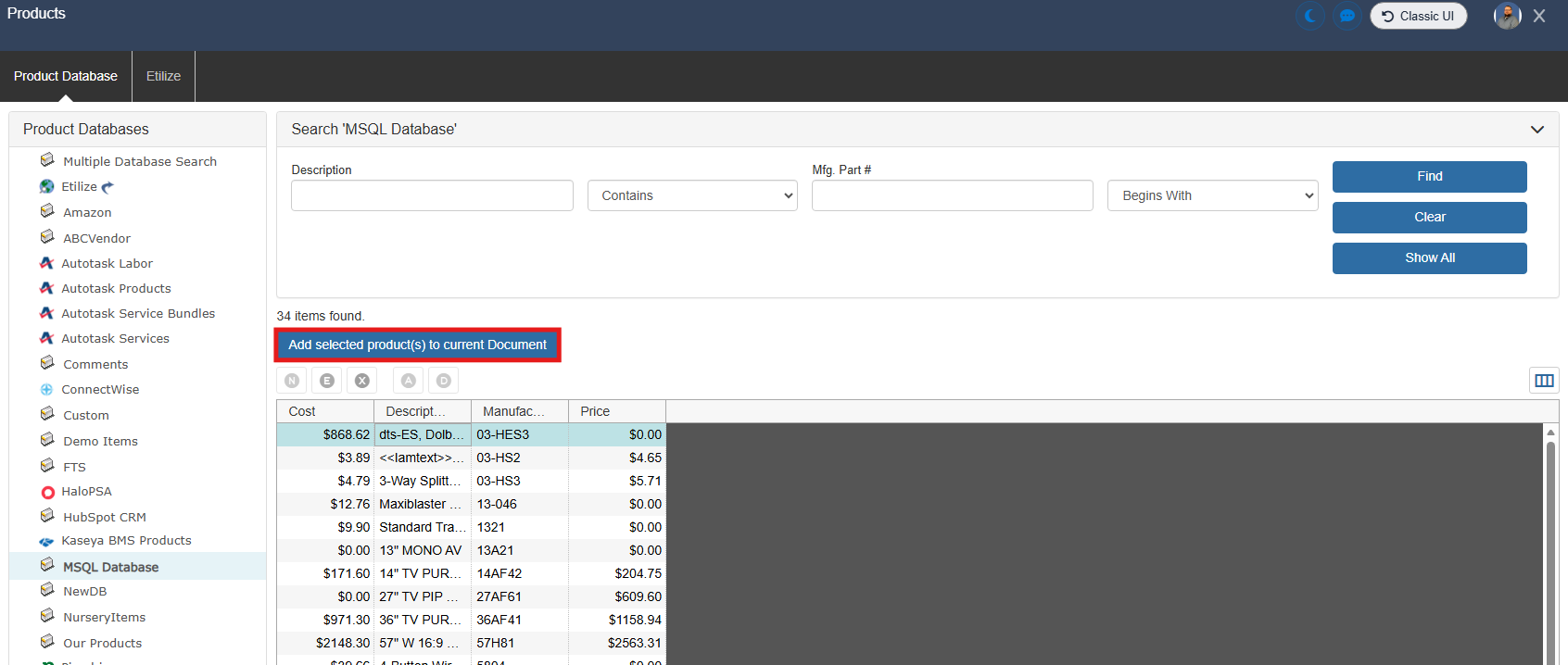
In QuoteWerks you can connect to an external Microsoft SQL Server product data source, allowing live product and pricing lookups directly from your own SQL database. To do so follow the instructions outlined below.
1. Make sure you have your SQL server IP and port, User ID, Password, and Database name.
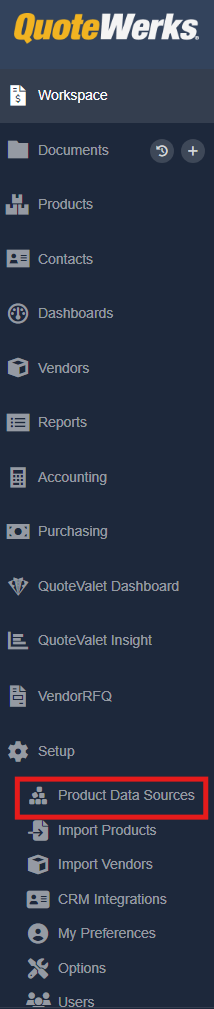
2. Navigate to Setup -> Product Data Sources on the left navigation panel.
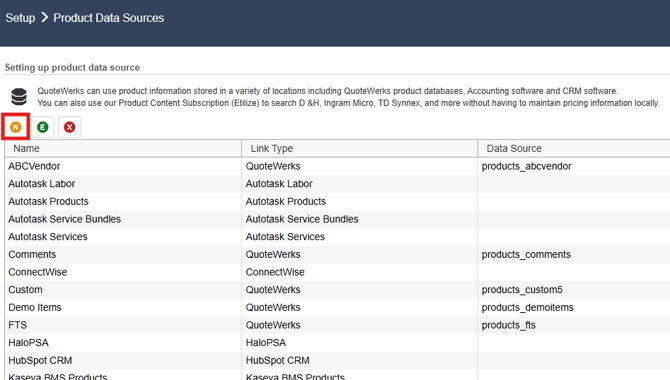
3. Click on the orange N button ( ) to create a new product data source.
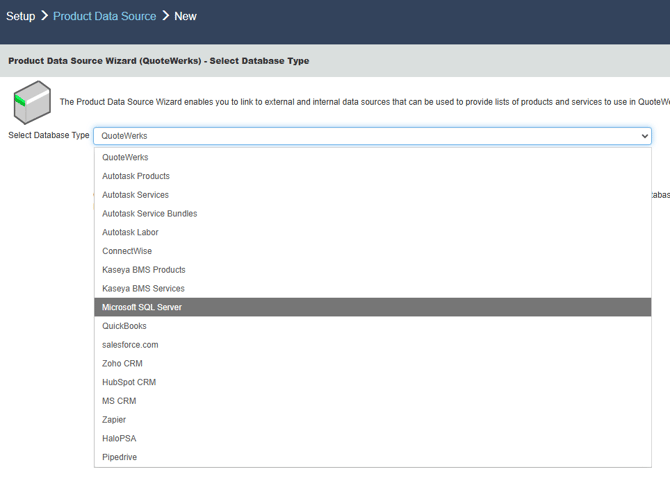
4. Select Microsoft SQL Server from the Select Database Type dropdown menu and click next.
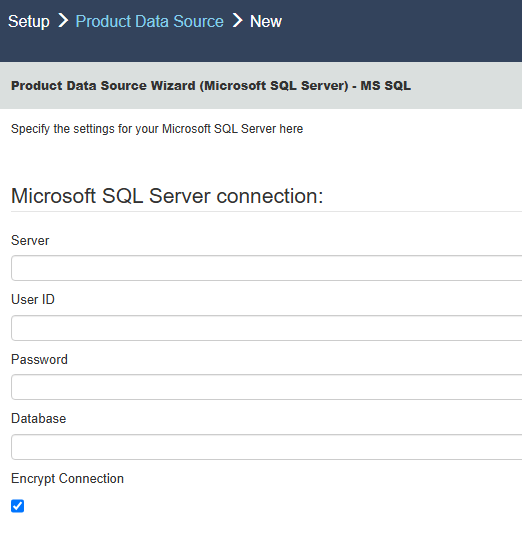
5. Enter your Server, User ID, Password, and Database information and if you would like, select Encrypt Connection. Click Next.
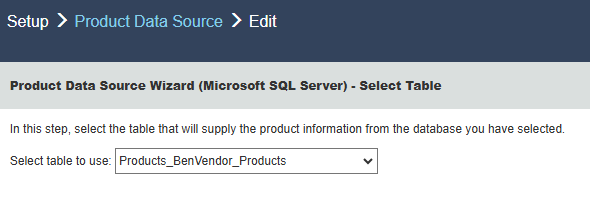
6. Use the Select table to use drop down menu to select the table that will supply the product information from the database you have selected.
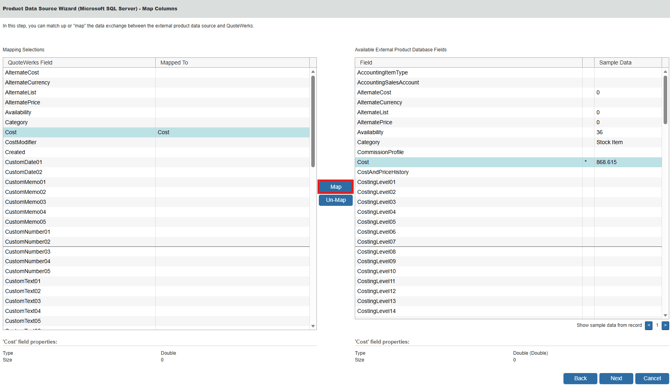
7. Map the fields from your table to those in the QuoteWerks database. To do so select the QuoteWerks field, then the external product database field, then click the Map button at the center of the page. Once you have mapped all the field you wish to map click on the Next button.
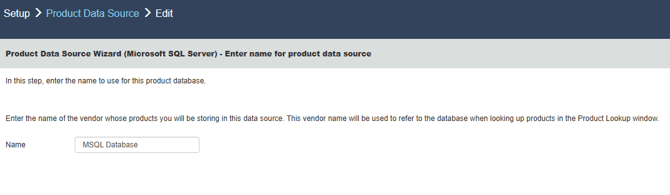
8. On the next page, give your database a name. This should be the name of the vendor whose products you will be storing in this data source. This vendor name will be used to refer to the database when looking up products in the Product Lookup window. Once you have given the database a name click Next.
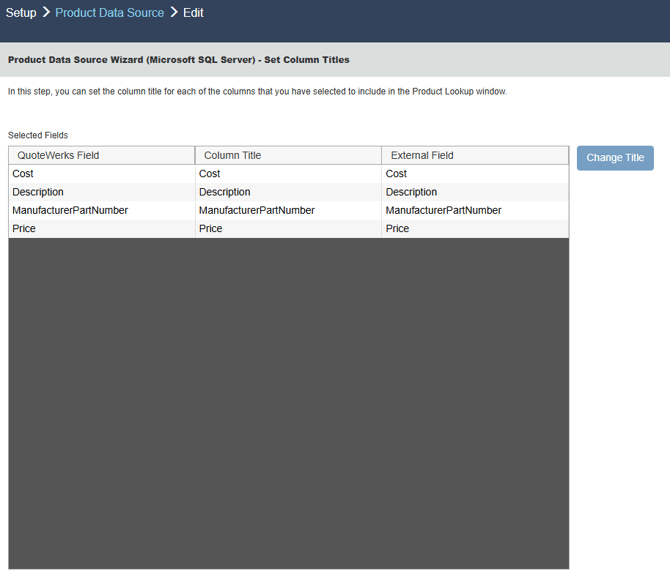
9. On the Set Column Titles window, you can choose what you want the Column Title to be when the database is displayed in the Product Lookup window. To assign a title highlight the row you would like to change and click on Change Title. Once complete, click Next.
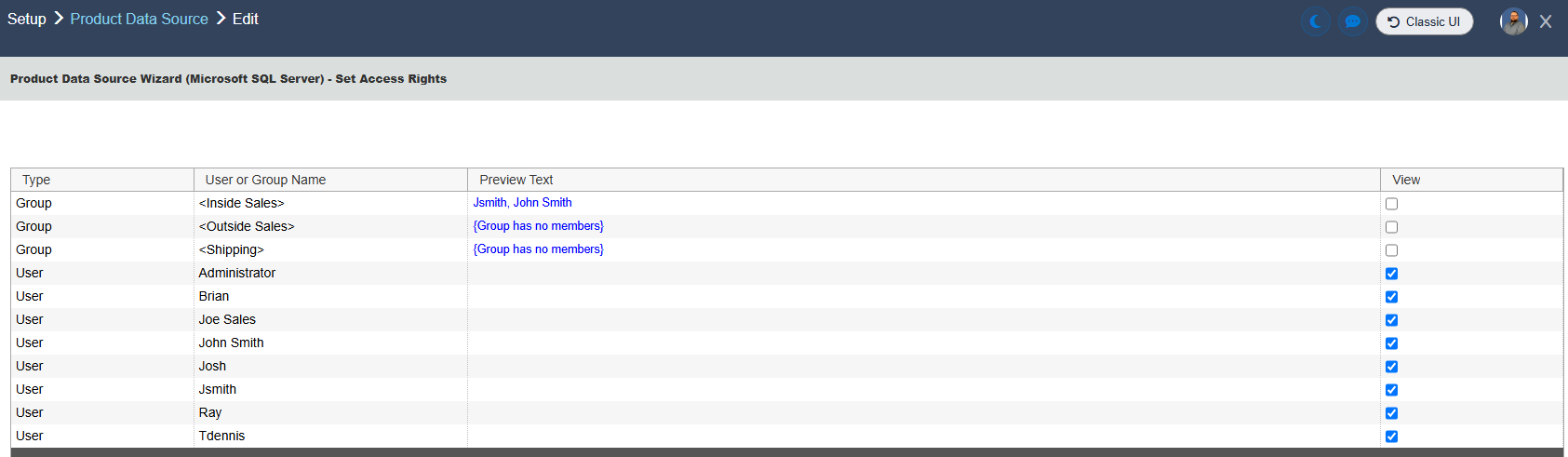
10. On the Set Access Rights page you can determine who you would like to be able to view the database in the Product Lookup window. To give a user or group access click the "View" radio button next to the user or groups name. Once complete, click Next.
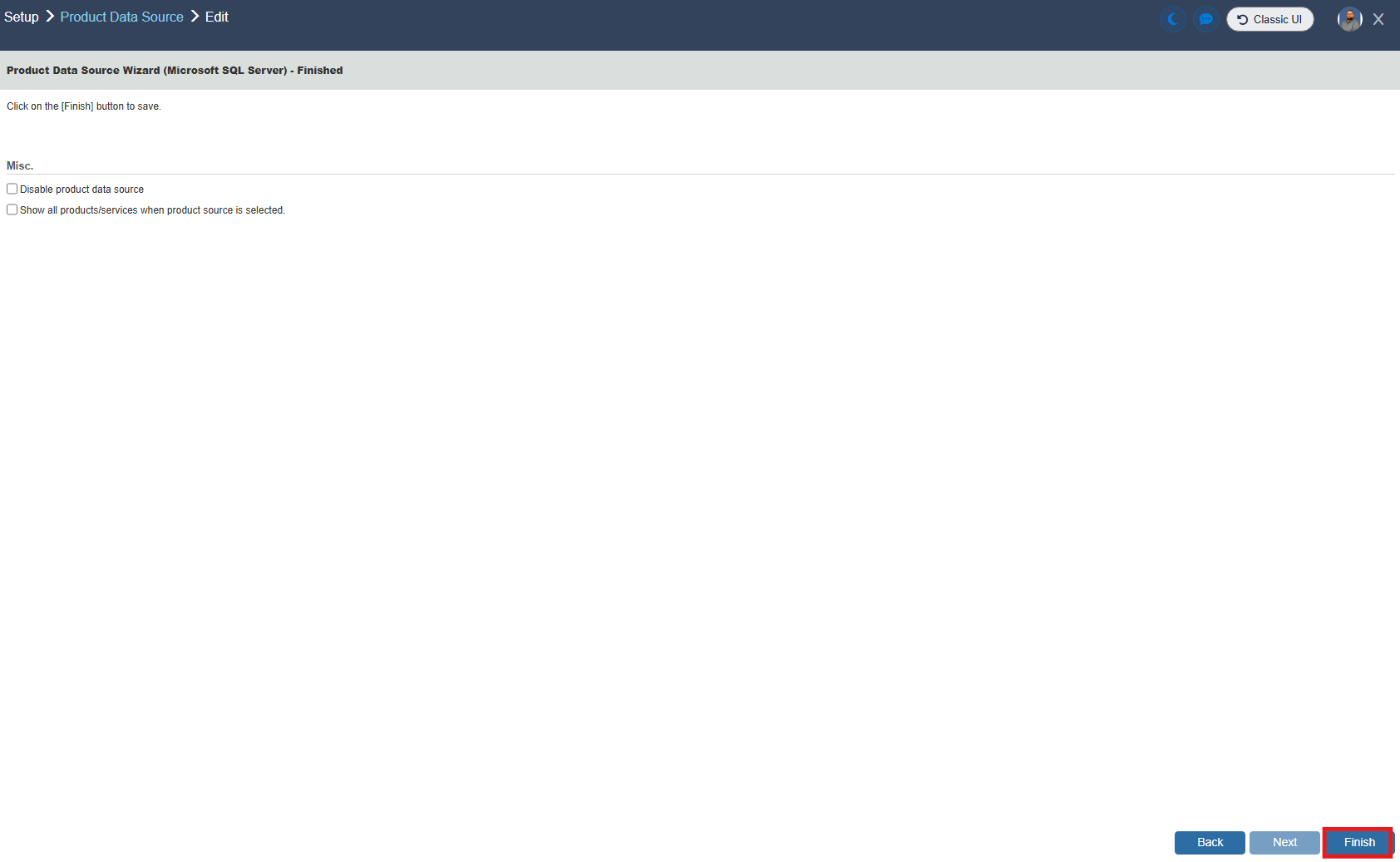
11. On the final screen you can choose to Disable the product data source or Show all products/services when the product data source is selected by selecting the corresponding radio buttons. When you have made your selections click Finish to complete the product data source setup.
12. Log out and log back in to QuoteWerks. Now, when you navigate to the Product Lookup window by clicking on Products from the left navigation toolbar you will see your new data source listed by its assigned name. You can now search for and select products and services to be added to quotes. To add a product/service to an open quote document click on Add selected product(s) to current Document.