
QuoteWerks must be set up with the appropriate e-mail settings in order to send e-mails. You can configure the e-mail settings by selecting the E-Mail tab of the Setup -> My Preferences menu.
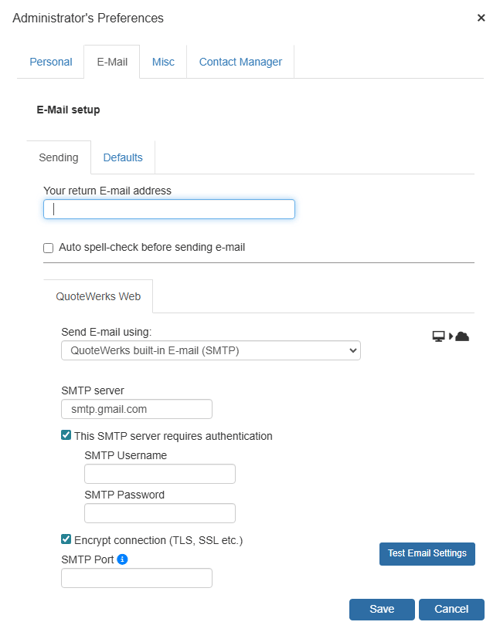
Sending Tab
The following fields are on the Sending tab.
Your return E-Mail address
When the recipient of your e-mail responds to the e-mail, the e-mail will be sent to this e-mail address. This is most often your e-mail address.
Send E-Mail using
QuoteWerks’ Built-in SMTP
Choose this option to use the built-in QuoteWerks SMTP email. When you select this option, the screen options will change. Above is a screenshot of the built-in SMTP settings.
SMTP server
This setting is only required if you use the QuoteWerks built-in SMTP e-mail. If you are using this feature, a valid SMTP server name must be specified. The SMTP server name typically follows the format of: smtp.yourservername.net
This SMTP server requires authentication
Some SMTP servers require a login name and password in order to use them. If your SMTP server has this requirement, you need to check this box and supply the User ID and Password. If for example your SMTP server is a Microsoft Exchange server, you may need to supply a user ID and Password.
This server requires an encrypted connection (SSL)
Some SMTP servers like Google’s Gmail and AT&T mail require an encrypted connection. If your SMTP server requires this, then check this box.
SMTP Port
The default SMTP port on most installations will be 25. This setting may need to be changed on network installations where there is proxy that requires this to be different. Please consult your IT Department for additional information on SMTP ports and proxies.
QuoteWerks' Built-in Email (Google OAuth 2.0)
Choose this option to use the built-in QuoteWerks Google OAuth 2.0 support. This will prompt you to enter in your Google credentials to link your Gmail/GSuite account with QuoteWerks.
QuoteWerks' Built-in Email (Microsoft 365 OAuth 2.0)
Choose this option to use the built-in QuoteWerks Microsoft 365 OAuth 2.0 support. This will prompt you to enter in your Microsoft 365 credentials to link your 365 account with QuoteWerks.
QuoteWerks' Built-in Email (Microsoft Live OAuth 2.0)
Choose this option to use the built-in QuoteWerks Microsoft Live OAuth 2.0 support. This will prompt you to enter in your Microsoft Live credentials to link your Microsoft Live account with QuoteWerks.
Auto spell-check before sending email
This check-box will automatically run the spell-checker when you click "Send" on the email window in QuoteWerks without having to start the spell-check manually each time.
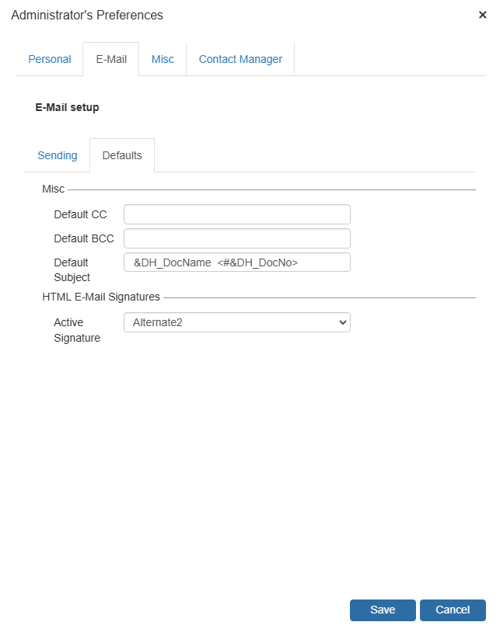
Defaults Tab
The following fields are on the Defaults tab.
CC and BCC
On the Defaults tab you can enter the default CC (or BCC) e-mail address to use whenever creating a new e-mail, by entering it here. You can use this to for example always CC the sales manager on all quotes emailed. Additionally, you can use a macro field (like &DH_CustomText01) to have the CC (or BCC) default to an email address that is located in the CustomText01 field on the Custom tab of the Quote WorkBook.
Default Subject
This is the default subject that will be used when sending emails from the QuoteWerks system.
HTML E-Mail Signatures - Active Signature
Here you can choose which signature template you would like to use when sending emails from the QuoteWerks system.
See also: