
The Optional Items feature in QuoteWerks is useful when you want to present a customer with additional choices without treating those choices as part of the base solution.
QuoteWerks describes optional items as a way to make users aware of available options for a particular product before deciding whether to add them to the quote.
Think of a quote with a core item and some things the customer might want to add.
For example:
- Base: Switch — $2383.63
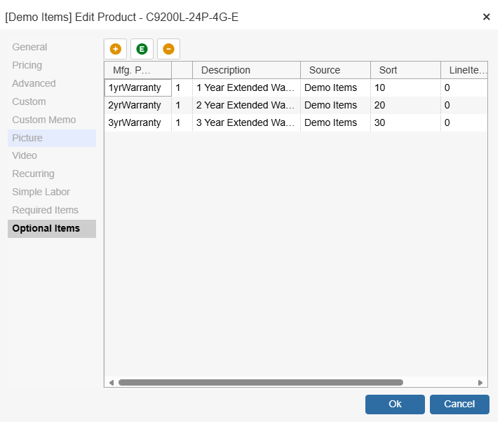
- Optional: 3-year extended warranty — $150
- Optional: 2-year extended warranty— $108
- Optional: 1-year extended warranty — $57.60
The base switch is the primary item. The other products are related options that a salesperson can choose to include.
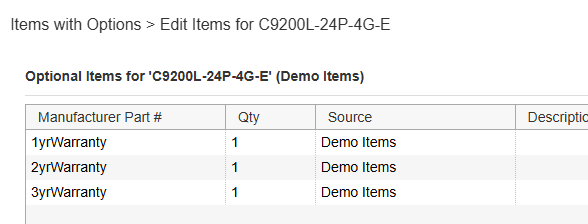
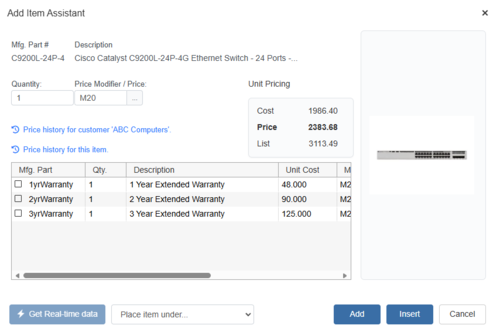
Instead of having the salesperson search for each add-on separately, you can configure those products as Optional Items for the master product. When the master product is selected, QuoteWerks presents the associated options so the user can choose which ones to add.
Why use Optional Items?
1. Make add-ons easy to find
A common problem in quoting is that salespeople don't necessarily remember every possible accessory, service, upgrade, or add-on that could accompany a product.
Optional Items create a relationship between the primary product and its potential add-ons.
For example:
Laptop → Extended warranty → Docking station → Carrying case → Installation
The salesperson doesn't have to remember to search for those products individually.
2. Encourage consistent upselling
Optional Items can act as a built-in reminder.
If every time a salesperson quotes a particular product they are shown the relevant warranty, support, installation, or upgrade options, it becomes much harder to accidentally overlook those opportunities.
This is one of the strongest reasons to use the feature: you're embedding your sales process into the product configuration.
Optional items are a way to guide sales reps through available configurations and structured add-ons.
3. Keep the quote flexible
Unlike Required Items, optional items aren't automatically added as mandatory components.
Required Items are automatically added when the master item is selected. Optional Items instead give the user a choice about which related products should be included.
That makes the distinction useful:
- Required Item: "If you sell this, you need this."
- Optional Item: "If you sell this, consider offering these."
- Regular product: "Find and add this when you need it."
4. Handle different customer configurations
Optional Items are particularly useful when customers may want different versions of a solution.
For example, you might sell a security appliance with:
- Standard support
- Premium support
- 24/7 support
- Extended warranty
The salesperson can start with the same core product and select the appropriate option for the customer.
Setting Up Optional Items
Setting up optional items involves creating an entry for the item that has optional items (we will refer to that item as the master item), and then listing the optional items under that entry.
1. To setup Optional Items navigate Products on the Navigation Panel.
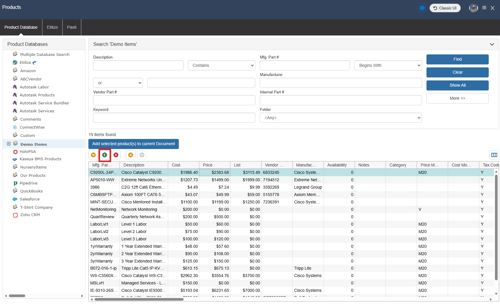
2. Select the product you wish to configure optional items for and click on the  [Edit] button. This will open the Edit Product window.
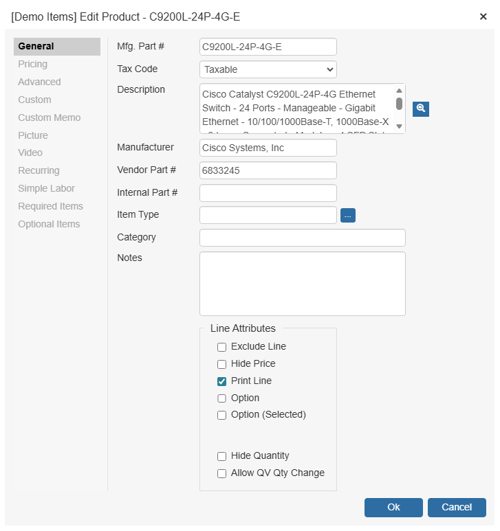
3. Navigate to the Optional Items tab.
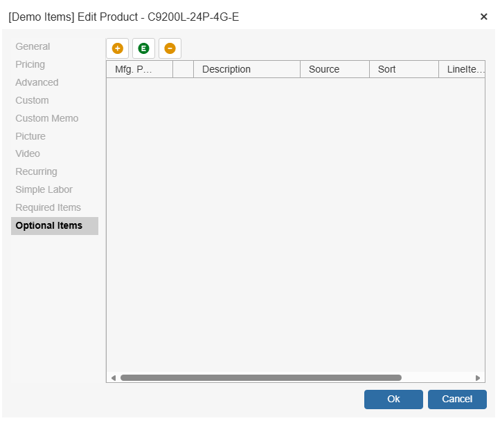
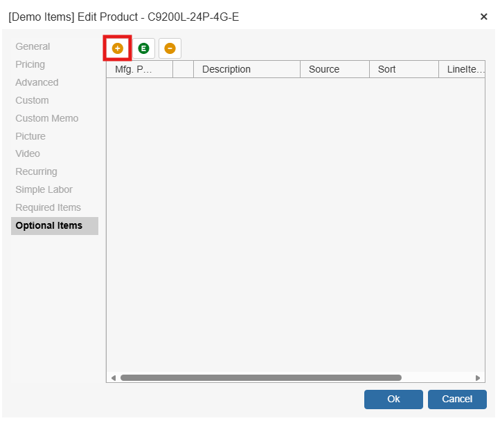
4. To add a product to the list of Optional Items click on the  [Add Item] button.
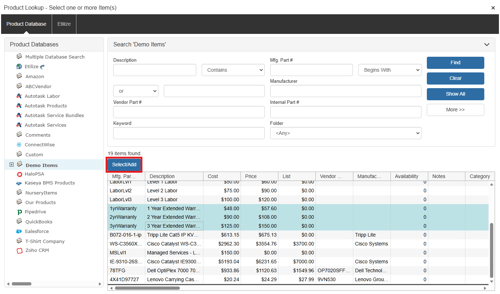
5. Search for the item(s) you wish to include as optional items using the Product Lookup window. Select them and click Select/Add to add them to the list of Optional Items.
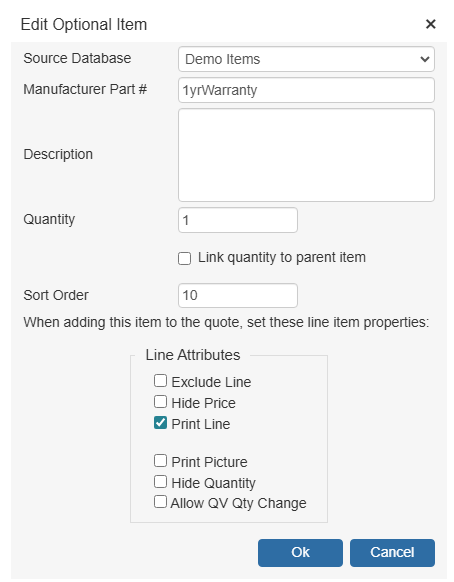
6. In the Edit Optional Item window you can configure a number of settings. Here you can change the Manufacturer Part #, Description, Quantity, Sort Order, Line Type, and Line Attributes. These settings are described in more detail under Optional Item Properties.
6. Once you have made your selections click OK and that item will be added to your Optional Items list.
NOTE: Items used for Optional Items must have a unique manufacturer part number.
Optional Item Properties
As you add items to the list, the Optional Item Properties window will appear:
The Optional Item Properties window will provide various options and settings for the user to select before it is attached to the Optional Items tab.
Source Database
The drop-down menu will display a list of item databases that have been setup in QuoteWerks. Here you can choose where to source this item from the available databases.
Manufacturer Part #
The Manufacturer Part # field is the unique part number for this item. This field is required.
Description
The Description field is the customer facing description for this item.
Quantity
The Quantity field will be the quantity of the item when it is added to the document.
Link Quantity to Parent Item
This option will link this optional item's quantity to the master item's using the Dependent Quantity feature. This means the quantity set here will automatically change when the master item's quantity is adjusted.
Sort Order
The Sort Order field determines the order in which items will be added after the master item to the quote. Set a low number (1, 5, 10) for the item to be added to the quote first or higher to be added later or last.
Line Attributes
The Line Attributes options will enable users to set the default line attributes for the optional item(s). These will simply be the default settings and can be edited once the optional item has been added to the quote.