
QuoteWerks offers integration with Amazon Business, providing a seamless way for businesses to place orders and access real-time pricing and availability for a wide variety of products directly from within the software. With this integration, you can simplify your procurement process, ensure accurate and competitive pricing, and quickly submit orders to Amazon Business without ever leaving QuoteWerks.
Here’s how Amazon Business Online Ordering works in QuoteWerks:
- Access to Amazon Business Pricing and Availability: When creating a quote, QuoteWerks allows you to pull live product pricing and availability data from Amazon Business. This ensures you are always quoting and purchasing with the most current information, offering competitive prices to your customers while avoiding the risk of stockouts or outdated product details.
- Seamless Order Placement: Once you’ve finalized your quote or purchase order, QuoteWerks allows you to place the order directly with Amazon Business. With just a few clicks, your order is automatically sent to Amazon Business for processing, eliminating the need for manual data entry or navigating through Amazon’s website. This streamlines your ordering workflow and saves you valuable time.
- Real-Time Product Updates: As prices and product availability can fluctuate frequently, QuoteWerks ensures you’re working with the latest details by pulling real-time data from Amazon Business whenever you create or update a quote. This reduces the risk of quoting outdated prices or products, so you can confidently manage customer expectations.
- Streamlined Purchasing Workflow: By using Amazon Business online ordering within QuoteWerks, you simplify the entire purchasing process, reducing manual tasks and ensuring your business orders are processed efficiently. From product selection to order submission the integration helps you manage the entire procurement lifecycle within QuoteWerks.
Overall, Amazon Business Online Ordering in QuoteWerks provides businesses with an easy and efficient way to place orders—all without having to leave QuoteWerks. This integration helps streamline your procurement process, ensure accurate pricing and stock information, and improve your overall purchasing efficiency. Whether you’re ordering one item or managing frequent bulk purchases, QuoteWerks’ Amazon Business integration makes the entire process smoother and more reliable.
Setting Up the Amazon Business Ordering with QuoteWerks
IMPORTANT: The Amazon Business Purchasing integration uses a direct order punchout integration. The Pinnacle Edition is required for this integration. Your Amazon Business Account or Group must also utilize shared payment methods.
1. Create a free Amazon Business Account.
2. After creating your account and/or logging into your Amazon Business Account, navigate to the "Business Settings" link. This can be done in the Account Details menu and selecting Amazon Business Setting or by clicking into the Your Business page and selecting Business Settings.
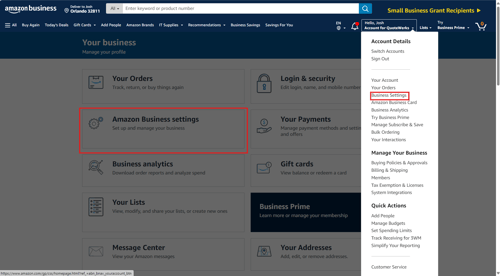
3. In Business Settings, click on "Shared Settings"
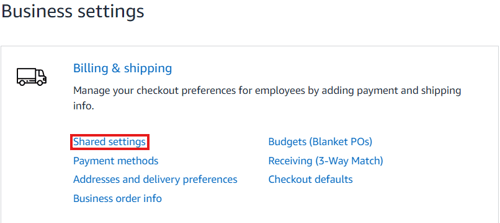
4. In "Shared Settings", click "Shared Payment Methods" and "Shared Addresses" and click the update button. This will set this option and bring you back to the "Business Settings" page.
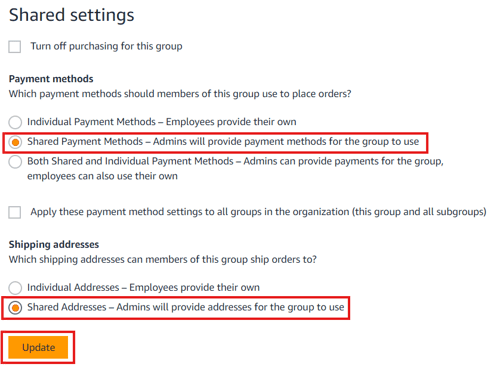
5. Next, click on "Payment Methods".
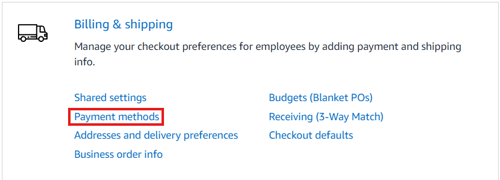
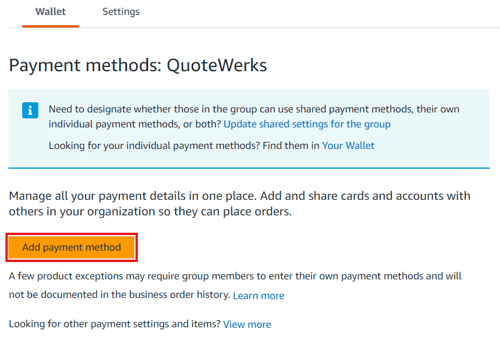
6. In the Payment Methods section, click "Add Payment Method" or select an existing payment method and go back to Business Settings.
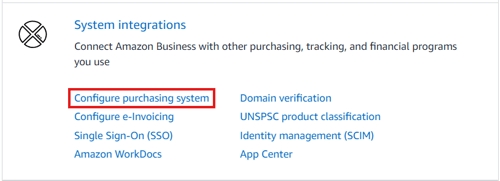
7. Under Business Settings, in the "Systems Integrations" section, click on the "Configure Purchasing System."
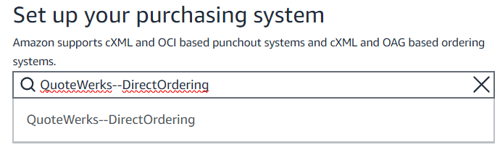
Start typing in QuoteWerks and you will find "QuoteWerks--DirectOrdering." Select this.
8. Your System Login and Password will be displayed, or you will be prompted to create them.
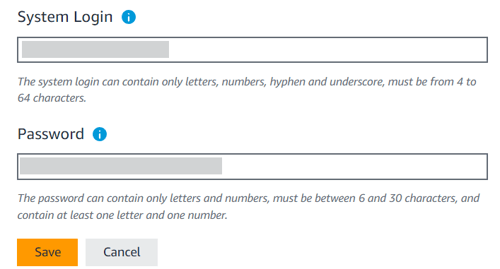
9. Click "Save" to view the System Login, Password, Punchout URLs, and the Purchase Order Request URL. IGNORE the Punchout URL as this is not needed for the integration.
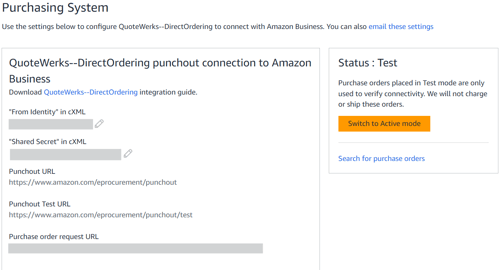
10. Once you click Save you will be in "Test" mode. You must have a payment method added to your account before switching to Active mode. Copy the System Login, Password, and Purchase Order Request URL over to QuoteWerks.
11. In QuoteWerks navigate to the Real-time Setup window by selecting Setup -> Options -> Real-time-> Amazon. Paste the System Login, Password and the Purchase Order Request URL. Make sure you copy the Purchase Order Request URL NOT the Punchout URL into QuoteWerks.
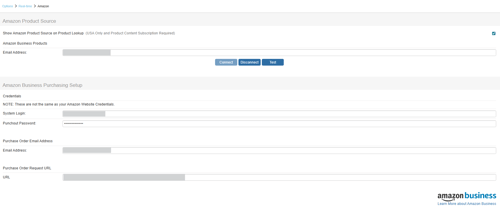
12. Click Connect and you will be directed to an Amazon Business page to allow the integration. Click Allow.
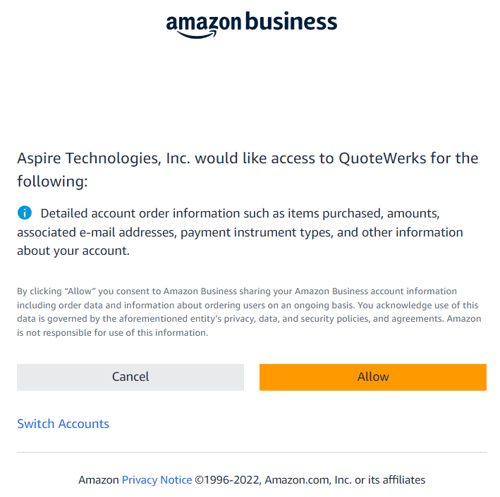
If the connection is successful, you will get a notification that looks like the one listed below.

13. After pasting your credentials into QuoteWerks, go back to Amazon business, and under the System Integrations section, click on the Purchasing System option.
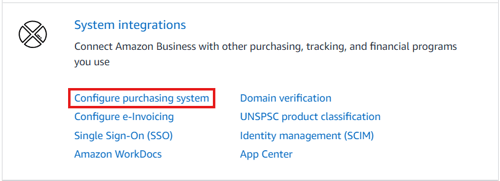
14. Click "Edit" under the System section.
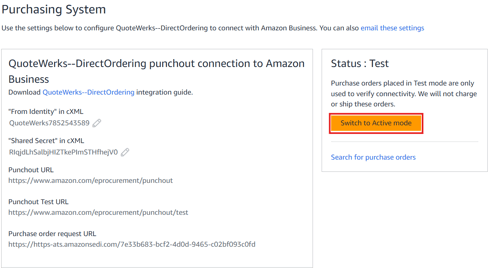
15. Set the Status from Test to Active and click Save.
16. Go back to QuoteWerks and click OK to save your settings in QuoteWerks.
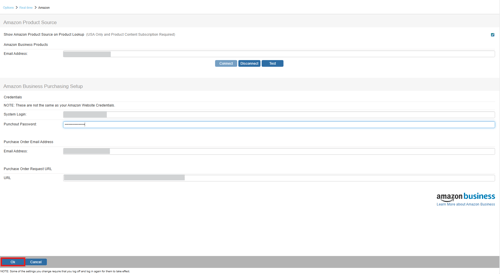
Amazon Product Source - Show Amazon product Source on Product Lookup
This checkbox will enable users to search Amazon Business for items to pull into QuoteWerks. The Product Content Subscription (Etilize) is required for this integration. This feature is currently only available in the USA.