
The Outlook (New/Cloud) Contact Manager Integration allows you to search and select contacts directly from your cloud-based Microsoft Outlook account. It supports New Outlook, Outlook on the web, and Classic Outlook when contacts are stored online rather than locally on your computer.
Simply sign in with your Microsoft 365 account, and QuoteWerks connects directly to your mailbox.
You can search contacts by Name, First Name, Last Name, Email Address, or Phone Number, then easily add the selected contact to the Sold To, Ship To, or Bill To section of a quote.
The integration also gives you control over which contact folder QuoteWerks searches and whether business or home addresses are imported. You can even create new contacts directly in your Microsoft 365 mailbox from within a quote.
For convenient follow-up management, you can schedule calls on your Microsoft 365 calendar directly from QuoteWerks, using your preferred default duration, reminder, and category settings.
Additional contact fields can be customized through DataLinks, allowing you to map more information to QuoteWerks as needed.
Establishing the Connection
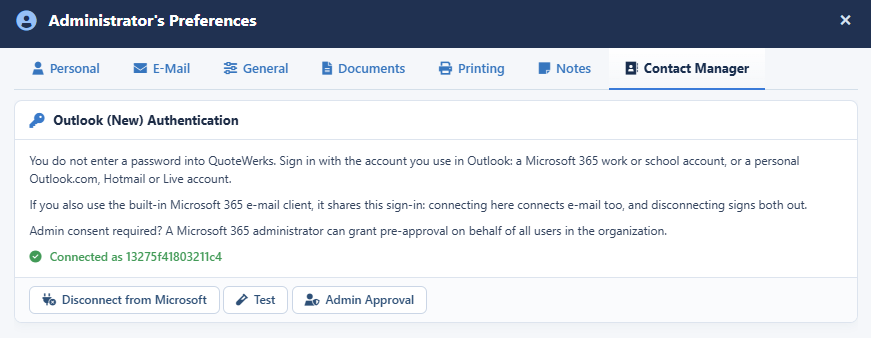
To establish a connection to Outlook (New/Cloud) navigate to the Contact Manager tab of My Preferences, which can be accessed by clicking on the username icon at the top right of the QuoteWerks window.

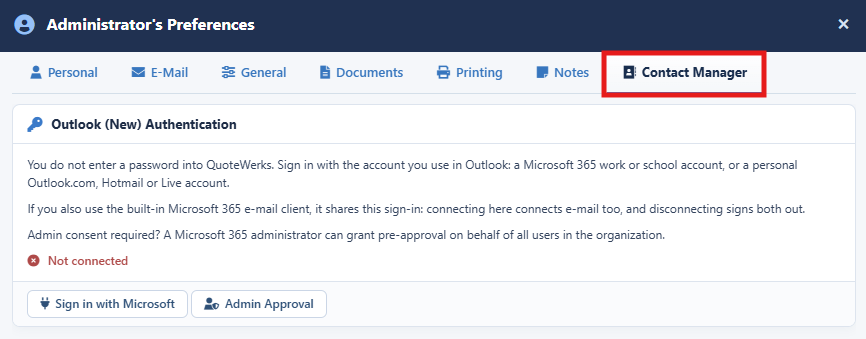
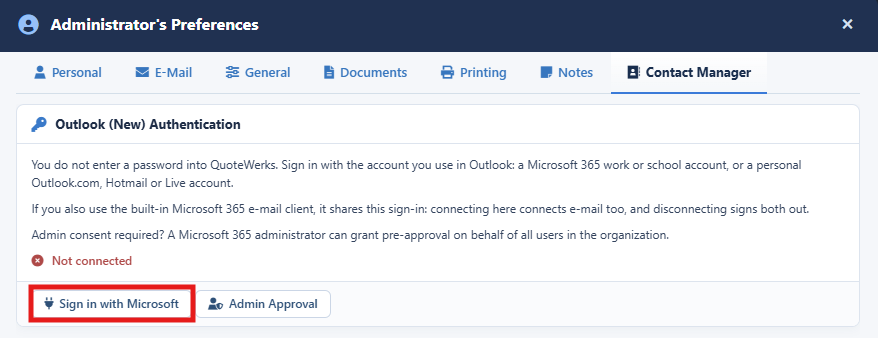
1. To establish a connection click on the Sign in with Microsoft button.
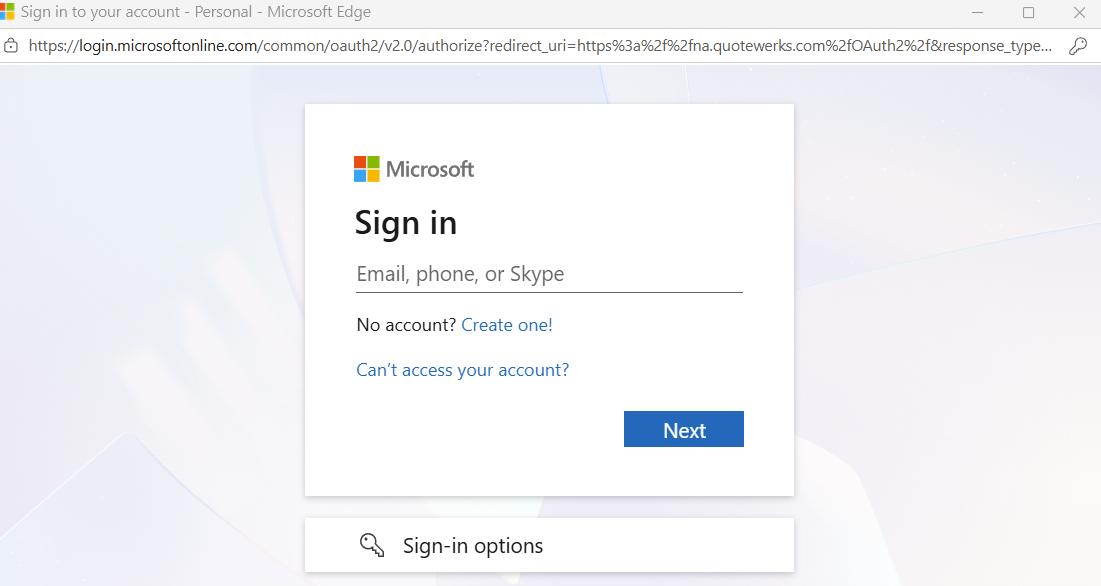
2. You will be prompted to input your Microsoft credentials. Enter your credentials and follow the prompts.
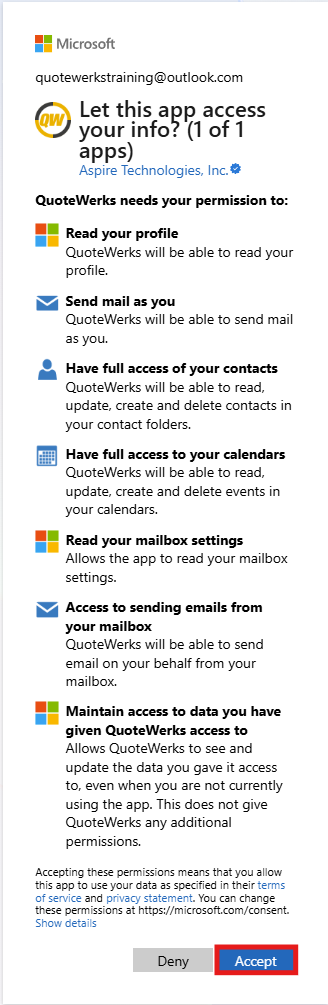
3. Give QuoteWerks access to your data by clicking on Accept as seen below.
4. You will receive a popup that indicated the OAuth was successful and the connection will now show Connected on the Contact Manager tab of the My Preferences window.
Setting up the Integration
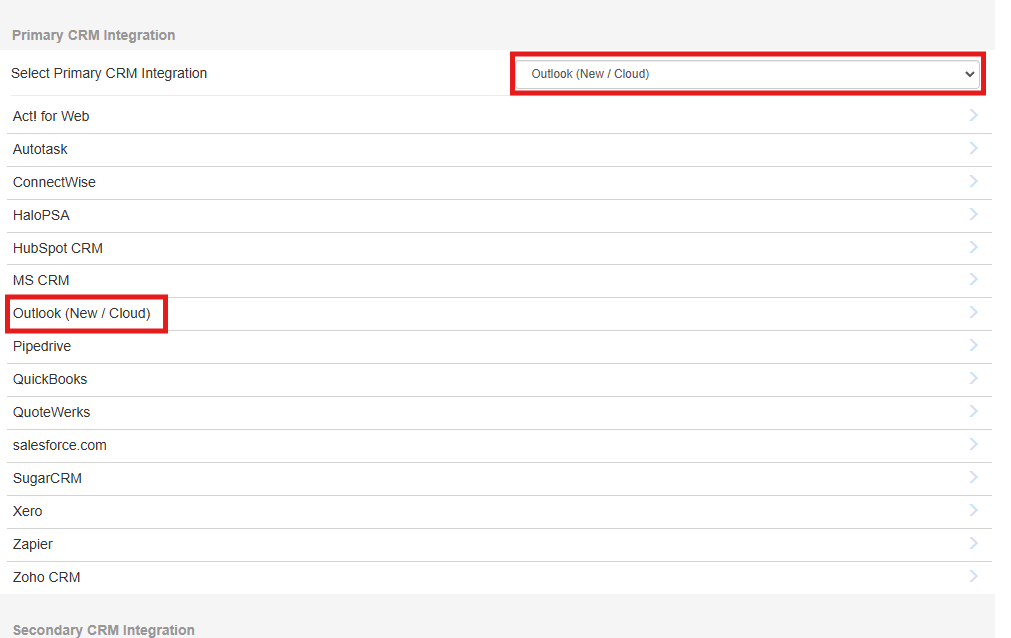
1. To setup the integration navigate to Setup -> CRM Integrations and click on Outlook (New/Cloud). Make sure that Outlook (New/Cloud) is selected from the Select Primary CRM Integration drop down menu.
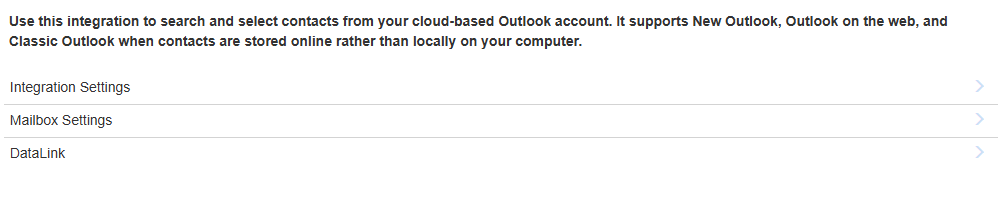
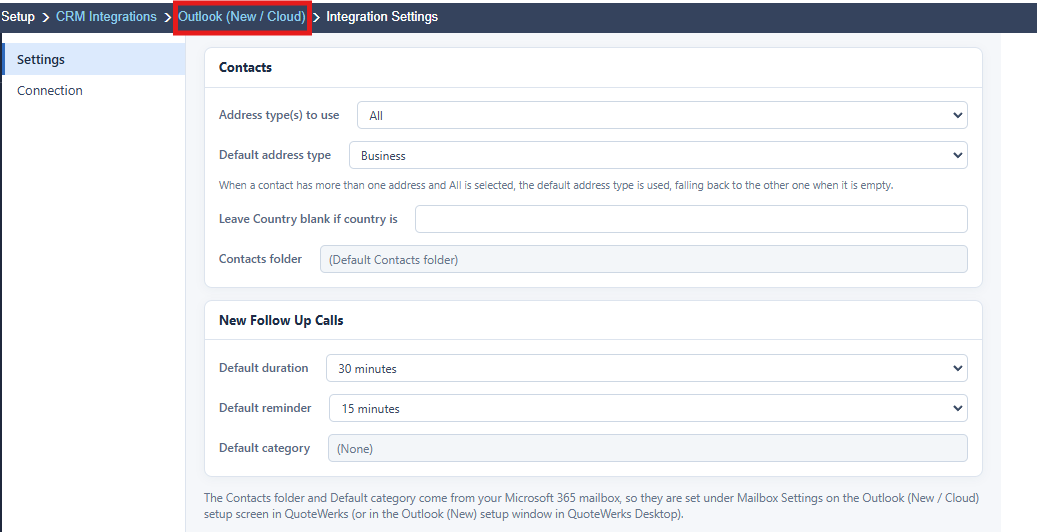
2. Click on Integration Settings.
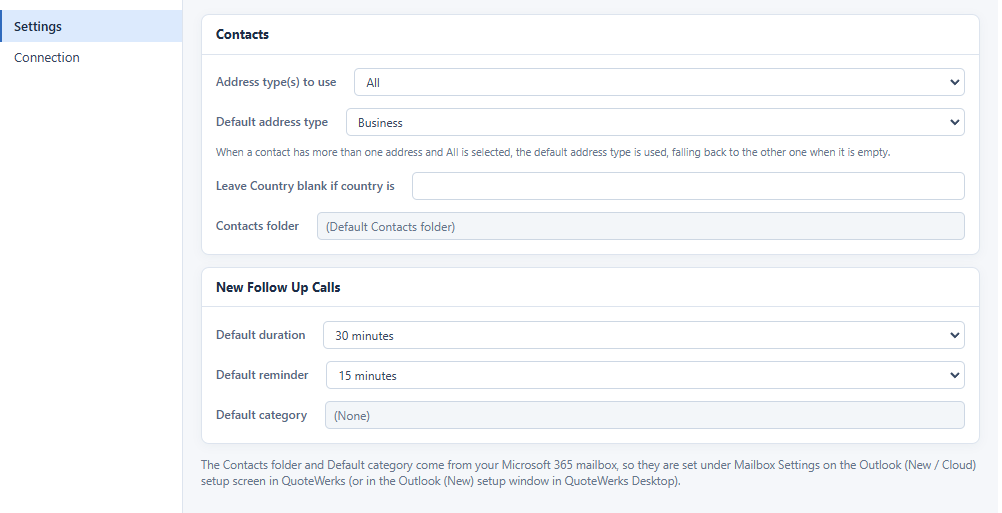
3. Here you will want to choose your contact preferences and set your defaults form New Follow Up Calls.
4. Click on Outlook (New/Cloud) from the breadcrumb menu at the top of the screen.
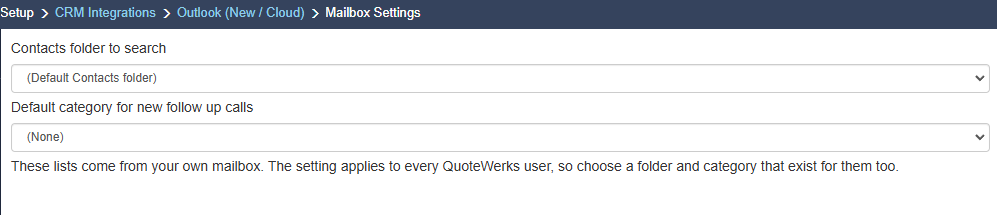
5. Select Mailbox settings and select our preferences there.
6. You are now ready to start using the integration.
Creating a DataLink
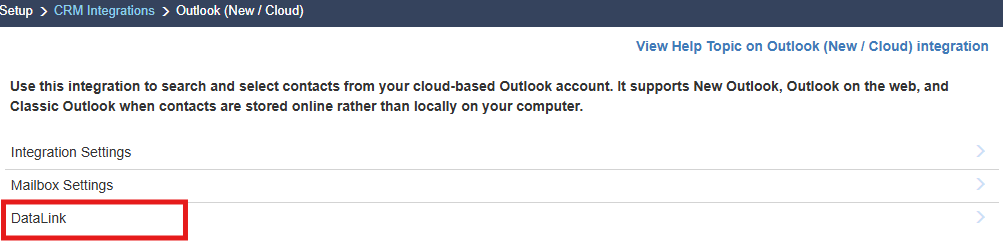
To create a DataLink click on DataLink from the Outlook (New/Cloud) CRM Integrations menu.
For more information on establishing a DataLink please see the What is a Datalink? help article.
Please See: