The QuickBooks Online integration in QuoteWerks allows users to sync their quoting and sales processes with their accounting system. This integration helps streamline the flow of data between the two platforms, reducing the need for manual data entry and improving overall efficiency.
Here’s how the integration generally works:
- Create and Sync Quotes: When you create a quote or proposal in QuoteWerks, you can directly send that information to QuickBooks Online. This typically includes customer details, line items, prices, and totals, which then get added to your QuickBooks Online account. This reduces the need to manually enter this data later, ensuring that your financial records are up-to-date.
- Invoice, Estimate and Sales Receipt Creation: Once a quote is accepted, it can be converted into an invoice, estimate or sales receipt directly in QuickBooks Online. This seamless transition between QuoteWerks and QuickBooks makes it easier to turn proposals into actionable invoices, which is particularly useful for businesses that rely on sales orders and invoicing.
- Customer Management: The integration syncs customer data between QuoteWerks and QuickBooks Online. This ensures that customer records are consistent across both systems, allowing you to manage contacts and details in one central place.
- Product and Pricing Sync: If you have a product catalog in QuickBooks Online, it can be synced with QuoteWerks. This allows you to pull products and pricing directly from QuickBooks, helping maintain consistency in your sales process.
- Reporting: You can pull relevant financial data into QuickBooks Online for reporting, allowing you to track sales and revenue generated through quotes and invoices in one system.
By linking QuoteWerks with QuickBooks Online, businesses can simplify the workflow from quoting to invoicing, ensuring better accuracy and time-saving automation across both platforms.
IMPORTANT: In order to use the QuickBooks Online link, you must have two items. First, you must have an active QuickBooks Online Subscription and second you must have an active QuoteWerks to QuickBooks Online Subscription. If you are unsure if you have the required information, please contact the QuoteWerks Sales team.
The QuickBooks Online Integration is setup in two phases:
Establishing the QuickBooks Online Integration Link which ties QuoteWerks to your QuickBooks Online account
Configuring the QuickBooks Online Integration which selects the settings for the integration.
Follow the Establishing QuickBooks Online Integration settings first followed by the Configuration topic.
Things you need to know about the QuickBooks Online Integration link:
-
The QuickBooks Online Integration works with USA, UK, Canada, and Australia versions of QuickBooks Online.
-
The QuickBooks Online Integration exports QuoteWerks documents to QuickBooks Online as Invoices, Estimates, or Sales Receipts. It does not export documents to QuickBooks Online as pending invoices.
-
You can export your QuickBooks Online items to a file and then import them into a QuoteWerks product database or link directly to the QuickBooks product list eliminating the need to import.
- QuickBooks extended prices on invoices need to be exactly two decimal places and no more. Therefore, in QuoteWerks the extended price decimal places must also be set to exactly two.
- Groupings like grouped bundles and grouped configurations can be transferred over to QuickBooks based on settings configured in the QuickBooks Online link setup.
- QuickBooks calculates discounts/charges differently from QuoteWerks resulting in different calculations in certain situations. If you have a %charge or %discount line immediately below a subtotal line item, then any subtotal line items below this subtotal line item may have different totals in QuickBooks.
Establishing the QuickBooks Online Integration Link
1. Navigate to Setup-> Options-> Accounting.
2. Under the QuickBooks Integration section, set the Link Type to "QuickBooks Online" and click on the [Connect to QuickBooks] button. Check the "Sandbox Mode" checkbox if testing with a sandbox environment. 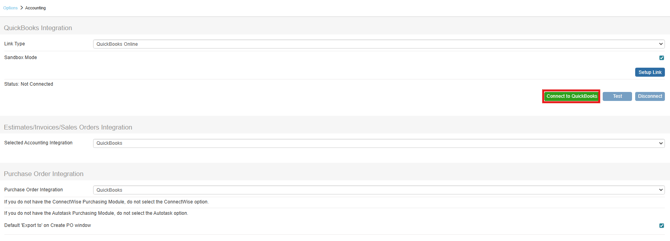
3. This should launch QuickBooks Online in your browser and if you have not logged in to QuickBooks Online, you will be prompted to do so.
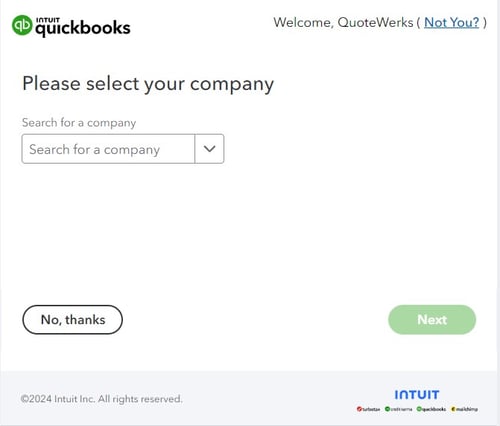
4. Once logged in, QuickBooks Online will prompt you to select the company file you wish to use with QuoteWerks and then click [Connect] on the next screen.
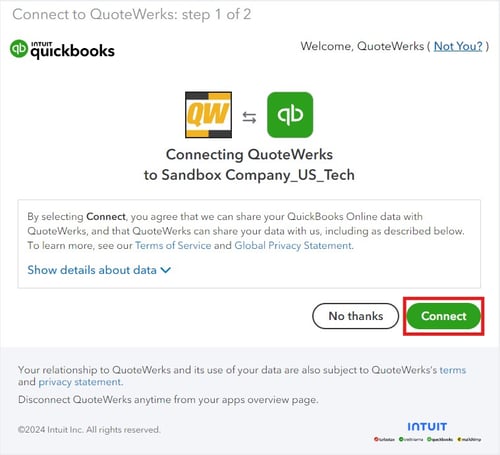
5. Once authorized, a confirmation message will appear in your browser.
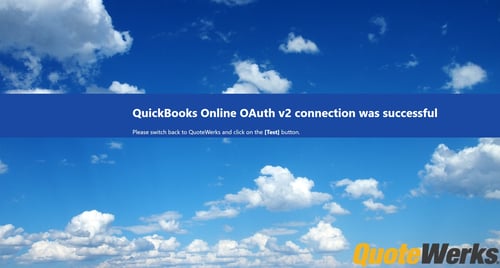
6. Finally, click the [Test] button to ensure the link has been established. A confirmation message will appear if QuoteWerks and QuickBooks Online are now linked.
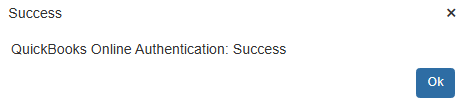
The QuoteWerks to QuickBooks Online Link has now been established.
Configuring the QuickBooks Online Integration
The following instructions are to configure the QuoteWerks to QuickBooks Online integration.
Navigate to Setup-> Options-> Accounting. Click on the [Setup Link] button under the QuickBooks Integration section.

Sandbox Mode
To enable "Sandbox Mode" for the integration, simply check this box before establishing the connection with QuickBooks Online.
Clicking on [Setup Link] will open the QuickBooks Online Settings Window. This window has seven tabs used to configure the link and each tab's settings can be viewed in the below topics.
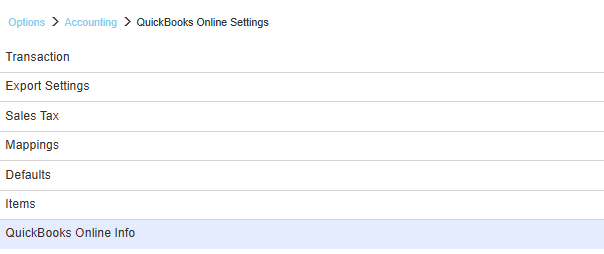
QuickBooks Online Setup is done on the following pages:
Transaction Tab
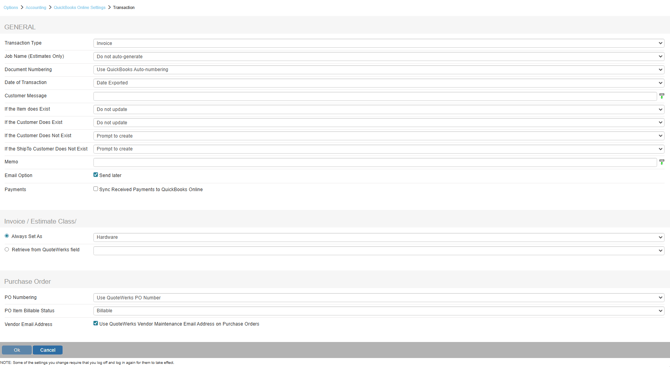
Transaction Type
Select whether you want QuoteWerks to export the document as a QuickBooks Online ESTIMATE, INVOICE, or SALES RECEIPT.
NOTE: If you use QuoteWerks to create an Estimate in QuickBooks Online, you can then use QuickBooks Online to conduct progress invoicing by creating an invoice containing only some of the items from the Estimate. To do this, open the Estimate in QuickBooks Online and click on the [Create Invoice] button. For details on these processes, please consult your QuickBooks Online user manual or contact QuickBooks Online support services.
Job Name (Estimates only)
If the transaction type of Estimate is selected, you can specify whether you would like QuoteWerks to auto-generate the job name based on the Document Number or Document Name.
Document Numbering
When the document is exported to QuickBooks Online, this option determines if the QuoteWerks document number or QuickBooks Online own numbering sequence is used for the QuickBooks Online estimate/invoice number.
Date of Transaction
When the document is exported to QuickBooks Online, select the date that you want to appear as the date on the invoice. You can choose from the date exported or the QuoteWerks Document Date.
Customer Message
Select the message you want to appear on your estimate or invoice. You can also use QuoteWerks Macros to auto-populate information from the document to be part of the customer message.
If the Item Does Exist
If the item does exist in the QuickBooks Online Item List you can choose to have QuoteWerks update or not update the cost/price of the item.
If the Customer Does Exist
When exporting an estimate/invoice to QuickBooks Online and the Customer in the document does exist in QuickBooks Online you can select to update or not update the Customer information.
If the Customer Does Not Exist
When exporting an estimate/invoice to QuickBooks Online and the Customer in the document does not exist in QuickBooks Online you can select Create or Prompt to Create the new customer in QuickBooks Online.
Memo
When exporting a QuoteWerks document to QuickBooks Online you can set a default memo that will be written over to QuickBooks Online as a memo for that document. You can also use QuoteWerks Macros to auto-populate information from the document to be used as part of the memo.
Email Option
The BillTo email address is populated in Estimates, Invoices and Sales Receipts. This setting will default the "Send Later" option for emailing documents from QuickBooks Online.
Payments
The "Sync Received Payments to QuickBooks Online" setting will sync payments received from QuoteValet into QuickBooks Online. With this setting, when a document is paid for via QuoteValet, the payment can be synced with the QuickBooks Online document that QuoteWerks creates. When left unchecked, this option will not sync the payments received from QuoteValet. This is very useful when using QuickBooks Merchant Services as your payment gateway. QBMS automatically creates a payment receipt in QuickBooks when receiving a payment and leaving this option checked would duplicate this payment receipt in QuickBooks. Only leave this unchecked if you use QuickBooks Merchant Services as your gateway.
Invoice/Estimate Class
If you use classes in QuickBooks Online, you have several options to choose from. You can choose the “Always set as” option and leave the selection box empty to not associate a class with the estimate/invoice. You can choose the “Always set as” option and select a class from the selection box to set the class name to the selected class name for every estimate/invoice exported. You can also choose the “Retrieve from QuoteWerks document field” option and select a field name like SoldToPriceProfile. Selecting this option will use whatever class name is listed in the QuoteWerks field as the class name for the estimate/invoice in QuickBooks Online.
PO Numbering
Here, you can choose "Use QuickBooks Auto-numbering" or "Use QuoteWerks PO Number." When creating a manual PO in QuoteWerks and you've configured QuoteWerks to use QuickBooks Online for purchase orders, you'll be able to enter a blank PO number on the Create Purchase Order window. This will create the PO in QuickBooks Online using the next available QuickBooks Online PO number. That QuickBooks Online PO number will be used to update the QuoteWerks PONumber for the QuoteWerks purchase order, which you'll see under the Purchase Orders tab.
When creating electronic POs, electronic orders require a PO number at the time you're placing the order, so you can't use the next available QuickBooks Online PO number here. Instead, you can use the next available QuoteWerks PO Number to submit the order to the distributor, then the QuoteWerks purchase order will use that PO number. If you have the PO Numbering option set to "Use QuickBooks Online Auto-numbering", then when you export the Purchase Order to QuickBooks Online, it will send a blank PO number to QuickBooks Online which will cause QuickBooks Online to use the next available PO number in QuickBooks Online. This new QuickBooks Online PO number will then be written into the QuoteWerks PO description field (for example, "[QBPO# 1001]").
PO Item Billing Status
This setting will set the status for the items created in the QuickBooks Online PO. You can choose from 'Billable', 'NotBillable', and 'HasBeenBilled'. The default setting will be 'NotBillable' if not changed or left blank.
Vendor Email Address
When exporting a PO to QuickBooks Online, the Vendor Email address as configured in the Vendor Maintenance window can now be sent to the QuickBooks Purchase Order.
Export Settings Tab
The Export Settings tab is where users can set the criteria for which documents will be displayed in the Non-Exported Documents tab in the QuickBooks Export Window. Only documents that match the criteria will be displayed. You can specify the DocType as well as Doc Status “Equal To”, “Not Equal To” and corresponding values like “Lost”, “Dead”, “Exported”.
In the example image below, only "Order" documents with the status of "Open" will be displayed. Once they have successfully been exported to QuickBooks, the status of the QuoteWerks document will be changed to "Closed".

NOTE: When orders are exported to QuickBooks that contain a rare but particular combination of subtotal/Percent Discount/Product, or subtotal/Percent Charge/Product a warning will now be displayed that this combination is not supported.
Mappings Tab
Contacts

QuoteWerks Document BillTo
This selection will map the QuickBooks Transaction BillTo to the BillTo field in QuoteWerks.
QuoteWerks Document SoldTo
This selection will map the QuickBooks Transaction BillTo to the SoldTo field in QuoteWerks.
Items
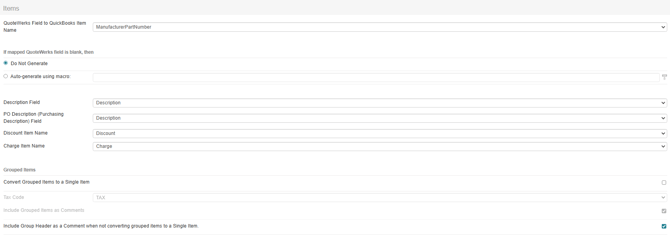
QuoteWerks Field to QuickBooks Item Name
This mapping is used to determine which QuoteWerks field will be used to map to the QuickBooks Item Name. Typically, this would be the ManufacturerPartNumber, however if you use alternate fields for your part numbers in QuoteWerks, you can change the mapping here including vendor part number, internal part number, and more.
IMPORTANT: The mapping set here will determine how QuoteWerks identifies items in QuickBooks. Using this mapping, if QuoteWerks does not find a match, it will then create the item in QuickBooks. This is why it is very important this setting is properly mapped.
If mapped QuoteWerks field is blank, then
This mapping determines what action QuoteWerks will the mapped QuoteWerks field is blank. In the example above, this would be if the Manufacturer Part Number was blank. Setting this to Do Not Generate will leave the field blank. Setting this to Auto-generate using macro allows you to use QuoteWerks macros to build what you would like that blank field to be populated with.
Description Field
This mapping determines which field from the QuoteWerks line items will be used for the QuickBooks Item Description. You can choose Description (this is the default), CustomMemo01, CustomMemo02, CustomMemo03, CustomMemo04, or CustomMemo05.
PO Description (Purchasing Description) Field
This mapping determines which field from the QuoteWerks line item that is used for the QuickBooks Purchasing Description in Purchase Orders (POs). You can choose Description (this is the default), CustomMemo01, CustomMemo02, CustomMemo03, CustomMemo04, or CustomMemo05.
Discount Item Name
This mapping determines how a discount item in your QuoteWerks document appears in QuickBooks Online. You may need to create a default discount item in QuickBooks so you can map the QuoteWerks item to the charge item in QuickBooks, enabling QuoteWerks Discount Items to export properly.
Charge Item Name
This mapping determines how a charge item in your QuoteWerks document appears in QuickBooks Online. You may need to create a default charge item in QuickBooks so you can map the QuoteWerks item to the charge item in QuickBooks, enabling QuoteWerks Discount Items to export properly.
Grouped Items
Convert Grouped Items to Single Item
Select this option if you want to “roll-up” all the items that are in a group in QuoteWerks to only display them as a single line item in QuickBooks Online. The TaxCode sets the taxable status of the single line amount.
Include Grouped Items as Comments
If the option above of "Convert Grouped Items to Single Item" is SELECTED, then the descriptions of all the group member line items from QuoteWerks will be added as comment lines below the group header line when exported to QuickBooks.
Include Group Header as Comment when not converting grouped items to a Single Item
If the option above of "Convert Grouped Items to Single Item" is NOT SELECTED, then the description of the Group Header line from QuoteWerks will be inserted as a comment line in QuickBooks above the group member lines when exported to QuickBooks Online.
Sales Tax Tab
The Sales Tax Tab is where users can configure their sales tax settings including default tax items and sales tax codes.
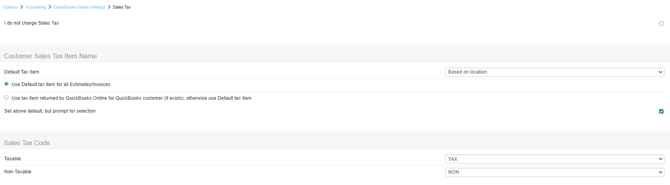
I Do Not Charge Sales Tax
Select this option if you do not charge sales tax.
Default Tax Item
Here users can select what tax item to use, by default. Users can choose to use this on all Estimates/Invoices or to use the ta item returned by QuickBooks if it exists. Additionally users can select prompt for selection to ensure this option is provided as a prompt when an Estimate/Invoice is created.
Defaults Tab
The Defaults Tab is where users can map default settings when items do not exist in QuickBooks Online and QuoteWerks is prompting the user to create them. These are just default settings and are not required.
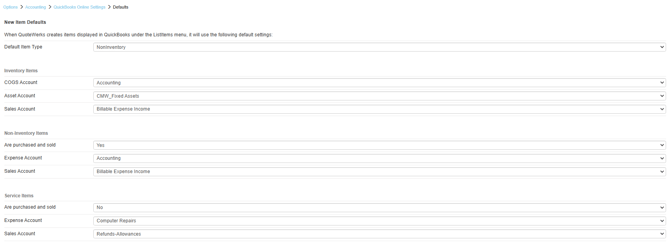
New Item Defaults
Default Item Type
When exporting an item(s) to QuickBooks Online and a new item needs to be created in QuickBooks Online, you will be prompted to select the item type of Inventory, Non-inventory, or Service. Here you can select the default type.
Inventory items
COGS Account
When a new inventory item needs to be created in QuickBooks Online, you will need to select the Cost of Goods Sold (COGS) Account for the item. Here you can select the default account.
Asset Account
When a new inventory item needs to be created in QuickBooks Online, you will need to select the Asset Account for the item. Here you can select the default account.
Sales Account
When a new inventory item needs to be created in QuickBooks Online, you will need to fill out the Sales Account for the item. Here you can select the default account.
Non-inventory items
Are purchased and sold
When a new non-inventory item needs to be created in QuickBooks Online, you will need to specify whether or not the non-inventory item is “purchased and sold”. Here you can select the default preference.
Expense Account
When a new non-inventory item needs to be created in QuickBooks Online and you select ‘Yes’ to “non-inventory items are purchased and sold”, you will need to fill out the non-inventory item Expense Account for the item. Here you can select the default account.
Sales Account
When a new non-inventory item needs to be created in QuickBooks Online, you will need to specify the sales account that you want to be associated with this item. Here you can choose to set the default account.
Service items
Are purchased and sold
When a new service item needs to be created in QuickBooks Online, you will need to specify whether or not the service item is “purchased and sold”. Here you can select the default preference.
Expense Account
When a new service item needs to be created in QuickBooks Online and you select ‘Yes’ to “service items are purchased and sold”, you will need to fill out the service item Expense Account for the item. Here you can select the default account.
Sales Account
When a new service item needs to be created in QuickBooks Online, you will need to specify the sales account that you want to be associated with this item. Here you can choose to set the default account.
Items Tab
The Items Tab includes two settings. The first is for displaying items in the Product Lookup window and the second for displaying QuickBooks Accounts when new items are created.

Product Lookup
This setting will display the QuickBooks Online product source in the Product Lookup window of QuoteWerks.
Advanced Users
This setting will display all of the QuickBooks Online accounts when creating new items in QuickBooks Online instead of being limited to the accounts that are documented in the QuickBooks Online API. This is recommended only for advanced users. If the wrong account is selected, an error will occur when attempting to create the new item in QuickBooks Online and the document creation will be stopped.
Quickbooks Online Info Tab
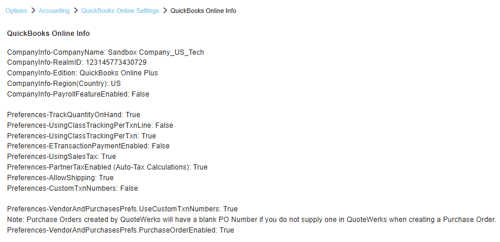
The QuickBooks Online Info Tab inclues information regarding your QuickBooks Online account including the company name, ID, edition, region, etc. This is useful information that can be shared with the QuoteWerks Tech Support team when troubleshooting issues.
Users can use the [Copy to Clipboard] button to copy this data to the clipboard.