
To setup VendorRFQ you need to ensure that you have your vendor information created in QuoteWerks and that you have reviewed and setup your VendorRFQ Templates.
Setting up Vendors
Navigate to the Setup -> Vendors menu and make sure that you have an entry for each vendor you would like to send RFQs to. Full details on Adding, Editing, Deleting, or Importing Vendors can be found in the Vendor Maintenance topic.
IMPORTANT: Ensure that you fill out the vendor name and account number and be sure to create at least one contact for the vendor including the vendor sales rep name, the vendor sales rep email, and to include the vendor sales rep on the VendorRFQ Email.
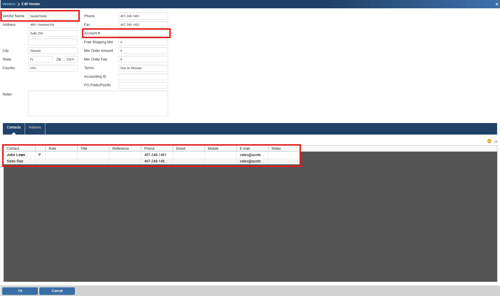
IMPORTANT: If the vendor does not have an email address set up, then they will not be available in the VendorRFQ list.
Setting up VendorRFQ Templates
VendorRFQ templates allow you to customize the email messages sent from VendorRFQ. Users can customize four templates that are used to send updates to both the Vendor and the Buyer as seen below.
To access the VendorRFQ email templates navigate to Setup -> Options -> VendorRFQ.
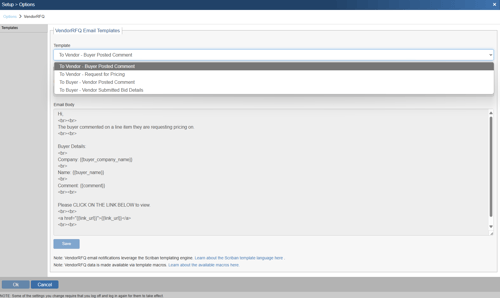
To Vendor - Buyer Posted Comment
This email is sent to the vendor on the RFQ when the buyer posts a comment.
To Vendor - Request for Pricing
This email is sent to the vendor when the buyer requests pricing from them.
To Buyer - Vendor Posted Comment
This email is sent to the buyer when the vendor posts a comment on the RFQ.
To Buyer - Vendor Submitted Bid Details
This email is sent to the buyer when a vendor submits a bid.
IMPORTANT: Customizing VendorRFQ email templates requires HTML expertise. Once customized, you are responsible for maintaining the template, as automatic updates and fixes cannot be applied. However, you may revert to the default template at any time.
Each template can be customized by selecting the template you wish to edit and selecting the Customize radio button. This makes the email body and email subject editable and you can customize the template using Scriban language syntax, which is very similar to HTML, and macros. Learn about the Scriban template language here.
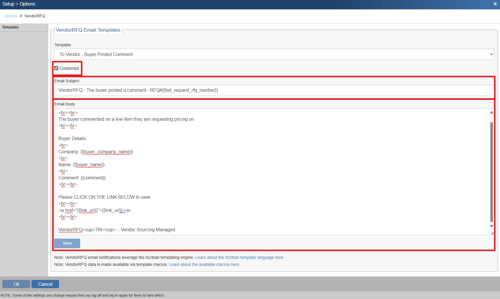
Within the email body you can use a combination of text, HTML, and macros to build your customized email templates. A list of available macros is included below.
Available Template Macros
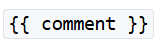
For macros to print from the HTML template each macro must be encapsulated with brackets as seen below:
Standard Set (Available in all)
rfq_numberrfq_namerequest_rfq_numberbuyer_company_namebuyer_namebuyer_email_addressbuyer_phone_numberbuyer_phone_extvendor_name link_url
To Vendor - Buyer Posted Comment (includes Standard Set)
comment
To Vendor - Request for Pricing (includes Standard Set)
number_of_items
To Buyer - Vendor Posted Comment (includes Standard Set)
comment
To Buyer - Vendor Submitted Bid Details (includes Standard Set)
for item in items item.manufacturer_part_number item.description item.price_currency item.vendor_part_number item.vendor_part_number_before item.price item.price_before item.conditions item.conditions_beforeend