
QuoteWerks can merge data into Microsoft Word templates (.doc and .docx).
To create new Word templates for QuoteWerks, open Microsoft Word and save the file into the \layouts\Quote, \Layouts\Order, \Layouts\Invoice folders for Quotes, Orders, and Invoices respectively using the File Manager.
Using the QuoteWerks Word Merging feature you have access to all the formatting that Microsoft Word supports including fonts (bolding, italicizing, underlining, color, size, etc.), bullet points, headings, and pictures.
NOTE: Microsoft Word templates cannot be cloned, created, deleted, or renamed from the Layout tab. Users will need to navigate to the \Layouts\Quotes folder to make copies or delete old templates.
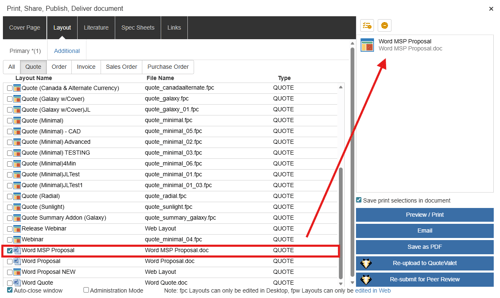
To merge a Microsoft Word Template into the quote output navigate to the deliver window and select the template you would like to add. It will be added to the print selection area. When previewed or printed any macros contained in the file will be replaced with data from the QuoteWerks system.
NOTE: Please note that when performing a Word Merge using Item Types and/or Custom Fields to group items together into their own table or a certain place in the Word document, any Heading, Comment, and/or Subtotal Lines will NOT be merged into the document.
See also: