
QuoteWerks supports email templates for users. This functionality allows users to create and customize email templates in QuoteWerks for quotes, orders, invoices, and QuoteValet emails. The templates can also be setup for Peer Review and Quote Approvals and Acceptance emails.
This article covers the following topics:
- Accessing E-Mail Templates
- E-Mail Templates Tab
- Snippets Tab
- Signatures Tab
- HTML Templates Tab
- Using E-Mail Templates
Accessing E-Mail Templates
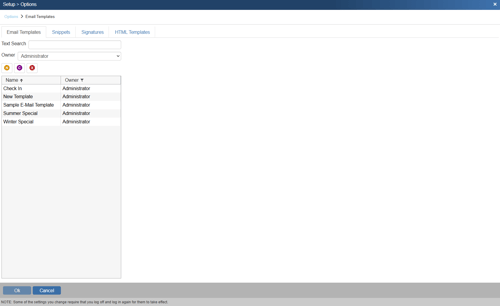
Navigating to Setup -> Email Template Manager will allow you to start setting up the templates in QuoteWerks.
E-Mail Templates Tab
The email templating system allows users to customize all the emails that QuoteWerks sends. The E-mail Templates window can stay open while sending e-mails in QuoteWerks making it easy to quickly make adjustments and preview the results. There are System, Public and User E-Mail templates. The System templates can be directly modified by users with Master Rights. Users can also create their own templates to be used from the Send Email window. Public templates are templates that most users would want to use, typically with company standardized information in them. The real benefit is that changes can be made in one template, and all the users now are using the updated template.
There is also a "Select Template" dropdown on the Send Email window. When a template is selected, the subject and body of the email will be updated with the information from the template.
The templates are separated by user. Each user can create, edit, and delete the templates under their own username. Only Administrators can make changes to the System templates.
Owner
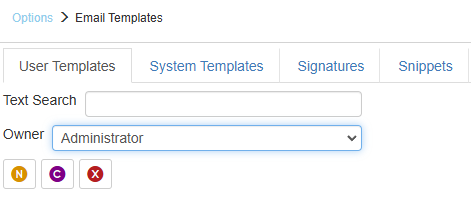
The “Owner” of a template is the user that owns the template in QuoteWerks. The drop down list includes three different types of templates (System, Public, and user) in QuoteWerks. Each user can have their own templates under their own name.
Public
The “Public” templates are templates that any user can utilize and usually include a standardized message or information in the template. The benefit of using Public templates is that when changes are made in the standardized message, that change only has to be made on that public template and all users who use that specific public template will have the updated information.
If a user creates a new template and wants it available for all users, they can make the template public. Public templates (based on their context) will appear in the list of templates for all users on the Send Email window.
Other Users
All other users will see their username under the owner tab. Any template created by that user and not made public will only be available under that user’s log in name. Users will need to make templates public in order for other users to utilize them.
Customizing the E-mail Templates
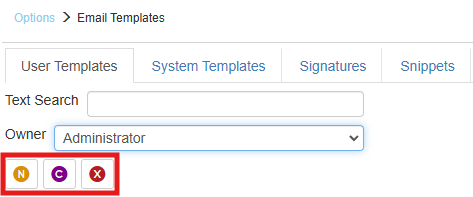
Each template in QuoteWerks can be customized or users can create completely new ones. To create a new, blank template click on the  button.
To Clone a template from a previously created template, select the user’s template you wish to clone and click on the  button.
NOTE: Whenever a user clones a template, that template is created under that user’s templates in QuoteWerks.
To delete a template, highlight the template you want to delete and click on the  button.
NOTE: Once a template is deleted, it is permanently deleted and cannot be restored. Only do this if you are sure you want to remove a template permanently.
Creating New E-mail Templates
To create a new template, first choose the “Owner” from the drop down list of where you want to create the new, blank template. This is going to create the new template under that user. Click the button to begin with a blank template (New).
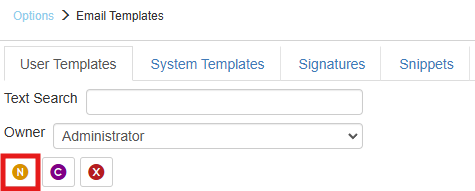
Once you have created the new template you will be prompted to enter a name for this template. This name will be the name of the template found when choosing templates in your email window. Be sure to name it something you will recognize.
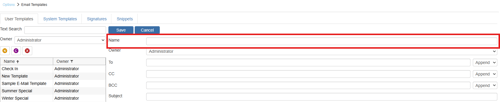
After the template has been created you will be able to change the name, add a default subject for the template, assign it to the proper owner (if not already done), and much more. You will also now be able to save the template and any changes by clicking on the save button.
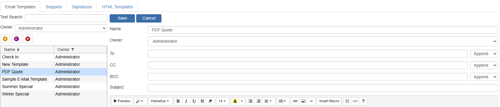
To, CC, BCC
The To, CC, and BCC fields enable you to set default email addresses for specific templates. This is very useful if you want the sales manager BCC'd on every quote that goes out or maybe you need purchasing automatically CC'd when you are sending a payment request email. This feature makes it very easy to automatically default email addresses for specific email templates in your installation. You can also utilize macros in these fields.
TIP: To setup an auto-email reply-to so the customer that receives the email will reply to your ticketing system instead of the logged-in user, you can enter in this setting under the Settings Manager. Set the setting: SET:UserSettings:UserEmail:&APP_LoggedInUserName:Reply-to=Ticket System <tickets@domain.com>. This would allow the customer to reply to the email sent, but the email will then go to the ticketing system (or any other email address specified) instead of to the sales rep for easier tracking.
From Settings Manager you can also set this for all users at once with this SET command: SET:UserSettings:UserEmail:%AllUsers%:Reply-To=Ticket System <tickets@domain.com>. You can utilize other macros in this setting as well such as "&APP_LoggedInUserFullName", "&APP_&LoggedInUserFullNameOrUserName", and many more.
E-Mail Content
The next section of the email template window will allow you to customize the text and the look of the template. The window has a full toolbar that includes the ability to change fonts, sizes, cut, copy, paste, spell check, etc. You can also insert pictures and web links. Users also have the ability to switch the template into HTML code as well.
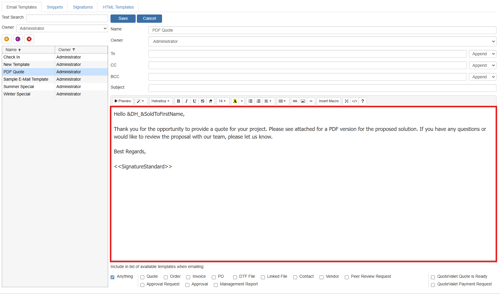
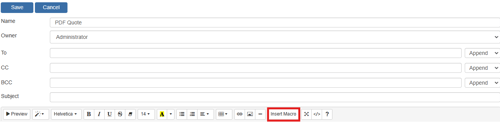
At the top of the template editing window is the “Macro” button. This menu allows you to choose from any of the available macros in QuoteWerks and add them into your template. Each macro from the various tables in QuoteWerks is available here.
Additionally, the Email Templates and Snippets support specific email macros such as <<RecipientName>>, <<RecipientFirstName>>, <<RecipientLastName>>, <<RecipientEmail>>. These macros are only available in the email templates and are used to show the recipient’s full name, first name, last name, and/or email address in the email body.
Macros also supported in Email Templates and Snippets only:
<<SystemTemplateBody:Name>>: This macro enables users to add the body of a system email template into another template without having to retype the body information.
<<SystemTemplateSubject:Name>>: This macro enables users to add the subject of a system email template into another template without having to retype the subject.
<<PublicTemplateBody:Name>>: This macro enables users to add the body of a public template into another template without having to retype the body information from that template.
<<PublicTemplateSubject:Name>>: This macro enables users to add the subject of a public email template into another template without having to retype the subject information.
<<MyTemplateBody:Name>>: This macro enables users to add the body of a template from a logged in user’s email template into another template without having to retype the body information.
<<MyTemplateSubject:Name>>: This macro enables users to add the subject of the logged in user’s template into another template without having to retype the subject information.
<<File:FileNameandPath>>: This macro enables users to add either plain text or html from a file from the user’s environment.
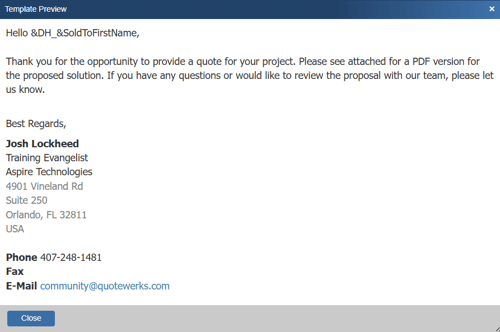
You can preview what the template will look like with the macros populated from the QuoteWerks system by clicking on the Preview button. This opens the Template Preview window.

The last section on the email template is the “Include in list of available templates when editing” options. Here the user defines which type of email the current open template will be associated with by checking the appropriate box.

Anything
Checking this box will enable this template to be selected when creating any type of email in QuoteWerks.
Quote
Checking this box will enable this template to be selected when emailing a quote.
Order
Checking this box will enable this template to be selected when emailing an order.
Invoice
Checking this box will enable this template to be selected when emailing an invoice.
PO
Checking this box will enable this template to be selected when emailing a PO.
Linked File
Checking this box will enable this template to be selected when emailing a Linked File.
Contact
Checking this box will enable this template to be selected when emailing a contact.
Peer Review Request
Checking this box will enable this template to be selected when requesting a Peer Review.
Approval Request
Checking this box will enable this template to be selected when requesting approval.
Approval
Checking this box will enable this template to be selected after approving a quote.
DTF File
Checking this box will enable this template to be selected when emailing a DTF file.
Management report
Checking this box will enable this template to be selected when sending a management report.
QuoteValet Quote is Ready
Checking this box will enable this template to be selected when emailing a QuoteValet Quote to your customer.
QuoteValet Payment Request
Checking this box will enable this template to be selected when emailing a Payment Request to your customer.
Snippets Tab
Snippets are a great way to centrally organize and maintain information that is used in multiple email templates. For example, if you have several email templates that need to include the same information, such as product updates, instead of typing that same information into multiple email templates, you can create a single Snippet and add it to each template as a macro. Then when you need to make a change to that information in your templates, you can simply make changes to the information in the snippet, and the changes will automatically appear in the two email templates.
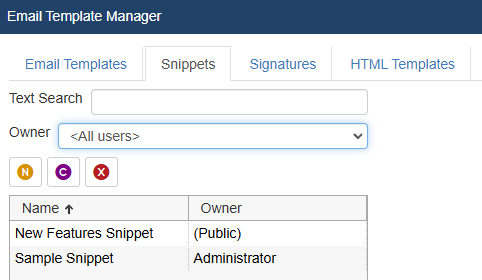
Creating New Snippets
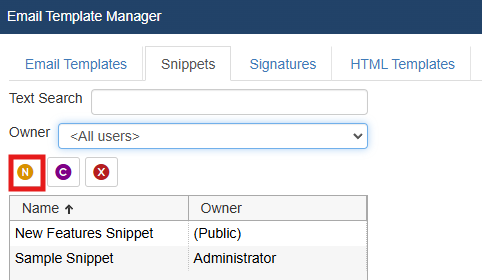
To create a new Snippet, first choose the “Snippets” tab from the Customize Email Templates menu option. Choose which user you would like to create the new Snippet for under the “Owner” drop down menu and then click on the  button to create the new snippet. This will create a blank snippet.
Once you have created the new snippet you will be prompted to enter a name for this snippet. This name will be the name of the snippet when adding it to the email template. Be sure to name it something you will recognize.

You are able to change the owner by selecting the drop-downown menu below of the Snippet name. You will also now be able to save the Snippet and any changes by clicking on the save.
The next section of the Snippet window will allow you to customize the template. The window has a full toolbar that includes the ability to change fonts, sizes, cut, copy, paste, spell check, etc. You can also insert pictures and web links. Users also have the ability to switch the Snippet into HTML code as well.
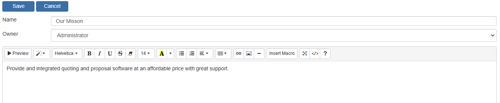
On the toolbar of the Snippet editing window is the Macro button. This button allows you to choose from any of the available macros in QuoteWerks and add them into your Snippet. To preview the template with the selected macros applied click on the Preview button.
Adding Snippets to E-Mail Templates
To use a created Snippet in an email template, open the email template you wish to add a snippet to. After clicking on the Macro button look for the “MySnippet” and/or “Public Snippet” macro:
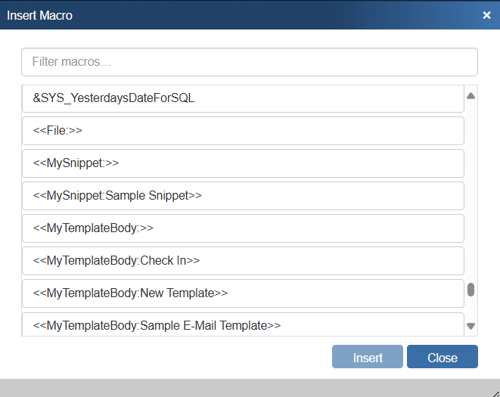
The MySnippet macro refers to a Snippet created under the current logged in user’s snippets. The “Public Snippet” macro refers to the public snippets that are available to all users.
Once the snippet macro has been added to the email template you will need to enter in the snippet name. The macro should look like this:
<<MySnippet:SnippetName>>
<<PublicSnippet:SnippetName>>
For example a User Snippet named New Features Snippet should look exactly like this:
<<MySnippet:New Features Snippet>> when added to an email template.

Signatures Tab
When sending e-mails, it is useful and professional to include your contact and company information at the end of the e-mail. The signature can contain static information like your phone number, e-mail address, etc and it can also use QuoteWerks macros to automatically insert information dynamically into your e-mail signature text.
Each user has the option to set their signature as Standard, Short, Alternate 1, Alternate 2, or Alternate 3. “Why would you have the need for 5 different email signatures?” you might ask.
There are so many uses for these. During each season of the year, you might have a slightly different e-mail signature (like Happy Halloween, Merry Christmas, Happy New Year, etc) and now you can keep them all instead of replacing it each time. Sometimes you want to include your signature complete with your full address, phone number, title, etc. Other times you will just want to include your Short signature, like just your name, title, and phone number. The short signature is particularly good for QuoteValet "Your Quote is Ready" emails to your customers. Rather than typing in your email signature into each email template you setup, you can use email signature macros in them, making it easy to change your email signature in 1 place.
Standard Signature
The Standard Signature is the signature you use for the majority of your correspondence. This signature typically has all of your company contact information as well as your contact information contained in the email and any other information you wish to include. The Email signature macro for the Standard Signature is <<SignatureStandard>>. Using this macro in an email template will activate that signature for that template rather than the signature selected as active.
Short Signature
The Short Signature is primarily used for clients or associates that already have your contact information and that do not need your additional contact details. This allows the email you are sending to have a more casual approach. The Email signature macro for the Short Signature is <<SignatureShort>>. Using this macro in an email template will activate the Short Signature for that specific template.
Alternate 1, 2, and 3 Signatures
These signatures offer you a way to easily switch the signature in an email. This feature is exceptionally useful if you have multiple business or multiple titles within the same business, you can easily switch signatures with the correct contact information. The Email signature macros for the Alternate Signatures are <<SignatureAlternate1>>, <<SignatureAlternate2>>, and <<SignatureAlternate3>>. Using one of these macros in an email template will trigger the Alternate Signature for that specific template.
Active Signature
Choose from the drop-down list which email signature you would like to set as your default. When using an email signature macro in a template, you can use <<SignatureActive>> macro instead of <<SignatureStandard>>, <<SignatureShort>>, etc. When you use the <<SignatureActive>> macro, it will be replaced with whatever you set as the Active Signature here on this screen.
Take for example, if you have 20 email templates and in each one you used the macro <<SignatureStandard>>, then when you wanted to use a different signature like <<SignatureAlternate1>>, you would have to edit 20 templates. With the Active Signature feature, just use the <<SignatureActive>> macro in the 20 templates, and then under the Email tab of the Tools->My Preferences menu, just change your Active Signature to Alternate1 and you will not have to modify any of the templates. You can also switch between signatures that might have a monthly special offer included in it.
Setting Up Your E-Mail Signature
You can click on the name of the signature to customize your own e-mail signature that QuoteWerks will automatically insert at the end of each e-mail you send:
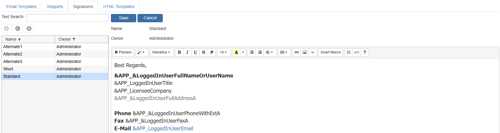
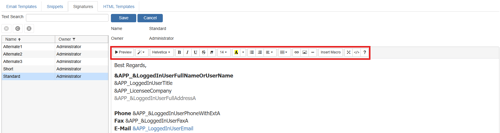
The signature can contain static information like your phone number, e-mail address, etc and it can also use QuoteWerks macros to automatically insert information dynamically into your e-mail signature text. The signature also supports bolding, italics, underlining, font colors, font sizes, pictures and hyperlinks. Other features available include the ability undo, redo, cut, copy, paste, plus aligning text and objects to the left, center and right:
HTML Templates Tab
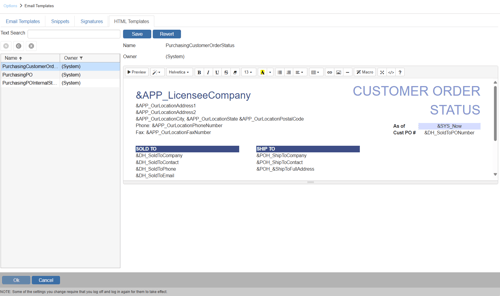
The HTML templates tab contains templates used for purchasing emails. This includes templates for Customer Order Status, Internal PO Status, and PO emails. Select a template and an editor will open where you can edit these templates. You can save your changes by clicking Save or revert them to the original by clicking Revert.
Using E-Mail Templates
To use a created email template, open the send email window in QuoteWerks. On the right-hand side of the window next to the To address selection field, there is a drop-down box:
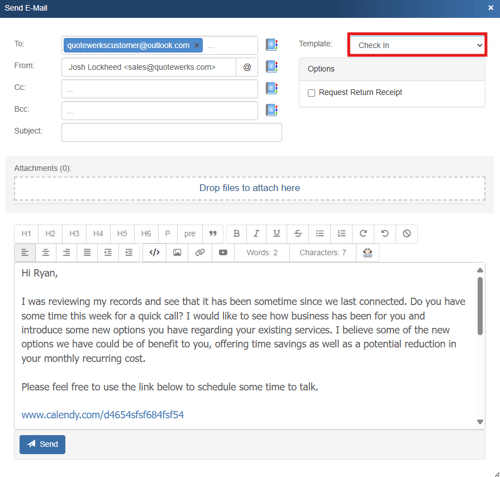

This is where you select your template to use. Click on the drop-down box to show the different templates that are available for this particular type of email.
Depending on what type of email you are sending (quote, order, invoice, QuoteValet, approval, etc.) depends on which templates you will see in your drop-down list.
After selecting your email template, your email will populate with any macros, web links, signature, snippets, etc. from the chosen template.
If you need to make any changes you can do so before sending the email out.
See also: