
Pinnacle Edition users have access to the Amazon Product Data Source (USA only). This allows users to search Amazon directly instead of indirectly through Etilize, so results will appear even if the manufacturer or manufacturer part number is missing.
In order for Amazon to display in your list of Product Data Sources in the Product Lookup Window you need to ensure "Show Amazon Product Source on Product Lookup" is selected on the Amazon Real-time setup page as seen below. This page is access by navigating to Setup -> Options -> Real-time and selecting Amazon.

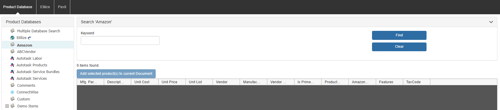
To access the Amazon Product Data Source navigate to Products on the Navigation Panel and select Amazon under Product Databases as seen below.
Search
In the Keyword box type in your search criteria. The more information entered in the search, the better your results.
Results Window
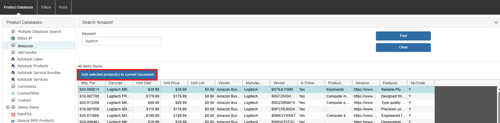
After your search has completed the results will populate in the Results Window. This will display the first 50 results (if more than 50) and the part number, item description, cost, price, and MSRP (list) among other columns including if the item is Prime eligible and any item features.
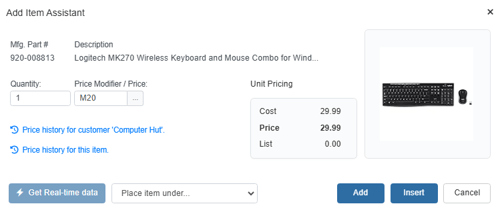
Once you have located your item, double-click on it or click the [Add selected product(s) to current Document] button to add the item to your document. This will also display the picture (if available) in the Add Item Assistant.
Adding an Amazon Business Product to a Quote
To add an Amazon Business product to a quote search for the product you are looking for, select it and click on Add selected product(s) to current Document. This will open the add item assistant and you can add the product to you quote from there by clicking on Add or Insert.
For information on how to setup the Amazon Business integration please see the following help article: