
In order to add a configuration to your quote, click on the Configurator  icon from the Grid Toolbar or select Configurator... from the Products dropdown menu.
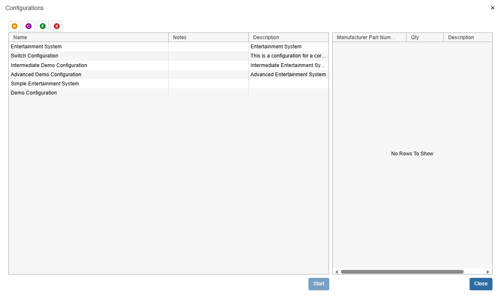
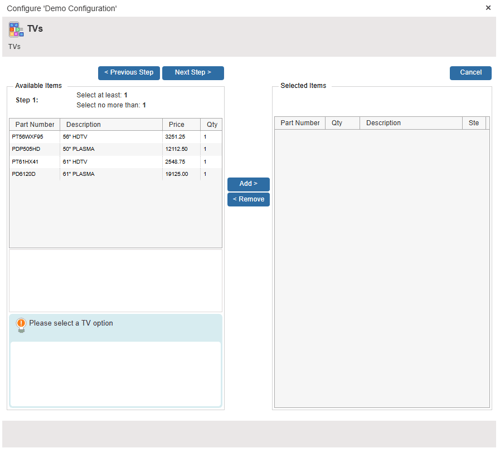
From the list of configurations, select a configuration, click on the [Start] button to start the Configurator. This will open Step 1 of the configuration. Note that there is a name for the step (in this example TVs), there is a select at least and select no more than indicator and a configuration prompt at the bottom left of the window.
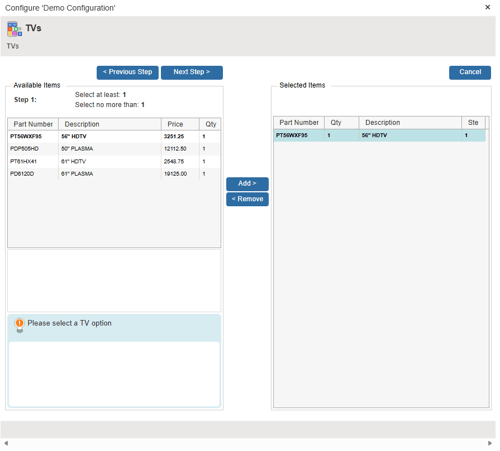
Select an item from the list of items and click on [Add] to add it to the selected items list. The selected item will be bolded both on the available items list and selected items list as an indicator that it has been added. You can remove a selected item from the selected items list by clicking on the [Remove] button.
Click the [Next Step] button to advance to the next step, or the [Previous Step] button to back up.
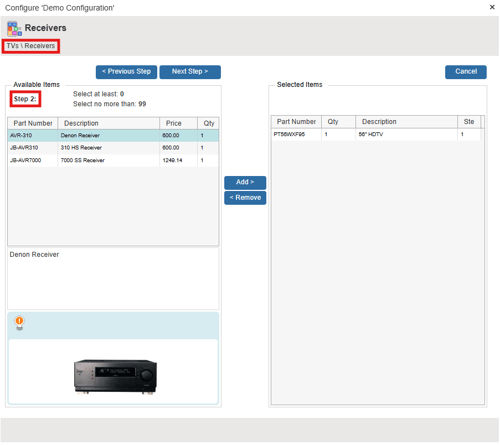
As you move through the steps, you'll see a path display at the top showing you the steps you have completed, your current step, and also the current step number.
If you decide to cancel the configuration at any point, you will be returned to the Configuration Window.
On the final step of the configuration, you have the option to choose where this configuration is added to the document. You can insert it under an already existing Section Header or Heading Line or create a new one.
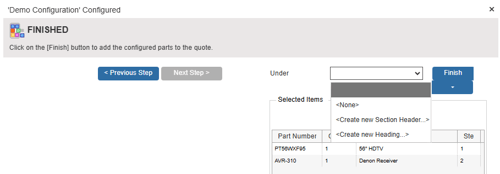
When all of the steps are completed, click on the [Finish] button and QuoteWerks will add all of the items you selected to the quote.
Below the [Finish] button there is a small drop-down arrow; when clicked, you can choose to Add or Insert the configuration into the quote. Inserting will place it above the currently selected line on the Document Items tab. Adding will place it at the end of the document.
QuoteWerks will also prompt you to set the quantity of the configuration when adding it to the quote.
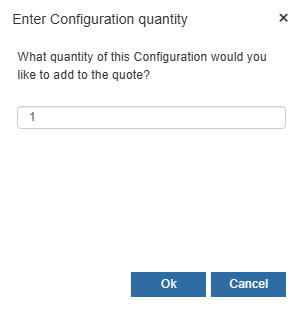
NOTE: You can change the setting to prompt or not prompt for the quantity under the Misc tab of the My Preferences page.