
To print a document, open the document, and then select the File -> Print/E-mail/Deliver menu, click the deliver button on the bottom right of the Quote Workbook, or click on the  icon on the grid toolbar to display the Print, Share, Publish, Deliver Document window.
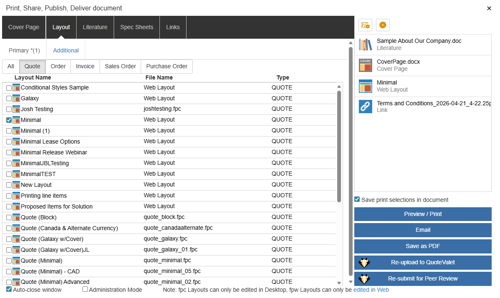
The Print, Share, Publish, Deliver Document window includes five tabs, which are outlined below:
Layout Tab
The Layout Tab displays the layouts used to create the customer facing document and deliver it to the customer by printing, emailing, saving as a PDF, or uploading to QuoteValet. The layout tab also includes a [Preview/Print] button to preview what the document would look like before sending to the client. Additionally, this tab includes the Submit for Peer Review and Request Approval buttons for sales reps to initiate peer reviews and document approvals.
Primary Subtab
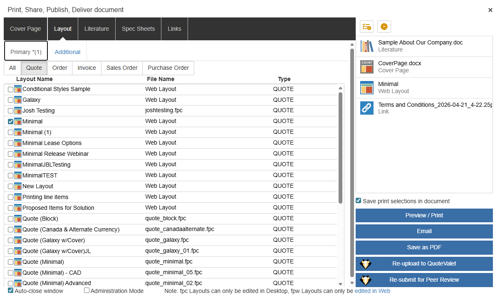
The Primary Subtab displays the available layouts. Only one layout can be selected from the Primary tab for each quote or proposal. To select a layout, click on the layout name. Once selected it will be added to the selection panel on the right hand-side of the Deliver window. Double-clicking on the layout will merge and preview just that layout file (even if you have Covers, Literature, Spec Sheets, or Links attached) so you can view what it would look like before previewing the entire document.
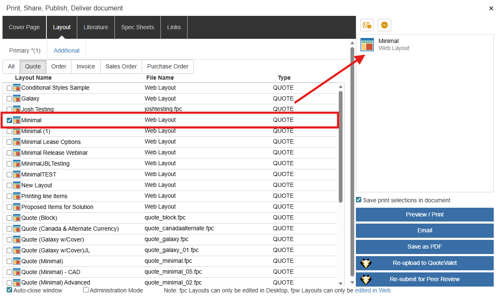
When you click on a layout on the Primary subtab, all other layouts are de-selected. This makes it easy to change layouts as needed and not have to worry about remembering to change the layouts from the Additional subtab. Also, the layout selected as the primary layout is the one that determines different behavior if a purchase order layout is selected as the primary layout. In that case it would then make the "Create PO for each vendor" checkbox visible. Finally, it disables the Save print selections in document.
Filter By
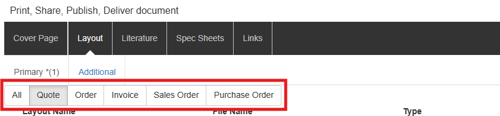
The filter section will let you filter layouts by document type. By default, the filter will automatically display the document type open in QuoteWerks. For example, if you have a quote document open, it will default to the "Quote" filter. However, you can view other types of layouts by clicking on the filter buttons such as Order, Invoice, Sales Order, and Purchase Order. Microsoft Word templates that are setup for Word Merging will also appear under the correct filter (quote, order, invoice, etc) based on the folder in which they were setup.
There are Access Rights that limit users from viewing different document types. Only the documents users are allowed to view will display in their Layout tab and each corresponding filter selection.
Filter Buttons
All - Will display all layout types available in QuoteWerks
Quote - Will only display quote layouts
Order - Will only display order layouts
Invoice - Will only display invoice layouts
Sales Order - Will only display sales order layouts
Purchase Order - Will only display purchase order layouts
Additional Subtab
The Additional Subtab allows users to add multiple layouts to the open quote or proposal. This is extremely useful if you wanted to create a document that includes a list of line items and then on a different layout only display the summaries of the sections divided by item type. Using the layouts in this manner provides flexibility for customizing the output to clients.
To add one or more additional layout(s) to your selections, click on the checkbox next to the layout name(s). You can add as many additional layouts as needed on the Additional Subtab.
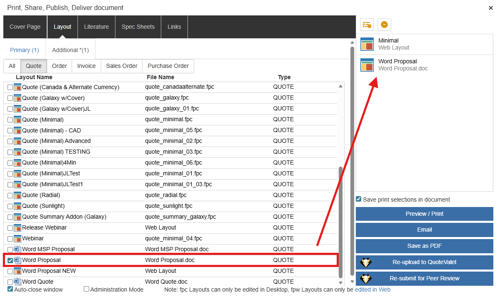
Auto-close Window
This option, when checked, will auto-close the window after a print, preview, peer review, approval, or QuoteValet operation. This same option is also on the Misc. Printing Tab of the Setup -> My Preferences menu. Having this option on the Print window will make it easier to turn this option on and off while performing different kinds of activities from the Print window.
Selections Panel
The selections panel is located on the right-hand side of the Print, Share, Publish, Deliver Document window. This panel displays all of your current selections from the Cover Page, Layout, Literature, Spec Sheet, and Links tabs.
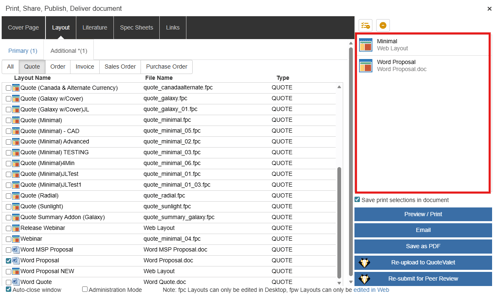
This panel allows you to reorder the selected documents, edit a selection, remove a selection, and clear the selections.
 - Removes all selections from the selection panel.
 - Removes the highlighted selection.
Save Print Selections in Document
This option, when checked, will remember your print selections for the current open document in QuoteWerks. Whichever selections you made, the next time you open this document in QuoteWerks your selections will already be set for that specific document, even if they are not your default settings. Uncheck this box and QuoteWerks will not remember your original selections.
If the last layout used with the open document is missing, a message will be displayed in the status bar of QuoteWerks.
When you select a purchase order type of print layout, the “Create PO for each Vendor” checkbox will appear above the list of layouts. If you check this box, QuoteWerks will look at each line item in your document and create a separate purchase order for each unique vendor name as it appears in the vendor column of the quote. QuoteWerks will look in the vendor list for that vendor name to obtain the vendors address, phone number, etc. and place it on the purchase order. See Quotes, Orders, Sales Orders, Purchase Orders, and Invoices for details on printing purchase orders.
NOTE: QuoteWerks will remember your print layout selection, so the next time you open the document and select File -> Print/E-mail/Deliver, the print layout that you used to print/preview/fax/e-mail the document last time will be automatically selected. QuoteWerks will remember separately each layout you used to print the quote, order, and invoice. If you select the “Display all layouts option” then QuoteWerks will remember whatever layout you selected while in that mode.
NOTE: If you choose <None> you are choosing not to have a layout for your quote. The documents from the other tabs will still be included, however. The Print, Preview Email, and Save as PDF functions will only work if you have selected documents under the Layout, Cover Page, Literature, Spec Sheets, and/or Links tab. Additionally, any document(s) selected under the individual tabs can be emailed directly from this window and will be merged together.
Access Rights for Layouts
Users can setup specific access rights for the layouts to control which users and groups can view and modify layouts. See the Enable Individual Resource Security topic for information on setting up this functionality.
Cover Page Tab
On this tab, you can choose to include a cover page with the document. The cover page is an RTF or Word formatted document which can be created in Microsoft Word. RTF and Word files listed in the \Covers directory in the File Manager will appear in the drop-down list.
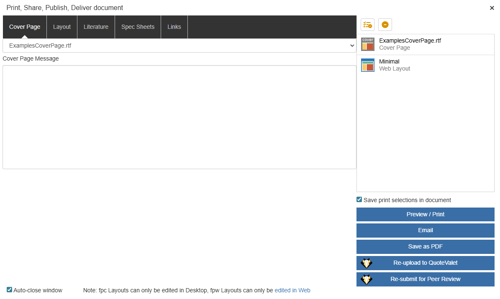
Once you have made your selection, your cover page will be displayed on the selection panel on the right-hand side of the window.
The macros used in QuoteWerks for RTF and Microsoft Word files are very similar. The only difference is that macros used in RTF documents need to be double-underlined. For Microsoft Word documents, the macros need to begin and end with the angle brackets (e.g. <<&DH_DocNo>>). The screen shot below shows what macros would look like in a Word document.
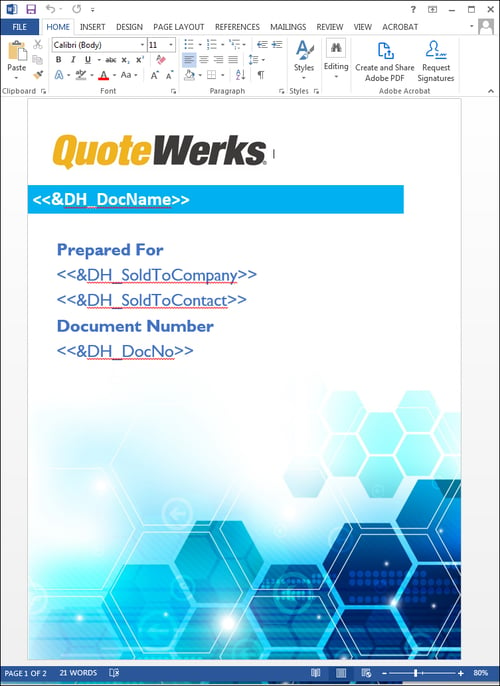
View the Cover Page, Literature, and Microsoft Word Template Document Macros for a list of the macros that can be used in these files.
Literature Tab
On this tab, you can select any literature that you would like to include at the end of this document such as information about your company services, support/warranty policies etc. The literature documents can be RTF, Word or PDF formatted files. These files need to be located in the \Literature directory.
To upload files and have them display on the literature tab navigate to the File Manager and put them in the Literature folder. They will then be available to select on the literature tab of the Print, Share, Publish, Deliver Document window.
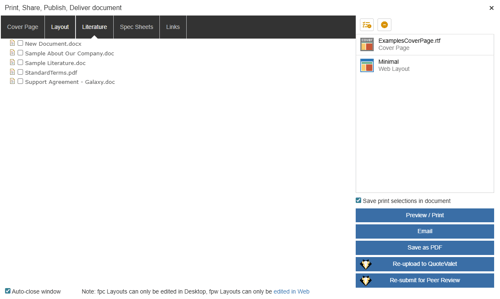
Once a selection or multiple selections have been made, these documents will be added to the selections panel on the right-hand side of the window.
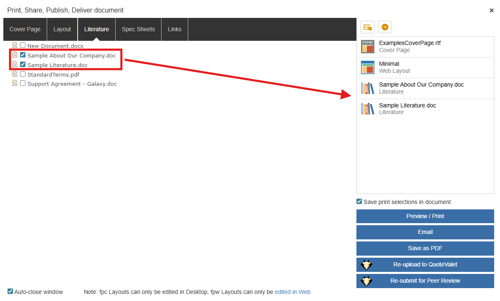
The macros used in QuoteWerks for RTF and Microsoft Word files are very similar. The only difference is that macros used in RTF documents need to be double-underlined. For Microsoft Word documents, the macros need to begin and end with the angle brackets (e.g. <<&DH_DocNo>>).
View the Cover Page, Literature, and Microsoft Word Template Document Macros for a list of the macros that can be used in these files.
NOTE: Page numbers can be inserted into RTF and Word attachments by inserting a page number on the document from within Word. This is typically done by going to Insert -> Page Numbers. However, these page numbers will not carry over to the other files in the document.
NOTE: All Cover Page macros are supported in literature RTF and Word documents.
Once you have selected the layout of your choice, the cover page, and the additional literature, you can preview it, print it, e-mail it, or upload it to QuoteValet.
NOTE: QuoteWerks will remember your Literature tab selections the next time you want to print, preview, e-mail or fax your document.
Access Rights for Literature Files
Users can setup specific access rights for the literature files to control which users and groups can view and modify the literature files. See the Enable Individual Resource Security topic for information on setting up this functionality.
Spec Sheets Tab
On this tab, you can choose to include any spec sheets associated with items in the document. Spec sheets can be formatted as RTF, Word, or PDF documents. It’s recommended that you save your spec sheets into the \SPECS folder using the File Manager.
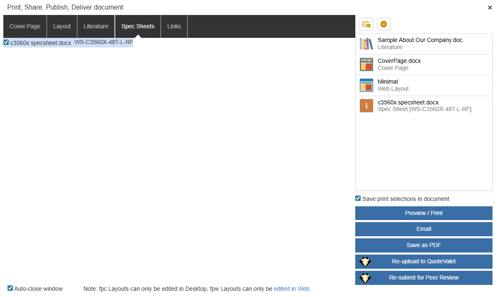
Selecting Spec Sheets
Check the checkbox next to the spec sheet name to add it to the selection panel on the right-hand side.
Once a selection or multiple selections have been made, these documents will be added to the selections panel on the right-hand side of the window.
For information on setting up spec sheets for your items, see Setting Up Native Products and Services.
NOTE: QuoteWerks will remember your Spec Sheet selections the next time you want to print, preview, e-mail or fax your document.
Links Tab
The Links tab lets users choose which linked resources to include in the printed output. RTF, Word, and PDF files (like proposals, statements of work, etc.) will be combined with the other tab selections into the single output PDF file. If you select other document types (such as Excel, CAD Drawings, etc.) these files will be separate attachments to the final PDF.
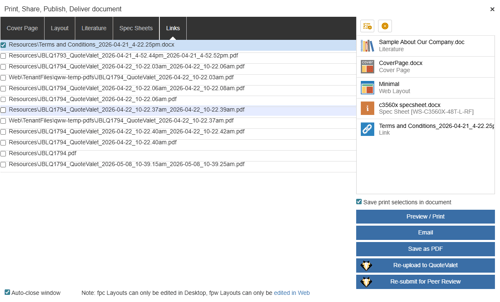
Linked documents can be in any format, including Word docs, RTF files, CAD drawings, Visio Diagrams, PDF files, Excel spreadsheets, even images, but all file types other than Word, RTF, and PDFs will be included as separate attachments in the e-mail.
Selecting Linked Resources
Check the checkbox next to the document name to add it to the selection panel on the right-hand side.
Once a selection or multiple selections have been made, these documents will be added to the selections panel on the right-hand side of the window.
NOTE: QuoteWerks will remember your Linked Resources print selections the next time you want to print, preview, or e-mail your document.