
To add an item from a product database to your quote, select the Products -> Lookup menu or click on Products from the Navigation Panel. This will display the Product Lookup window.
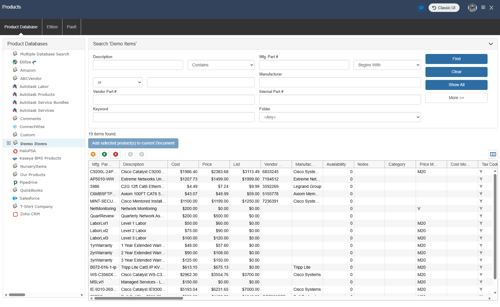
The Product Lookup window is the center of all product database operations. In the upper left corner, you'll see a list of product databases that have been set up or linked to, including the Multiple Database Search option. You can cycle through the available Product Data Sources by using the keyboard letter corresponding to the Product Data Source name.
Multiple Database Search
The Multiple Database Search allows users to search all of the native and linked product sources at one time (those databases are listed below the Multiple Database Search option).
Once selected, search fields will be available that you can use to find an item. Type the search criteria into the appropriate search field. You can type information into more than 1 search field at a time. When you have finished entering the search criteria, click on the [Find] button and QuoteWerks will search for matching items in the product databases. The results of the search will then be displayed. If there were no matches, there will be nothing displayed in the Search Results grid.
Multiple Database Search is also available on the Quick Lookup search on the Document Items tab.
Search Differences Between Native and External Product Sources
The Product Lookup window will look slightly different depending upon whether an external product source or a native product database is selected.
When an external product source is selected, the Sort By drop-down will not be available (although you can still sort by clicking on the column titles). Additionally, the ability to search by manufacturer, vendor, and internal part numbers may be unavailable depending on which database you are linking into.
Using a Selected Product
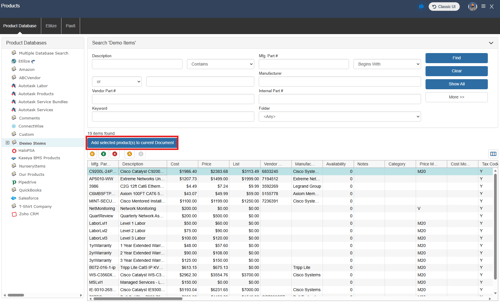
Once the product matches are displayed, you can scroll through them to find the product that you want to add to the quote. Select the item(s) you wish to add and click on the Add selected product(s) to current Document button to open the Add Item Assistant.
Add Item Assistant
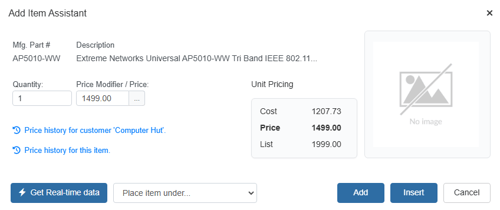
Selecting Add selected product(s) to current Document (or double-clicking on a product) will display the selected product(s) in the Add Item Assistant before adding them to the quote.
There is an option under the Setup-> My Preferences menu to enable the ‘Add Item Assistant’. If this option is checked, the Add Item Assistant window will appear clicking on the Add selected product(s) to current Document button.
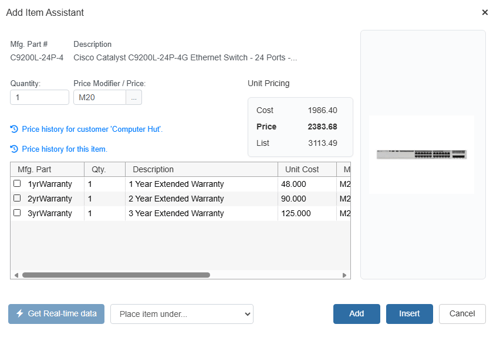
The Add Item Assistant will allow you to make some changes before the item is added to the quote. It will also display any picture associated with the item and any optional items that are setup for the item. You can include the optional items in the quote by clicking on the check box next to each item.
Lastly, you can choose where to place the selected item in your document by clicking on the [Add] or [Insert] buttons.
NOTE: If the user has the Misc Access right of “CannotSeeCostOnAddItemAssistant”, Cost will not be displayed on this window.
If the user has the Misc Access right of “CannotManuallyModifyFixedPriceInAddItemAssistant” then they will be unable to change the price of the product in the Add Item Assistant window when the product simply has a ‘Fixed’ price (not price modifier calculated).
If the user has the Misc Access right of “CannotManuallyModifyPriceModifierInAddItemAssistant” then they will be unable to change the price modifier of the product in the Add Item Assistant window when the pricing method is based on a price modifier (not a fixed price).
Item Without Optional Items
Item With Optional Items
Quantity
Price Modifier / Price
Unit Pricing
Place item under...
Add or Insert Item
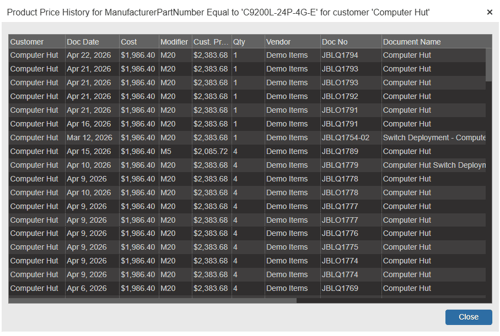
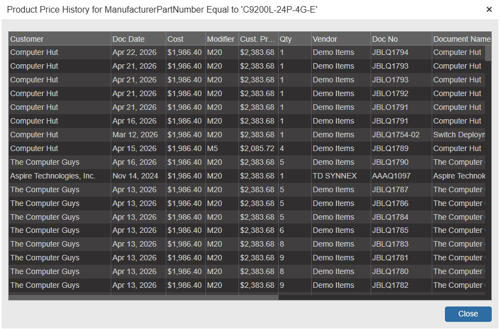
Price history for customer / Price history for this item
Show history for customer ‘Company Name’
Show history for this item
Customizing Product Lookup Window Columns
You can customize the view of the Product Lookup window by clicking on the  button from the Product Lookup window of a selected Product Database. This option is not available on the Multiple Database Search.
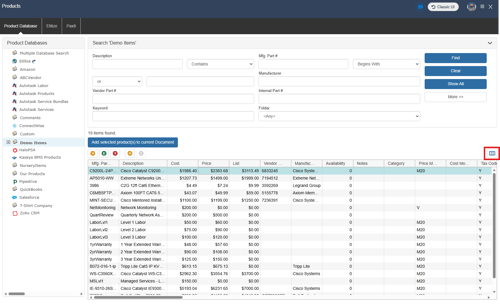
This will launch the “Customize Product Database Columns for (User Name)” window. This window has two tabs that will allow you customize the database columns for the selected pricelist.
NOTE: You can have unique, customized views for each externally linked database. If you customize the columns of a native product database, those customized settings will be applied to all native product databases.
Column Setup Tab
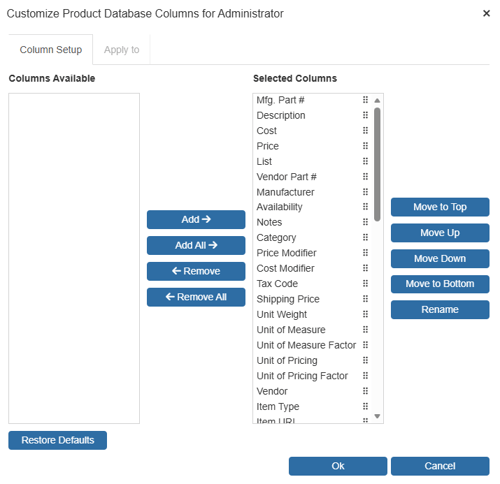
On the Column Setup tab, you can customize the columns in the product lookup window including the order of the columns, the title of the columns, and whether the column is visible or not.
You can use the Add/Remove buttons or simply double click the column to move it from “Columns Available” to “Selected Columns” and the reverse.
To change the order in which the columns appear, you can either click and drag the item to the preferred location or select the item and click the [Move Up] and [Move Down] buttons to shift the item 1 position at a time.
To save your selections, click on the [Ok] button.
NOTE: Master Rights are required to change the column names in the Product Lookup.