
The Purchase Orders tab will let you view all your purchase orders and QuoteWerks orders on one screen. You can quickly filter by date, vendor, and order status. You can also leave these fields blank to view all available documents.
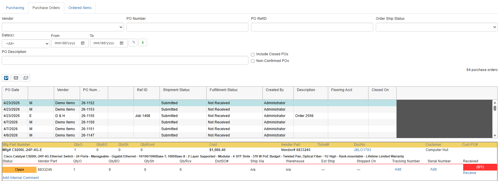
Each purchase order will list the order date, vendor, PO number, PO RefID, status, document sales rep, and the PO description. Right-clicking on a purchase order will also let you delete that purchase order if you need to remove it from the Purchase Order tab. Typically, this is due to the order being canceled, or if you want to replace it with a different purchase order.
NOTE: You'll need to have the Access Right of NonMasterRightsUser_CanDeletePurchaseOrders set to use this feature.
The  buttons allow you to quickly email your customer an updated PO Status. The
  allows you to email the PO Status to customer(s) for the selected PO. The
  allows you to E-mail PO status to customer(s) for all updated POs. With this you can update ETA dates, and receive inventory of multiple Purchase Orders, and when you click this button emails will be sent out to all customers that are affected by the PO changes you made since the last time you clicked this button! This is a huge time saver and reduces many of the "where is my order?" type of questions you receive by email and phone from your customers. The email body HTML and email can be fully customized and include tracking and serial numbers in the E-Mail Template Manager.
Purchase Order Statuses
Once you have set your search criteria, a list of the matching open POs will become available under the Purchase Order panel along with their shipment status and fulfillment status.
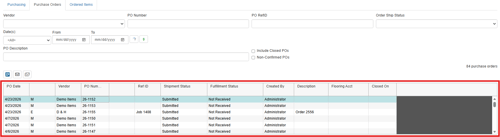
Shipment Status
The shipment status will display the shipping status of each PO. A description of each status is listed below.
Submitted
Partial Shipped
Shipped
Backordered
Canceled
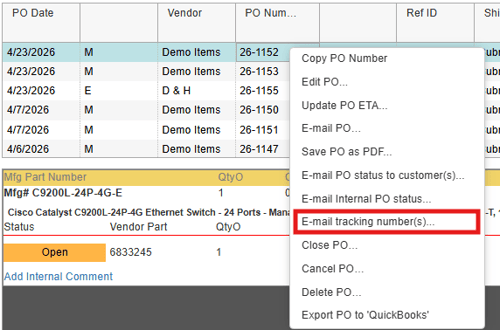
Email Tracking Numbers
NOTE: For D&H users, orders with a status of "Non Stock Invoice Complete" will have the QTYShipped automatically set to QTYOrdered amount. This status is specifically for the orders that are license and warranty orders that do not result in any physical shipping.
Fulfillment Status
- Not Received - None of the items on the PO have been received.
- Partial Shipped - One or more of the items have been received on the order.
- Fully Received - All items from the order have been received.
NOTE: For D&H users, if no fulfillment item data was returned for a PO item, the option to Mark as Shipped (Override) will automatically create a fulfillment record if it did not exist. This will result in the ability to have the PO status become "Shipped" instead of "Partial Shipped".
Editing, Closing, Canceling, and Deleting a PO
You can also right-click on a purchase order from the purchase order list and click one of the following:
-
Copy PO to copy the PO number to the clipboard.
-
Edit PO to change the purchase order's Ref ID, Description, and ShipTo information (ShipTo can only be edited if PO was manually created). This can also be accessed by double-clicking on the PO.
-
Update PO ETA This will update the ETA date to the same date for all the items in the PO.
-
Email PO to email the PO from this PO Tab
-
Save PO as PDF to save this PO as a PDF document. You can also use this option to physically print the PO.
-
Close PO to close the purchase order
-
Cancel PO to cancel the purchase order
-
Delete to remove the purchase order
IMPORTANT: Canceling a PO will not cancel the order with the vendor. It simply updates the fulfillment status to "Canceled". You will still need to contact your vendor to cancel the order to keep it from being processed.
After you've received all items and possibly after the job has been completed and billed, you can use Close PO to flag the purchase order so it no longer appears in the Purchase Order window. There is an accompanying checkbox filter, Include Closed POs, on both the Purchase Orders and Ordered Items tab that you can use to retrieve an older closed purchase order.
If you click Delete, you'll see the following dialog box:
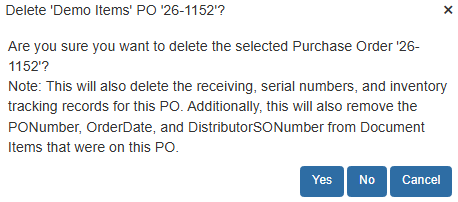
Read the text, then click Yes, No, or Cancel, depending on your preference.
NOTE: Typically, you should only delete a purchase order if you've canceled the corresponding order or need to replace it with a different purchase order
Email PO, Email PO Status to Customer(s), Email Internal PO Status
Right-clicking on a PO will also let users email the PO directly from the purchase order list, email an internal status, and email your customers an updated PO Status. These will generate an HTML formatted Purchase Order and pre-fill the Send Email window with it.
E-Mail PO
You can use this to email purchase orders to your vendors.
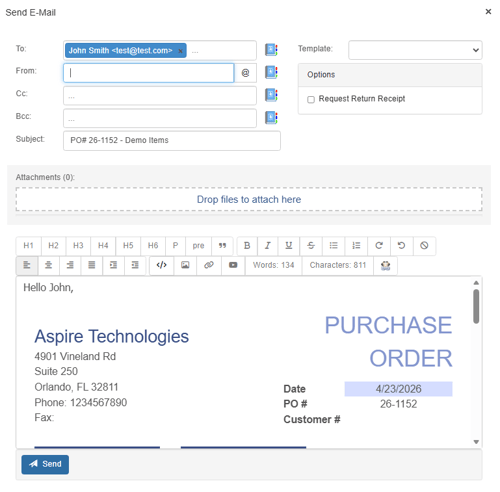 You can select from a list of Vendor email addresses on the quote or from all available Vendor email addresses in QuoteWerks by selecting the
  icon.
icon.
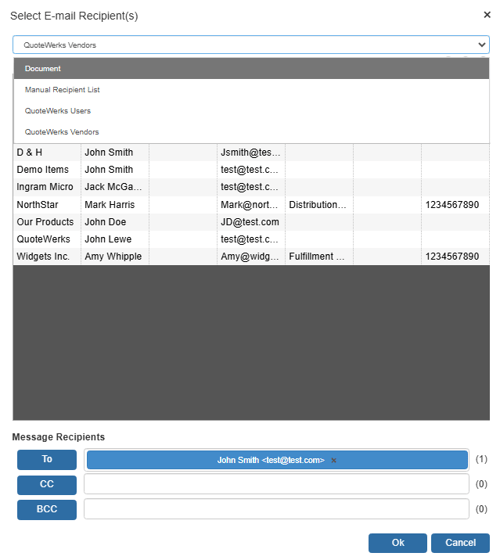
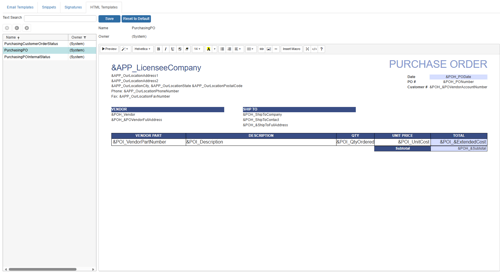
You can edit the format of this PO email by navigating to Setup -> Email Template Manager, then the HTML Templates tab and selecting the PurchasingPO template. It is fully customizable.
E-Mail PO Status to customer(s)
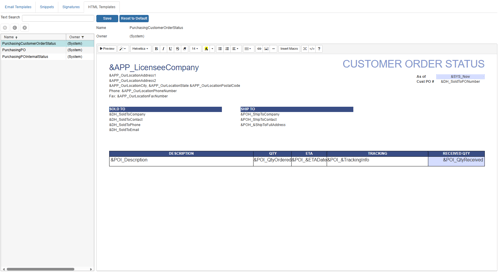
You can use this to email status information to your customers about the items ordered for them on the Purchase Order. The HTML template and email can be fully customized and including tracking and serial numbers. Since your Purchase Orders can contain items from different customers, this feature will send each of those customers status updates on only their items on the Purchase order related to them. There is also a grid toolbar button  for this action in addition to the right click menu.

You can edit the format of this PO email by navigating to Setup -> Email Template Manager, then the HTML Templates tab and selecting the PurchasingCustomerOrderStatus template. It is fully customizable.
E-Mail Internal PO Status
You can use this to email status information about the purchase order internally. The HTML template and email can be fully customized and including tracking and serial numbers.
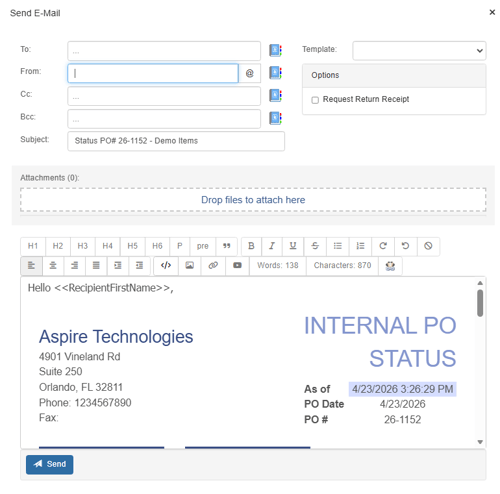
You can edit the format of this PO email by navigating to Setup -> Email Template Manager, then the HTML Templates tab and selecting the PurchasingPOInternalStatus template. It is fully customizable.

Save PO as PDF
Right-clicking on a PO will let you save as PDF. This will open a separate tab with the PO in PDF format. From here you can save or print the PO.

Purchase Order Items
When you select a Purchase Order from the list, the items on that purchase order will be listed below. Each part will have a status update on the item. You'll be able to see whether the item has shipped, as well as the quantity, quantity shipped, tracking number, warehouse shipped from, date shipped, and the serial number (if applicable). You also have the option of marking an item as received once you've received it.