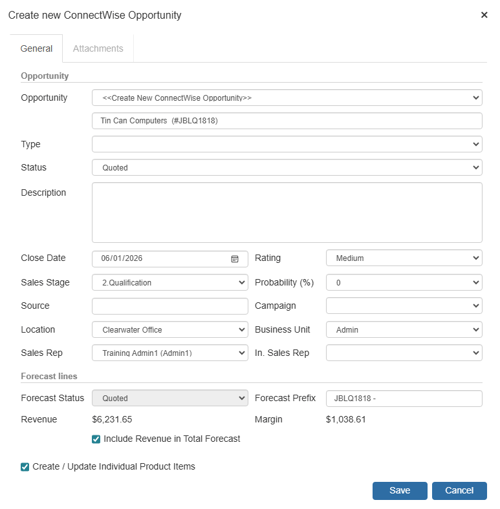
QuoteWerks has the ability to mirror your sales process through the use of both a primary and secondary CRM. This is a useful feature for companies that manage their sales workflows and tracking in one system, but procurement, invoicing, and service management in another. An example of this is a company that uses Hubspot CRM to track leads, opportunities, and generally manage the sales pipeline, but uses a PSA like ConnectWise to fulfill the order and manage the customer moving forward.
Before you can configure a secondary CRM you first need to have a primary CRM selected and configured. For instructions on how to do this please see the How Do I Setup a CRM Integration? help article. Once you have your primary CRM configured you can then move on to configuring your secondary CRM. QuoteWerks allows your secondary CRM to be either Autotask or ConnectWise.
Configuring Autotask as a Secondary CRM
1. Navigate to Setup -> CRM Integrations.
2. Setup the Autotask integration by following the steps included in the How Do I Setup the Autotask Integration? help article.
3. Select Autotask from the Select Secondary CRM Integration dropdown menu and click OK.
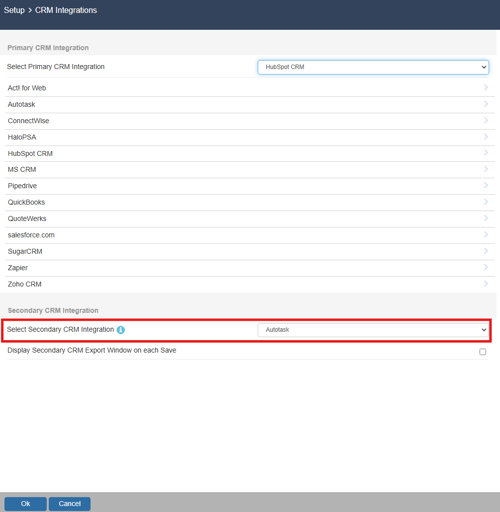
NOTE: You can select Display Secondary CRM Export Window on each Save to prompt you to integrate with your secondary CRM after each save if you wish to do so.
Using Autotask as a Secondary CRM
1. To engage the Autotask integration, navigate to Tools -> Export to Secondary CRM...
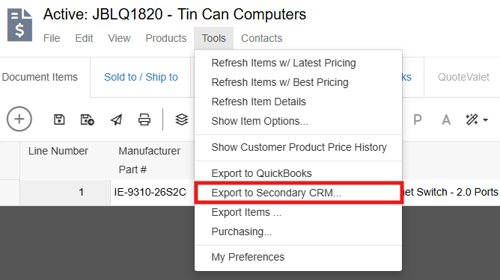
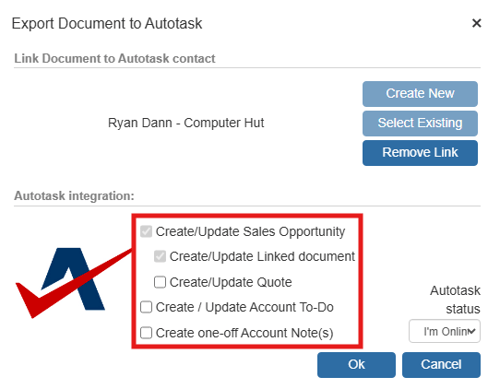
2. This opens the Export Document to Autotask window.
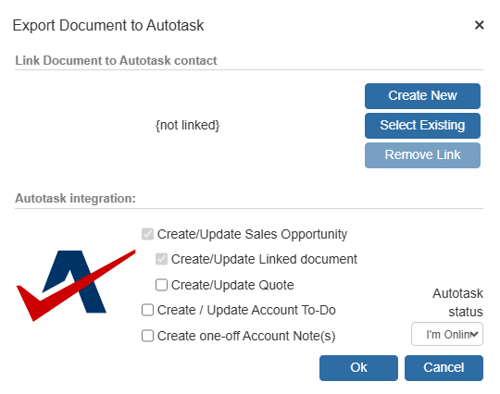
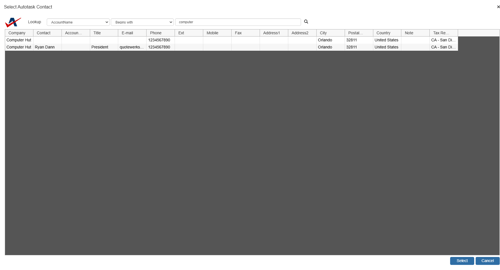
3. To create a new company and contact from the one stored in the Sold To field on the Sold to/Ship to tab click on Create New. To associate the quote with an existing contact in Autotask click on Select Existing. This opens the lookup contact window where you can select an existing record in Autotask to associate the quote with.
4. Select what action you would like to take in Autotask by selecting the appropriate checkbox(es). Make sure the status is set to Online and click OK.
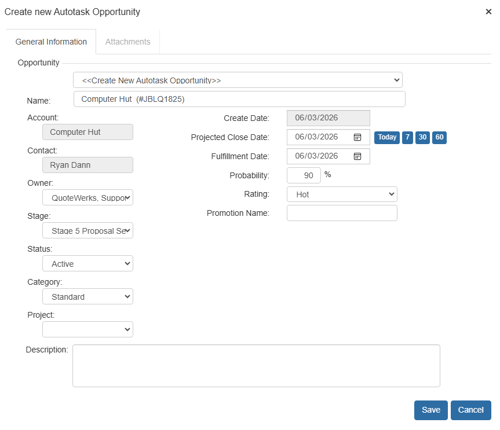
5. This will engage the Autotask integration and open the appropriate integration window(s) for you based on your selection(s).
Configuring ConnectWise as a Secondary CRM
1. Navigate to Setup -> CRM Integrations.
2. Setup the ConnectWise integration by following the steps included in the How Do I Setup the ConnectWise Integration? help article.
3. Select ConnectWise from the Select Secondary CRM Integration dropdown menu and click OK.
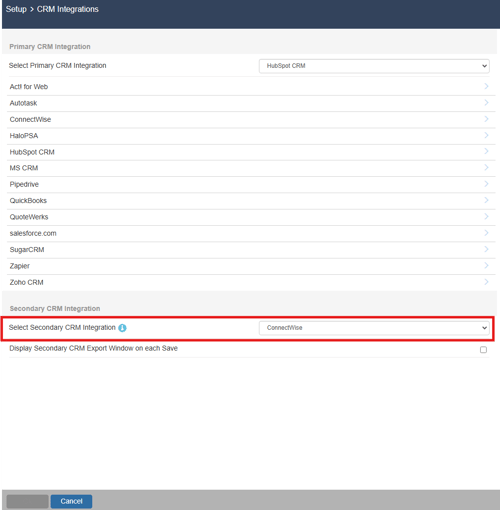
NOTE: You can select Display Secondary CRM Export Window on each Save to prompt you to integrate with your secondary CRM after each save if you wish to do so.
Using ConnectWise as a Secondary CRM
1. To engage the ConnectWise integration, navigate to Tools -> Export to Secondary CRM...
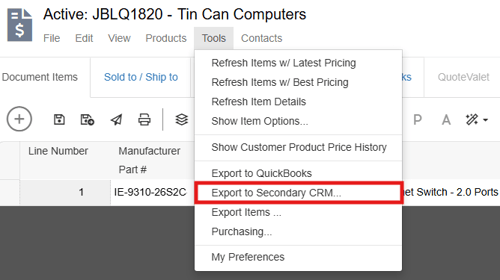
2. This opens the Export Document to ConnectWise window.
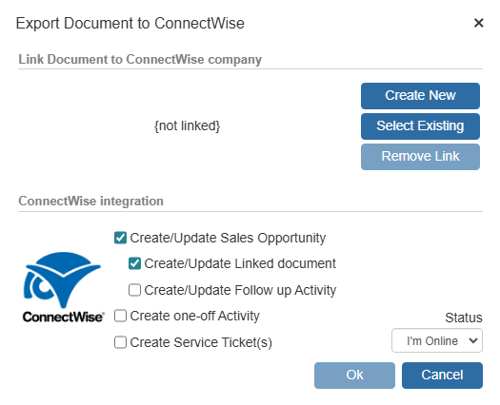
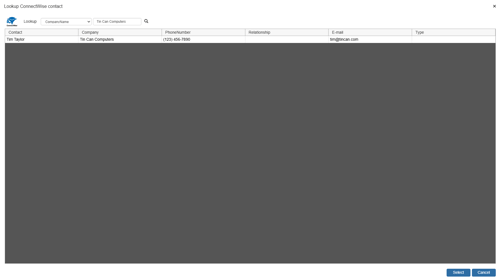
3. To create a new company and contact from the one stored in the Sold To field on the Sold to/Ship to tab click on Create New. To associate the quote with an existing contact in Autotask click on Select Existing. This opens the lookup contact window where you can select an existing record in Autotask to associate the quote with.
4. Select what action you would like to take in ConnectWise by selecting the appropriate checkbox(es). Make sure the status is set to Online and click OK.
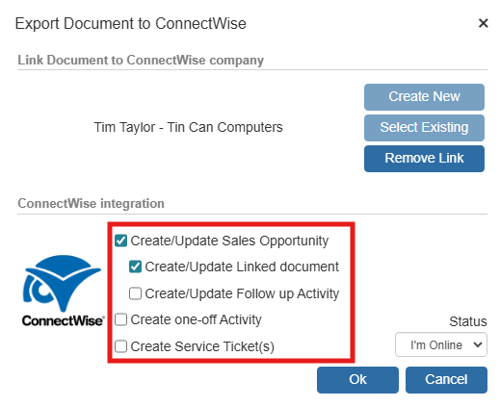
5. This will engage the ConnectWise integration and open the appropriate integration windows for you based on your selection(s) to Create/Update a Sales Opportunity, Create/Update a Follow up Activity, Create a one-off Activity, and/or Create Service Ticket(s).