The VendorRFQ website allows to to view all of your RFQs, respond to vendor comments, award bids, and more.
From QuoteWerks, you can launch the VendorRFQ Website from the VendorRFQ button  on the Grid Toolbar, as well as from specific items that are associated to RFQs:
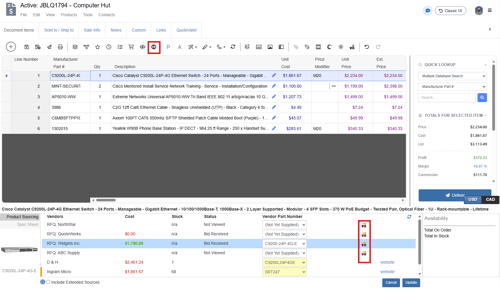
This will open the VendorRFQ buyer's view page and log you in automatically:
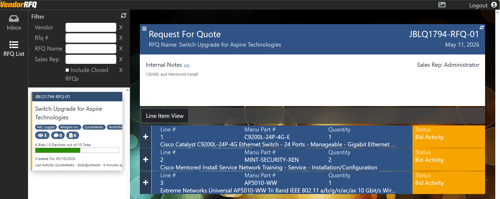
You can view RFQs by clicking them on the left, or you can search for specific RFQs. Clicking the Refresh  icon will check for updates and refresh the page.
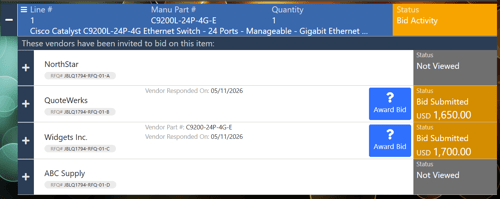
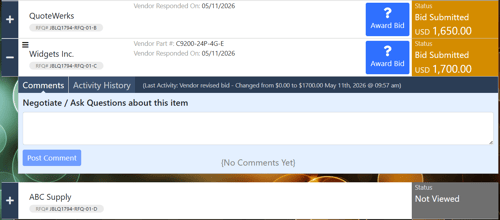
Clicking the  next to the item will display the vendor(s) invited to bid on that item as well as the information entered by that vendor such as vendor part number, date responded, conditions, and bid submitted:
Clicking the will expand the vendor on that item and allow you to ask questions, respond to comments, and view the activity history of that vendor on that item:
Clicking on the  icon will open a menu where you can select additional actions you can take:
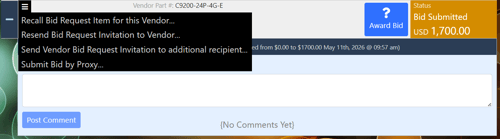
Recall Bid Request Item for this Vendor will recall the RFQ Bid Request from the selected Vendor. You will be prompted to enter a recall reason which will be visible to the vendor.
Resend Bid Request Invitation to Vendor will resend the RFQ Bid Request email to the selected Vendor.
Send Vendor Bid Request Invitation to additional recipient will allow you to send this RFQ to an additional contact at this vendor. This sends the specific Vendor's RFQ link to an additional email.
DO NOT USE THIS TO SEND THIS REQUEST TO ADDITIONAL VENDORS, ONLY ADDITIONAL CONTACTS AT THIS VENDOR.
Submit Bid by Proxy allows you to submit a bid on behalf of your Vendor. Usually you will use this if your Vendor has given you a price verbally or has sent you an email with pricing. You will be prompted for price, vendor part number, reference, and any conditions.
VendorRFQ Inbox
Clicking the Inbox will show activity on your VendorRFQs including RFQ views, RFQ Item views, and vendor comments:
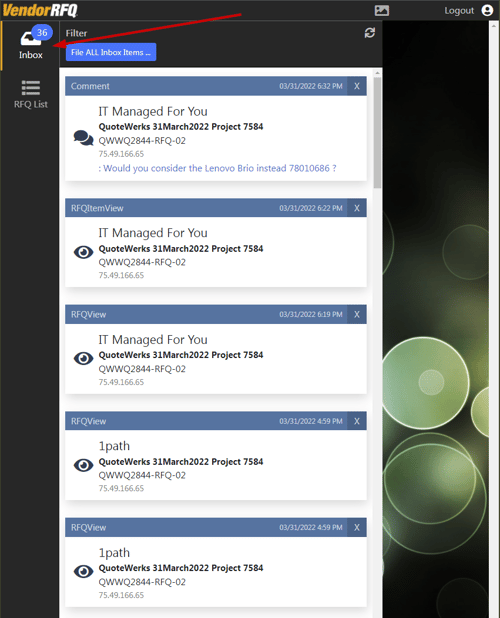
You can dismiss items individually or you can file all Inbox messages at once.
You can also click the Refresh  icon to check for updates.
Awarding a Bid
Bids are awarded by clicking the update button on the product sourcing panel in QuoteWerks.
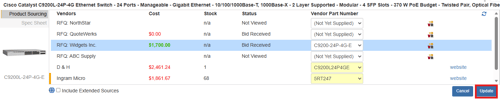
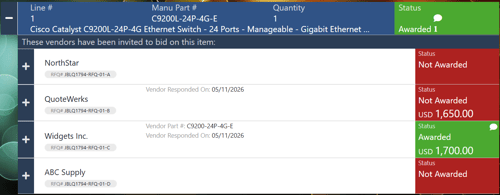
Once awarded the status will be updated to awarded both on the product sourcing panel and on the VendorRFQ website: