NOTE: Before using the Xero Integration, make sure you've reviewed Setting Up the Xero Integration.
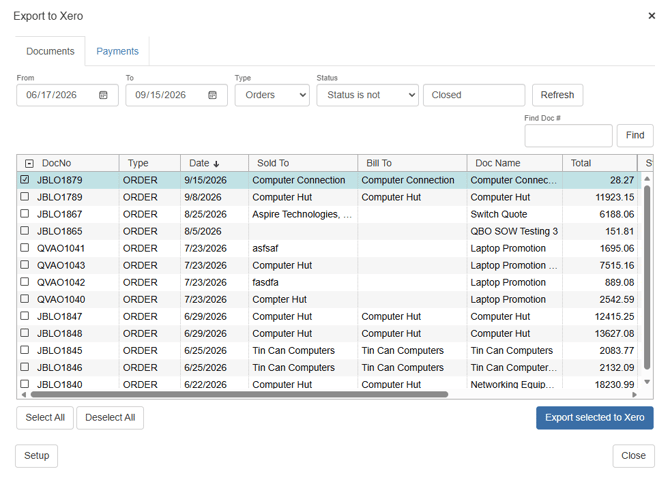
To export a quote, order, or invoice to Xero, select the Tools -> Export to Xero menu, select Accounting from the navigation panel, or click on the  icon on the Grid Toolbar. This window will display a list of QuoteWerks documents that have not been exported to Xero based on the “exported status” that was specified in the setup.
Non-Exported Documents Tab
The Non-Exported documents tab offers you a number of filter options. You can filter by date and sales rep. The "Display un-exported" and "DocStatus Equal to" fields can only be changed in the Export Settings tab in the setup.
Find DocNo
To search for a specific document, click on the Find DocNo button and enter in the Document Number and click the [Find] button. This is useful for finding a document that you have already exported to Xero.
You can also use the "%" symbol to do a wild-card search. This allows you to do a "Begins With", "Ends With", or "Contains" search. For example, if you knew the document number started with AAAO23 but were unsure of the rest of the numbers, you would simply type in AAAO23% and click OK and you would see all documents that started with that mix of letters and numbers.
Exporting Process
To export a document(s) to Xero, click on the check box next to the document (or documents), and then click on the [Export selected to Xero] button. You can select multiple documents to export at one time. After the document has been exported, the documents Doc Status in QuoteWerks will be set to the "Exported" or whatever status you specified on the Export Settings tab.
Item Creation
If items in the QuoteWerks document being exported to Xero do not exist in Xero, you will be prompted to create a new item in Xero.
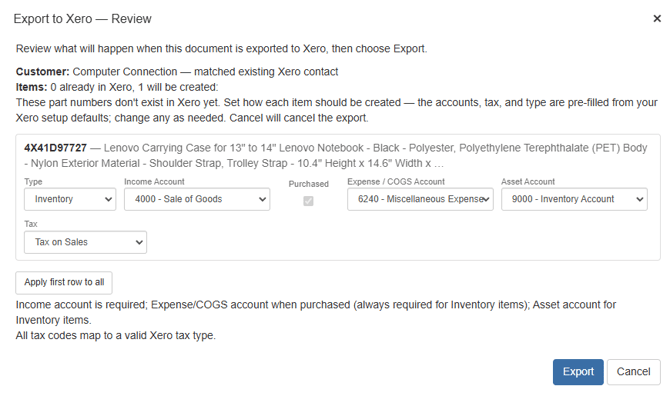 If the item record already exists, then based on the “If the Item does exist” option specified on the Transaction tab in the Xero setup, the item cost/price in Xero can be updated with the information from the line item in the QuoteWerks document.
You will also be prompted to select whether this item is an Inventory, Non-inventory, or Service item, choose the Income Account, Expense/COGS Account, Asset Account, and Tax type. These will be pre-filled if you have setup default values for these fields in the Xero setup.
Once the export is complete you will receive a pop up indicating that the document has been exported to Xero:
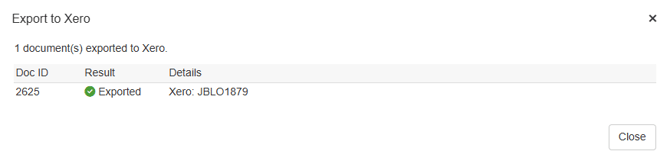
If errors were encountered during the export, they will be listed in the Xero export processing log window.
Viewing the Invoice or Quote in Xero
After the document has been exported to Xero, click on Sales and under the menu and you can view Invoices by clicking on "Invoices" and Quotes by clicking on "Quotes." Simply click on the document to view.
Payments Tab
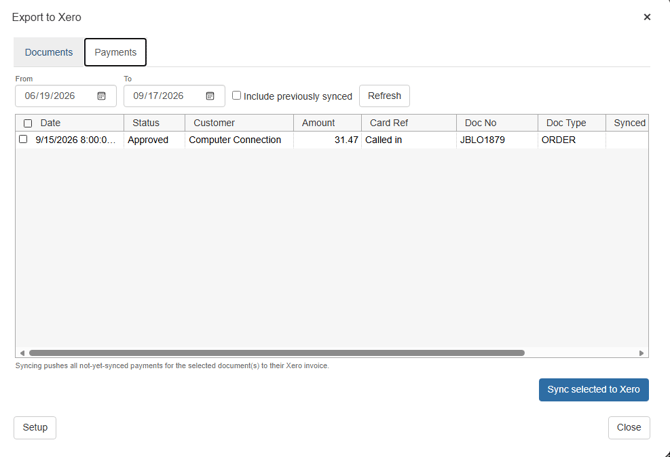
The payments tab enables users to export a payment received via QuoteValet into Xero. A list of available payments that have been made and need to be exported will be shown on this tab. The list of payments can be filtered by date range and also includes a checkbox for "Include previously exported payments”.
IMPORTANT: For payments to be exported you must first export the document as an invoice or quote.
To export a payment, click on the checkbox next to the payment and click on Sync Selected to Xero.