
You can create or update opportunities in your connected CRM system using Zapier. In order to do this you need to create a Zap that uses the appropriate Trigger Event and Response steps. This article shows you how to do this using HubSpot as an example, but the process is very similar if configuring any CRM that is a part of the Zapier ecosystem.
IMPORTANT: Before you can begin creating or updating opportunties in your configured CRM system you must first connect to the CRM as a contact data source and pull in a contact to the quote. For instructions on how to do this please see the How Do I Connect Zapier as a Contact Data Source? help article.
Setup
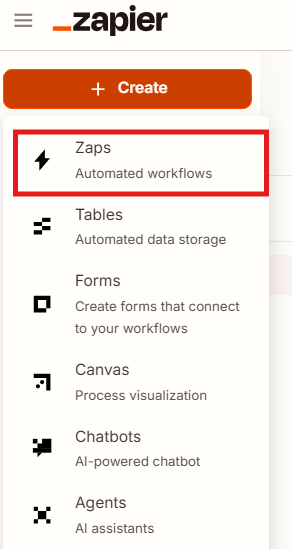
1. Log into Zapier, click on +Create and select Zaps.
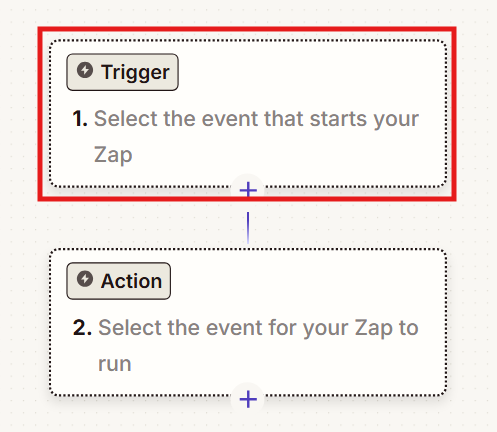
2. Click on Trigger to select your Trigger Event.
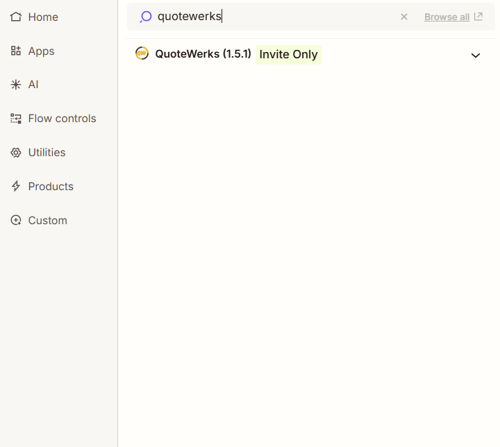
3. Search for and select "QuoteWerks."
4. Under the Trigger event heading click on Choose an event. Select "QuoteWerks: Opportunity Upsert Requested."
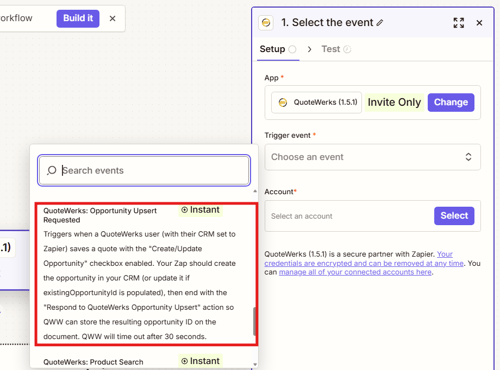
5. Click Select and choose your tenant account ID.
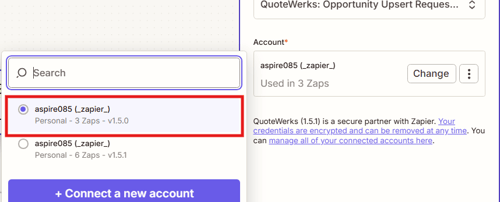
6. Click Continue then Test Trigger.
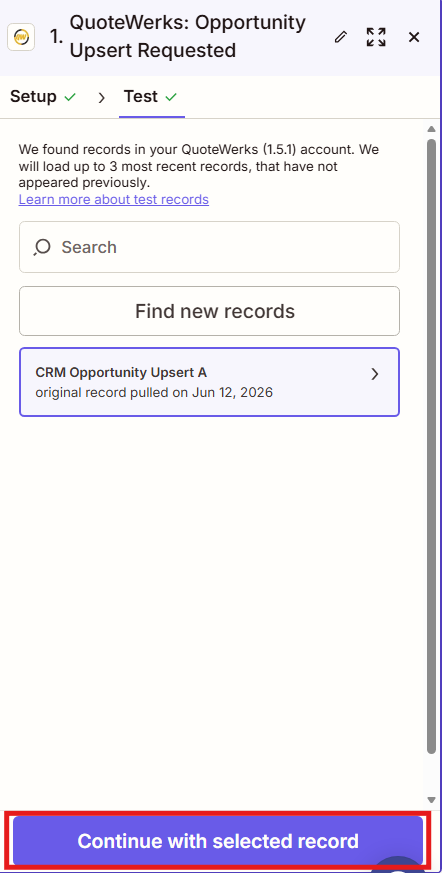
7. Click on Continue with Selected Record.
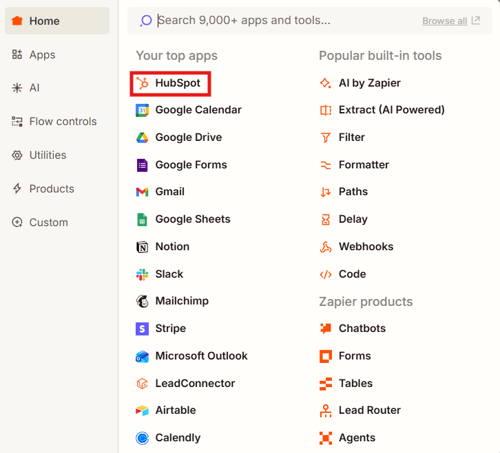
8. Select your CRM, in this case HubSpot from the list of Apps.
9. Under the Action event heading click on Choose an event and select Create Deal.
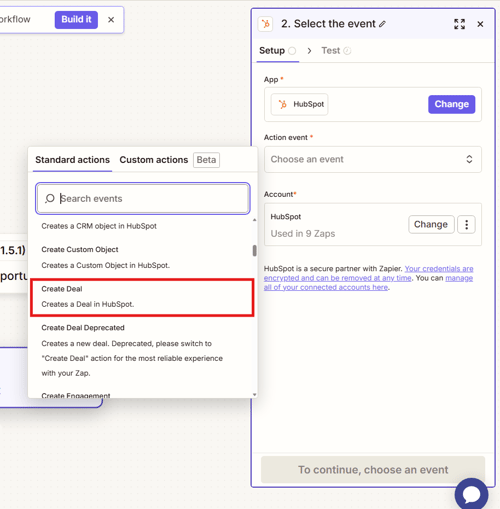
10. Click Continue.
11. Map the required fields, any other fields you would like to map, and click Continue.
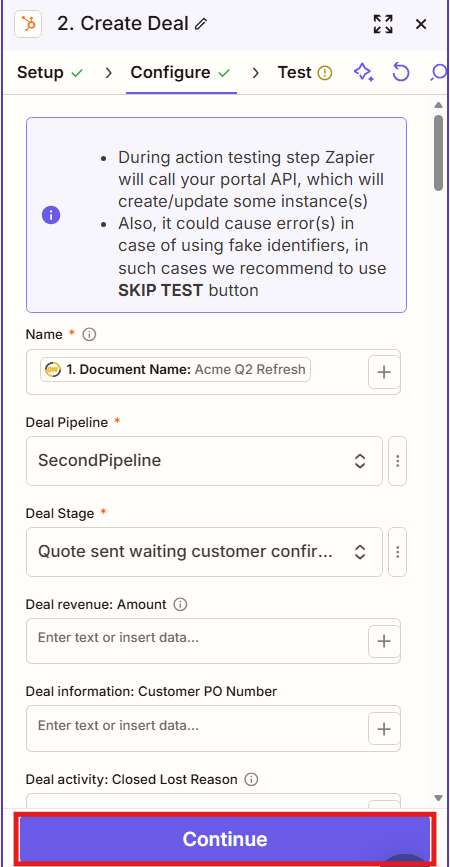
12. Click on Skip Test, or Test if you would like to test the step.
13. Click on Add Step to add a new step to your Zap.
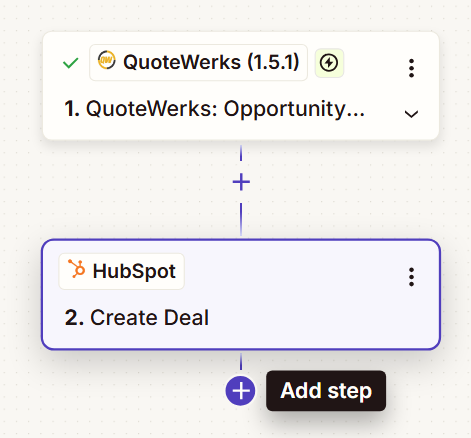
14. Search for and select "QuoteWerks."
15. Under the Action event heading click on Choose an event. Select "Respond to QuoteWerks Opportunity Upsert."
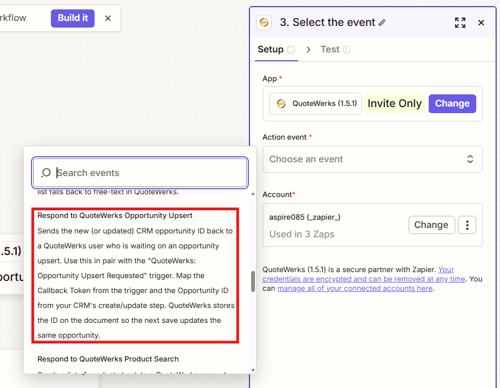
16. Click Continue.
17. Map Callback Token to Callback Token from QuoteWerks and map the Opportunity ID to ID and Opportunity URL to URL from HubSpot as seen below. Click Continue.
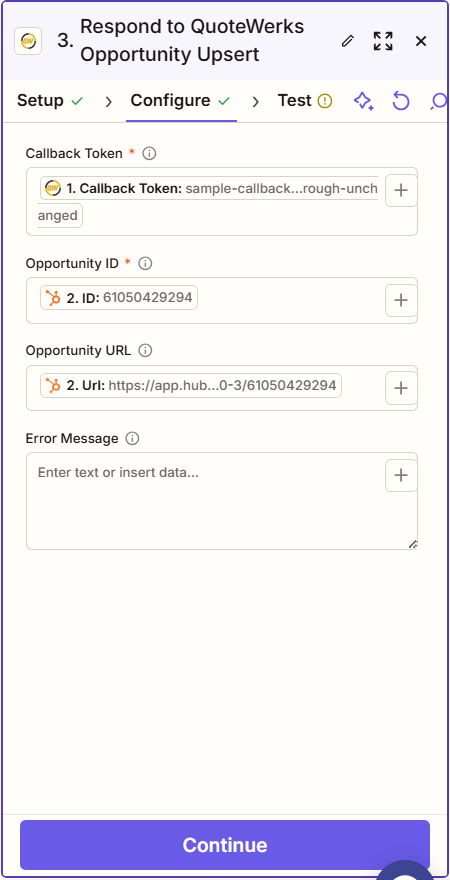
18. Click Skip Test, then Publish.
You can confirm that the Zap was configured and connected to QuoteWerks by navigating to Setup -> CRM Integrations then Zapier and reviewing the Triggers section. If the Zap is connected you will see a green check mark with Connected next to it.
Testing
To test the Zap and create an opportunity in your CRM follow the steps below:
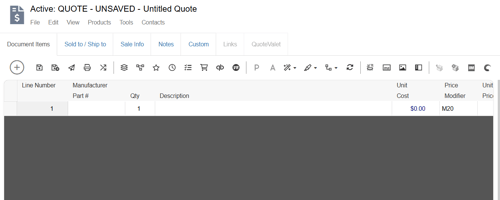
1. Open a new quote in QuoteWerks.
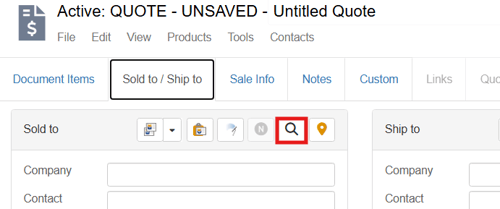
2. Pull in a contact from your connected CRM by navigating to the Sold to/Ship to tab and clicking on the magnifying glass.
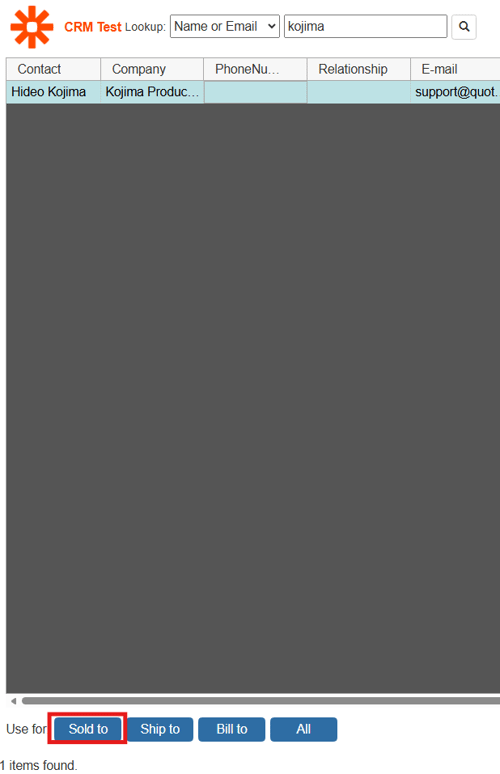
3. Search for a contact on the Find Contact window and add them to the Sold to field.
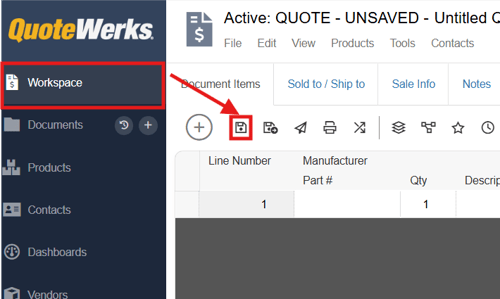
4. Click back to the Workspace by clicking the Workspace option from the navigation panel. Then click on the Save icon.
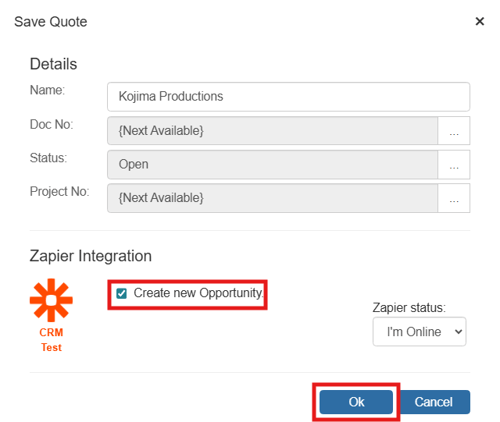
5. This brings up the Save Quote window. Make sure that you are online and that the Create New Opportunity button is selected. Click OK.
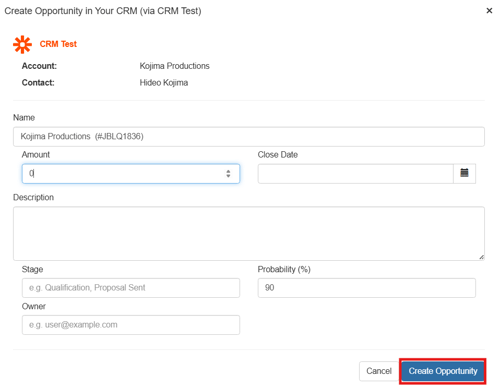
6. This will open the Create Opportunity in Your CRM window. Fill out any fields you would like and click the Create Opportunity button.
7. To confirm the opportunity has been created navigate to the Links tab. Here you will see a button to View Opportunity in [your CRM name]. Click on that button and the created opportunity will open in your connected CRM.