
Interactive Options let customers customize their quote directly in QuoteValet. They can choose optional products or services and, where enabled, adjust the quantities of the products or services they want to order. Setting up this configuration is done by adjusting the line items Line Attributes.
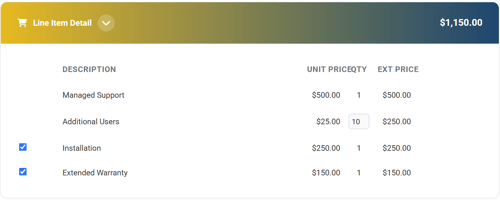
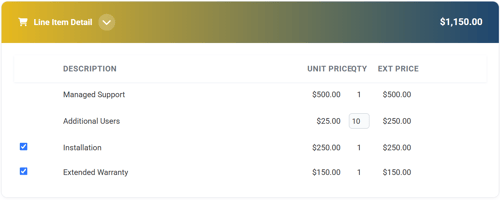
For example, a customer might see:
- Managed Support — 1 × $500
- Additional Users — 10 × $25
- Installation — Optional
- Extended Warranty — Optional
If configured, the customer can select optional items and adjust quantities as needed. QuoteValet updates the quote totals based on their selections.
Why use Interactive Options?
They are useful when customers need flexibility to configure their order without going back and forth with the salesperson.
Common uses include:
- Adding or removing optional products and services
- Adjusting quantities and dependent quantities
- Choosing between different options
- Building good/better/best configurations (mutually exclusive options)
- Adding upgrades, warranties, or support services
The result is a more interactive buying experience where the customer can configure the quote, see the updated total, and accept the final selection.
Setting Up Interactive Options in QuoteValet
Optional Items
Setting an items line attribute to optional allows a customer to select or deselect products that are presented to them on QuoteValet quotes. This is useful because it empowers customers to make informed and independent buying decisions and eliminates the need for the additional back and forth needed to make multiple quote revisions. Because the prices update in real time, purchasing decisions can be made in real time too.
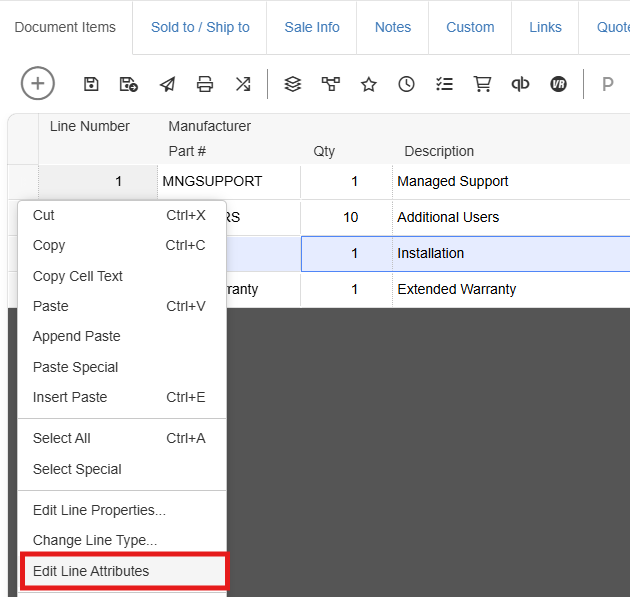
To make an item or group optional select the item(s) or group(s) in the quote workbook, right click, and select Edit Line Attributes.
This opens the Edit Line Attributes window. To make a product or service optional change Is Optional to Yes.
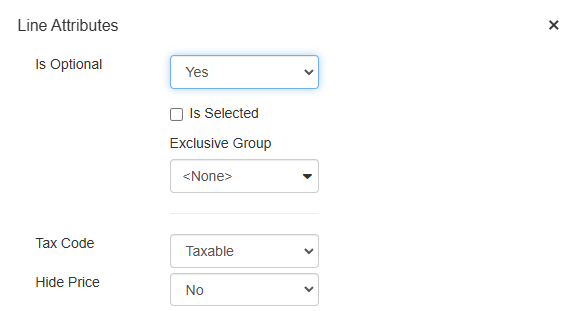
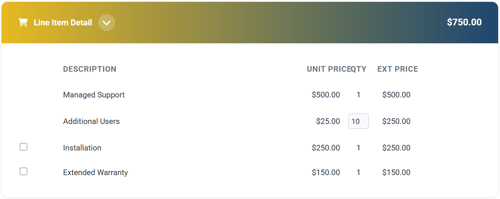
By default, the optional items will not be selected and excluded from quote totals but can be marked as selected by clicking on Is Selected. If Is Selected is checked the items will be selected and calculated in the quote totals.
Mutually Exclusive Options Selection
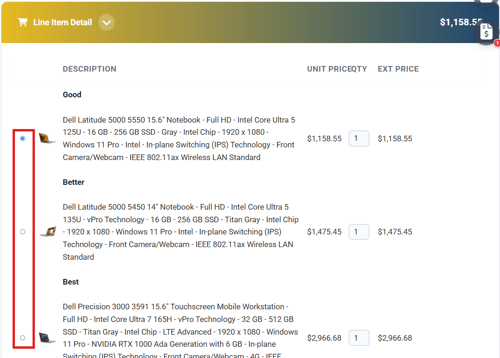
There may be circumstances in which you want the customer to select from a list of options, like a good/better/best scenario. This is where Exclusive Groups come into play. If you would like to give the customer a list of options to choose from you will want to select those options, click Edit Line Attributes and select Is Optional and give the exclusive group a name.
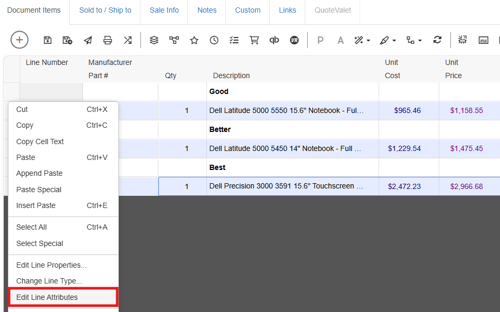
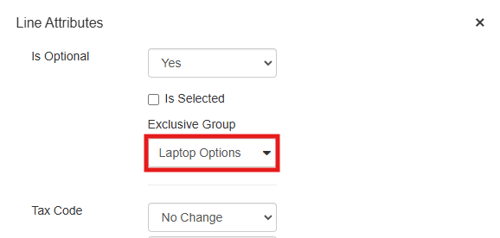
With the items marked as 'Is Optional' Yes and a part of an exclusive group the customer will have to choose one and only one of the options presented:
Allow QuoteValet Quantity Changes
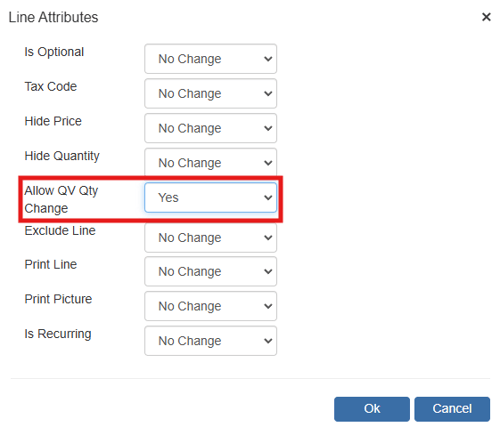
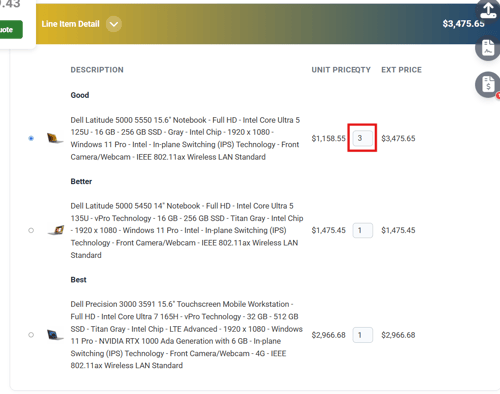
Setting an items line attribute 'Allow QV QtyChange' to Yes makes it so that the customer can change the quantity they wish to order. They can type in the quantity they would like and the quotes totals will update automatically.
Quantity Changes and Dependent Quantities
The Allow QV Qty Change attribute can be used in conjunction with the dependent quantities feature to ensure that as the quantity of one item is changed, the quantity of its child item is adjusted as well.