
There are several costing methods available for you to calculate the cost of an item. The cost, price, and list fields that you setup for each item can be used in different ways depending upon your method of calculating cost of an item.
Choosing and Item Costing Method
You can select the type of costing method to be used for this product from the drop-down list.
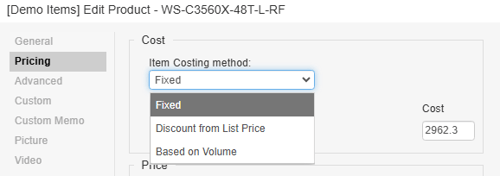
Fixed
Choosing this method allows you to manually enter a cost in the cost field that will be used as the cost of the product when adding it to the quote. This method does not calculate the cost based on volume or a discount from list price.
When an item using this costing method is added to the quote, the Cost Modifier column will be blank. After the item has been added to the quote, you can adjust the unit cost at a later time by typing in the new cost in the unit cost column. If an item was added to the quote that used a different costing method, you could change that item to use a manually entered cost simply by typing in the new cost in the unit cost column.
Discount from List Price
Choosing this method will allow you to enter a percentage discount in the “Enter Discount %” field. This value will be used to calculate the cost of the item. As you enter in the percentage, the unit cost will be automatically calculated. Since the unit cost will be calculated based on the list price, make sure that you have entered a value in the list price field.
When an item using this costing method is added to the quote, the Cost Modifier column will contain the “Discount from List Price” cost modifier of “D20” for example. The “D” represents the “Discount from List Price” cost method, and the “20” in this example represents a 20% discount from list. After the item has been added to the quote, you can adjust the cost modifier by editing it in the cost modifier column. If an item was added to the quote that used a different cost modifier, you could change that item to use a “Discount from List Price” cost modifier by simply typing it in the Cost Modifier column.
Calculation for “Discounting from List Price”:
COST=LIST- (LIST X DISCOUNT_PERCENT)
Cost Modifier Example:
D05 is equal to a 5% discount; D40 is equal to a 40% discount.
Example of a 40% Discount on a product that Lists for $200
$120=$200 – ($200 X .4)
Based on Volume
Choosing this method will set the cost of the item based on the quantity of the item being quoted. This costing method is typically used in conjunction with volume pricing. QuoteWerks support 15 volume costing levels.
This costing method now allows you to track changes in cost as the volume increases. This is in addition to being able to track the price of an item as the volume increases.
Once you select this method, the Edit Volume Costing window will appear to let you set the start quantity, end quantity, and product cost for that quantity range:
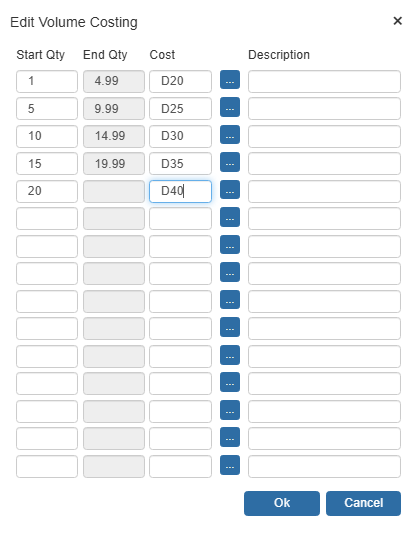
By clicking on the  button, a Select Cost Modifier window will open and allow you to enter in a discount percentage to calculate the cost based on list price, or you can simply type in the cost of the item. Optionally, you can also include a description of that price range for internal reference purposes.
When you add a volume-based product to your quote, the price column will be updated with the correct volume cost based on the quantity entered in for that item on the quote.
When an item using this pricing method is added to the quote, the Price Modifier column will contain the “Volume Based” cost modifier of “V” for example. The “V” represents the “Volume Based” costing method. After the item has been added to the quote, you can adjust the quantity and QuoteWerks will automatically retrieve the correct volume-based cost for the quantity entered.
If you have added the item to the quote and decide that you no longer want to use the “Volume Based” costing method, you can just change the cost modifier in the Cost Modifier column to reflect the new pricing method that you would like to use.
If an item was added to the quote that used a different cost modifier, you cannot change that item to use a “Volume Based” cost modifier by simply typing in the “Volume Based” cost modifier in the Cost Modifier column. Since a volume-based based item has a cost for each quantity range, you must always setup an item to use volume-based costing before you can use it in a quote.
NOTE: Volume Pricing is not supported when using the foreign pricing feature.
Importing Volume Cost Values
You can use the Import Products feature to import volume cost values into a native product database. In order to do so you will want to have fields in your import file that can be mapped to the CostingLevel01-15 fields in the QuoteWerks system. These fields should contain your costing level lower quantity, costing level upper quantity and costing level amount. As such, if you are creating a costing level that accounts for a volume of 1-5 with a cost level amount of $5, you will want to format the cell to include the following [1-4.99 5.00]. For a costing level that accounts for a volume of 1-10 with a cost level amount of $4, you will want to format the cell to include the following [5-9.99 4.00], etc.
For example, to set the two costing levels outlined above you will want fields that are formatted in the below fashion:
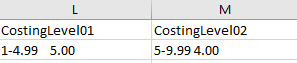
NOTE: Volume pricing requires BOTH a lower and upper quantity. If the upper bound is not provided, pricing may calculate incorrectly. The final tier should NOT include an upper bound. This tier applies to all quantities above the last defined range
In order for this to work you will also want to make sure to input the Cost Modifier for volume into the cost modifier field which is 'V'.
You will also want to ensure that during import you map the fields, accordingly, as seen below:
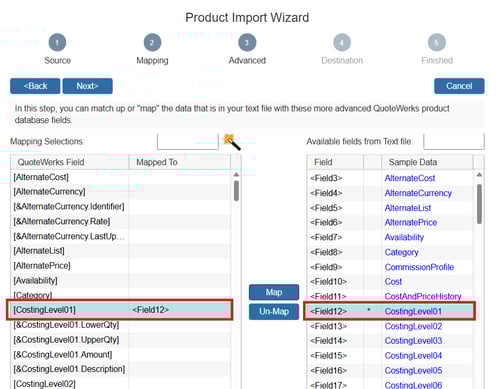
For more information on how to import items into a native QuoteWerks Product Database, please see the Importing Products help file.