
When building complex quotes there are often items that must have other items included with them in order to deliver a comprehensive solution. For one of item A you may require one or more of item B to be included in the quote. This is where item dependencies and dependent quantities come in in QuoteWerks.
This article includes the following sections:
What is the Dependent Quantities feature?
The dependent quantities feature allows users to set item dependencies so that as you adjust the quantity of one item the quantity of another item or items follows suit. The process is simple - select the parent item for which you want the dependency to be based, then select the child item(s). There is a dropdown menu you can use to then set the quantity multiplier you would like to have assigned to the dependency. The parent items quantity will be highlighted in purple while the child items quantity will be highlighted in yellow.
For example, you may be quoting a desktop computer setup for which there is a requirement to have 2 monitors per computer. In this example you would select the computer line item and while holding the Ctrl key select the monitor line item. When you click the dependent quantity button you will be prompted to input a quantity multiplier - this is how many monitors you want to include for every one computer you sell. In this example you would set the quantity multiplier to 2 meaning that for every one computer quoted the monitor quantity will increment by 2.
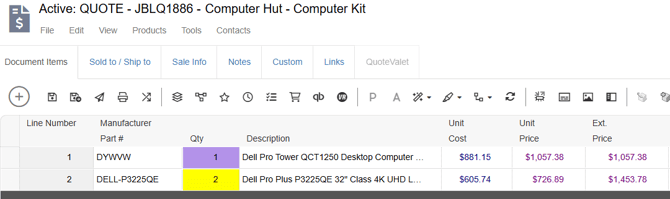
If you set the computer quantity to 1, the monitor quantity will auto adjust to 2. If you set the computer quantity to 5, the monitor quantity will be set to 10. This ensures that each computer 'kit' includes the one computer and two monitors.
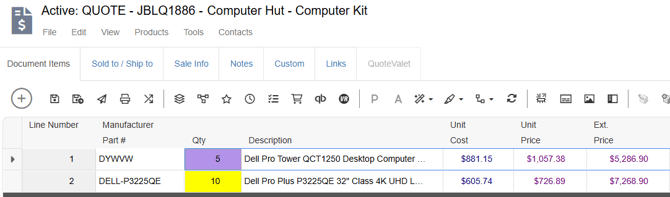
Dependent quantities can be set in any multiple you may have the need for meaning it does not need to be a 2:1 relationship. You can set it to be a 3:1, 4:1, even 10:1 relationship - whatever multiple is needed for your particular set up. And the items do not need to be on the same section of the quote.
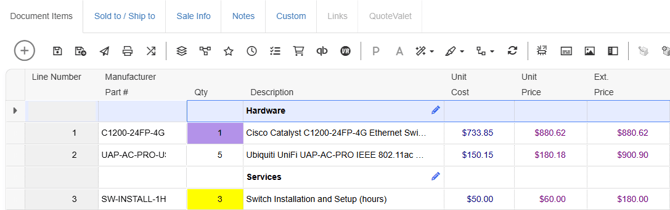
In another example you may be quoting a switch. Each switch requires 3 hours of labor to install and setup. In this case you would set the switch as your parent item and the labor as the child item with a quantity multiplier of 3. The dependent items do not need to be on the same section of the quote, so the switch could be under the hardware heading, with the install being under the services heading as seen below.
Setting up Dependent Quantities
1. To set dependent quantities start by clicking on the parent item for which you want the other item(s) quantities to be driven by. While holding the Ctrl key click on the child item(s).
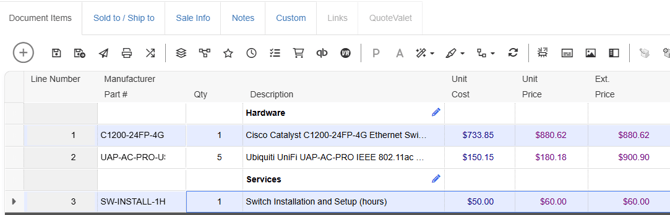
2. Then click on the dependent quantities drop down in the grid toolbar and select "Set Dependent Quantity."
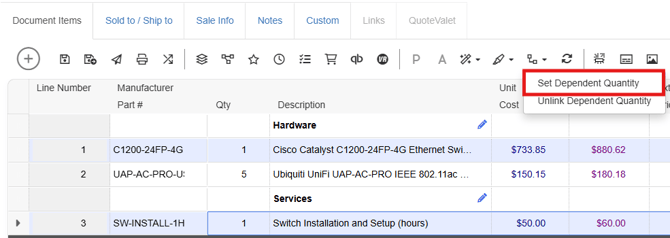
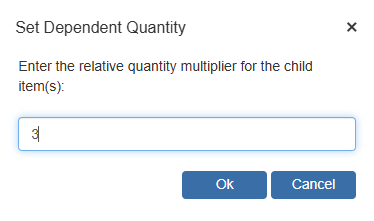
3. The Set Dependent Quantity window appears where you can input the relative quantity multiplier you would like to be used for the child item. In the switch example above, the relative quantity multiple is 3. Once you have set your relative quantity multiple click OK.
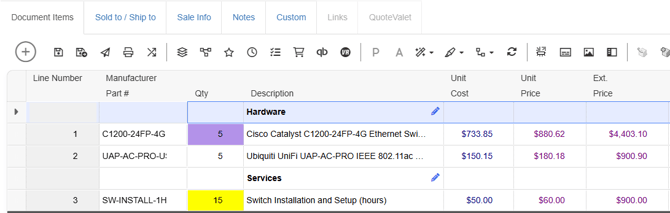
4. Once you click ok, the quantity of the child item will adjust accordingly. The parent item will be highlighted in purple while the child item(s) will be highlighted in yellow.
5. If you adjust the quantity of the parent item the child item(s) quantity will change based on the relative quantity multiplier you have set. Below you can see that when we set the parent item's quantity to 5 the child items quantity is changed to be 15.
Unlinking or Changing Dependent Quantities
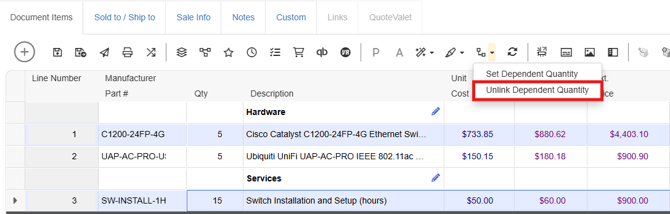
If you would like to unlink or change dependent quantities you can do so by highlighting the parent and child item(s), clicking on the dependent quantity dropdown and selecting "Unlink Dependent Quantity" as seen below. This will remove the association.
To set up a new link with a different quantity multiplier you would follow the linking instructions above, selecting the parent item, then the child item, clicking on Set Dependent Quantity again and inputting your new quantity multiplier.
Daisy-Chained Quantity Dependencies
The dependent quantity feature can be expanded upon by having daisy-chained quantity dependencies. In this scenario you can make it so that when you change the parent item's quantity the child items will change and then have another product/services quantity change realative to the child item's quantity.
For example, in the desktop example above you may need to charge for the setup of each monitor. Let's say that each monitor takes .5 hours to setup. You can set it so that the monitor setup line item is dependent upon the quantity of monitors with a relative quantity multiplier of .5 by selecting the monitor line, holding Ctrl, selecting the setup line and setting the relative quantity multiplier to .5. In this arrangement, for every monitor quoted the setup line will increment by .5, with the monitor quantity being set based on the number of desktops being quoted.
In the example below we have changed the desktop quantity to 10. Subsequently, the monitor quantity has been adjusted to 20 and based on the relative quantity multiplier relationship between the monitor and setup lines, the setup line is adjusted to be 10 (or .5 the value of it's parent item.)
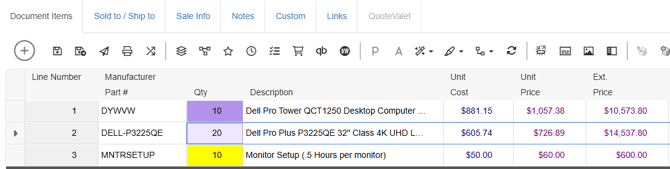
In this arrangement, you can ensure that for every desktop quoted 2 monitors are included and for every monitor there are .5 hours of install time being quoted as well.
Dependent Quantities and QuoteValet
The dependent quantity feature can be especially powerful when combined with the Allow QuoteValet Quantity Change feature in QuoteValet. This setting allows users to dynamically adjust the quantity they wish to order for a particular item and is adjusted in a line items line attributes. To enable the Allow QuoteValet Quantity Change feature select the item you wish to give the customer the ability to adjust quantities for, right click and select Edit Line Attributes. On the line attributes window change Allow QV Qty Change to Yes as seen below.
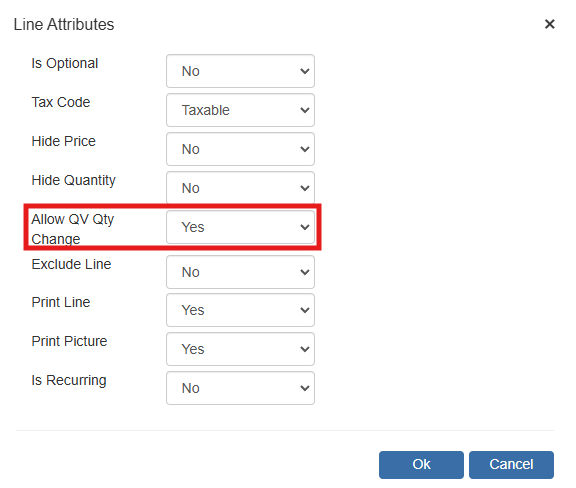
You can use the dependent quantity feature in conjunction with the quantity change feature to make sure that as users change the quantity of an item it's required components are being added relative to the dependent quantities you have set.
For example, if you were to present the quote for the desktops above to a customer via QuoteValet and you have set the desktop line so that it's quantity can be adjusted by the customer, you can rest assured knowing that as the customer changes the desktop quantities both the monitor and setup quantities will adjust accordingly.
In the screenshot below you can see that if the customer adjusts the quantity of desktops to 15, both the monitors quantity (30) and the quantity of setup hours (15) quoted have been adjusted according to the relative quantity multipliers that have been set.
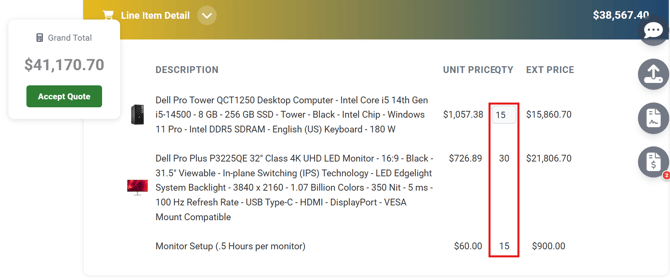
This is powerful functionality that both gives the customers flexibility in regard to the quantities they wish to order but also ensures that as changes are made the appropriate required component quantities are adjusted as well.