
This topic covers how to set up QuoteValet payment processing to work with Alternative Payments. To set up the integration, you will need your Alternative Payments Client ID and Client Secret. Follow the instructions below to obtain your Client ID and Client Secret and configure the payment gateway in QuoteWerks.
1. Obtain your Client ID and Client Secret by following the steps below on the Alternative Payments website: https://auth.alternativepayments.io/login.
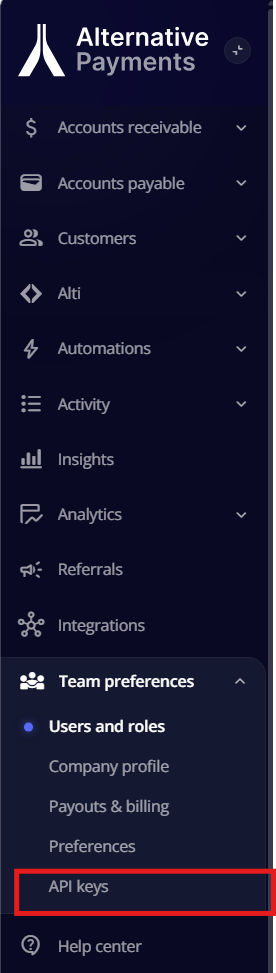
2. On the left navigation panel select Team preferences, then API Keys.
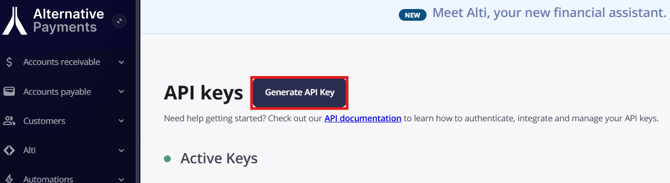
3. Click on the Generate API Key button.
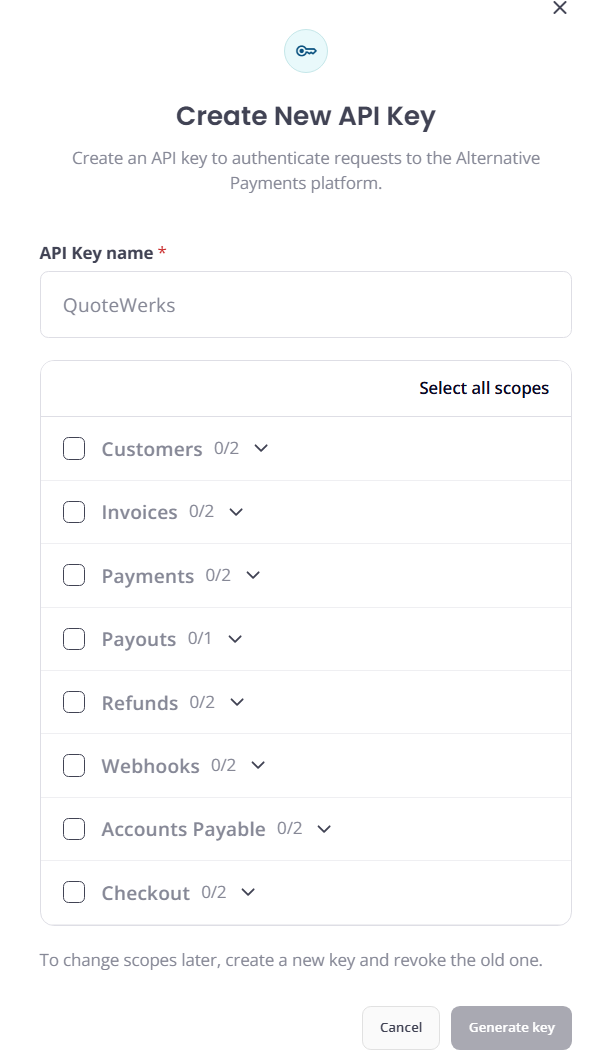
4. Enter an API key name (i.e. QuoteWerks) and click on Select all scopes. With all scopes selected, click on Generate Key.
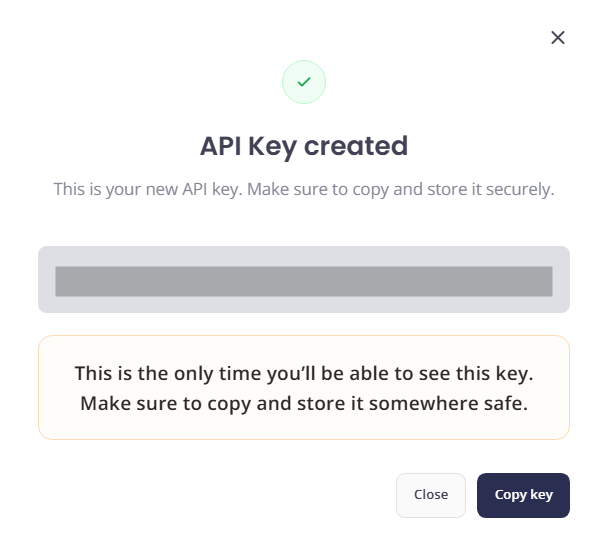
5. Copy your secret key and save it in a safe place. Click Close.
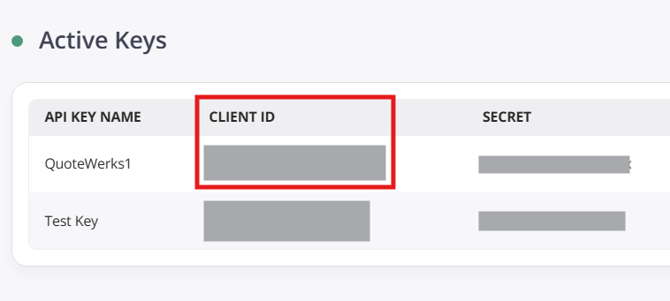
6. From the Active Keys list, select the Client ID and copy it to a safe place as well.
2. Open QuoteWerks, navigate to Setup -> Options -> QuoteValet -> Payment Processing, and click on the new  button to configure a new gateway. The window pictured below will open. Select Alternative Payments from the Gateway type dropdown menu.
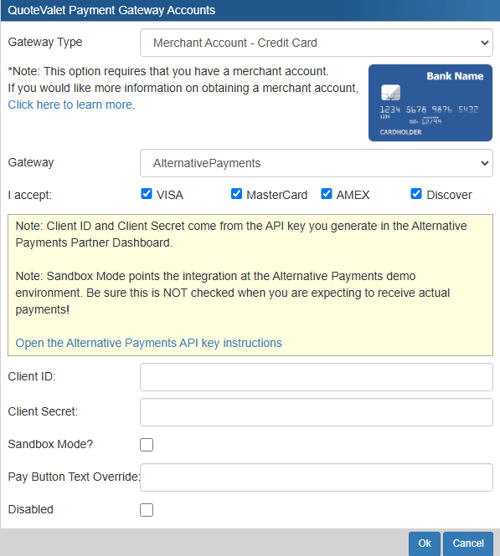
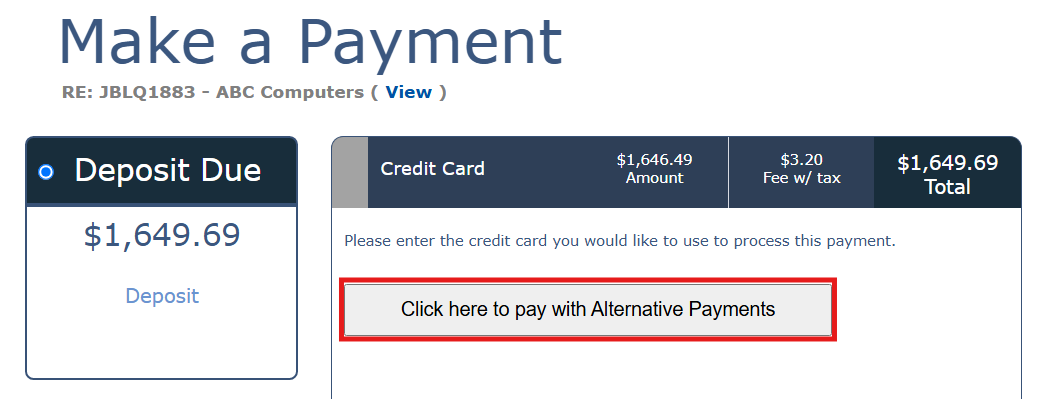
3. Insert your Client ID and Client Secret where instructed. You can also toggle sandbox mode, enter a Pay Button Text Override, and disable the integration if you would like to do so. Setting a Pay Button Text Override will adjust the text of the button users will need to click after order acceptance to progress to the Alternative Payments Payment Portal, see below.
4. Click OK and the gateway will then be configured for use.