
Most features in QuoteWerks Web can be accessed from 3 locations:
The Navigation Panel
The Navigation Panel is located on the left side of the QuoteWerks windows and contains links to a number of different features and functions.
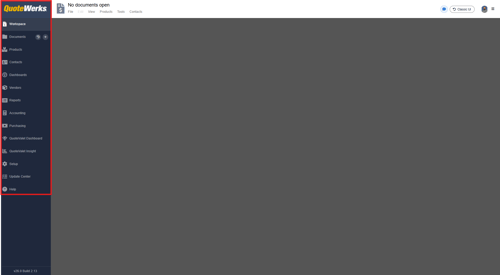
The Navigation Panel contains links to the following areas:
- Workspace will always return you to the Quote Workbook for the active document you have open. If you have multiple documents open, they will be displayed as tabs at the bottom of the workspace.
- Documents opens the Open Document Window where you can search any documents you have created in the QuoteWerks system.
- Products opens the Product Lookup Window which can be used to search for products to add to a document.
- Contacts opens the Find Contact window where you can search the QuoteWerks database or your connected CRM for contacts to add to a document.
- Dashboards opens QuoteWerks Dashboards that include important sales and document related information as well as access to the QuoteValet Dashboard.
- Vendors opens the Vendor Maintenance window where you can search for, create, and manage your vendors including important information that can be used in conjunction with the QuoteWerks Purchasing module.
- Reports opens the Reports window. Here you can create, edit, run, or delete reports associated with all the different database tables from the QuoteWerks system.
- Accounting opens the order export window where you can export orders to your connected accounting integration.
- Purchasing opens the Purchasing window. Here you can create manual purchase orders, submit online orders, manage placed purchase orders, and track items as they are ordered and received.
- QuoteValet Dashboard opens the QuoteValet Dashboard. Here you can view the Inbox, which contains information on quotes that have been delivered by QuoteValet, Reporting, which enables you to filter down information and documents from QuoteValet, and Payments which shows and allows you to filter payments that have been made using QuoteValet.
- QuoteValet Insight opens QuoteValet Insight. QuoteValet insight is a collection of tools that give you access to insights on customer’s QuoteValet activity, QuoteValet mobile, and different dashboards including one for peer reviews and document approvals.
- Setup expands to expose many different tools that can be used to configure QuoteWerks. This includes the ability to import and manage product databases, setup your integrations, create and manage users, and access advanced QuoteWerks tool sets.
- Update Center bring you to a page that displays all QuoteWerks Web updates including new features, fixes, and miscellaneous work being done by the QuoteWerks development team. Here you can search these entries to drill down into specific features and it updated on a regular basis to give you insight into the work being done on the platform.
- Help toggles the right Help menu where you can access different resources that assist you in making the most of QuoteWerks.
The Dropdown Menus
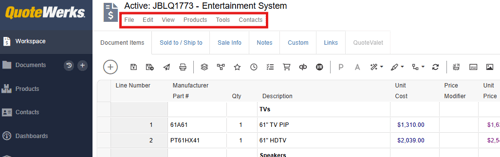
The dropdown menus across the top of the Workspace are similar to those that you would see in most windows applications. They include File, Edit, View, Products, Tools, and Contacts.
File
The file menu contains different options that enable you to create new documents, open, close, and save existing documents, templates and revisions. This menu also gives you the ability to rename or delete the document, insert existing documents, or duplicate the document. It also has options to approve the quote if approval is required and convert the quote to an Order, Invoice or Lost Sale. There is also an option to open the Print/E-mail/Deliver document window as well as a menu to open recent documents you have interacted with.
Edit
The edit menu contains basic and advanced cut, copy, paste, and select options that help when working with document items. Here you can also change line properties, types, and attributes, insert or add different types of lines into the document, delete or clear lines, apply changes to lines on the document, and convert items into groups.
View
The view menu has options that allow you to customize columns in the Quote Workbook, customize what tabs are displayed there, and to view documents that are associated to the currently open document including revisions, duplicates, or ones with the same project number.
Products
The products menu gives you the ability to open the Product Lookup Window, access the configurator and bundles, and setup your different product data sources.
Tools
The tools menu provides options to refresh item pricing and details, show item options, show customer product price history, export items, access the purchasing module, as well as My Preferences, which are the user preferences for the logged in user.
Contacts
The contacts menu gives you the ability to open the Lookup Contact window as well as setup your contact manager integration.
The Quote Workbook
The Quote Workbook opens anytime you open a document. This is also where you are returned anytime you click on Workspace. It contains different tabs across the top of the window that allow you to access different information connected to your open document.
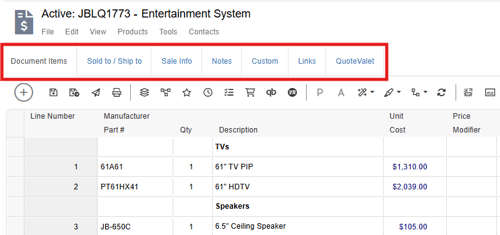
Detailed information on each of the tabs can be found by following the corresponding links below:
-
The document items tab is where you will spend most of your time working with a quote. This is where you will insert products, headings, and other objects that will help you build your quote.
-
The sold to/ship to tab is where you can add contacts to your document. There are three areas: sold to, ship to, and bill to.
-
The sale info tab stores additional information important to the overall quote. Here, you can specify a document status, shipping terms, payment terms, payment options, customer PO number, invoice date due, tax rate, alternate currency, sales rep, prepared-by user, and more.
-
The notes tab is where you can insert different types of text that can be either internal or printed on PDF outputs or QuoteValet quotes. This tab contains Introduction, Statement of Work, Closing, Internal Notes, Purchasing Notes, and Dynamic Notes.
-
Custom Tab
The custom tab allows you to store information related to the document that QuoteWerks does not already have pre-defined fields for. There are 24 CustomText, 5 CustomNumber, 2 CustomDate fields and 4 CustomMemo fields. -
The links tab is where you can add additional linked resources like word and PDF documents to be stored with a quote and only becomes selectable once a quote has been saved.
-
QuoteValet Tab
The QuoteValet tab is where you can get a quick overview of QuoteValet activity on a quote and manage a number of actions related to managing interactions with customers. The QuoteValet tab only becomes selectable once a quote has been uploaded to QuoteValet.
Grid Toolbar
In the Quote Workbook there is the Grid Toolbar across the top of the document grid that contains buttons to access different functions of the software.
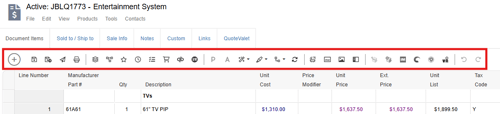
Details on each of these buttons are contained in the Grid Toolbar help article.